If your Motorola Edge 50 Pro has gone silent when it should be buzzing, it's a surprisingly common hiccup. The good news is it's almost always a software or settings issue you can fix yourself in a few minutes.
Force Restart Your Phone
Before diving into settings, give your phone a quick reboot. Just press and hold the Power button for about 10 seconds until you see the Motorola logo appear and the phone restarts. This clears out any temporary glitches that might be stopping the vibration motor from responding.
Check Your Sound Mode
It sounds obvious, but it's the most common fix. Pull down the Quick Settings panel from the top of your screen and look for the sound mode icon. Make sure it's set to "Sound" or "Vibrate," not "Silent" or "Do Not Disturb." If Do Not Disturb is on, it often silences vibrations as well.
You can also check this in your full settings. Go to Settings > Sound and look at the "Sound mode" option there. I'd switch it to "Vibrate" and test a notification to see if the buzz returns.
Verify the Basic Vibration Toggle
On the same Sound settings screen, there's a master switch for "Vibrate for calls." Make sure this is turned on. If it's already on, try turning it off and back on again. This resets the connection to the vibration motor.
While you're here, scroll down a bit. There's also a setting for "Vibrate on tap." Toggle this on to see if you get any feedback when you touch navigation buttons or type. If this works but calls don't vibrate, the issue is likely in your call settings.
Adjust Vibration Strength
The Edge 50 Pro lets you control how strong the buzz is. If it's set too low, you might not feel it, especially if the phone is in a pocket or bag. Head to Settings > Sound > Vibration strength.
You'll see separate sliders for "Call vibration" and "Notification vibration." Slide both to the maximum setting and test again. Some users have reported the default medium setting can feel a bit weak on this model.
Inspect App-Specific Notifications
If you're only missing vibrations from a specific app like Messages or WhatsApp, the problem is in that app's settings. Go to Settings > Apps > See all apps. Find the problematic app and tap on it.
Select "Notifications." Here, you'll see categories like "Messages" or "General." Tap into each relevant category and ensure the "Vibrate" option is enabled. Sometimes an app update can reset these permissions.
Check for a Software Update
Motorola can be slower with updates than some brands, but it's still worth checking. A bug in your current version of Android 14 could be the culprit. Go to Settings > System > System updates and tap "Check for update."
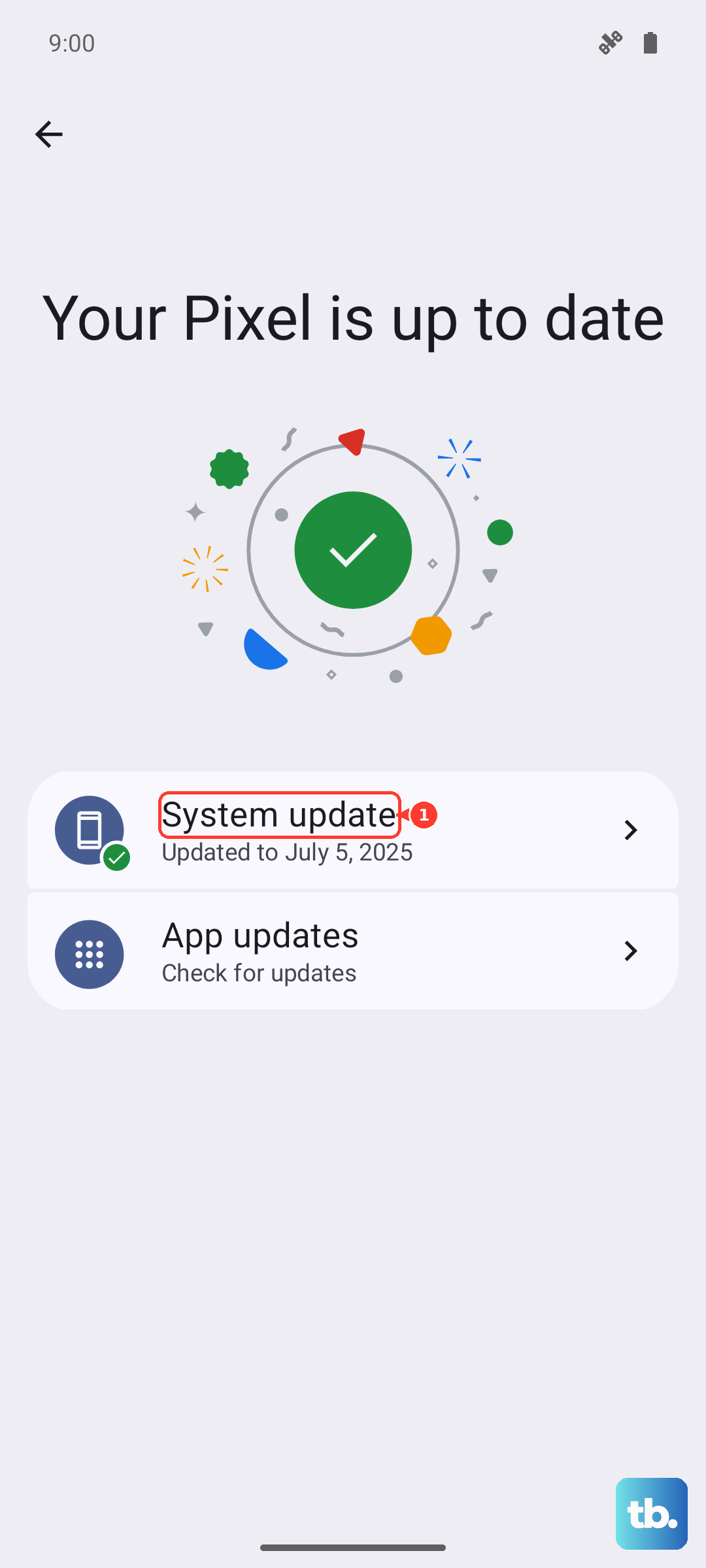
If an update is available, install it. The 125W TurboPower charger that came with your phone will get you back to 100% in about 18 minutes, so you won't be offline for long. I've seen minor glitches like this resolved by a simple patch.
Boot Into Safe Mode
This tests if a third-party app you installed is causing a conflict. To enter Safe Mode, press and hold the Power button until the power menu appears. Then, long-press the "Power off" option on your screen.
A prompt will ask if you want to reboot to Safe Mode. Tap "OK." Once booted, you'll see "Safe mode" in the bottom corner. Test your vibration. If it works now, a recently installed app is the problem. Restart normally to exit Safe Mode and start uninstalling apps one by one to find the culprit.
Reset App Preferences
This is a great middle-ground step that won't delete any of your personal data. It resets all your notification settings, app permissions, and default apps back to their factory state. You'll just need to re-grant permissions as you use apps again.
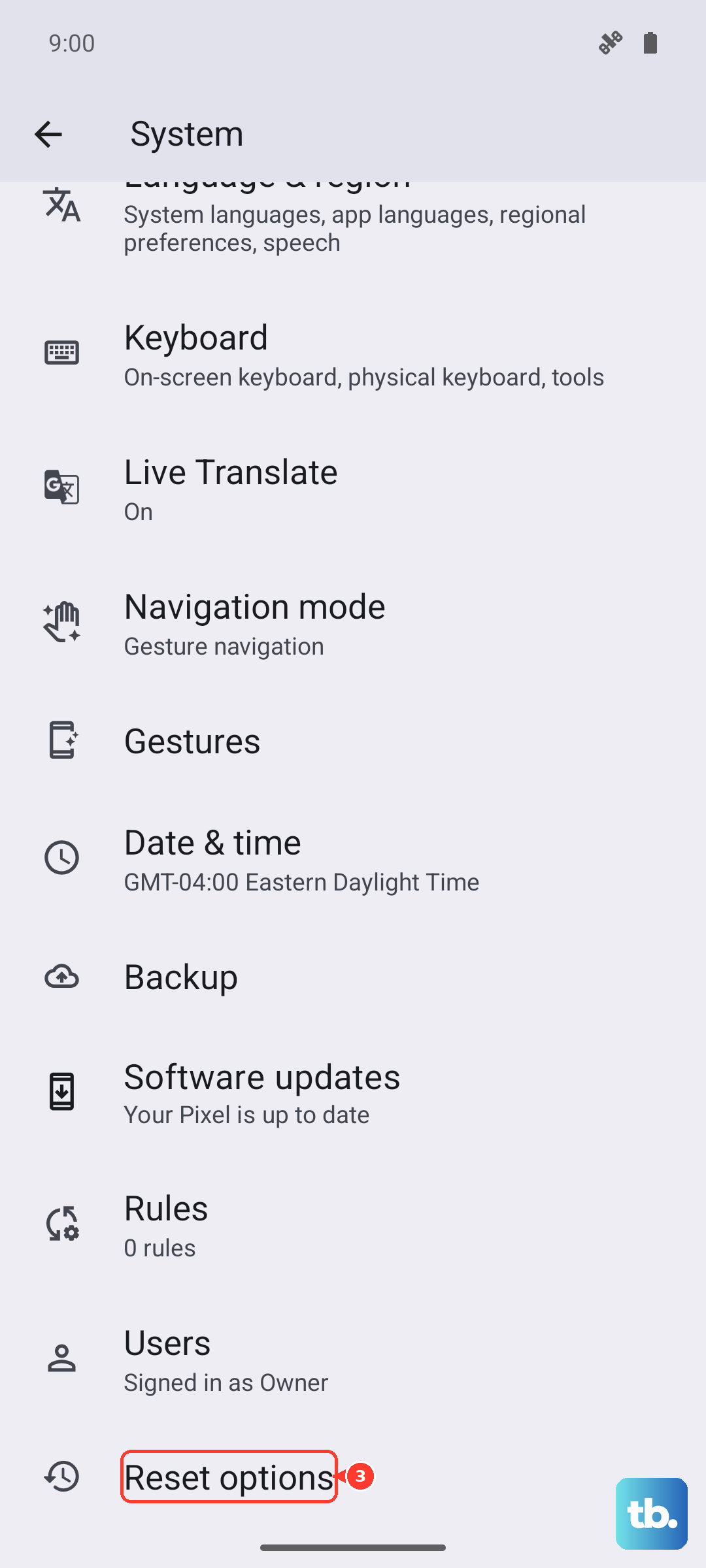
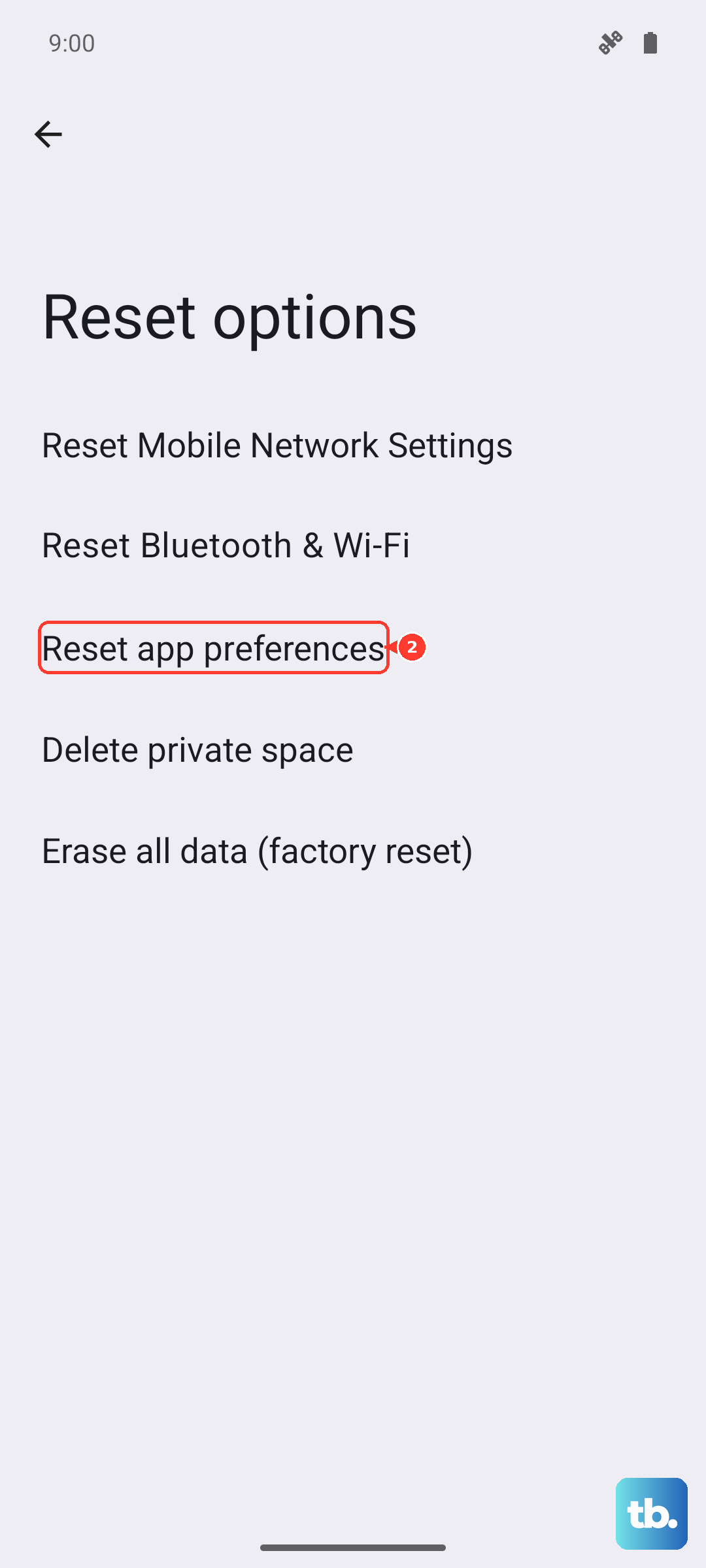
Go to Settings > System > Reset options. Tap "Reset app preferences" and confirm. This often clears up weird notification and vibration behaviors caused by a corrupted permission setting.
Test the Vibration Motor with a Diagnostic Tool
Motorola includes a hidden diagnostics menu. Open your Phone dialer and type in *#*#2486#*#*. This should open the "Test Mode" menu. Look for an option labeled "Vibration" or "Vibrator."
Select it to run an automated test. If the phone vibrates strongly during this test, the hardware is perfectly fine and the issue is purely software-based. If nothing happens here, there might be a physical problem with the motor.
Perform a Factory Reset (Last Resort)
If all else fails, a factory reset will wipe the phone back to its original state. This will erase all your data, so you must back up everything important first. Use Google One for your apps and settings, and copy photos/files to a computer or cloud service.
Once backed up, go to Settings > System > Reset options > Erase all data (factory reset). Follow the prompts. After the reset, set the phone up as new (don't restore a backup immediately) and see if vibration works. If it does, you can then try restoring your backup, but sometimes the backup contains the corrupted setting.