
If your Motorola Edge 50 Pro is taking forever to load a webpage or buffer a video, it can really kill your momentum. The Snapdragon 7 Gen 3 chip is capable, but network issues can still bog it down. Let's get your speeds back up.
I'd start with the simplest fix first. A quick restart of your phone and your router can clear out temporary software glitches that are slowing things down. For the Edge 50 Pro, just press and hold the power button for about 10 seconds until you see the Motorola logo appear and the phone restarts.
Toggle Airplane Mode On and Off
This is a classic trick that forces your phone to re-establish a fresh connection with the cell tower. Swipe down from the top of your screen to open the Quick Settings panel and tap the Airplane icon. Wait about 10 seconds, then tap it again to turn it off. You should see your signal bars drop and then come back.
Give it a moment to reconnect, then try your internet again. This often resolves minor hiccups with both mobile data and WiFi instantly.
Check Your Current Network Mode
Your Edge 50 Pro might be stuck on a slower network type. You can manually set it to prefer the fastest available. Go to Settings > Network & internet > Mobile network.
Tap on Preferred network type. For the fastest speeds, select 5G or 4G/3G/2G (auto). If you're in an area with spotty 5G, forcing 4G can sometimes give you a more stable and consistent connection.
Forget and Reconnect to Your WiFi Network
If the slowdown is only on WiFi, your phone might have a corrupted connection profile for your network. Head to Settings > Network & internet > Internet. Tap on the gear icon next to your WiFi network name.
At the bottom, tap Forget. Confirm, then search for your network again and re-enter the password. This establishes a clean connection and can often boost speed significantly.
Enable Data Saver on Mobile Networks
This might sound counterintuitive, but Data Saver can actually improve perceived speed by stopping apps from using data in the background. This frees up bandwidth for the app you're actively using. Go to Settings > Network & internet > Data Saver.
Toggle it on. You can also tap on Unrestricted data to choose specific apps, like your music streaming service, that are allowed to use data freely even when Data Saver is active.
Clear the Cache for Key Services
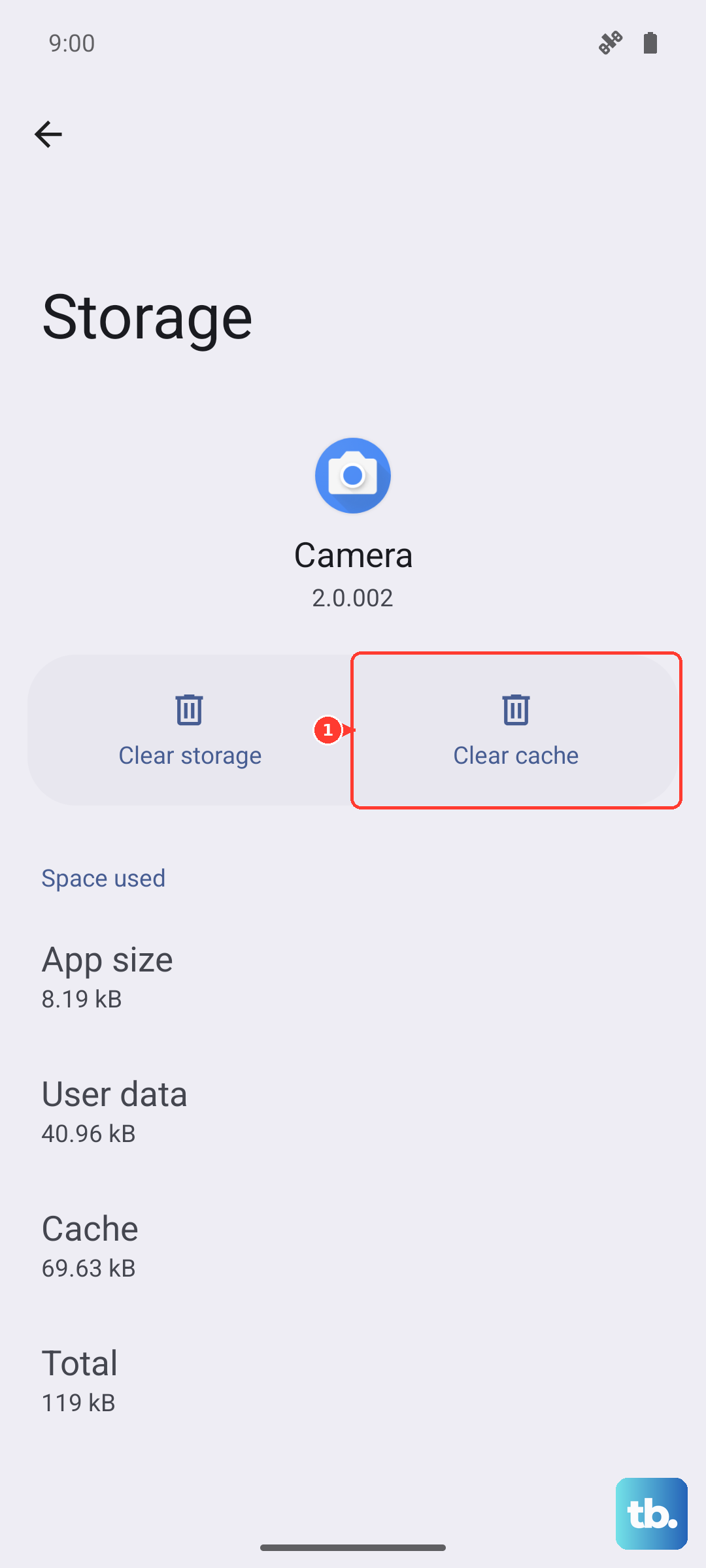
Over time, apps like Google Play Services and Chrome store temporary data that can get corrupted and affect performance. Go to Settings > Apps > See all apps. Find and tap on Google Play Services.
Tap Storage & cache, then tap Clear cache. Do the same for your main browser, whether it's Chrome or another app. This doesn't delete any personal data like passwords.
Check for Software Updates
Motorola can be slower with updates than some brands, but when they arrive, they often include important connectivity fixes. Go to Settings > System > System updates.
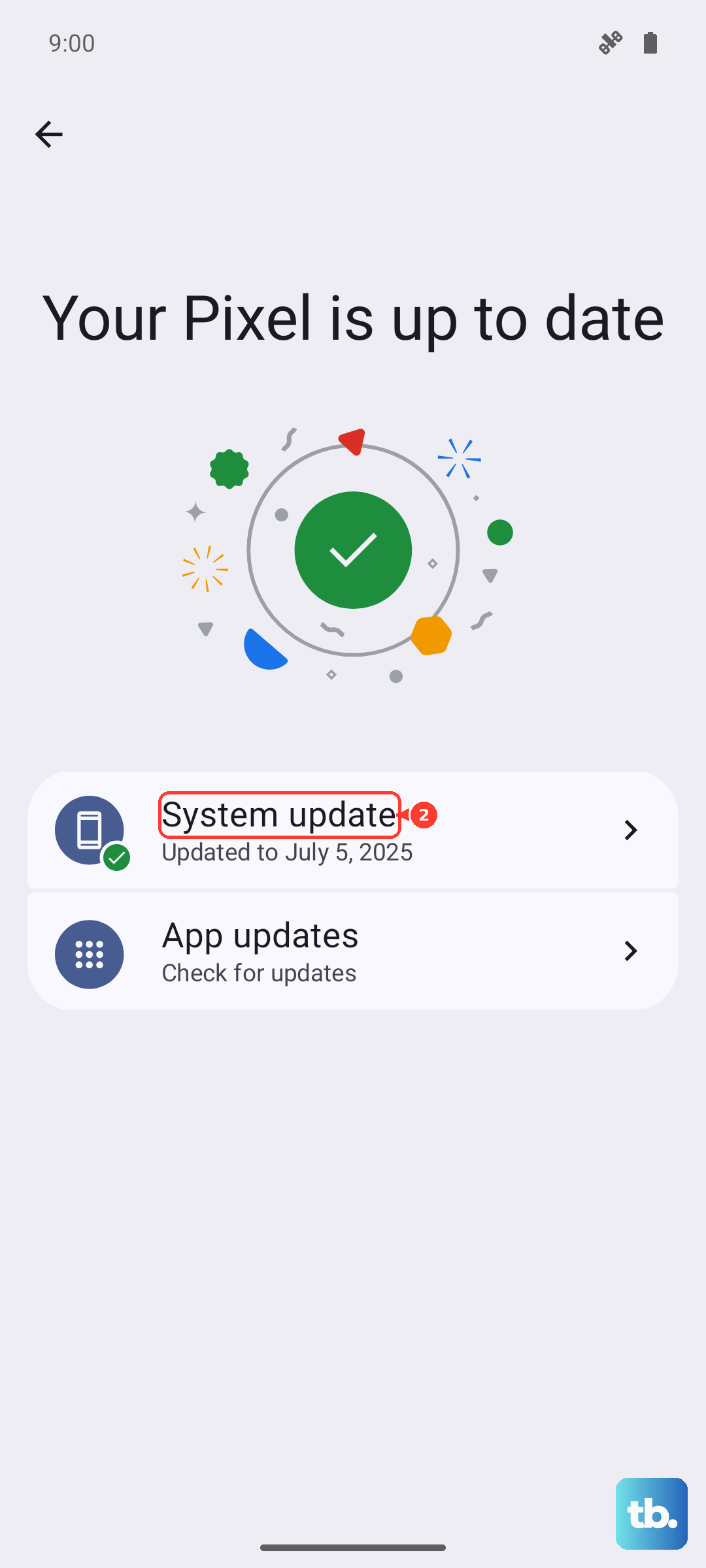
Tap Check for update. If one is available, install it. It's a good idea to be on WiFi and have your phone plugged into that 125W TurboPower charger for this, as the update can take a few minutes.
Disable Any Active VPN Connections
While VPNs are great for privacy, they route your traffic through another server, which almost always adds latency and reduces speed. If you have a VPN app running, open it and disconnect.
You can also check your Quick Settings panel (swipe down twice) to see if a VPN tile is active. After disabling it, test your internet speed again to see if that was the bottleneck.
Reset Your Phone's Network Settings
This is a more comprehensive step if nothing else has worked. It will erase all your saved WiFi networks, Bluetooth pairings, and mobile network preferences, so you'll have to set them up again. Go to Settings > System > Reset options.
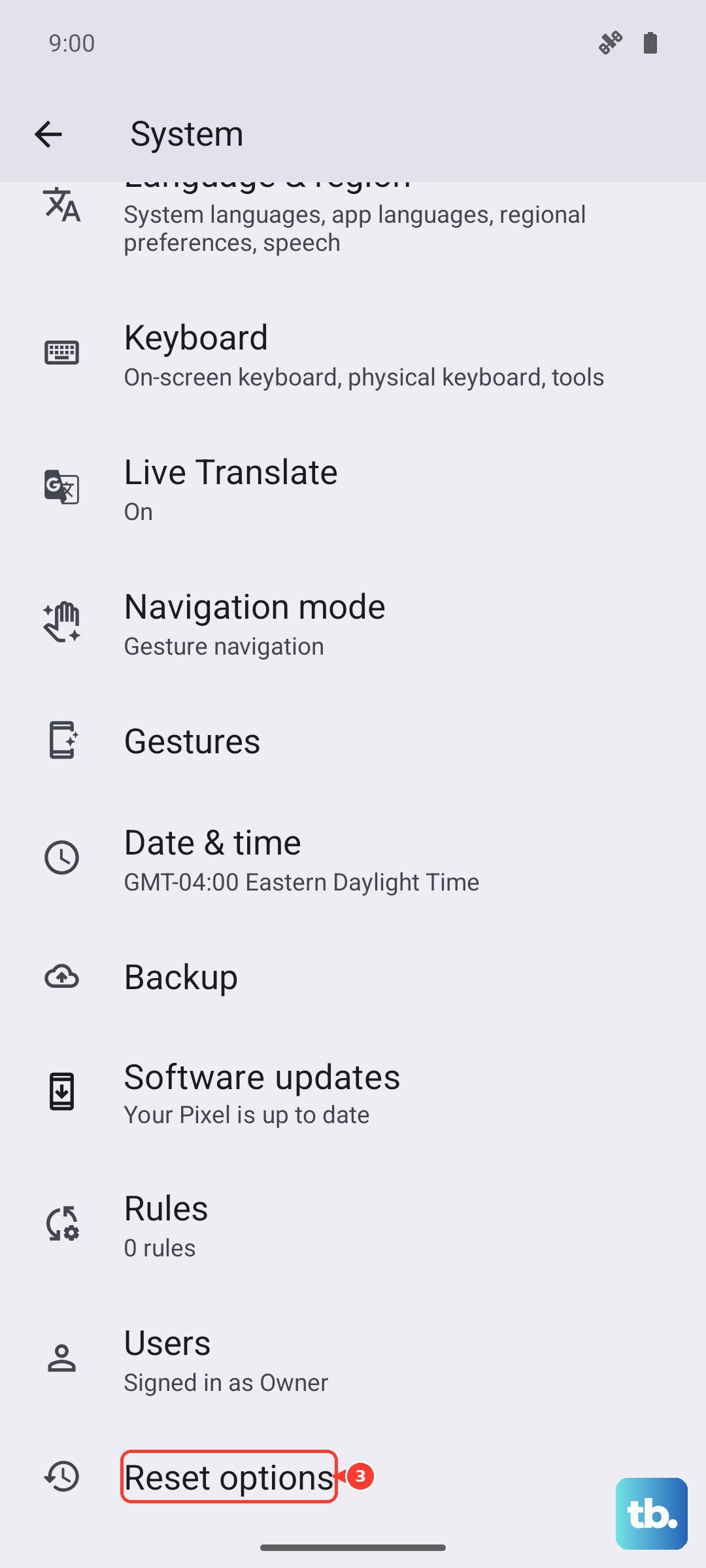
Tap on Reset Wi-Fi, mobile & Bluetooth. Confirm the action. Your phone will restart, and you can start reconnecting to your networks from scratch. This clears out any deep-seated configuration errors.
Test in a Different Location
Sometimes the issue isn't your phone, but network congestion or a weak signal. If your mobile data is slow, try moving to a different area or near a window. For WiFi, try getting closer to your router.
The 4500mAh battery in the Edge 50 Pro is decent, but a weak signal forces the modem to work harder, which drains battery faster. If you consistently see slow speeds in one spot, it's likely an environmental issue.