
If your Motorola Edge 50 Pro's GPS is acting up, you're in the right place. A spotty location can turn a simple drive into a headache, especially when you're relying on that 125W TurboPower charge to get you out the door fast. The good news is most GPS problems are software glitches you can fix yourself.
I'd start with the quick refresh below. It solves the issue more often than you'd think.
Refresh Your GPS Connection
Swipe down twice from the top of your screen to open the full Quick Settings panel. Look for the Location icon, which looks like a little teardrop. Tap it once to turn location services off, wait about ten seconds, and then tap it again to turn it back on.
This simple toggle forces your phone's GPS radio to reconnect from scratch. It clears any temporary hiccups in the connection to the satellites overhead.
Perform a Force Restart
When a simple toggle doesn't cut it, a full restart is your next best move. For the Edge 50 Pro, press and hold the side Power button for about 10 seconds, or until you feel it vibrate and see the Motorola logo appear.
This is more thorough than a standard restart. It clears the system RAM and stops all background processes, which can include whatever app or service is interfering with the location data.
Check Your Location Mode and Permissions
Android 14 on the Edge 50 Pro gives you fine control over how location works. Open Settings and tap Location. First, make sure the main switch at the top is on.
Then, tap on Location services. For the best possible GPS performance, especially for turn-by-turn navigation, select High accuracy. This mode uses GPS satellites, Wi-Fi, and mobile networks together to pin down your location.
You also need to check app permissions. Go to Settings > Apps, select your navigation app (like Google Maps or Waze), then tap Permissions. Ensure Location is set to "Allow all the time" or "Allow only while using the app" for it to work properly.
Disable Battery Optimization for Navigation Apps
This is a common culprit on Motorola phones. Android's battery optimization is designed to extend life, but it can be too aggressive and cut off background location access.
Go to Settings > Apps and select your maps app. Tap Battery, then change the setting from "Optimized" to Unrestricted. This tells the system not to restrict the app's background activity, which is crucial for live GPS tracking.
Given the Edge 50 Pro's 4500mAh battery is a bit smaller than some rivals, the software might be extra eager to save power. Disabling this optimization for your key navigation apps makes a big difference.
Update Your Apps and System Software
Outdated software is a frequent source of GPS bugs. First, open the Google Play Store, tap your profile icon, and go to Manage apps & device. Install any pending updates, especially for Google Maps, Google Play Services, and any other navigation apps you use.
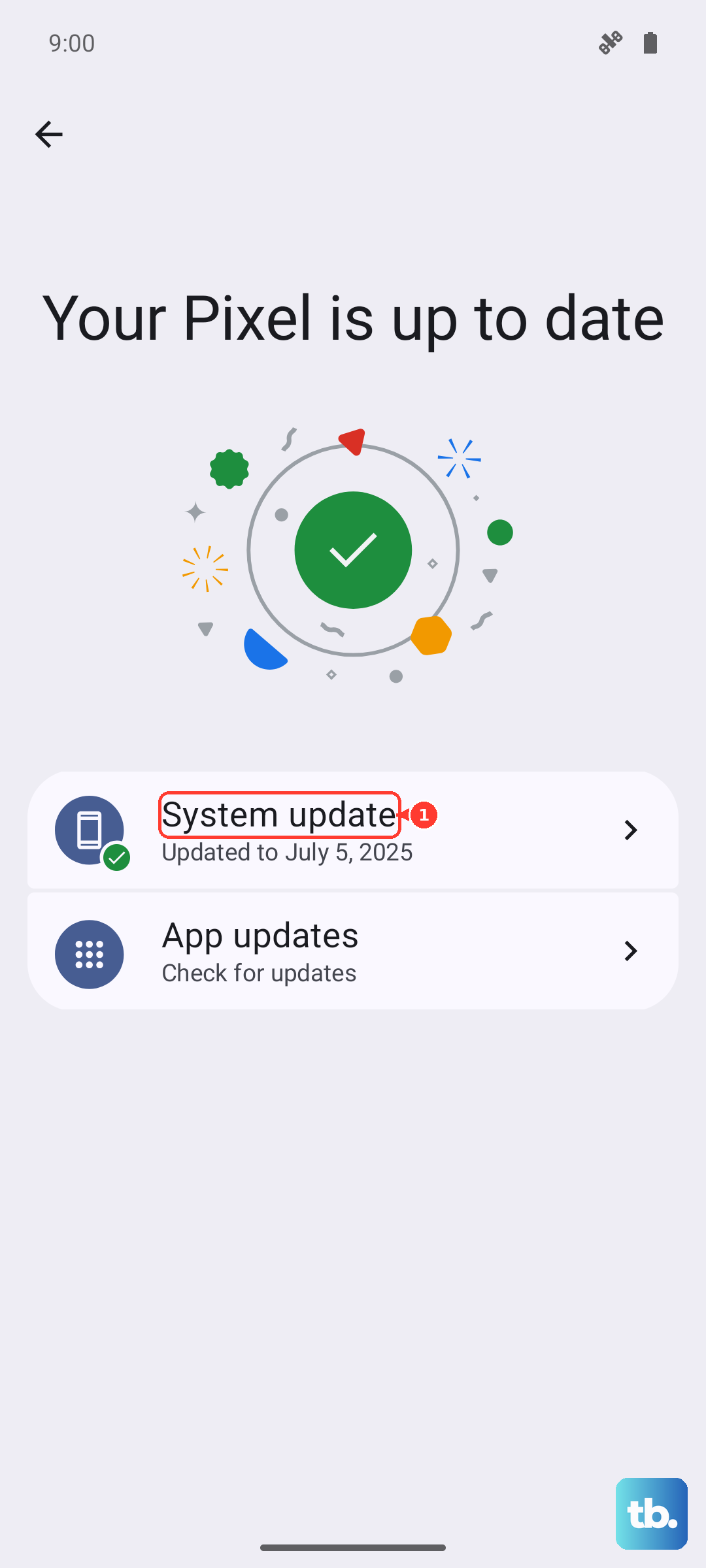
Next, check for a system update. Motorola can be slower with updates than some brands, but it's still important. Go to Settings > System > System updates to see if a new version of Android 14 is waiting. These updates often include fixes for connectivity issues.
Clear the App Cache and Data
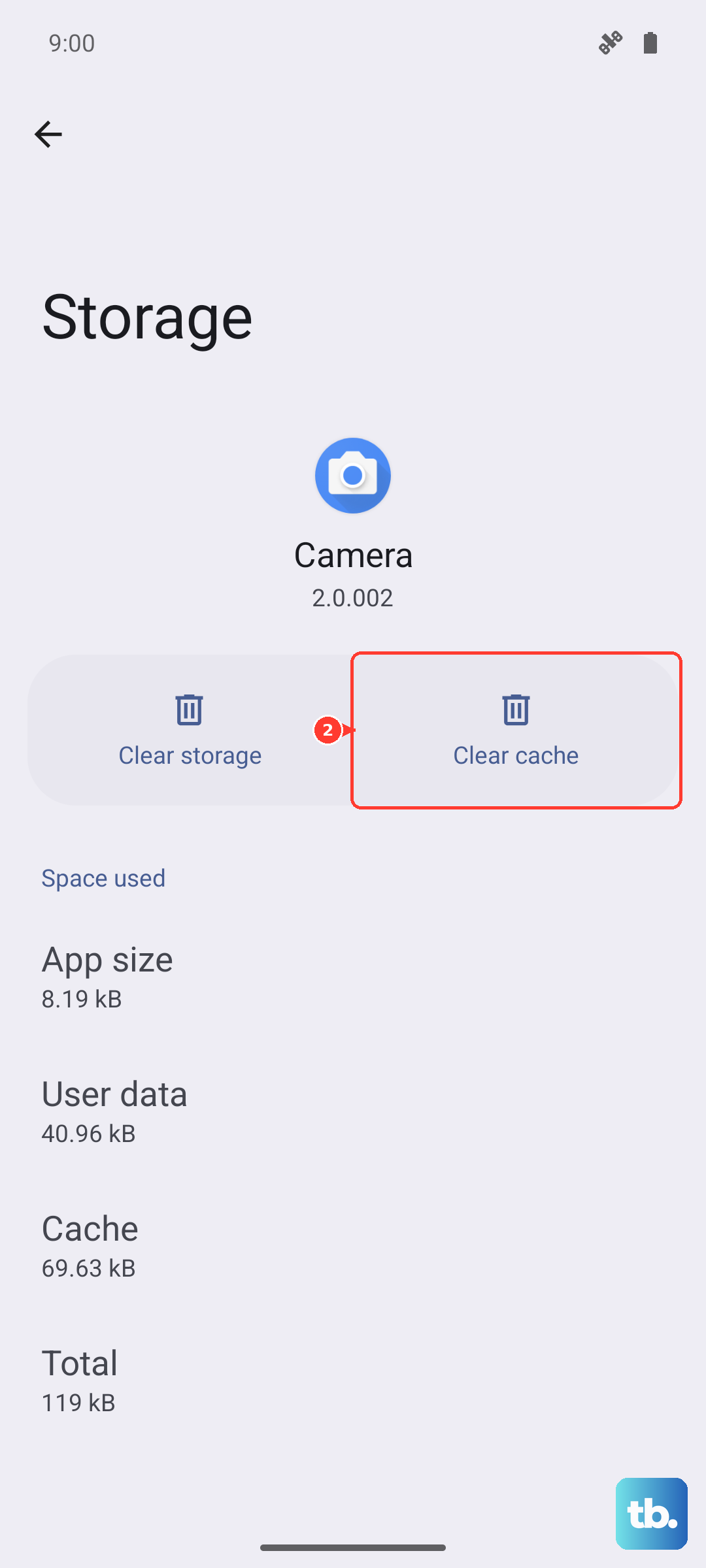
Corrupted temporary files can break an app's functionality. For your navigation app, head to Settings > Apps, select the app, and tap Storage & cache.
Tap Clear cache first. This is safe and won't delete your saved places. If the GPS is still broken, you can try Clear storage or Clear data. Just be warned, this will reset the app completely, erasing any offline maps or custom settings you have saved within it.
Reset Your Network Connections
Sometimes the issue is with how your phone connects to the assistive data that helps GPS. A network reset can clear this up. Pull down the Quick Settings panel and tap the Airplane mode icon.
Wait 15 full seconds for all radios (cellular, Wi-Fi, Bluetooth, GPS) to fully disable, then tap it again to turn Airplane mode off. This forces a fresh connection to mobile networks and Wi-Fi, which provide the A-GPS data that helps your phone find satellites faster.
Check for Physical and Environmental Issues
GPS signals are line-of-sight and can be blocked. If you're indoors, in a dense urban area with tall buildings, or under heavy tree cover, your accuracy will suffer. Try moving to an open window or stepping outside.
Also, consider your phone case. A very thick or metallic case, especially one with a magnetic closure for the 50W wireless charging stand, can potentially interfere with the internal GPS antenna. Try removing the case briefly to see if your signal improves.
Test in Safe Mode
This helps you figure out if a third-party app you installed is causing the conflict. To boot the Edge 50 Pro into Safe Mode, press and hold the Power button until the power menu appears.
Then, tap and hold your finger on the Power off option. A prompt will appear asking if you want to reboot to Safe Mode. Tap OK. Once booted, you'll see "Safe mode" in the bottom corner. Try using Google Maps now.
If GPS works perfectly in Safe Mode, a recently downloaded app is likely the culprit. Restart your phone normally to exit Safe Mode and try uninstalling apps one by one, starting with the most recent.
Use a GPS Diagnostic Tool
Before considering more drastic steps, it's helpful to know if the hardware itself is broken. Download a free app like "GPS Test" or "GPS Essentials" from the Play Store.
Open the app and go to its satellite view. Take the phone outside with a clear view of the sky. If the app shows your phone connecting to multiple satellites (you'll see them as bars with signal strength) but your maps app still doesn't work, it's almost certainly a software issue.
If the diagnostic app shows zero satellites, even after several minutes outdoors, there might be a physical problem with the antenna. This is less common but possible.
Wipe the Cache Partition
This clears temporary system files that can become corrupted, without touching your personal data. First, power your Edge 50 Pro completely off. Press and hold the Volume Down button and the Power button at the same time.
When the Motorola logo appears, release both buttons. You'll see the Android Recovery screen. Use the volume buttons to highlight Wipe cache partition and press the power button to select it. Confirm the action, then select Reboot system now.