When the Mail app on your Motorola Edge 50 Pro stops syncing or sending messages, it can leave you disconnected. The issue is often a simple setting or a temporary glitch, especially with the phone's Android 14 software. I'd start by checking the most common fix first.
Before anything else, make sure you have a working internet connection. Open a web browser and try loading a website. Also, check if your email service itself is down by visiting its status page on another device.
Force Close and Reopen the Mail App
This is the quickest fix for a frozen or misbehaving app. Swipe up from the bottom of the screen and hold to enter the recent apps view. Find the Mail app and swipe it all the way up to close it. Wait a moment, then tap the app icon to reopen it fresh.
Check Your Sync and Background Data Settings
Android can restrict background data to save battery, which might stop your mail from syncing automatically. Go to Settings > Accounts & backup > Accounts. Select your email account and make sure the sync toggle for Mail is turned on.
Next, check the app's specific background data permission. Go to Settings > Apps > See all apps. Find and select your Mail app (like Gmail or Outlook). Tap Mobile data & Wi-Fi and ensure "Allow background data usage" is enabled.
Toggle Airplane Mode to Reset Connections
A quick network reset can clear up temporary connectivity bugs. Swipe down from the top of your screen twice to open the full Quick Settings panel. Tap the Airplane mode icon to turn it on, wait about 15 seconds, then tap it again to turn it off. Your phone will reconnect to Wi-Fi and mobile data.
Verify Your Email Account Password
Sometimes passwords expire or change, especially with work or school accounts. The easiest way to check is to go to Settings > Accounts & backup > Accounts. Tap on your problematic email account. If there's a sign-in error, you'll usually see an option to re-enter your password right there.
You can also try logging into your email account through a web browser on your phone. If you can't sign in there, you'll need to reset your password with your email provider before updating it on your Edge 50 Pro.
Clear the Mail App's Cache and Data
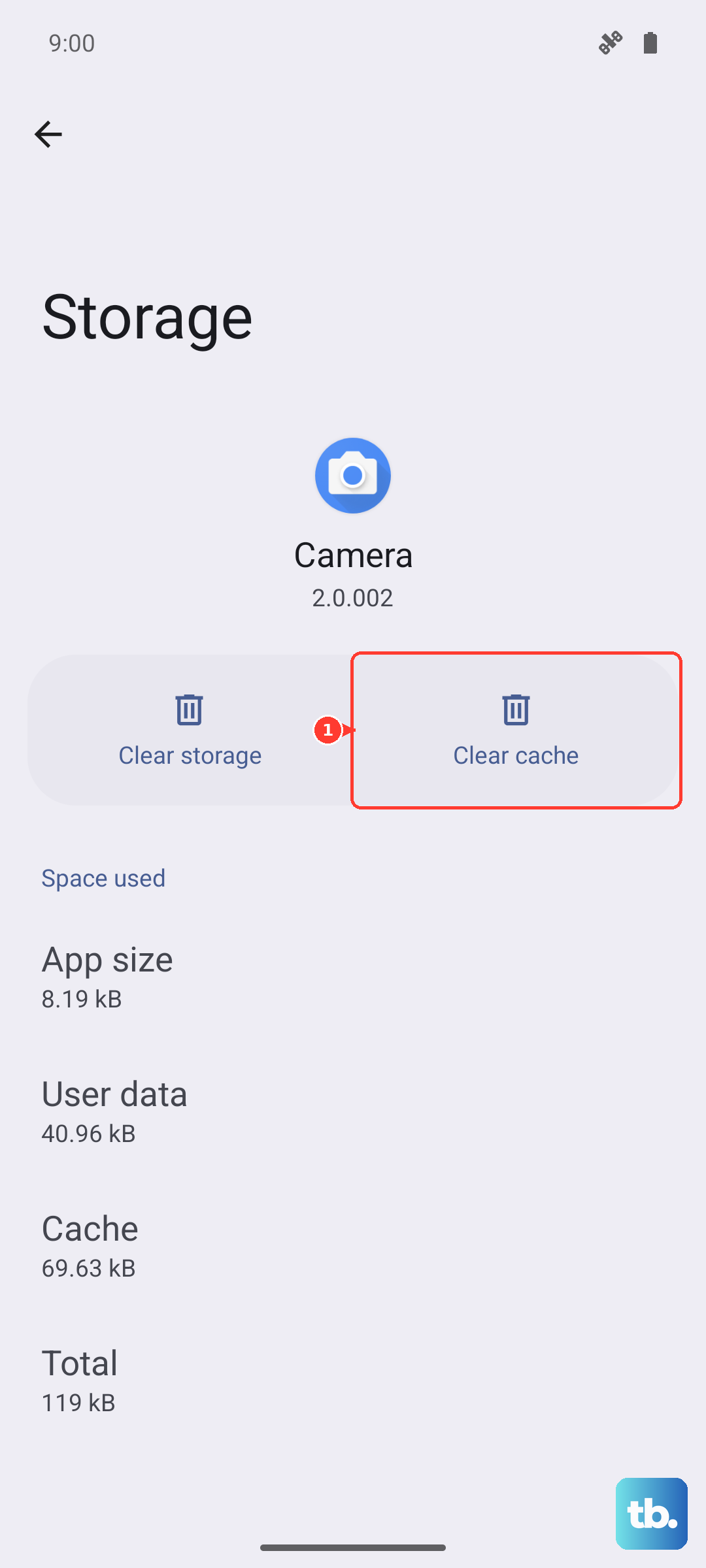
Corrupted temporary files can cause all sorts of app problems. This won't delete your emails, but it will reset the app's settings. Go to Settings > Apps > See all apps. Find and select your Mail app.
Tap Storage & cache. First, tap Clear cache. If the problem persists, go back and tap Clear storage or Clear data. You'll need to set up your email account in the app again after this.
Check for System and App Updates
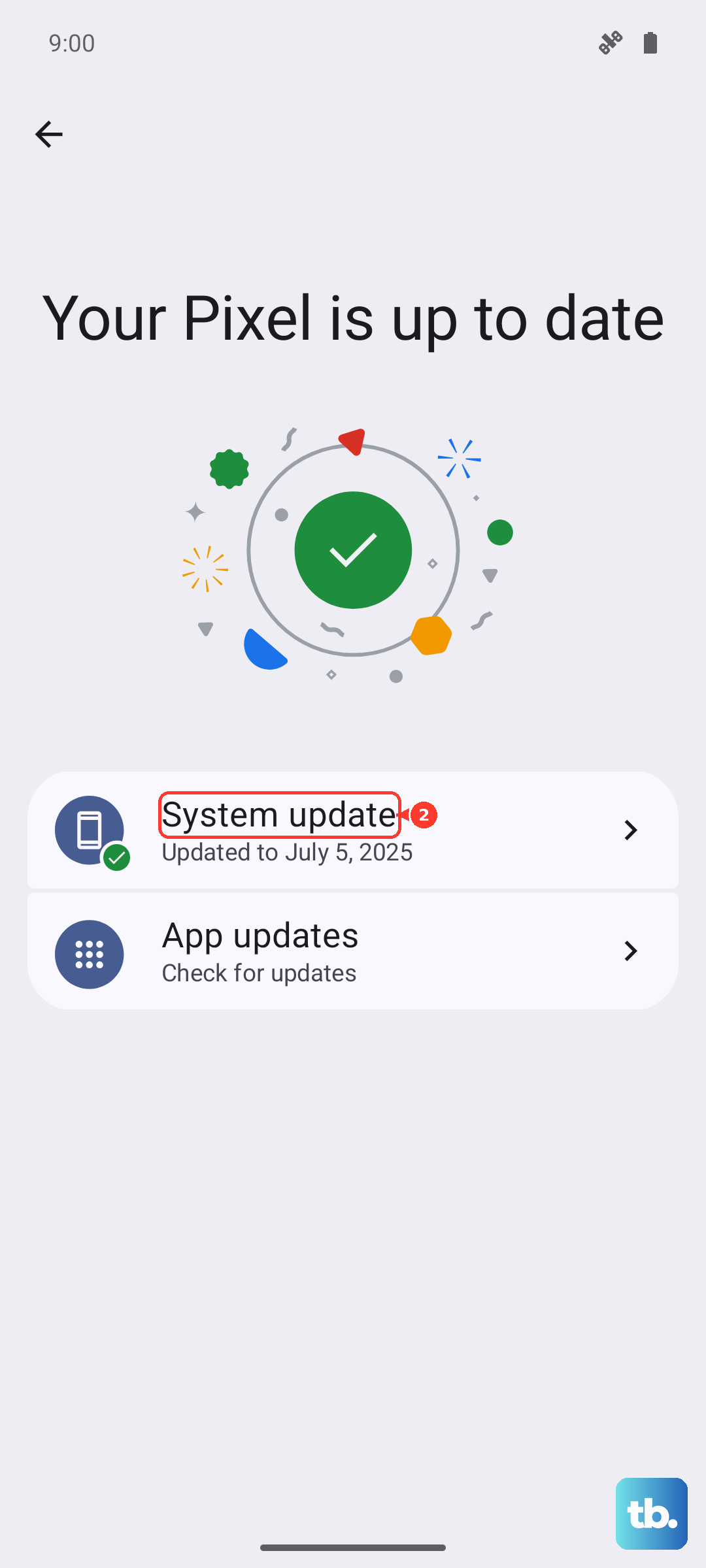
Motorola can be slower with updates than some brands, but it's still crucial to check. An outdated app or system software might have a bug affecting email. Go to Settings > System > System updates to check for Android updates.
For the app itself, open the Google Play Store, tap your profile picture, and go to Manage apps & device. Under "Updates available," see if your email app is listed. Keeping apps updated is one of the best ways to ensure stability.
Review Your Battery Optimization Settings
Android's aggressive battery saving can sometimes prevent apps from syncing in the background. For your Mail app, go to Settings > Apps > See all apps. Select your Mail app and tap Battery.
Set the battery setting to Unrestricted. This tells the system not to restrict the app's background activity, which should allow for real-time email syncing. Given the Edge 50 Pro's 4500mAh battery, this setting shouldn't cause a major drain.
Remove and Re-add Your Email Account
If settings are corrupted, a fresh start often works. Go to Settings > Accounts & backup > Accounts. Tap the email account giving you trouble, then tap Remove account. Confirm the removal.
To add it back, go to the same Accounts menu and tap Add account. Follow the prompts to re-enter your email address and password. The phone will automatically configure the server settings for most major providers.
Disable Any Active VPN
A VPN can interfere with the connection to your email server. If you're using one, try turning it off temporarily. Swipe down for Quick Settings and look for a VPN tile, or go to Settings > Network & internet > VPN to disconnect. Test your mail again without it.
Perform a Force Restart
A soft reset can clear out system-level glitches without deleting any data. Simply press and hold the Power button on the right side of your Edge 50 Pro for about 10 seconds. Keep holding until you see the Motorola logo appear, then release. The phone will reboot.
Reset Your Network Settings
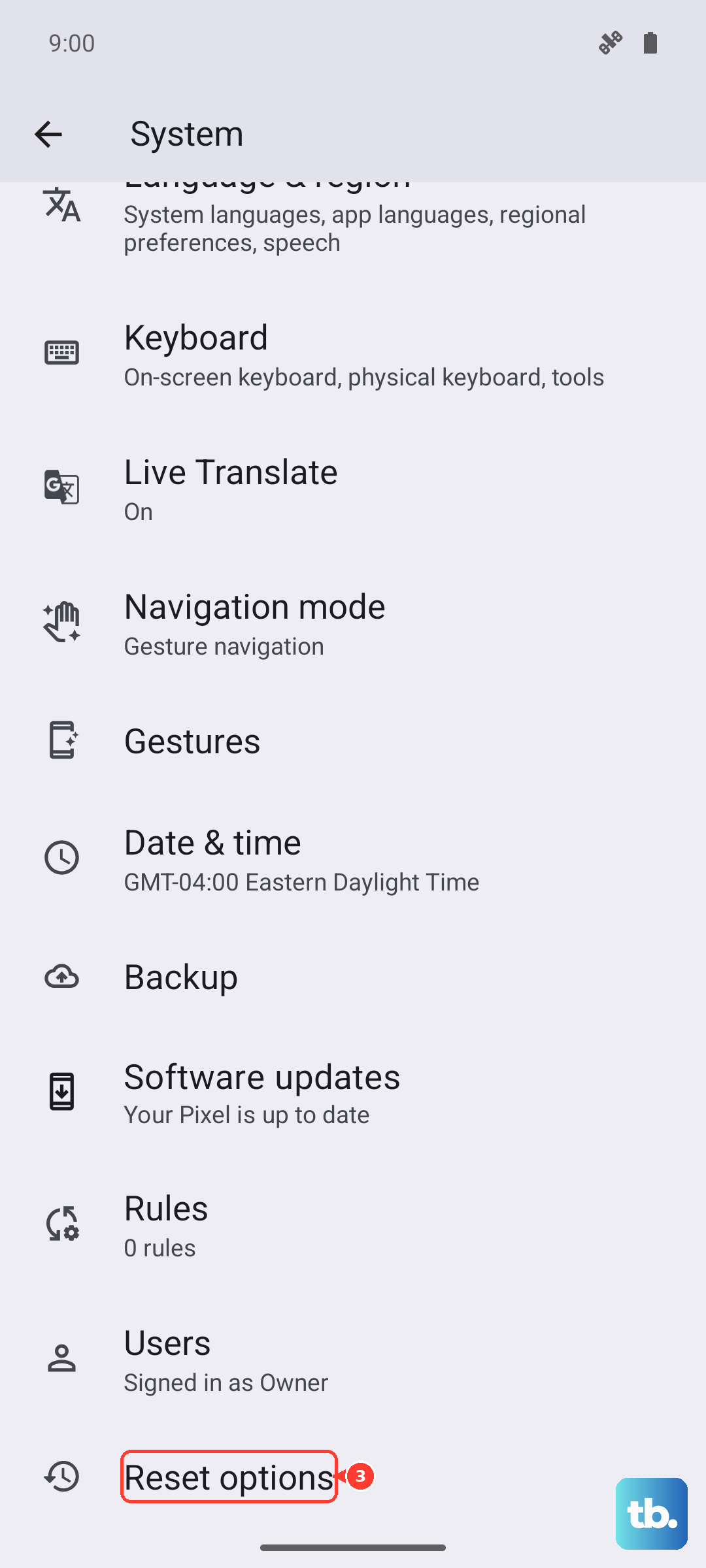
This is a deeper fix for persistent connection issues. It will erase all Wi-Fi passwords, Bluetooth pairings, and mobile network settings. Go to Settings > System > Reset options. Tap Reset Wi-Fi, mobile & Bluetooth and confirm. After the phone restarts, you'll need to reconnect to your Wi-Fi networks.