
When your Motorola Edge 50 Pro starts dropping apps left and right, it can feel like you're fighting the phone itself. That Snapdragon 7 Gen 3 chip is solid, but it's not immune to the usual Android hiccups. The good news is you can almost always get things running smoothly again without too much fuss.
Restart Your Edge 50 Pro
This is the universal first step for a reason. A quick restart clears out the phone's temporary memory and stops any background processes that might be causing conflicts. Just press and hold the power button for about 10 seconds until you see the Motorola logo appear and the phone cycles back on.
Update the Problem App
App developers are constantly pushing out patches for bugs. Open the Google Play Store, tap your profile icon in the top right, and go to Manage apps & device. If you see updates available, especially for the app that's crashing, install them. I've found this fixes more issues than people expect.
Force Stop and Relaunch
If an app is frozen or misbehaving, you need to shut it down completely. Go to Settings > Apps, find the troublesome app in the list, and tap on it. On the app's info page, tap Force Stop. Wait a moment, then open the app again from your home screen. This gives it a clean slate.
Clear the App's Cache
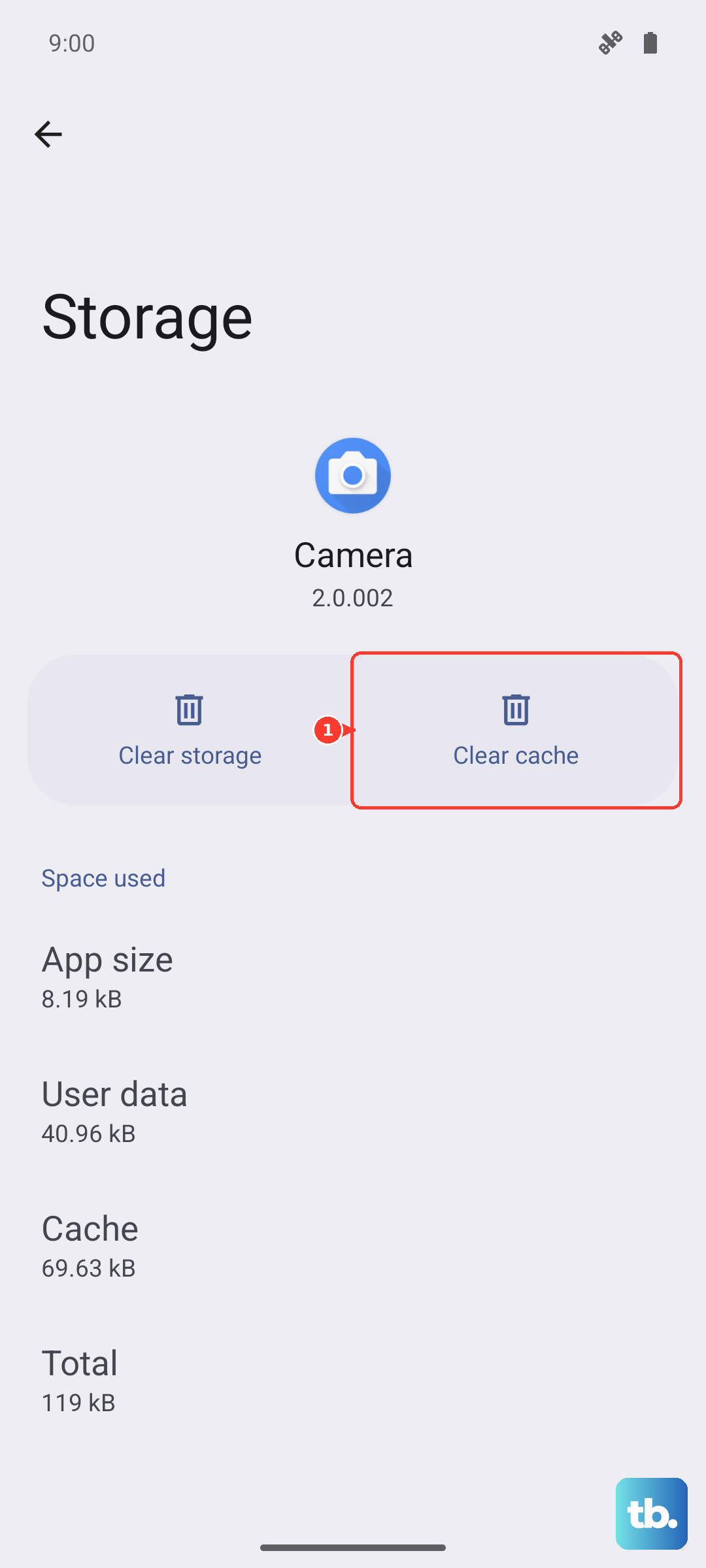
Apps store temporary data (cache) to load faster, but this data can get corrupted. Clearing it is safe and won't delete your login info or saved files. In the same app info screen (Settings > Apps > [App Name]), tap Storage & cache, then hit Clear Cache. Try the app again after doing this.
Check Your Internet Connection
Apps that rely on a network connection, like social media or banking apps, will often crash or fail to load if your connection is spotty. Toggle your Wi-Fi off and on, or try switching to mobile data for a moment to see if the app stabilizes. A weak or fluctuating signal is a common culprit.
Free Up Storage Space
The Edge 50 Pro starts with 128GB or 256GB, but it can fill up. If your storage is nearly full, apps can't create the temporary files they need to run. Head to Settings > Storage and see what's using space. Consider offloading old videos or photos to the cloud, or uninstalling apps you no longer use.
Update Android and Motorola's Software
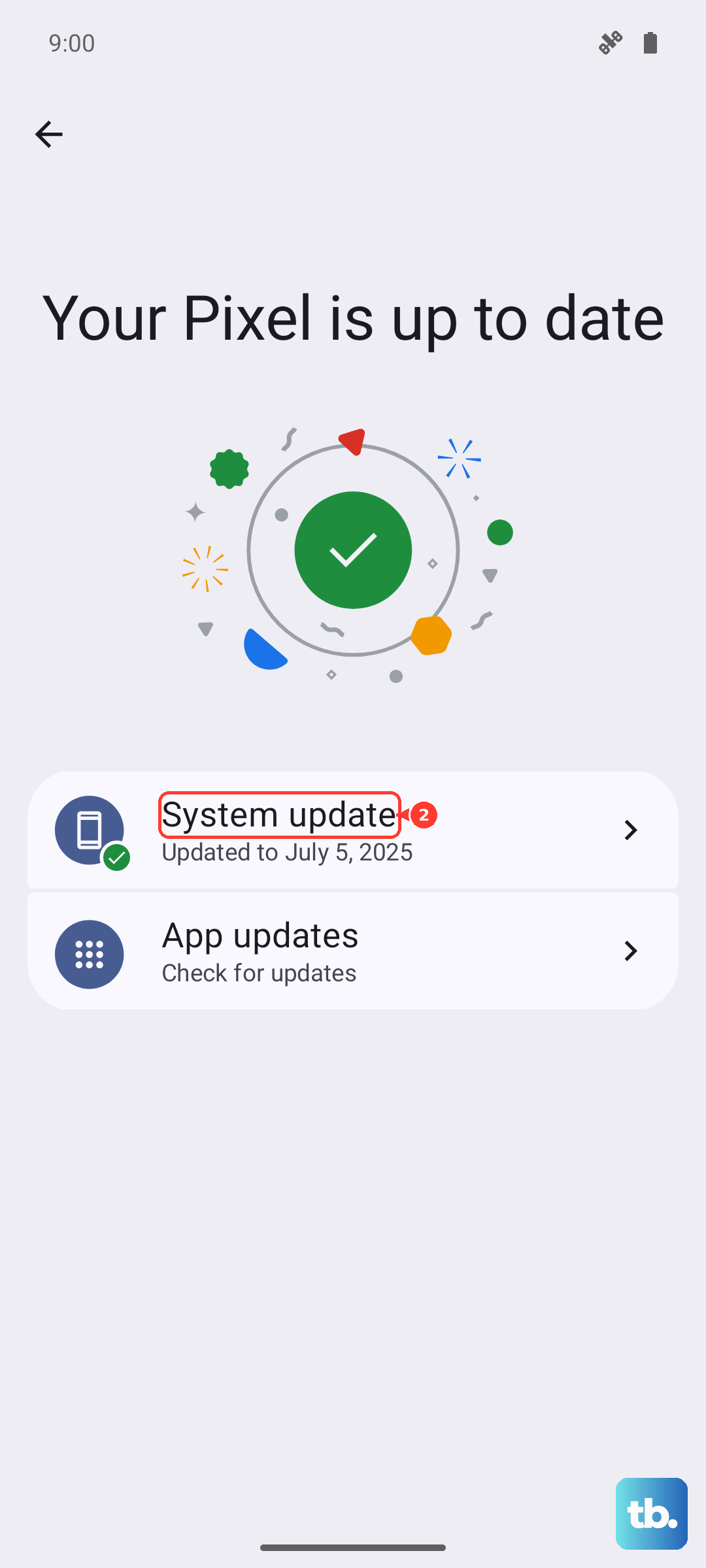
Keeping your system software current is crucial. Motorola's updates can include important stability patches. Go to Settings > System > System updates and tap Check for update. If one is available, install it. While Motorola isn't the fastest with updates, the ones they do release often squash bugs.
Clear the App's Data (A More Thorough Reset)
This is a stronger step than clearing the cache. It will reset the app back to its original, just-installed state, so you'll lose any settings or data stored locally within the app. In the app's storage menu (Settings > Apps > [App Name] > Storage & cache), tap Clear storage or Clear data. You'll then need to log back in and set up any preferences.
Uninstall and Reinstall the App
If the app is still crashing, the installation files themselves might be damaged. Press and hold the app icon on your home screen, tap Uninstall, and confirm. Then, head back to the Google Play Store and download a fresh copy. This ensures you have a clean, complete set of files.
For system-wide instability where many apps are crashing, you can try booting into Safe Mode. Press and hold the power button, then long-press the "Power off" option on your screen until you see the Safe Mode prompt. This disables all third-party apps. If the crashes stop in Safe Mode, a recently downloaded app is likely the cause.