Your Motorola Edge 40 keeps throwing a "Storage space running out" warning, apps refuse to update, the camera stalls before it can save a shot, and the whole phone feels sluggish. Because the Edge 40 ships with fixed internal storage (the 128GB or 256GB that was built in) and has no microSD slot, you cannot just slide in a memory card to buy yourself more room. The fix has to come from the phone itself, and almost all of that space can be reclaimed using tools already sitting inside Settings, the Files app, and Google Photos.
The fixes below are ordered from the quickest and safest to the most drastic. Start at the top, check your free space after each step, and you will very likely solve the problem long before you reach the reset section at the end.
Why a memory card is not the answer on this phone
It is worth knowing what you are working with before you start deleting things. Motorola's official hardware page for the Edge 40 lists only a "Tray for SIM card", which means there is no SD or microSD slot and no way to expand the built-in storage. Every gigabyte you reclaim has to come from caches, files, apps, or media you move off the device.
That makes the cloud your real "extra storage" here. Once your photos and videos are safely backed up, the local copies are the single biggest thing you can clear, so several of the steps below focus on exactly that.
Restart first to clear out temporary clutter
A simple reboot clears temporary files and frees up RAM, and it often makes a borderline storage-full warning disappear long enough to do the rest of the cleanup. Restart the phone the normal way through the power menu and let it come back up before you go further.
If the screen is frozen and will not respond, force a restart instead: press and hold the Power key for 10 to 20 seconds until the phone powers down and reboots. Motorola confirms that data on your phone will not be deleted by this, so it is safe to use whenever the device is stuck.
Find out exactly what is eating your storage
Before deleting anything, see where the space has actually gone. Go to Settings > Storage to view how much room is in use and what is taking it up, broken down by apps, photos, videos, and other files.
This is the official starting point, and it tells you where to aim. If photos and videos dominate the chart, prioritize the cloud-backup steps; if a handful of apps are the culprits, head straight to clearing their caches.
Clear the cache on your biggest apps
Clearing an app's cache removes its temporary files, frees space, and can fix glitches without touching your accounts or logins. Work through the apps that showed up largest in the storage breakdown.
Open the app's entry by tapping the app's name.
Then tap Storage & cache > Clear cache to free space without signing you out.
If an app is still hogging room after that, tap Storage & cache > Clear storage to delete all of its saved data.
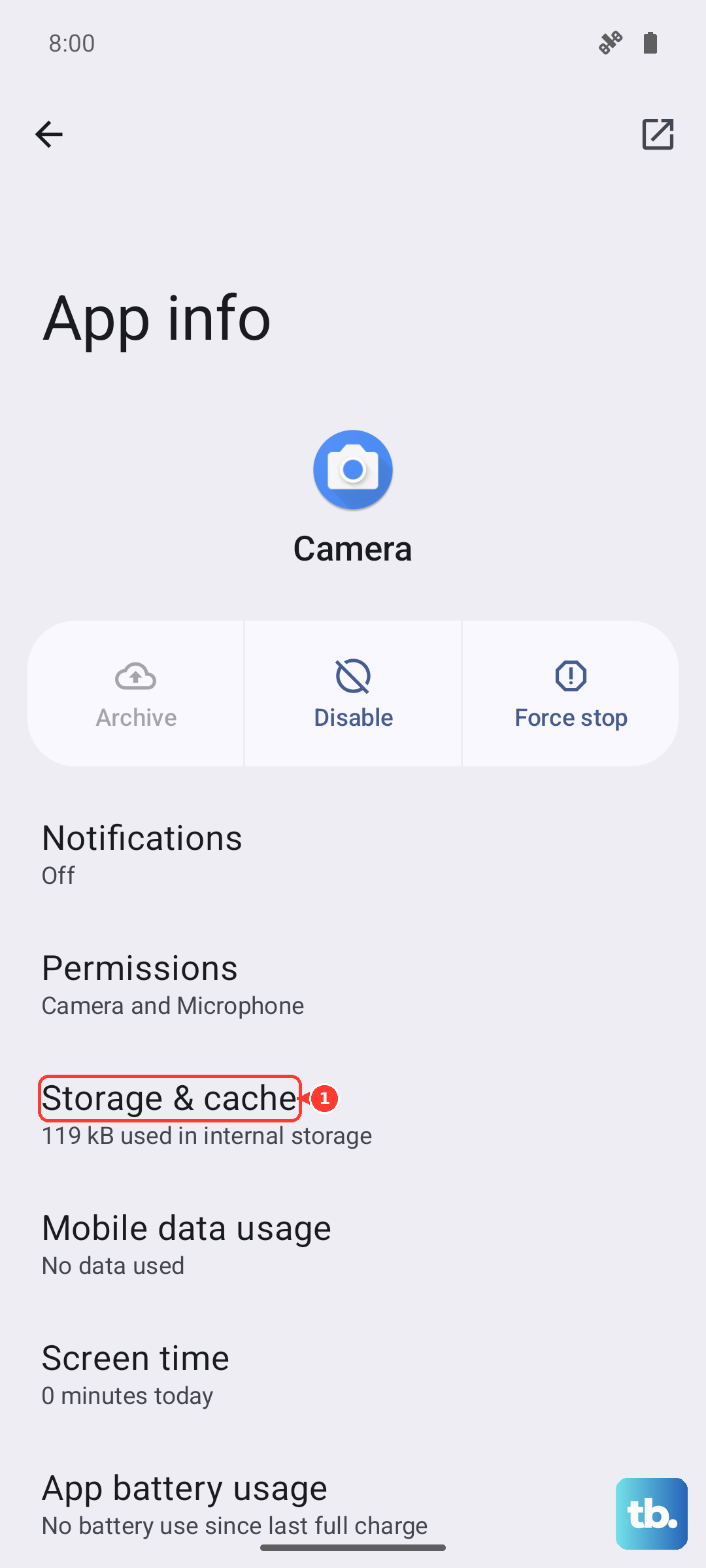
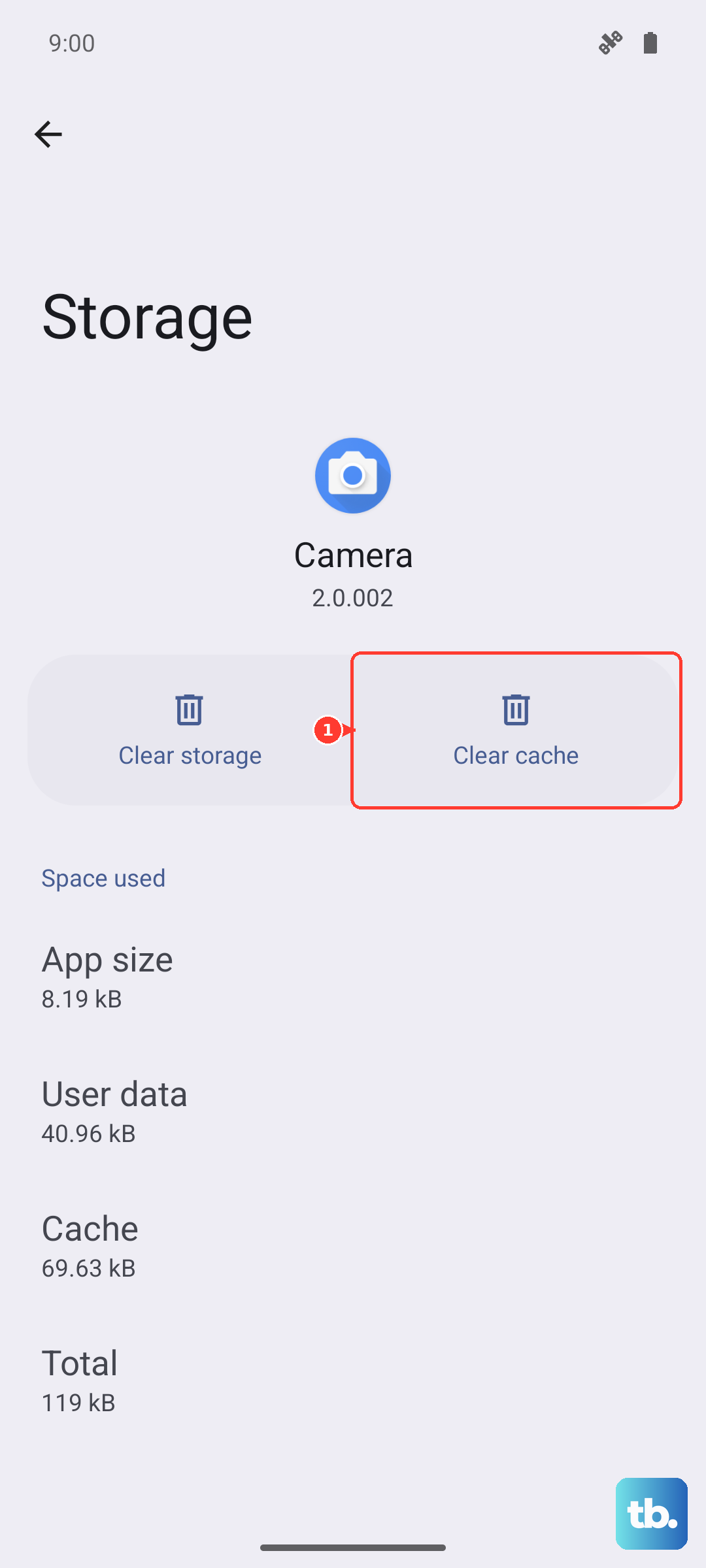
Use Clear storage sparingly. It resets that app to its default state and signs you out, so you will need to log back in and reconfigure it afterward.
Let the Files app sweep out junk and large files
The Files app has a built-in cleanup tool that finds the easy wins for you. Open the Files app and touch Clean.
Motorola shows suggested categories of items to review, such as junk files and large files, and lets you free up space directly from there. Check each category, confirm what you no longer need, and delete it.
Move your photos and videos to the cloud
Since the Edge 40 cannot take a memory card, the cloud is the way to offload media and reclaim the biggest chunk of space. Backing up first means you can safely delete the on-device copies without losing anything.
Open Google Photos and sign in.
Next, tap your Profile picture or Initial.
Tap Photos settings > Backup and turn Backup on.
Once everything has finished backing up, delete the local copies to reclaim the space.
Wait until the backup actually completes before you remove anything, and ideally do it on Wi-Fi so you are not uploading large videos over cellular data.
Switch on Storage manager so space frees itself
Rather than repeating the cleanup by hand, you can have Android keep your storage in check automatically. Storage manager removes backed-up photos and videos that are older than a period you choose, so room keeps freeing up on its own.
Go to Settings > Storage.
After that, tap Storage manager and turn it on.
Tap Remove photos & videos and select a duration.
From then on, Android automatically removes backed-up photos and videos older than that window. Only media that has already been backed up is affected, so make sure Google Photos backup is on first.
Remove apps you no longer open
Unused apps quietly hold onto storage along with their own caches and updates, so clearing out the ones you never touch is an easy win. To uninstall an app, drag its icon up and drop it on the delete icon, which removes the app and frees its storage.
Some apps came preinstalled and cannot be removed. You can still disable those to stop them taking active space and pulling updates, which keeps them from growing again over time.
Update the software to keep storage healthy
Keeping the phone on the latest software can improve how it handles storage and fix bugs that cause space to be used inefficiently. To check manually, go to Settings > System and open System updates, and if an upgrade is available, follow the onscreen instructions to install it. Do this on Wi-Fi so the download does not eat your data.
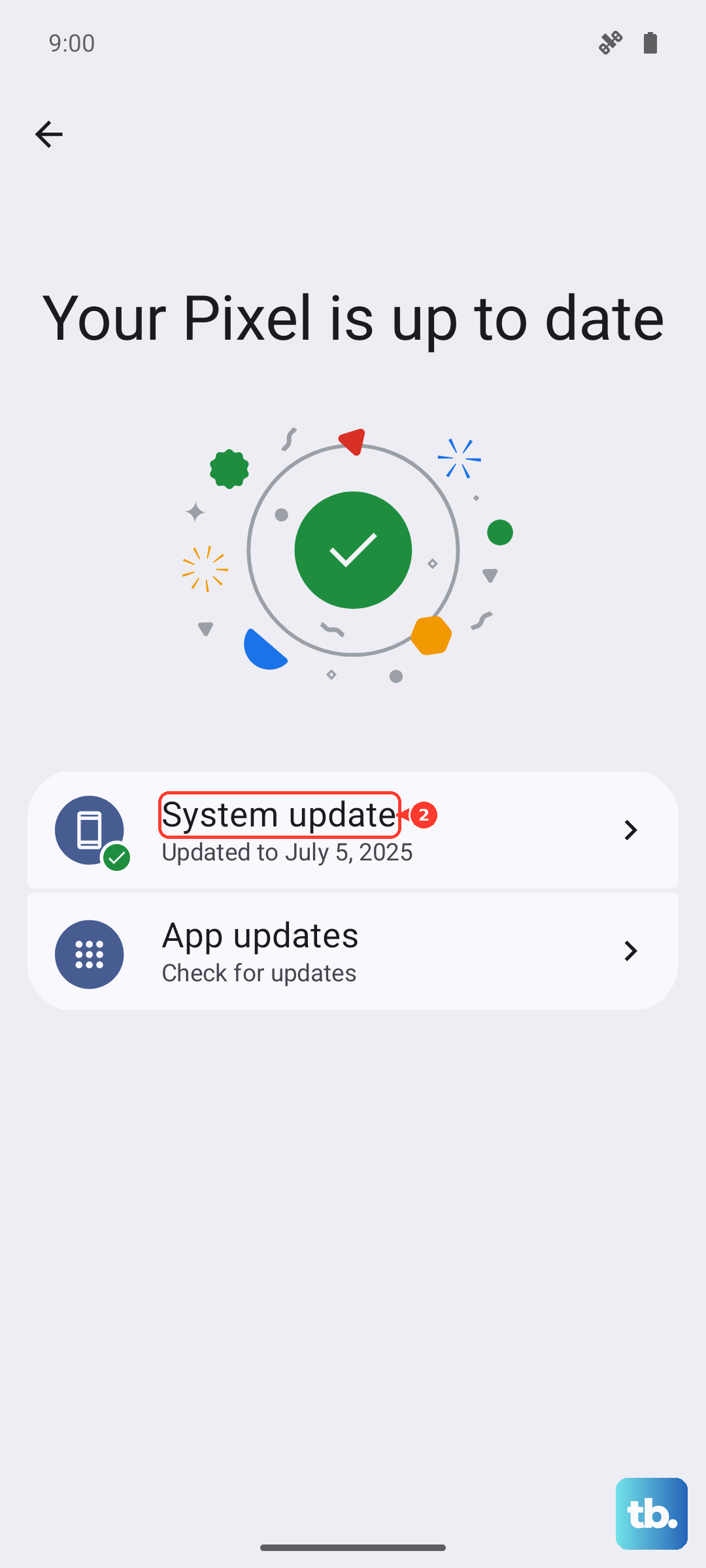
You can confirm where you stand under Settings > About phone > Android version. The Edge 40 can be updated to Android 15, so it is worth making sure you are current before assuming the storage problem is hardware.
When nothing else works, reset or repair
If the storage problems persist after everything above, a factory reset gives the phone a clean slate. This is a last resort because it erases all data on the phone, so back up everything first. Finish your Google Photos backup and copy any important files off the device before you continue.
Once your backup is complete, you can reset from Settings: go to Settings > System and touch Reset options > Erase all data (factory reset). This erases all data on the phone, so only do it after you have confirmed your backup.
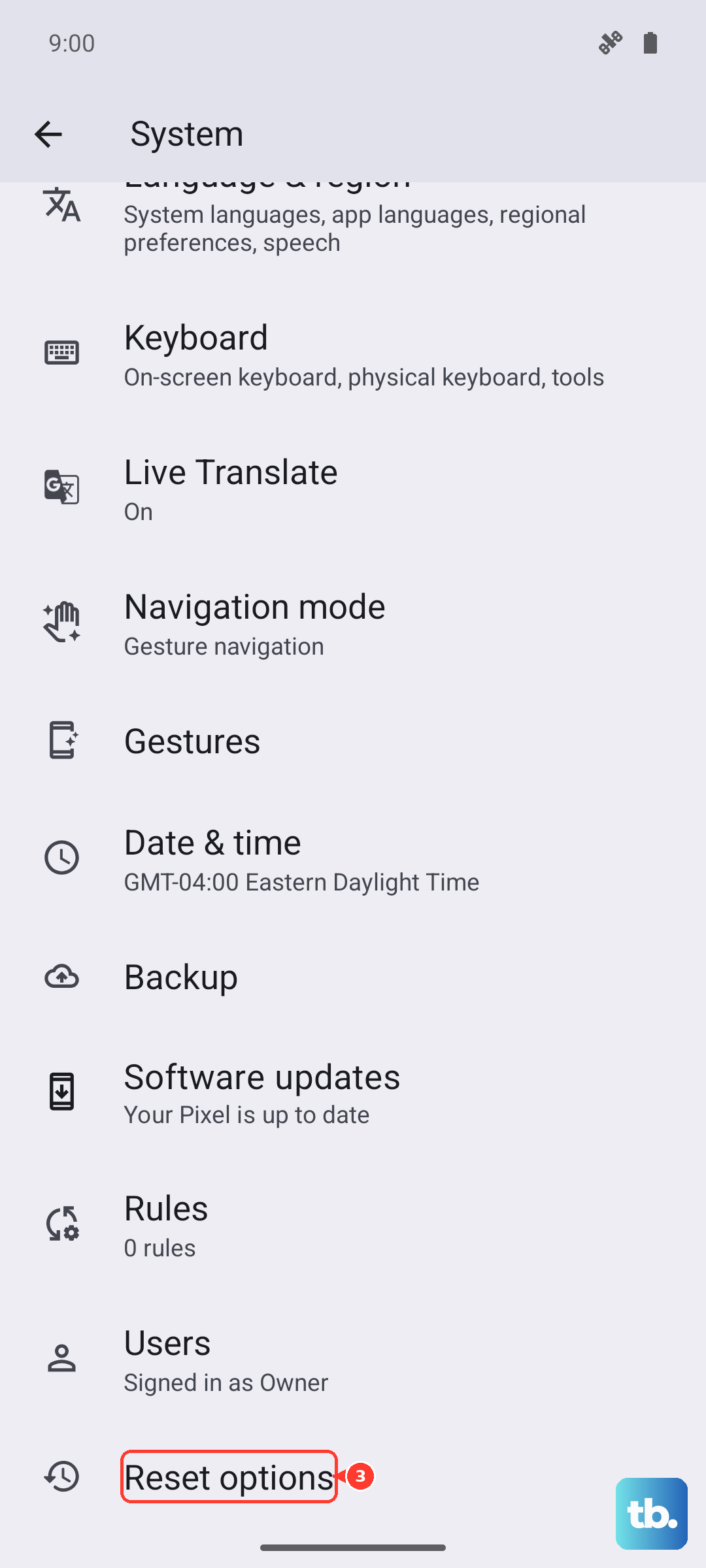
If you cannot get into Settings, you can reset from recovery instead. This also erases everything on the phone, so confirm your backup first:
- 1.Charge the battery to at least 30 percent.
- 2.Turn off the phone.
- 3.Press and hold Volume Down + Power until the phone turns on.
- 4.Press Volume Down until you see Recovery mode, then press Power.
- 5.Scroll to Wipe data/factory reset and confirm with Power.
If the device still misbehaves even after a reset, Motorola's official software repair tool for a computer can reinstall the phone's software. Note that this kind of repair reinstalls the software and resets the device to factory defaults, erasing all personal data, so the same back-up-first rule applies. If that does not resolve it, contact Motorola Support, as a problem that survives both a reset and a software reinstall may need their direct help.
Frequently Asked Questions
Can I add a microSD card to my Motorola Edge 40 to get more storage?
No. Motorola's official hardware page lists only a tray for the SIM card, so there is no microSD or SD slot and the built-in storage cannot be expanded. To create more room you have to clear caches, delete files, uninstall apps, and offload your photos and videos to the cloud.
Does clearing an app's cache delete my photos or messages?
No. Clear cache only removes an app's temporary files and leaves your accounts, logins, and content alone. It is Clear storage that wipes all of an app's saved data and signs you out, so reserve that option for apps that are still using too much space after a cache clear.
Will turning on Storage manager delete photos I have not backed up?
No. Storage manager only removes photos and videos that have already been backed up and are older than the duration you choose. That is why it is important to confirm Google Photos backup is switched on and finished before you rely on it.
How do I check which Android version my Edge 40 is running?
Go to Settings > About phone > Android version to see your current version. The Motorola Edge 40 can be updated to Android 15, and you can check for and install any available update under Settings > System > System updates.