
Seeing a SIM provisioning error on your Motorola Edge 40 can stop you from making calls or using mobile data right when you need it. This usually means your phone can't properly connect to your carrier's network, and it's often a quick fix.
Let's jump straight into the most common solution. A simple restart can clear out temporary glitches that might be causing the problem. Just press and hold the power button, tap 'Restart', and wait for your phone to reboot. It's the first thing I'd try.
Check Your SIM Card Activation
If this is a brand new SIM card, it might not be activated on your carrier's network yet. This is the most frequent cause of a provisioning error. The quickest way to check is to give your mobile provider a call or use their online chat support. They can verify the activation status in just a few minutes.
Toggle Airplane Mode On and Off
This forces your phone's modem to completely reset its connection to the cellular network. Swipe down from the top of your screen to open the Quick Settings panel and tap the airplane icon to turn it on. Wait about 30 seconds, then tap it again to turn it off. You should see the network bars reconnect.
Remove and Reinsert Your SIM Card
Sometimes the SIM card isn't seated perfectly in the tray. You'll need the SIM ejector tool that came with your Edge 40. Turn the phone off first, then gently push the tool into the small hole on the SIM tray to pop it out. Take a look at the gold contacts on the SIM card for any dirt or damage, blow on the tray slot lightly, and firmly push the SIM card back in until it clicks.
Update Your Phone's Software
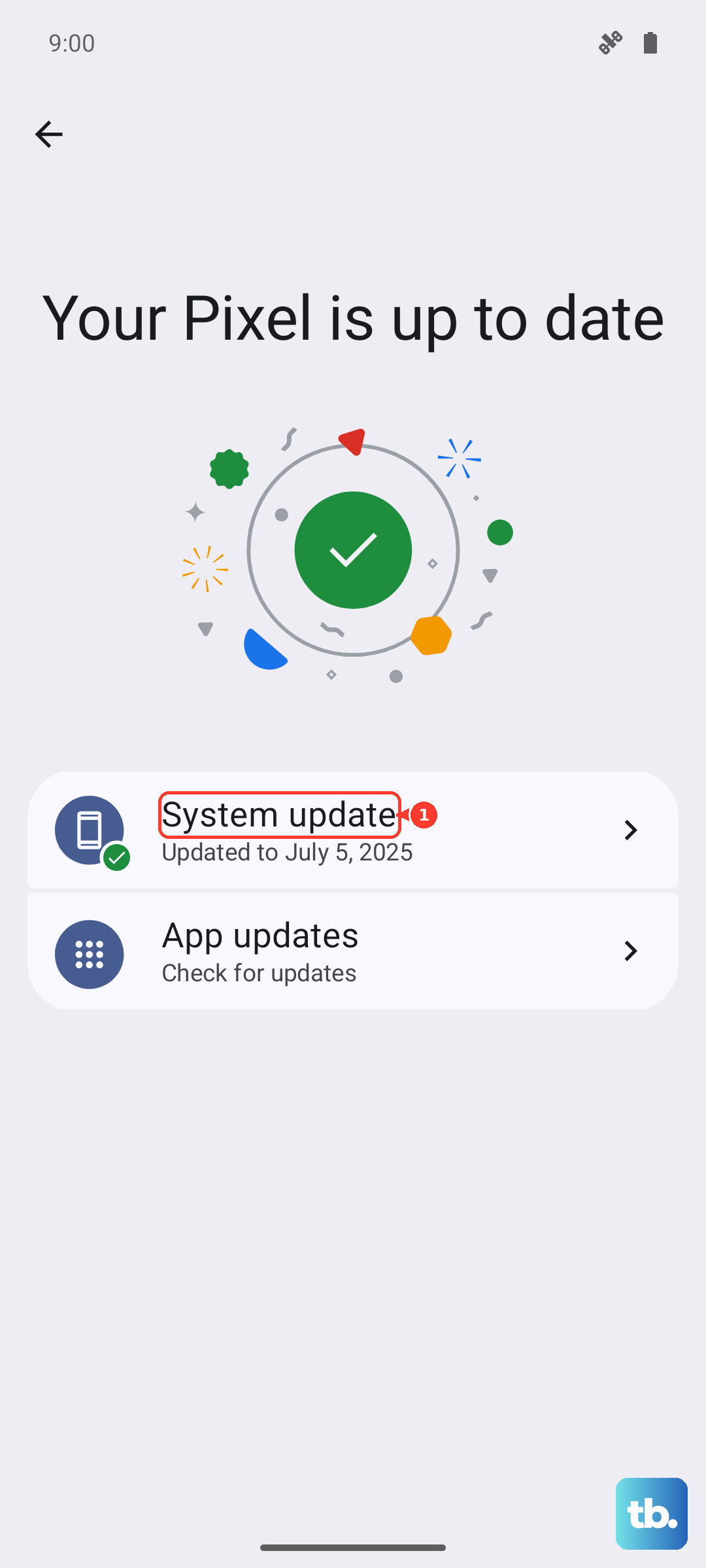
Since your Edge 40 runs Android 15, a software bug could be interfering with network provisioning. Go to Settings > System > System updates and tap 'Check for update'. If an update is available, install it. These updates often include fixes for connectivity issues.
Update Carrier Services
This is a specific Android app that manages communication between your phone and your carrier's network. Open the Google Play Store, tap your profile icon, and go to 'Manage apps & device'. Look under 'Updates available' for 'Carrier Services'. If you see it, tap 'Update'.
Manually Select Your Network Operator
Your phone might be trying to connect to the wrong tower. You can manually pick your carrier to force a proper connection. Go to Settings > Network & internet > Mobile network > Advanced > Automatically select network and turn that off. It will search and show a list; select your carrier's name from the options.
Reset Your Network Settings
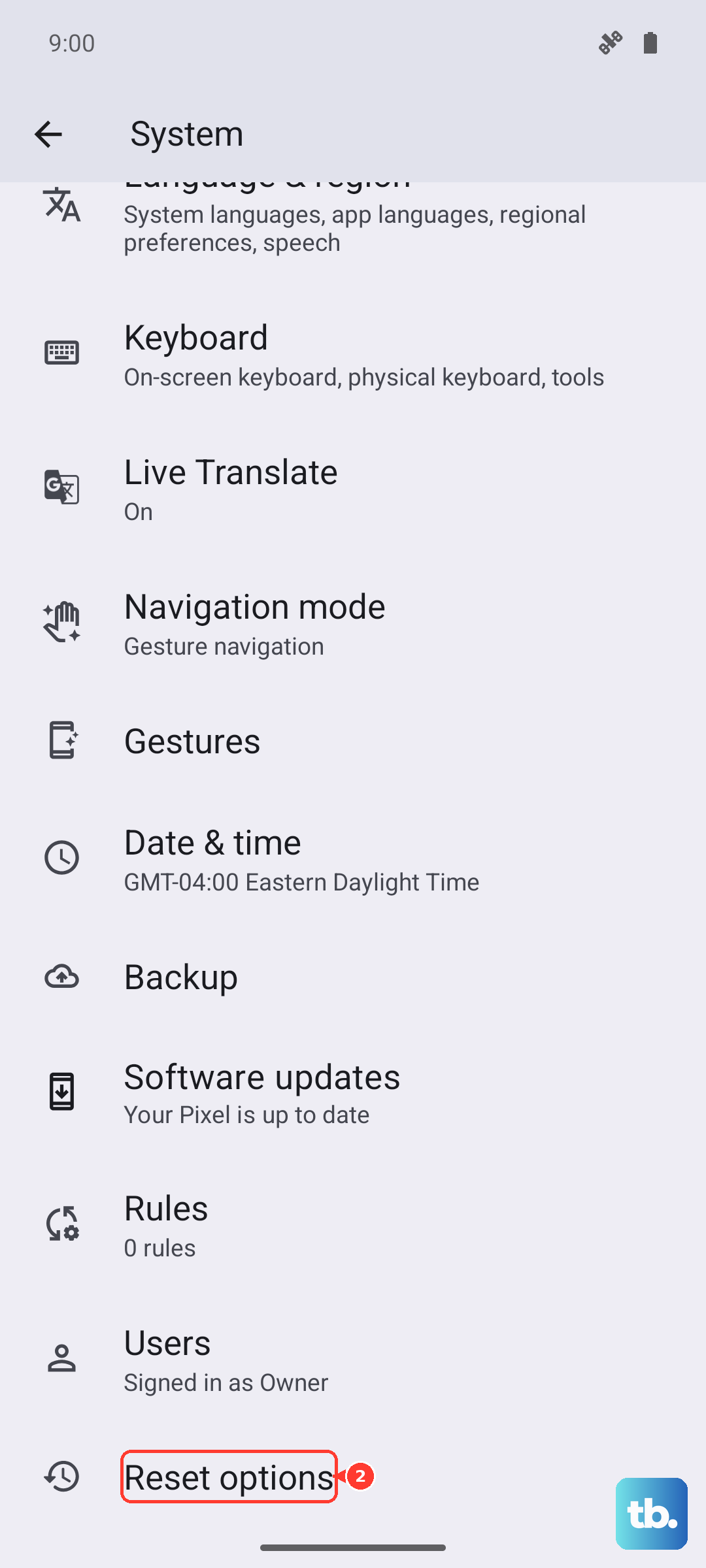
This will wipe all your saved Wi-Fi networks, Bluetooth pairings, and cellular settings back to default, which can resolve deeper configuration errors. To do this, navigate to Settings > System > Reset options. Tap 'Reset Wi-Fi, mobile & Bluetooth' and confirm. You'll need to reconnect to Wi-Fi and re-pair Bluetooth devices afterward.
Check Your Account Status with Your Carrier
If you're on a prepaid plan, you might have run out of credit. For postpaid plans, a missed payment could have temporarily suspended service. The easiest way to check is through your carrier's official app or by logging into your account on their website. A quick balance refresh or payment might get everything working again immediately.
Test the SIM Card in Another Phone
This tells you if the problem is with the SIM card itself or with your Motorola Edge 40. If you have access to another unlocked phone, power it off, insert your SIM, and turn it back on. If the error appears on the second phone, the issue is definitely with the SIM or your account. If it works perfectly, then the problem is isolated to your Edge 40.
Contact Your Mobile Provider for Support
If you've tried everything here, your carrier's technical support team needs to take a look. They can check for network outages in your area, reprovision your line on their systems, or determine if your SIM card is faulty and needs to be replaced. They can often push a refresh signal to your phone that solves the problem remotely.