
When your Motorola Edge 40 starts rebooting on its own, it pulls you right out of whatever you're doing. This is usually a software hiccup that you can sort out yourself. I'd start with the simplest fix first, which often does the trick.
Before you begin, it's a good idea to make sure your photos and important files are backed up. You can use Google One or just sync everything to your Google account. This way, your data is safe if we need to take more serious steps later.
Perform a Force Restart
A force restart clears out temporary glitches in the system memory without touching your personal data. For the Motorola Edge 40, press and hold the Volume Down button and the Power button together for about 10 to 15 seconds.
Keep holding until you see the Motorola logo appear on the screen, then let go. Your phone will boot up normally. This is the equivalent of pulling the plug on a misbehaving app or process.
Check for Rogue Apps
Third-party apps are the most common cause of random restarts. Start by checking if the reboots happen when using a specific app, like a social media platform or a game. If you can pinpoint one, try uninstalling it to see if the problem stops.
You can also boot into Safe Mode, which temporarily disables all third-party apps. To do this, press and hold the power button until the power off menu appears. Then, tap and hold the "Power off" option on your screen until you see a prompt to reboot to Safe Mode.
If your phone is stable in Safe Mode, a downloaded app is likely the culprit. You'll need to uninstall apps one by one, starting with the most recently installed, to find the offender.
Clear App Caches and Data
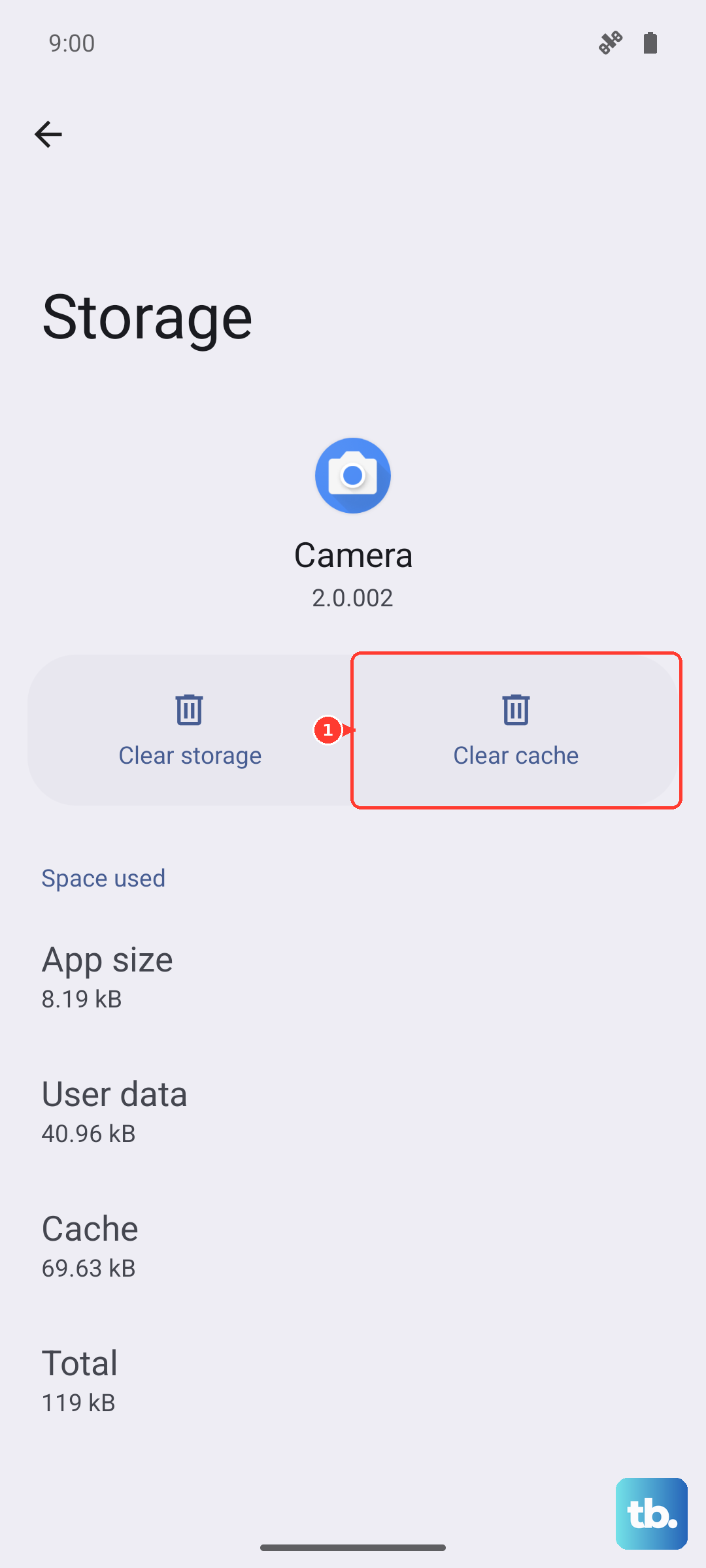
Sometimes an app's stored data gets corrupted. Instead of uninstalling right away, try clearing its cache first. Go to Settings > Apps > See all apps.
Select the app you suspect, then tap Storage & cache. Tap "Clear cache." This won't delete your login info or saved files. If the problem continues, you can try "Clear storage" or "Clear data," but be aware this will reset the app to its default state.
Update Your Software and Apps
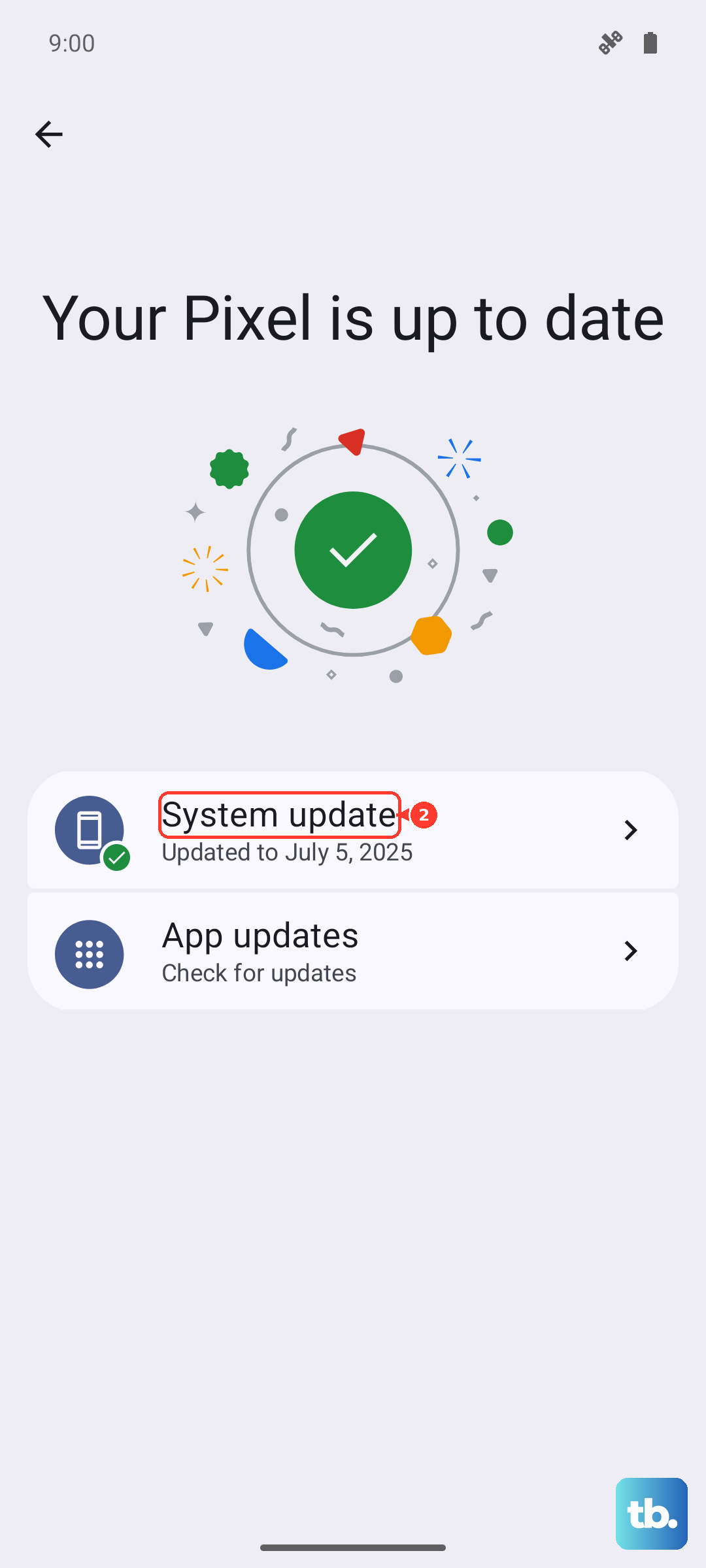
Running outdated software is a classic cause of instability. Motorola and Google regularly release updates that fix bugs which can cause reboots. Check for a system update by going to Settings > System > System update.
Make sure your apps are updated too. Open the Google Play Store, tap your profile icon, and go to Manage apps & device. Under "Updates available," tap "Update all." Keeping everything current resolves a lot of these random issues.
Free Up Storage Space
If your phone's internal storage is completely full, the system can struggle to operate, leading to crashes and reboots. Android 15 needs some breathing room to function properly.
Head to Settings > Storage to see what's taking up space. Use the built-in cleanup tool or manually offload old videos, unused apps, and cached data. Aim to keep at least 10% of your storage free.
Reset All Network Settings
Problems with Wi-Fi, Bluetooth, or mobile data connectivity can sometimes trigger system instability. Resetting these settings can help. Go to Settings > System > Reset options.
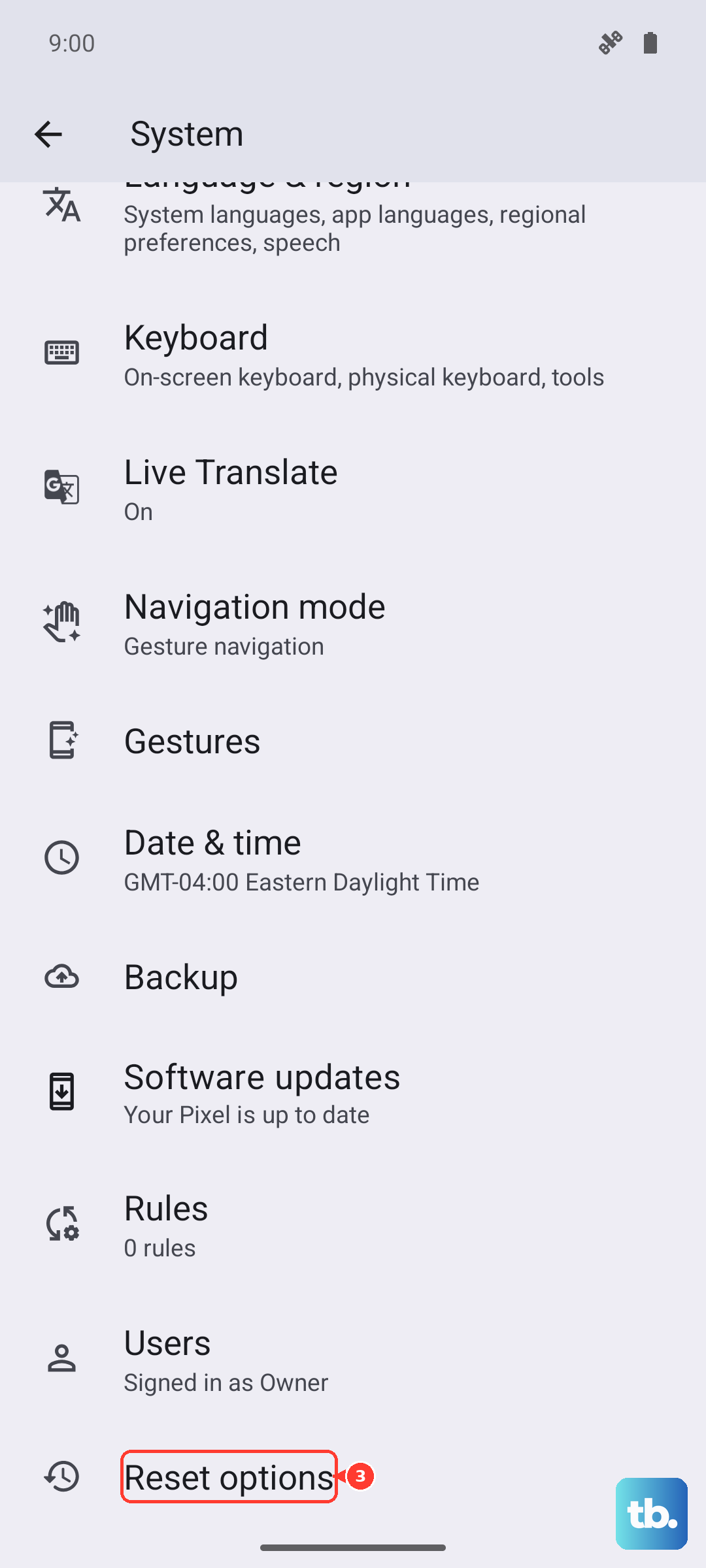
Tap on Reset Wi-Fi, mobile & Bluetooth. You'll need to re-enter Wi-Fi passwords and re-pair Bluetooth devices, but it won't affect your personal files or apps. This can clear up conflicts that cause the radio stack to crash and restart the phone.
Check for Overheating
The Motorola Edge 40 is powerful, but intensive tasks can cause it to heat up. Modern phones have safety protocols that will force a restart if the temperature gets too high to prevent damage.
Feel the back of the phone. If it's very hot to the touch, stop using it, remove any case, and let it cool down in a shaded place. Avoid using it while charging, especially with the 68W wired charger, as this generates additional heat.
Perform a Factory Reset
If you've tried everything else and the random restarts continue, a factory reset is the next step. This will erase all data from your phone, so double-check your backups. Go to Settings > System > Reset options > Erase all data (factory reset).
Follow the prompts to confirm. After the reset, set up the phone as new without restoring a backup immediately. Use it for a while to see if the restarting issue is gone. If it is, the problem was with your software configuration.
Consider Hardware and Battery Health
While less common, a failing battery or loose internal connection can cause sudden power loss that looks like a restart. If your phone only reboots when you tap it a certain way or when the battery is below a certain percentage, this is a possibility.
You can check for general hardware issues using the device's built-in diagnostic tool. Dial *#*#2486#*#* on your phone's keypad to access the CIT menu and run tests on components like the touchscreen and sensors. For battery and deeper hardware checks, contacting Motorola support is the best course of action.