You plug in or pair your headphones expecting sound, and your Motorola Edge 40 gives you nothing: silence in your music, call audio stuck on the loudspeaker, or a wired headset that the phone seems to ignore entirely. The good news is that most "headphones not working" problems on this model come down to a handful of fixable causes, and the single most common one is a misunderstanding about how this particular phone connects to wired audio in the first place.
If you suspect one side has failed, an online left and right audio test settles it quickly. Play each channel on its own and you will know whether it is the headphones or the source.
The fixes below are ordered from the safest and quickest to the most involved, so start at the top and stop as soon as your audio comes back. The final steps reinstall or reset the system software, so you only need them if everything before fails.
Start by ruling out a muted media stream
Before you blame the headphones, confirm the phone is actually sending sound to them at an audible level. Android keeps separate volume sliders for calls, ringtones and notifications, alarms, and media, and it is easy for the media slider to sit at zero while everything else looks fine.
- 1.With no call active, press one of the Volume buttons. On the Edge 40 the Volume buttons control media volume by default when nothing is calling.
- 2.Tap the on-screen control to expand it and reveal all four sliders (call, ring/notification, alarm, and media).
- 3.Make sure the Media slider is raised and not sitting at zero, then play audio again through the headphones.
If raising the media slider restores sound, you were never dealing with a hardware fault at all. It is worth checking this first every time the symptom returns.
Make sure Do Not Disturb is not silencing playback
Do Not Disturb can quiet media and notification audio, which can look exactly like a headphone failure. Check it before moving on to connection troubleshooting.
Go to Settings > Sound & vibration > Do Not Disturb and review whether it is switched on and what it is allowed to silence. Turn it off, or adjust it so your media and the apps you care about can play through, then test your headphones again.
Connect headphones the way the Edge 40 actually supports
This is the fix that solves most wired-headphone complaints on this model, so read it closely. The Motorola Edge 40 does not have a 3.5mm headphone jack. According to the official support guidance, phones without a 3.5mm jack support USB-C digital wired headsets only, and to use ordinary 3.5mm wired headphones you need an Analog-to-Digital adapter.
If you plug in an analog accessory the phone shows the message "Analog audio accessory detected. The attached device is not compatible with this phone." That message is the phone telling you the headset or adapter is analog-only and will not work, not that the phone is broken.
- For wired listening, use a USB-C digital wired headset, or run 3.5mm headphones through an Analog-to-Digital adapter rather than a passive plug adapter.
- If you see the "Analog audio accessory detected" message, switch to a USB-C digital headset or a proper Analog-to-Digital adapter.
- Make sure the USB-C plug is fully and firmly seated in the port; a connector that is only partly inserted will not pass audio.
Wireless headphones, by contrast, connect over Bluetooth, which is covered in the next several fixes.
Work through the quick Bluetooth checklist
If your headphones are wireless and they will not connect or the sound drops out, run through the basic checks before you start changing settings. Many "dead" Bluetooth headphones are simply low on charge or competing with another connection.
- 1.Charge both the phone and the headphones if either battery is low.
- 2.Keep the headphones close to the phone and clear of large metal objects that can cause interference.
- 3.On the phone, turn Bluetooth off and then back on.
- 4.Turn the headphones off and back on so they reconnect.
- 5.Confirm that Media audio is enabled for the headphones in their Bluetooth settings.
- 6.Check that another paired device is not already grabbing and playing the audio.
These steps clear the everyday Bluetooth hiccups that account for most no-sound and garbled-sound reports.
Clear a bad pairing by forgetting and reconnecting
A corrupted pairing is a frequent cause of Bluetooth headphones that connect but play no audio, or that produce broken, stuttering sound. Removing the saved connection and pairing fresh usually fixes it.
Go to Settings > Connected devices > Saved devices, find the headphones, tap the gear icon, then choose Forget device. You can also reach this through Settings > Bluetooth > [device] > FORGET. Once the device is removed, put the headphones back into pairing mode and pair them again from scratch.
Reboot the phone to clear an audio routing glitch
A simple restart clears temporary audio-routing problems that can leave sound stuck on the speaker or refusing to follow your headphones. On the Edge 40 the official restart is straightforward and does not erase anything.
Press and hold the Power key for 10 to 20 seconds until the phone reboots. Your data is not deleted by this, and you should make sure the device is charged to at least 5% first. Note that the Volume Down plus Power combination is for recovery mode, not a normal restart, so use the Power key on its own for a routine reboot.
Use Safe mode to expose a misbehaving app
If your headphones work intermittently, or only certain apps go silent, a downloaded app may be interfering with audio. Safe mode temporarily disables every app you installed yourself, which lets you test the phone in a clean state.
Start the phone in Safe mode; when it is active, the words "Safe mode" appear at the bottom of the screen and your downloaded apps are disabled. Test your headphones in this state. If the audio works in Safe mode, a third-party app is the culprit, so restart the phone to exit Safe mode, then uninstall recently added apps until the problem goes away.
Install any pending system update
Software updates regularly fix audio and Bluetooth bugs, so keeping the phone current is one of the easier fixes to overlook.
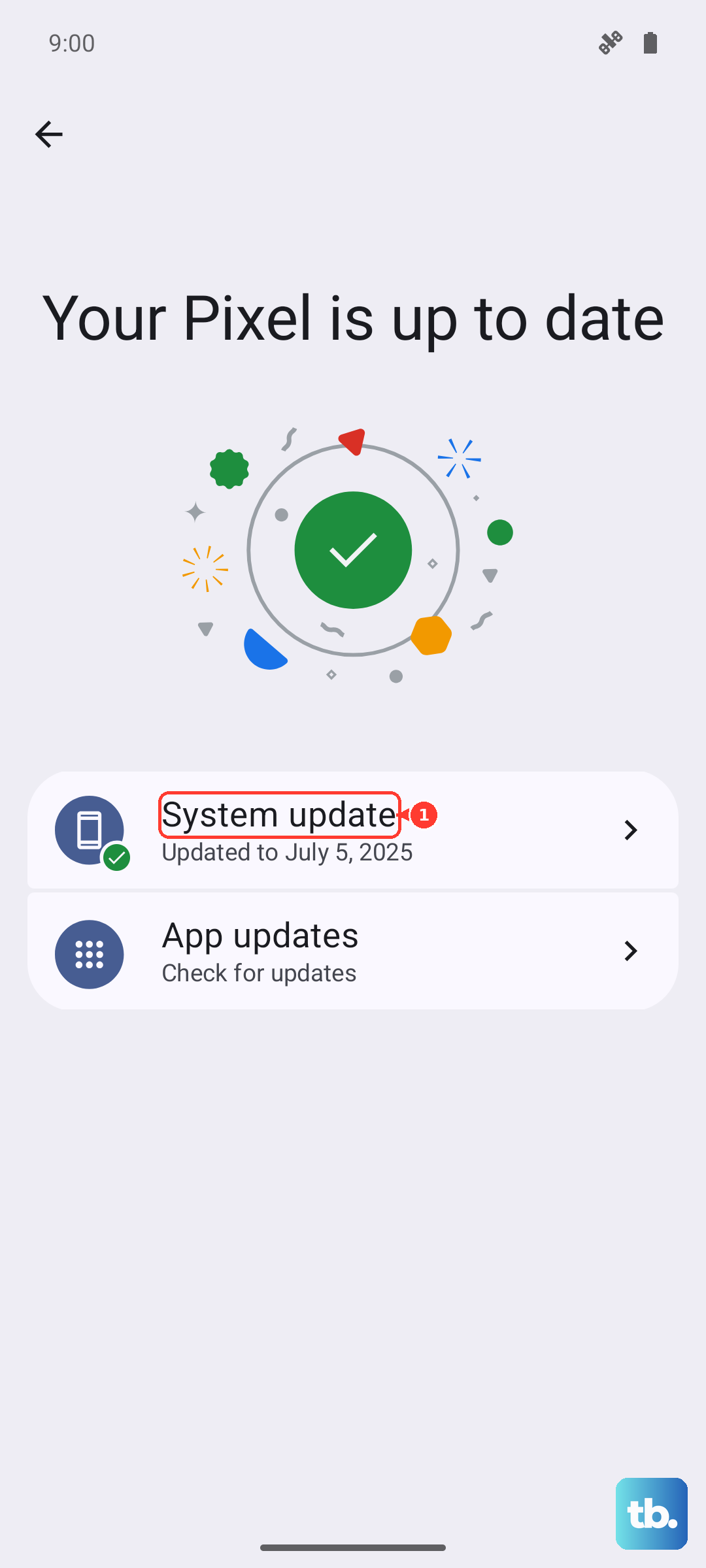
Go to Settings > System > System updates and follow the on-screen instructions if an update is available. Use Wi-Fi to download it, and let the phone finish installing before you test your headphones again.
Erase the phone as a last software resort
If nothing above has worked and you suspect a deeper software fault, a factory reset returns the phone to its original condition. This step erases everything on the device, so treat it as a genuine last resort and only after you have backed up.
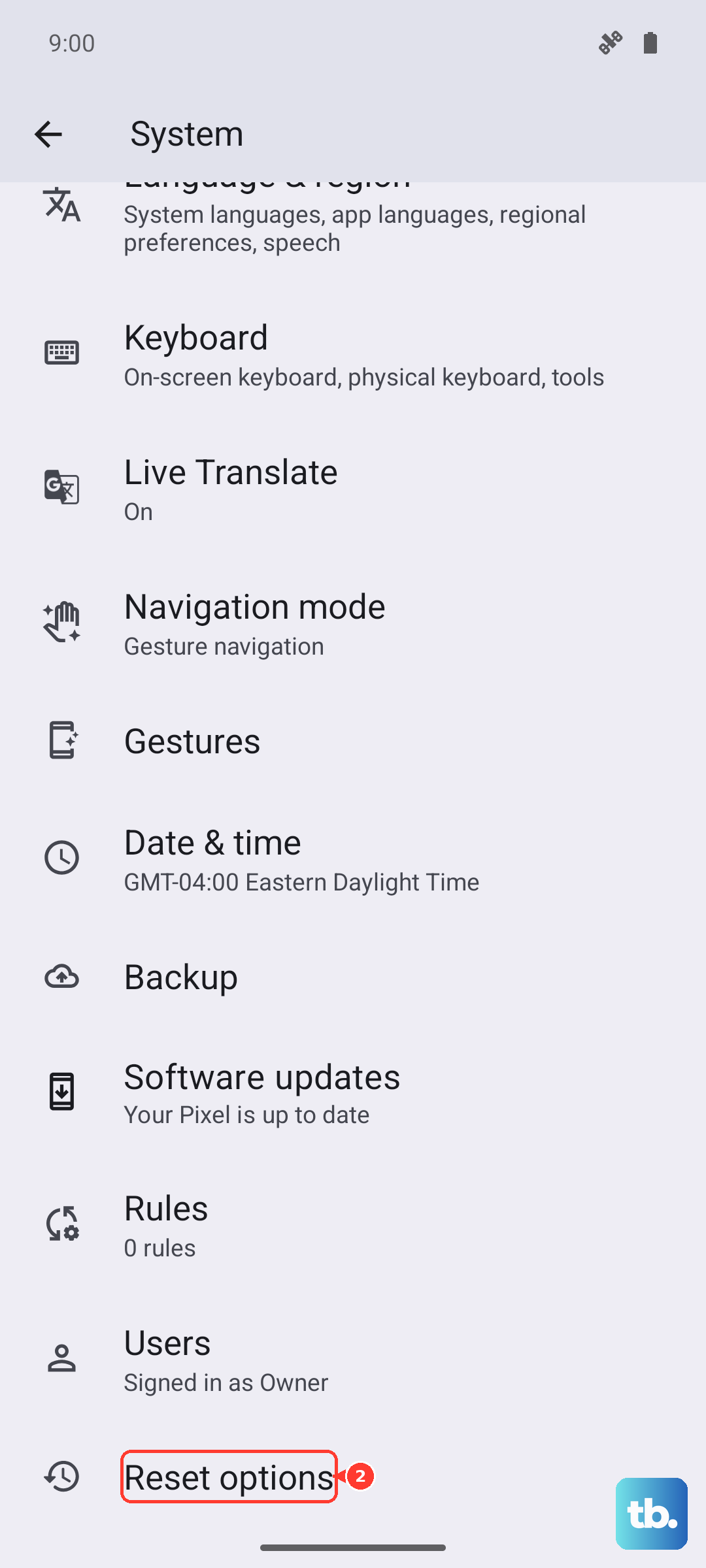
Back up your data first, then remove your screen lock and your Google accounts from the phone. To reset, go to Settings > System > Reset options > Erase all data (factory reset). This erases all data on the phone and returns it to factory condition, so only proceed once you have copies of anything you want to keep.
Reinstall the software or get the hardware checked
If audio still fails after a reset, the system software may be damaged or the audio hardware may need attention. Motorola provides an official tool called Rescue and Smart Assistant, which you install on a computer to reinstall the device software and return the phone to factory condition.
Be aware that reinstalling the software erases all files and apps, so back up before you run it. If reinstalling the software does not bring audio back, the USB-C port, speaker, or other audio hardware may be at fault, so at that point contact Motorola Support for service rather than continuing to troubleshoot on your own.
Frequently Asked Questions
Does the Motorola Edge 40 have a headphone jack?
No. The Edge 40 has no 3.5mm headphone jack. It supports USB-C digital wired headsets only for wired listening, and it connects to wireless headphones over Bluetooth. To use ordinary 3.5mm headphones you need an Analog-to-Digital adapter.
Why do my wired headphones show an "incompatible" message?
If you see "Analog audio accessory detected. The attached device is not compatible with this phone," your wired headset or adapter is analog-only, which this phone cannot use. Switch to a USB-C digital headset or an Analog-to-Digital adapter, and make sure the USB-C plug is fully seated.
How do I force restart the Edge 40 if the audio is frozen?
Press and hold the Power key for 10 to 20 seconds until the phone reboots. This does not delete your data, and the phone should be charged to at least 5% first. The Volume Down plus Power combination is for recovery mode, not a normal restart.
Will a factory reset fix my headphone problem, and does it delete my data?
A factory reset can clear a stubborn software fault, but it erases everything on the phone, so back up first. Go to Settings > System > Reset options > Erase all data (factory reset), and remove your screen lock and Google accounts before you start.
Do I need the Smart Connect app to use headphones?
No. The Edge 40 connects headphones directly through its own Bluetooth and USB-C audio settings, so Smart Connect is not required for any of these fixes.