
When you plug your Microsoft Surface Pro 11 into an external monitor and the screen stays black, it's a frustrating roadblock. The issue usually comes down to a simple setting, a loose connection, or a driver that needs a refresh.
It is worth viewing a few test patterns from a online monitor test before changing hardware. Faults that persist across every pattern point firmly at the display itself.
Press Windows + P First
This is the quickest thing to try. Press the Windows + P keys together on your Surface keyboard. A menu will pop up on the right side of your screen. Make sure it's not set to PC screen only, as this mode disables the external output entirely.
Select Duplicate or Extend to send the signal to your monitor. I'd start with Duplicate, as it's the most straightforward. If that works, you can switch to Extend later for more screen real estate.
Check Your Physical Connections
Unplug the video cable from both your Surface and the monitor, then firmly reconnect it. If you're using a Surface Dock or a USB-C hub, unplug it from the Surface's port and plug it back in. A slightly loose connection is a very common culprit.
Try a different cable if you have one handy. Cables can fail internally without any visible damage. Also, double-check that your monitor is powered on and set to the correct input source, like HDMI 1 or DisplayPort 2.
Detach and Reattach the Type Cover
This might sound odd, but it's a known fix for Surface devices. The Type Cover can sometimes interfere with system processes. Gently pull the keyboard cover off the bottom of your Surface Pro 11.
Wait about 10 seconds, then snap it back into place. This can clear a minor glitch and may help the system properly recognize an external display on the next connection attempt.
Run the Surface Diagnostic Toolkit
Microsoft provides a dedicated tool for hardware issues. Search for "Surface Diagnostic Toolkit" in the Start Menu and run it. The tool will automatically test various components, including display output.
Follow the on-screen instructions. If it finds an issue with your display drivers or port functionality, it will often attempt to fix it or provide a clear next step, saving you from digging through settings manually.
Update Your Display Drivers
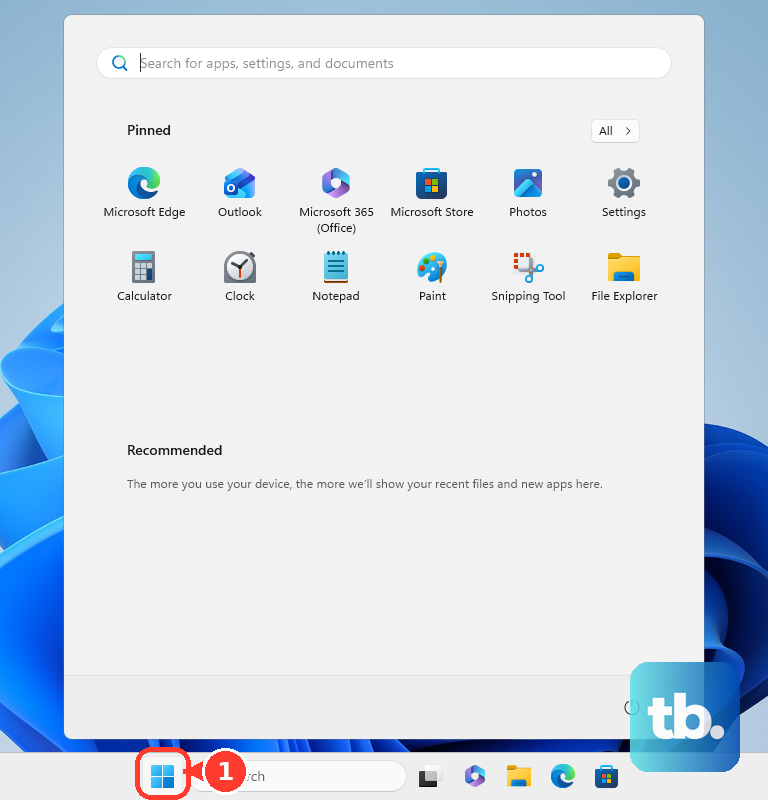
Outdated graphics drivers are a frequent cause of display problems. Open the Start Menu, type "Device Manager," and open it. Expand the Display adapters section.
Right-click on your display adapter (it may be listed as an Intel Iris Xe or a Qualcomm Adreno, depending on your model) and select Update driver. Choose "Search automatically for drivers." For the most reliable results, you can also download the latest drivers directly from the official Microsoft Surface support website.
Adjust Your Display Settings in Windows
Go to Settings > System > Display. Click the Detect button. Windows will actively search for any connected displays. If your monitor appears, click on its representation in the diagram.
Scroll down and ensure the display resolution and refresh rate are set to values your monitor supports. Try a lower, standard resolution like 1920x1080 (1080p) to see if that gets an image to appear.
Try a Different Port or Adapter
The Surface Pro 11 uses USB-C ports for video output. If you're plugging directly into a USB-C monitor, try a different USB-C cable. If you're using an adapter to convert USB-C to HDMI or DisplayPort, the adapter itself could be the issue.
Test with a different adapter if possible. Sometimes, a simple unplug and replug of the adapter from the Surface port can reset the connection.
Restart Your Surface with the Monitor Connected
Shut down your Surface Pro 11 completely. With the external monitor still connected and powered on, turn your Surface back on. Some systems only perform a full detection of external displays during the initial boot sequence.
This forces the graphics system to re-initialize and can often catch a display that wasn't seen during a simple wake-from-sleep cycle.
Check for ARM Compatibility Issues
If your Surface Pro 11 is the ARM-based model, some older x86 display management or driver software might not work correctly. This is less common for basic display output but can happen.
Check that any third-party display utilities you've installed are designed for ARM64 systems. You can also try a clean boot to see if background software is interfering. Search for "System Configuration" in the Start Menu, go to the Services tab, check "Hide all Microsoft services," and click Disable all before restarting.