Microsoft Edge was working fine, and now it crashes the moment you open it, or it slams shut mid-browse with an "Aw, Snap" or STATUS_ACCESS_VIOLATION message. Sometimes a single tab dies; sometimes the whole window vanishes before you can reach a menu.
The good news is that almost every Edge crash traces back to a short list of causes: too much memory in use, a corrupted cache, a bad extension, a damaged profile, an outdated build, or third-party security software getting in the way. On certain PCs and virtual machines, graphics acceleration is the culprit.
Work through the fixes below in order. They are arranged quickest and most common first, so most readers are back to normal within the first two or three. Each one names the exact action and the precise menu path.
Free Up Memory by Closing Tabs, Apps, and Downloads
When your device runs low on memory because too many tabs, extensions, and other programs are open at once, Edge cannot load pages and may crash. This is the first thing Microsoft recommends, and it costs you nothing.
Close every tab except the one showing the error.
Close other apps or programs that are running.
Pause any active downloads.
Uninstall extensions you do not need.
Reload the tab that had errors.
If Edge steadies after this, the problem was simple resource pressure. Keep fewer tabs and extensions open going forward.
Restart Your Computer
A quick restart clears background process conflicts that can wedge Edge. Restart your computer, then try opening the page or the browser again. It is a quick step that resolves a surprising share of crashes before you touch any settings.
Update Microsoft Edge
Edge is built on Chromium, and many crash bugs are fixed in newer builds. Updating is one of Microsoft's first real fixes.
Select "Settings and more" (the three-dot ... menu) in the top-right corner.
Go to "Settings" then "About Microsoft Edge". On a Mac the wording can be "Help and feedback" then "About Microsoft Edge".
Edge automatically checks for updates on this page; let it download and install any available update.
Select "Restart" to finish updating.
Shortcut: type edge://settings/help in the address bar to open the About and Update page directly.
Clear the Browser Cache and Browsing History
Corrupted temporary files and cached images can cause page-display problems and crashes. Clearing them often fixes a browser that loads everything wrong or dies on launch.
Select "Settings and more" (...) then "History" then "Open history page".
Select "Delete browsing data".
Under "Time range" choose "All time".
Tick "Browsing history" and "Cached images and files".
Select "Clear now".
If problems persist, repeat the steps, tick all the boxes, and select "Clear now" to clear all browsing data.
Disable or Remove a Problem Extension
A faulty, outdated, or incompatible extension is a leading cause of crash-on-open and STATUS_ACCESS_VIOLATION. The reliable way to find it is to disable extensions, then re-enable them one at a time.
Open "Settings and more" (...) then "Extensions", or type edge://extensions in the address bar.
Turn all extensions off, then re-enable them one by one, reloading the page that crashed after each.
When the crash returns, you have found the culprit; remove or uninstall that extension.
If you do not use an extension, uninstall it rather than leaving it disabled.
Launch Edge With Extensions Disabled When It Crashes Too Fast
Sometimes Edge dies before you can open the Extensions page. You can force it to start with every extension off, which proves whether an extension is the cause.
Close all Edge windows first. If Edge is already open, the switch is silently ignored.
Press Windows key + R to open the Run dialog.
Enter the Edge path followed by the switch, for example "C:\Program Files (x86)\Microsoft\Edge\Application\msedge.exe" --disable-extensions. On a 64-bit install, use the \Program Files\ path instead; use whichever path exists on your PC.
If Edge now opens normally and the Extensions menu item is greyed out, extensions are confirmed off. Go back and remove the bad one.
Verify Third-Party Security Software Is Up to Date
Outdated or interfering antivirus and firewall software can break the Edge process. Microsoft explicitly says to confirm products like Norton and McAfee are current.
Open your third-party security software and check for and install any updates, or update from the vendor's website.
If your crashes started in mid-May 2026 and you run Avast, AVG, or Norton (which share the Gen Digital engine), updating the software, or temporarily removing it and using the built-in Windows protection, has been reported to resolve the STATUS_ACCESS_VIOLATION crashes. Treat this as a targeted measure for recent-onset crashes, not Microsoft's stated cause.
Disable Graphics Acceleration
On certain GPUs and virtual machines, hardware acceleration causes freezing, crashing, green-screen video, and menus or dialogs that do not render correctly. Turning it off is the fix.
Open Edge, click "Settings and more" (...) then "Settings".
Click "System", or open edge://settings/system directly. If the interface is garbled and you cannot navigate visually, type that address or use the settings search box.
Turn off the toggle labeled "Use graphics acceleration when available".
Click the "Restart" button that appears.
Scan for Malware
A malware infection can destabilize Edge. On Windows 10 or 11, open Windows Security and run a manual scan. On a Mac, use Apple's built-in malware protection. Remove anything detected, then retry Edge.
Repair or Reset Edge (and When to Use Each)
If crashes continue, two repair levels exist, and they are not the same thing. Start with the gentler one.
Repair keeps your data and settings. On Windows, close the browser for all users and make sure you have administrative rights, then go to "Start" then "Settings" then "Apps" then "Installed apps". Find "Microsoft Edge", select "Modify", select "Yes" to allow changes, confirm you are online, and select "Repair". Your browser data and settings should not be affected.
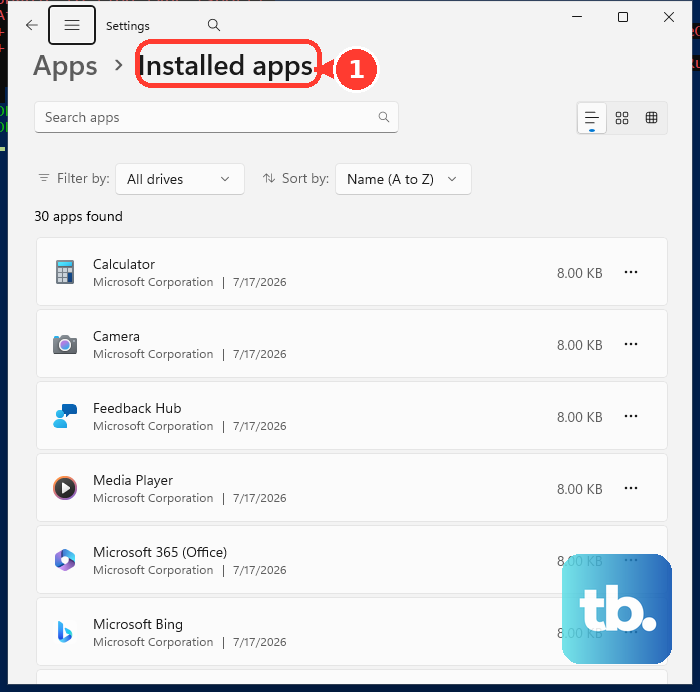
Reset goes further. Click "Settings and more" (...) then "Settings", open "Reset settings" (or type edge://settings/reset), choose "Restore settings to their default values", and click "Reset". This resets the startup page, new-tab page, search engine, and pinned tabs, disables all extensions, and clears cookies and site data. Your favorites, history, and saved passwords are not deleted.
Create a New Edge Profile
A corrupted user profile can crash Edge on launch or trigger a "Profile error" screen. Spinning up a fresh profile sidesteps the damaged data.
Open Microsoft Edge and click the profile icon at the top right.
Select "Add profile", then click "Add".
Use the new profile to confirm the crash or profile error is gone.
Repair Corrupted Windows System Files
Damaged or missing Windows system files can stop msedge.exe from launching correctly. Two built-in tools repair them, and the order matters: run DISM before SFC.
- 1.Type "cmd" in the Search box, right-click "Command Prompt", choose "Run as administrator", and approve the prompt.
- 2.Run DISM.exe /Online /Cleanup-image /Restorehealth and wait for it to finish; this can take several minutes.
- 3.Then run sfc /scannow and do not close the window until verification reaches 100 percent.
You may see "Windows Resource Protection did not find any integrity violations", a message that it found and repaired corrupt files, or a notice that it could not fix some of them. If the repair fails, rerun it in Safe Mode.
Reinstall Microsoft Edge
If Repair did not help, reinstall over the existing copy. On Windows, open another working browser, go to microsoft.com/edge, download Edge, install it over the current version, then restart the PC and test.
On a Mac, open Safari or another browser and reach the Edge download page. Click "Download for macOS" and pick the build matching your chipset (Intel or Apple Silicon). Open the Downloads folder, double-click the MicrosoftEdge[Version].PKG file, select "Continue", select "Install", enter your Mac account password, and select "Close" when it finishes.
Fix Microsoft Edge on iPhone or iPad
On iOS and iPadOS, work from quickest to most thorough.
Force quit: open the App Switcher (swipe up from the bottom, or swipe down from the top-right on Face ID models) and swipe up on Microsoft Edge.
Update: open the App Store, search "Microsoft Edge", and install any update.
Clear data in-app: open Edge, tap the menu icon at the bottom-right, then "Settings" then "Privacy and Security" then "Clear Browsing Data" then "Clear Now", confirm "Clear Now", then "Done".
Offload and reinstall: go to Settings then "General" then "iPhone Storage" then "Edge" then "Offload App", confirm, then reinstall Edge from the App Store.
Restart the iPhone: power it fully off, wait about 30 seconds, then power back on.
Fix Microsoft Edge on Android
On Android there are two clearing levels, and one is far more drastic than the other.
In-app cache clear: open Edge, tap the menu button near the bottom, then "Settings", open the privacy section, then "Clear browsing data", tick "Cached images and files", then "Clear data".
System-level, when Edge will not open: go to Android "Settings" then "Apps" then "Edge" then "Storage" (or "Storage and cache").
Tap "Clear cache" for safe routine troubleshooting. This does not remove passwords, bookmarks, history, or your signed-in account.
Only if still broken, tap "Clear storage" or "Clear data". This fully resets Edge's local app data and does remove local settings, browsing data, offline files, and on-device account state.
Also update Edge from the Play Store and do a full phone restart to clear stuck processes.
Frequently Asked Questions
What is the difference between Repair and Reset in Edge? Repair (Windows "Apps" then "Modify") keeps your data and settings while it fixes the installation. Reset ("Reset settings" inside Edge) disables all extensions and clears cookies and site data, though it keeps favorites, history, and passwords. Try Repair first.
Is it safe to "Clear storage" for Edge on Android? "Clear cache" is safe and keeps your passwords, bookmarks, history, and account. "Clear storage" or "Clear data" is a near-factory reset of the app that wipes local settings, browsing data, offline files, and on-device account state, so use it only as a last resort.
Why does the "--disable-extensions" launch trick do nothing for me? The switch only works if every Edge window is closed before you run it. If Edge is already open, the switch is silently ignored. Close all windows first, then launch from the Run dialog.
My crashes started suddenly in mid-May 2026. What changed? After a mid-May 2026 Windows update, Chromium browsers began showing "Aw, Snap" crashes with errors like STATUS_ACCESS_VIOLATION. Reporting attributes it largely to third-party antivirus using the Gen Digital engine (Avast, AVG, Norton). Updating that software, or temporarily removing it and using the built-in Windows protection, has been reported to help.
Will updating or resetting Edge delete my saved passwords and favorites? Updating does not touch your data. A Reset clears cookies and site data and disables extensions, but it does not delete favorites, history, or saved passwords. Repair keeps everything.
What do I do if SFC says it could not fix everything? Run DISM first, then sfc /scannow again. If it still reports unrepaired files, rerun the scan in Safe Mode, where the system files are less likely to be locked by running processes.