
When your MacBook Pro 16-inch M5 Max starts to feel sluggish during a demanding task, it's a jarring experience. You bought this machine for its raw power, so stutters during video playback or lag while switching apps shouldn't be happening. Let's get it running smoothly again.
First, try a simple restart. Click the Apple menu in the top-left corner and select Restart. This clears out temporary system glitches and memory leaks that can accumulate, especially if you've been using sleep mode for weeks on end. It's the quickest fix and often the most effective.
Enable High Power Mode
For the absolute maximum performance, especially during GPU-intensive work like 3D rendering or 8K video export, you need to enable High Power Mode. Head to System Settings > Battery. If your MacBook is unplugged, you'll see a dropdown menu for Performance Mode.
Select High Power. This setting tells the M5 Max chip to prioritize performance over battery life, allowing the fans to spin up more aggressively to manage the significant heat generated under full load. It's designed specifically for the high power draw scenarios this chip is capable of.
Check Activity Monitor for Resource Hogs
Open Activity Monitor from your Applications > Utilities folder. Click the CPU tab and sort the "% CPU" column in descending order. Look for any single process using an abnormally high percentage of your CPU.
Common culprits on a new system can include photo library analysis, cloud syncing services, or a runaway browser tab. If you spot one, select it and click the stop button (octagon) in the toolbar to force quit it. Also, check the Memory and Energy tabs to see if an app is using a disproportionate amount of RAM or battery.
Manage Your External Displays
Your M5 Max can drive up to four external displays, which is incredible, but also a major performance hit. If you're running multiple high-resolution monitors and experiencing slowdowns, try disconnecting one or two.
See if the performance returns to normal. This helps isolate whether the slowdown is related to the immense graphical workload of driving all those pixels, which is a known stressor even for this powerful chip.
Update macOS and Your Apps
Go to System Settings > General > Software Update. Apple continuously releases updates for macOS 26 Tahoe that include performance optimizations and bug fixes specific to the M5 series chips. Running the latest version is crucial.
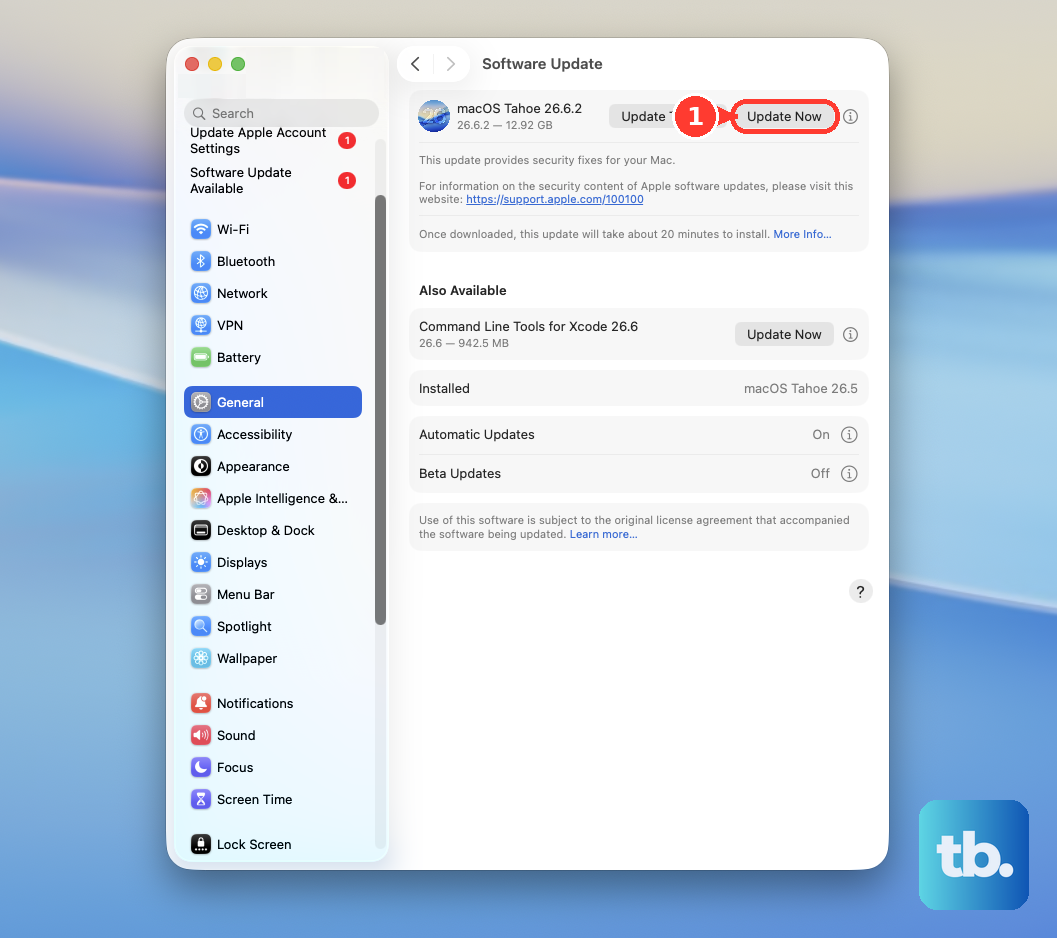
Also, check for updates to your primary applications, especially creative suites like Final Cut Pro, Adobe Premiere, or Blender. Developers often release patches that better utilize the new architecture and cores of the latest Apple Silicon processors.
Free Up Storage Space on Your Drive
Click the Apple menu > About This Mac > More Info > Storage Settings. macOS needs free space to operate efficiently, for virtual memory and temporary files. Aim to keep at least 15-20% of your SSD free.
Use the built-in recommendations here to review large files, empty the Trash, and reduce clutter. If you use iCloud, enabling Optimize Mac Storage can help by keeping only recent files locally.
Reset the System Management Controller
If you're experiencing odd fan behavior, thermal throttling when it shouldn't, or power-related sluggishness, resetting the SMC can help. On Apple Silicon Macs like yours, the process is simple: shut down your MacBook Pro completely.
Wait about 30 seconds, then press and hold the power button for a full 10 seconds. Release the button, then wait another few seconds before pressing it normally to turn your Mac back on. This resets the controllers managing power, fans, and thermal systems.
Review Login Items and Background Processes
Too many apps launching at startup can slow down your boot and consume RAM in the background. Open System Settings > General > Login Items & Extensions. Review the list under "Open at Login" and remove any applications you don't need immediately upon starting your Mac.
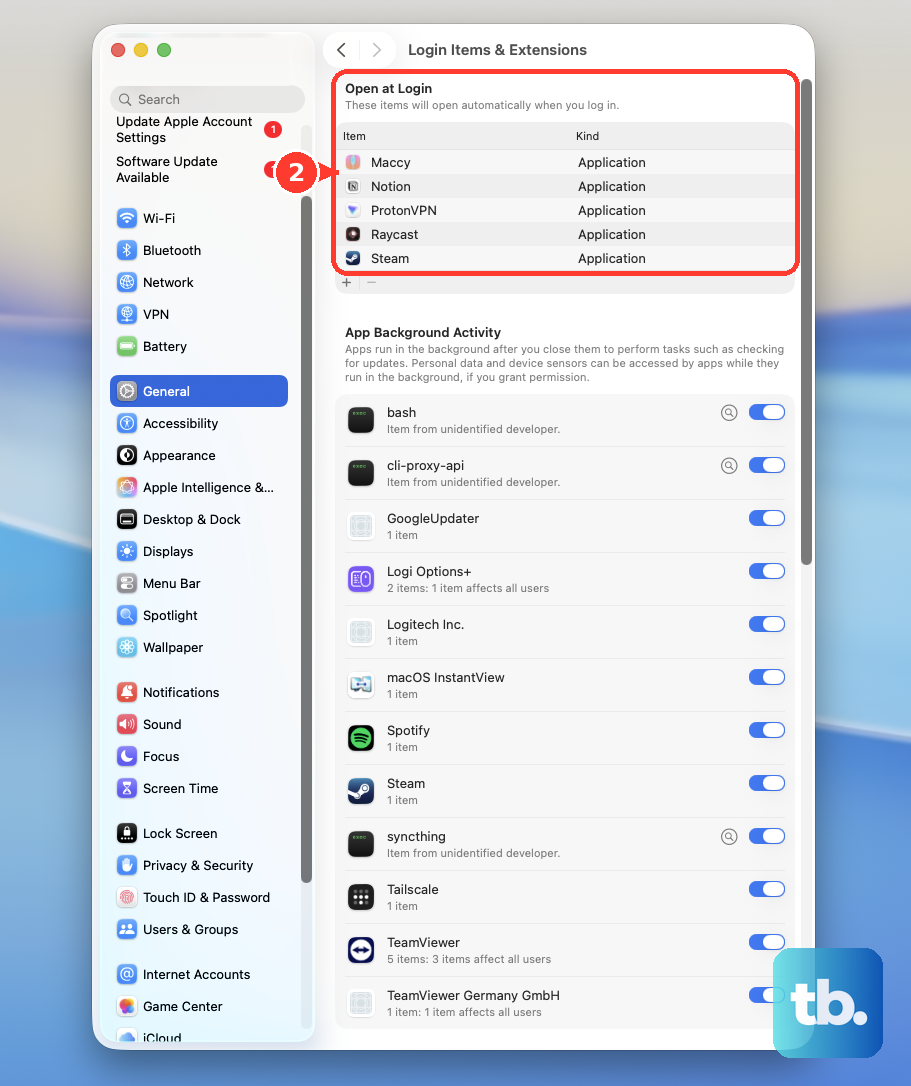
Also, check the background permissions in System Settings > Privacy & Security > Background Items (you may need to scroll down). Disable items here that don't need to be constantly running.
Monitor for Spotlight Indexing
After a major macOS update or when you've added a new large external drive, Spotlight will re-index your files. This process, handled by `mdworker` or `mds` processes in Activity Monitor, can cause significant temporary slowdowns.
You can let it finish, which is best for long-term system health. If you need immediate performance for a task, you can temporarily pause it by adding your main drive to the privacy list in System Settings > Spotlight > Privacy, then removing it later to resume.
Check for Memory Pressure
In Activity Monitor, click the Memory tab. Look at the "Memory Pressure" graph at the bottom. If it's consistently yellow or red, your system is actively compressing data and using swap memory on your SSD because your physical RAM is full.
While the M5 Max has fast unified memory, running into heavy memory pressure will slow things down. The fix is to close memory-intensive applications or browser tabs. With workloads that push 64GB or 128GB of RAM, this is a key metric to watch.