
When Bluetooth keeps dropping on your MacBook Air 15-inch M4, it can leave your Magic Mouse, AirPods, or external keyboard suddenly unresponsive. The issue is often a software hiccup that you can resolve without any special tools.
Toggle Bluetooth Off and On
Start with the simplest step. Click the Bluetooth icon in your menu bar and choose "Turn Bluetooth Off." Wait about ten seconds, then turn it back on. If you don't see the menu bar icon, you can do this from System Settings > Bluetooth.
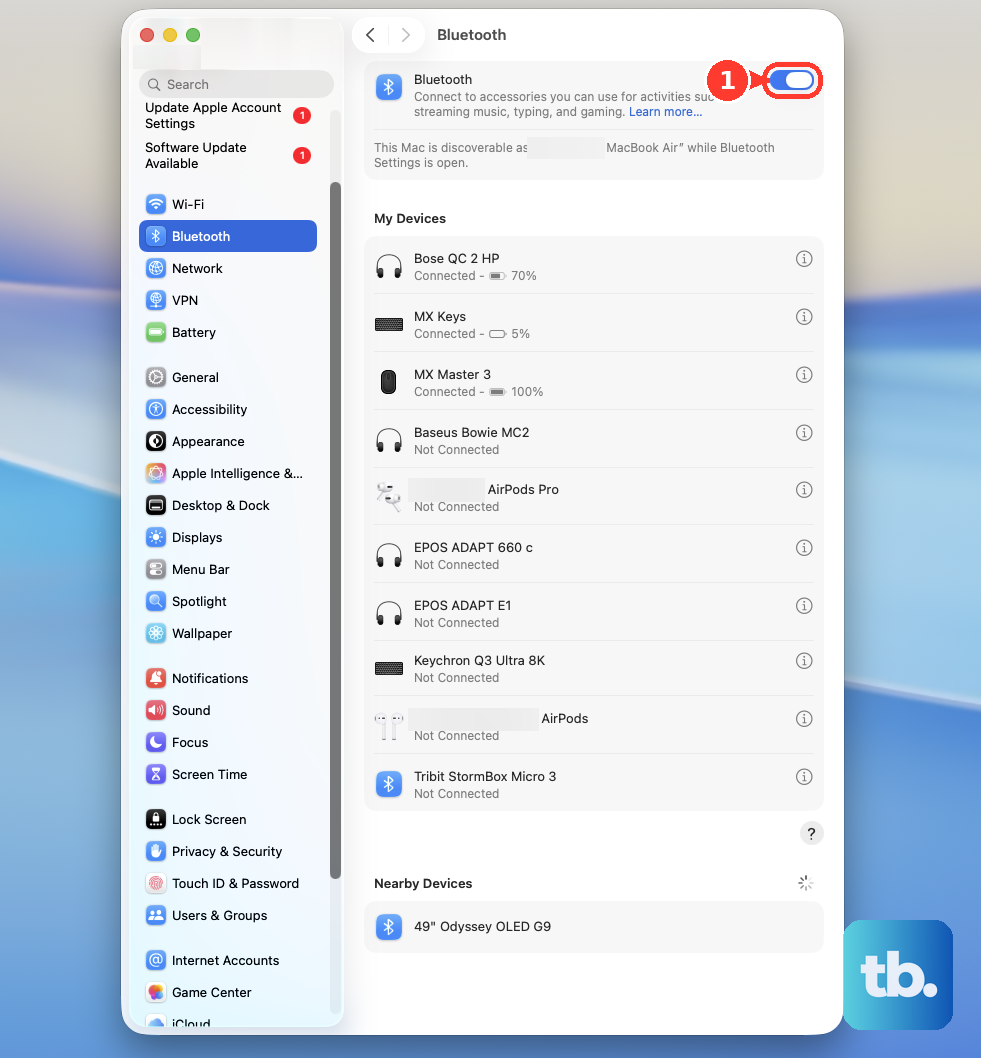
This quick refresh forces the system to reinitialize the Bluetooth controller. It's the fastest way to clear a temporary glitch causing the disconnections.
Restart Your MacBook Air
If toggling Bluetooth didn't help, a full restart is your next move. Click the Apple menu > Restart. This clears out any corrupted connection states in memory and reloads the entire Bluetooth stack from scratch.
For the MacBook Air with M4, a restart is particularly effective because it resets the unified memory architecture that the Bluetooth module shares with the rest of the system.
Forget and Re-Pair the Problem Device
Sometimes the pairing data itself gets corrupted. Open System Settings > Bluetooth, find the device that keeps disconnecting, and click the info i button next to it.
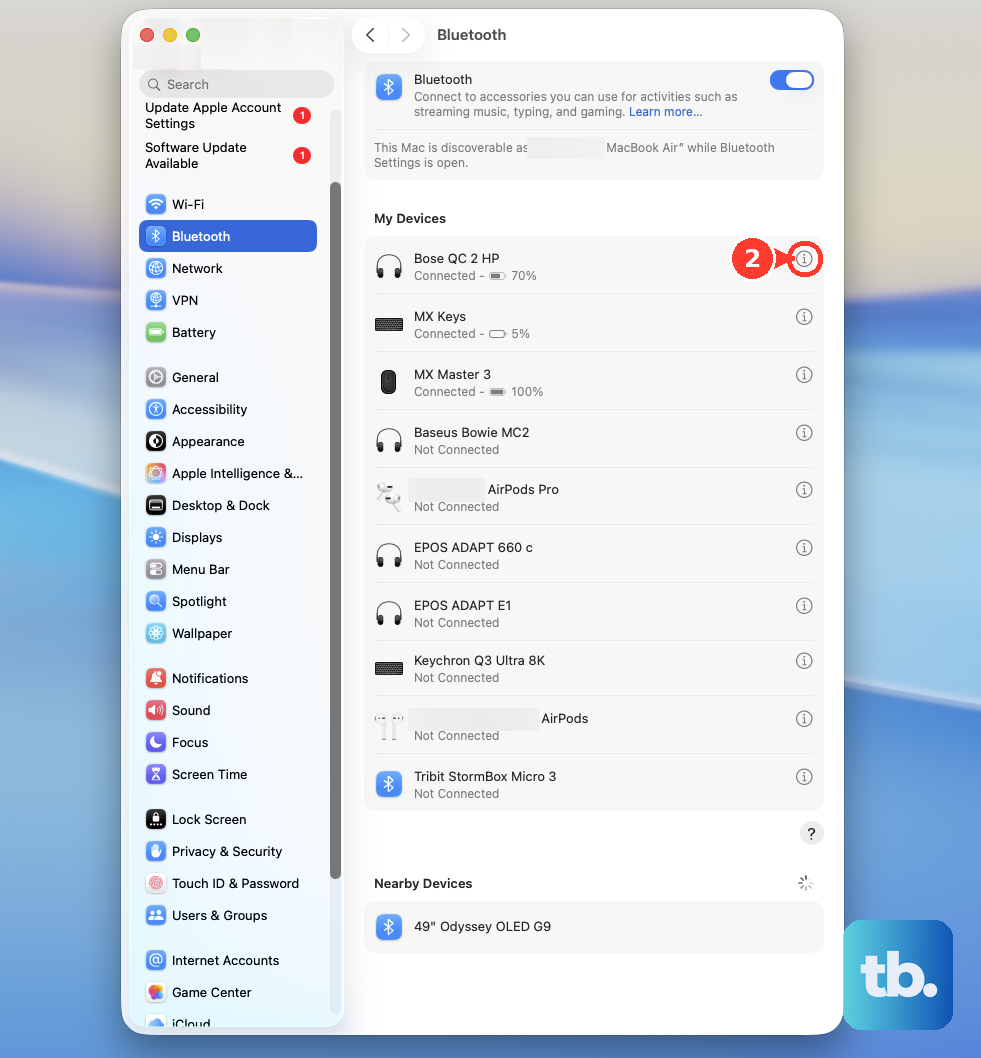
Select Forget This Device and confirm. Then, put your accessory back into its discovery or pairing mode and reconnect it fresh. I've seen this fix persistent drops with specific devices while others work fine.
Reset the Bluetooth Module
macOS includes a deeper reset option. Hold down the Shift and Option keys on your keyboard, then click the Bluetooth icon in the menu bar. A new debug menu will appear.
Choose Reset the Bluetooth module from that menu. This performs a low-level hardware reset. Your Mac will restart automatically afterward, and you'll need to re-pair your devices.
Check for macOS Updates
Apple frequently releases fixes for connectivity in software updates. Go to System Settings > General > Software Update to check.
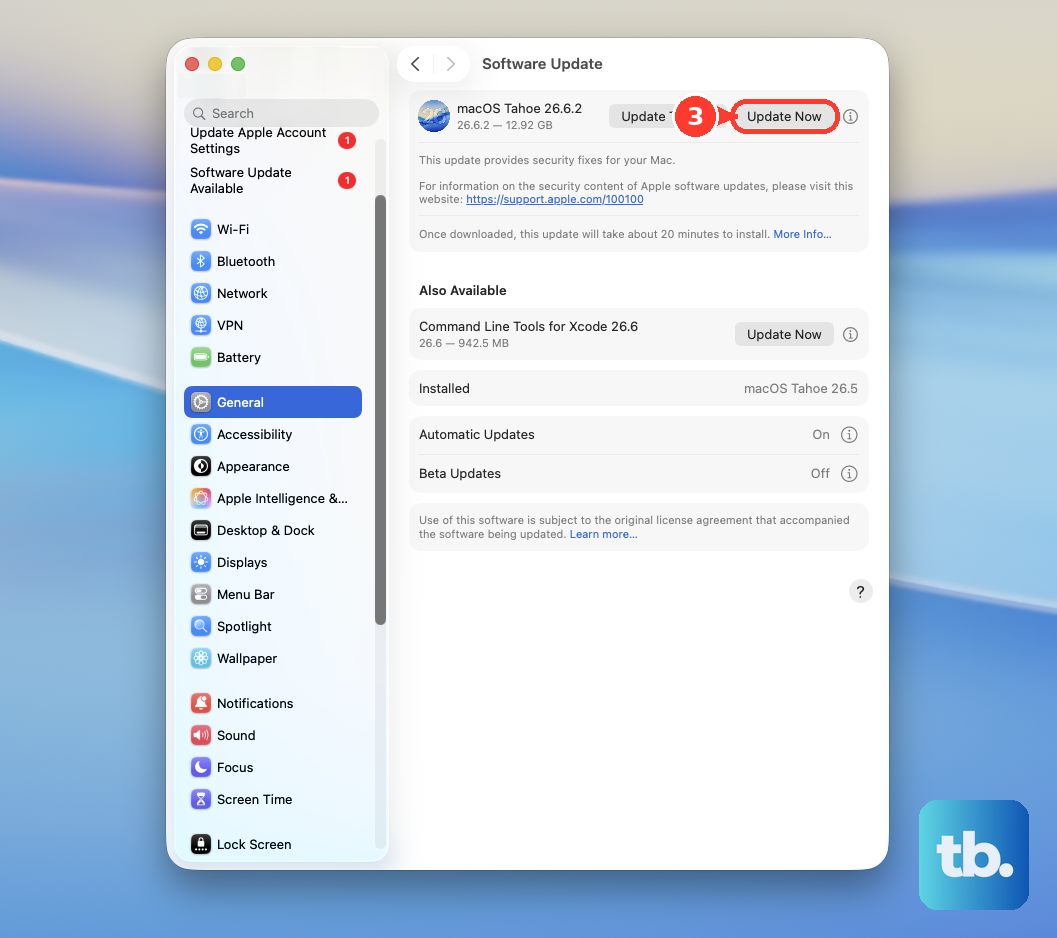
Since your MacBook Air 15-inch is running macOS 26 Tahoe, ensuring you have the latest version is crucial. These updates often contain Bluetooth driver improvements tailored for Apple Silicon chips like the M4.
Check for Wireless Interference
The 15-inch model's larger internal layout can sometimes be a factor. USB 3.0 hubs and devices are common culprits for Bluetooth interference on the 2.4GHz band.
Try disconnecting any non-essential USB devices, especially external drives or hubs. Also, try moving your MacBook Air away from other wireless routers, microwaves, or dense clusters of wireless devices to see if the connection stabilizes.
Delete Bluetooth Preference Files
If the problem is system-wide, a corrupted preference file might be to blame. Open a Finder window, press Command + Shift + G, and type /Library/Preferences/ into the box that appears.
Look for a file named com.apple.Bluetooth.plist and move it to the Trash. You will need to enter your administrator password. Restart your Mac, and macOS will generate a new, clean preferences file. Note that you will have to re-pair all your Bluetooth devices after this.
Test in Safe Mode
Booting into Safe Mode loads only the essential macOS software, which helps determine if a third-party app is causing the conflict. Shut down your MacBook Air completely.
Press and hold the power button until you see "Loading startup options." Select your main drive, then press and hold the Shift key and click "Continue in Safe Mode." If Bluetooth works reliably in Safe Mode, you know an app you installed is likely the cause.
Run Apple Diagnostics
This built-in tool can check for hardware issues with the Bluetooth component. Ensure your MacBook Air is on a hard, flat surface with good ventilation, as the diagnostic checks the fans.
Shut down your Mac, then press and hold the power button as you turn it on. Keep holding until you see the startup options window. Press Command + D to start Apple Diagnostics. If any hardware faults are found, it will provide reference codes.