
When your Mac Pro M2 Ultra keeps losing its WiFi connection, it can grind your work to a halt, especially if you're transferring large files or working with network resources. The good news is that a persistent drop is usually a software or configuration issue you can fix yourself.
I'd start with the simplest fix first. Click the WiFi icon in your menu bar and turn WiFi off. Wait about 15 seconds, then turn it back on. This quick refresh of the wireless adapter can clear up temporary glitches and often re-establishes a stable connection right away.
Restart Your Mac Pro
If toggling WiFi didn't help, the next step is a full restart. Click the Apple menu in the top-left corner and select Restart. Given the Mac Pro's tower design, you can also use the physical power button on the top of the case.
A restart reloads all network drivers and clears out any corrupted states in memory. For a machine running intensive workflows, this is a surprisingly effective fix for intermittent drops.
Forget and Rejoin Your Network
Sometimes the saved profile for your network gets corrupted. To fix this, open System Settings and go to WiFi. Click the Details button (it looks like an "i") next to your problem network's name.
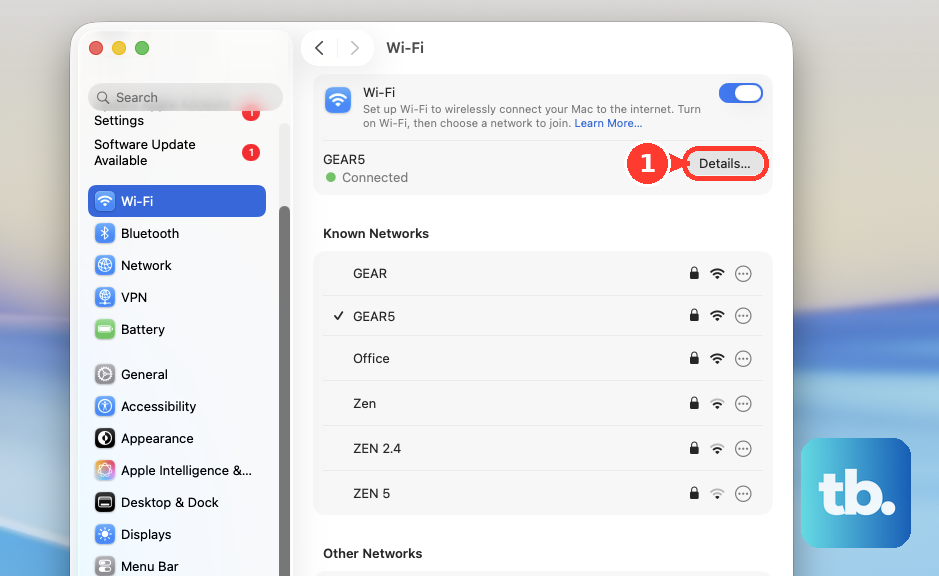
At the bottom of the window, click Forget This Network. Confirm, then select the network again from the list and re-enter the password. This creates a brand new, clean connection profile.
Renew Your DHCP Lease
If you're connected but have no internet, your IP address might be the issue. In System Settings > WiFi, click Details next your network and go to the TCP/IP tab.
Click the Renew DHCP Lease button. This asks your router for a fresh IP address, which can resolve conflicts and restore your connection. It only takes a moment.
Change Your DNS Servers
Slow or unresponsive DNS servers from your ISP can make websites fail to load, mimicking a WiFi drop. In the same WiFi Details window, switch to the DNS tab.
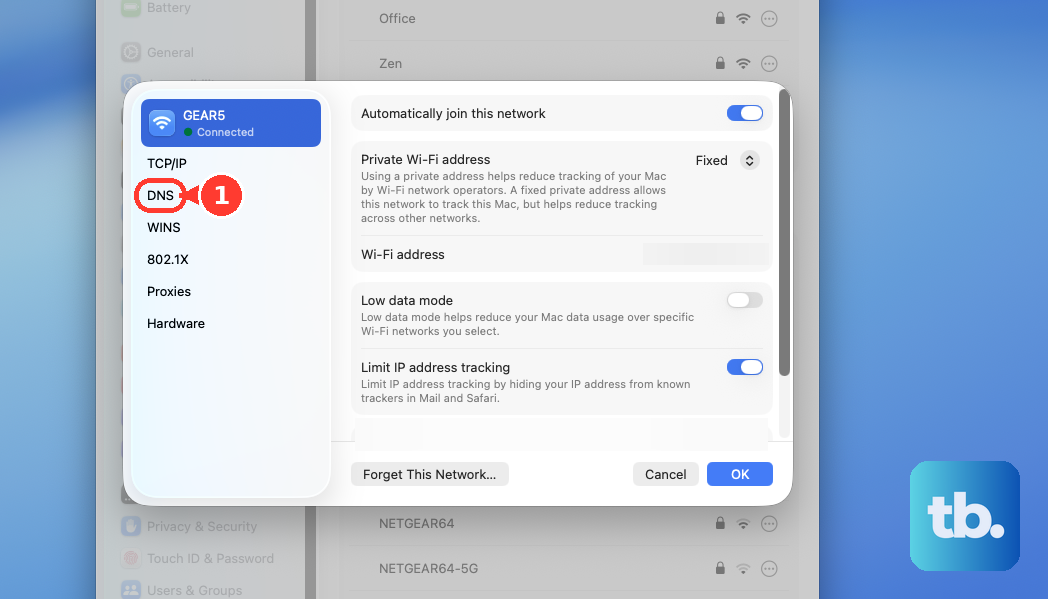
Remove any existing DNS servers listed on the left. Click the Add button and enter 1.1.1.1 (Cloudflare) or 8.8.8.8 (Google). You can add a second, like 1.0.0.1 or 8.8.4.4, for backup. Click OK.
Check for macOS Updates
Apple frequently releases updates that include fixes for wireless connectivity. Go to System Settings > General > Software Update to check for and install any available updates for macOS Tahoe.
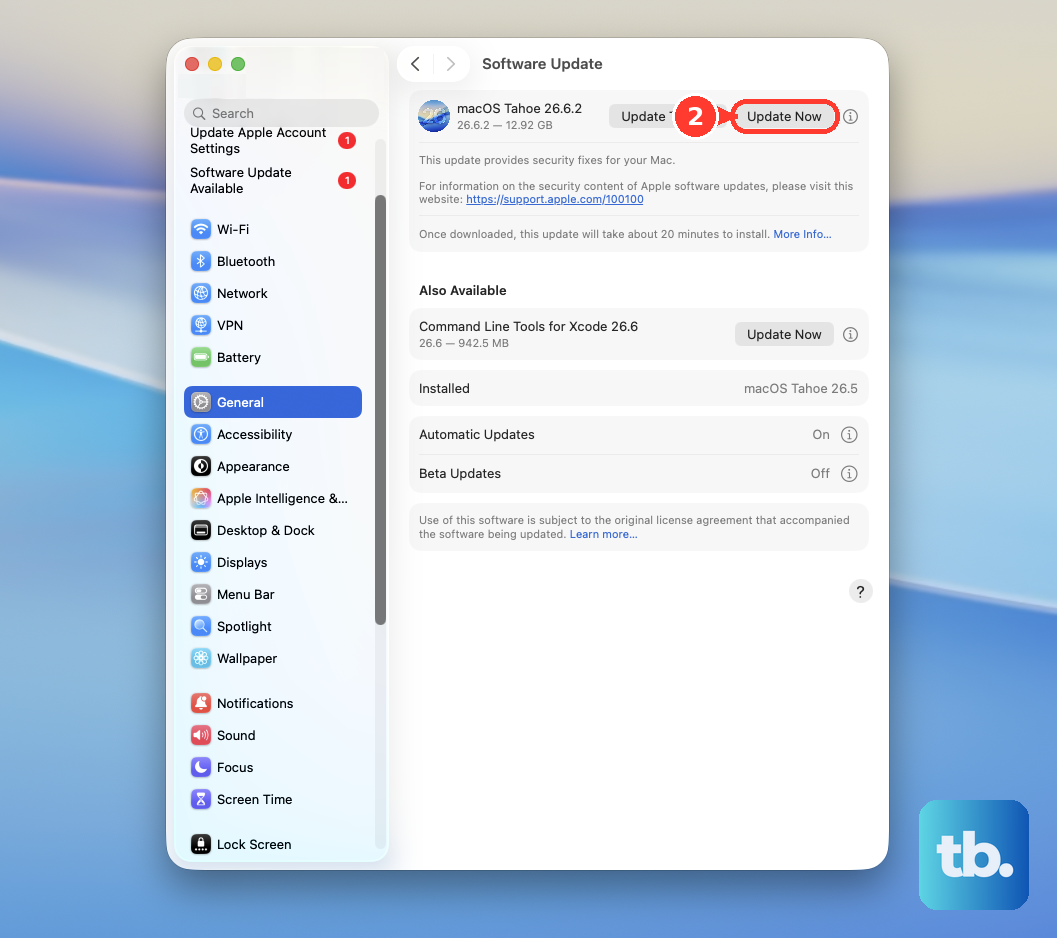
Keeping your system updated is one of the best ways to ensure stability, especially for core functions like networking on a professional machine.
Run Wireless Diagnostics
macOS has a built-in tool for this. Hold down the Option key and click the WiFi icon in your menu bar. From the dropdown, select Open Wireless Diagnostics.
Follow the on-screen assistant. It will scan your environment for interference, analyze your connection, and often provide specific recommendations to improve stability.
Create a New Network Location
This is a more thorough reset. Go to System Settings > Network. Click the three-dot menu button next to the network service list and hover over Locations.
Select Edit Locations, click the plus (+) icon to add a new location, and give it a name like "Fresh Start." Click Done, then switch to this new location from the same menu. This loads a completely blank slate of network settings.
Reset the SMC and NVRAM
For Intel Macs, resetting the System Management Controller (SMC) was a common fix. On Apple Silicon Macs like the M2 Ultra, that process is handled differently through a restart.
You can still reset NVRAM, which stores some network settings. Shut down your Mac Pro. Press the power button on top, then immediately press and hold Command, Option, P, and R for about 20 seconds before releasing. This can clear out lingering parameter issues.
If you've added any PCIe expansion cards, be aware that some third-party cards, especially older models, can cause system instability or interfere with onboard components like the WiFi controller. Try removing non-essential cards temporarily to see if the connection stabilizes.
Finally, use the Option-click trick on the WiFi menu bar icon to check your signal strength (RSSI). A reading consistently below -70 dBm is weak. The Mac Pro's metal case is robust, but its location under a desk or far from the router can impact signal. Consider moving the tower or using a wired Ethernet connection for critical tasks.