
When your Lenovo IdeaPad 5 15 shows a "USB Device Not Recognized" error or simply doesn't react to a connected flash drive, mouse, or external drive, it's a common but fixable hiccup. The problem usually sits with the port, the device itself, a driver conflict, or a Windows power setting.
Try a Different USB Port on Your IdeaPad
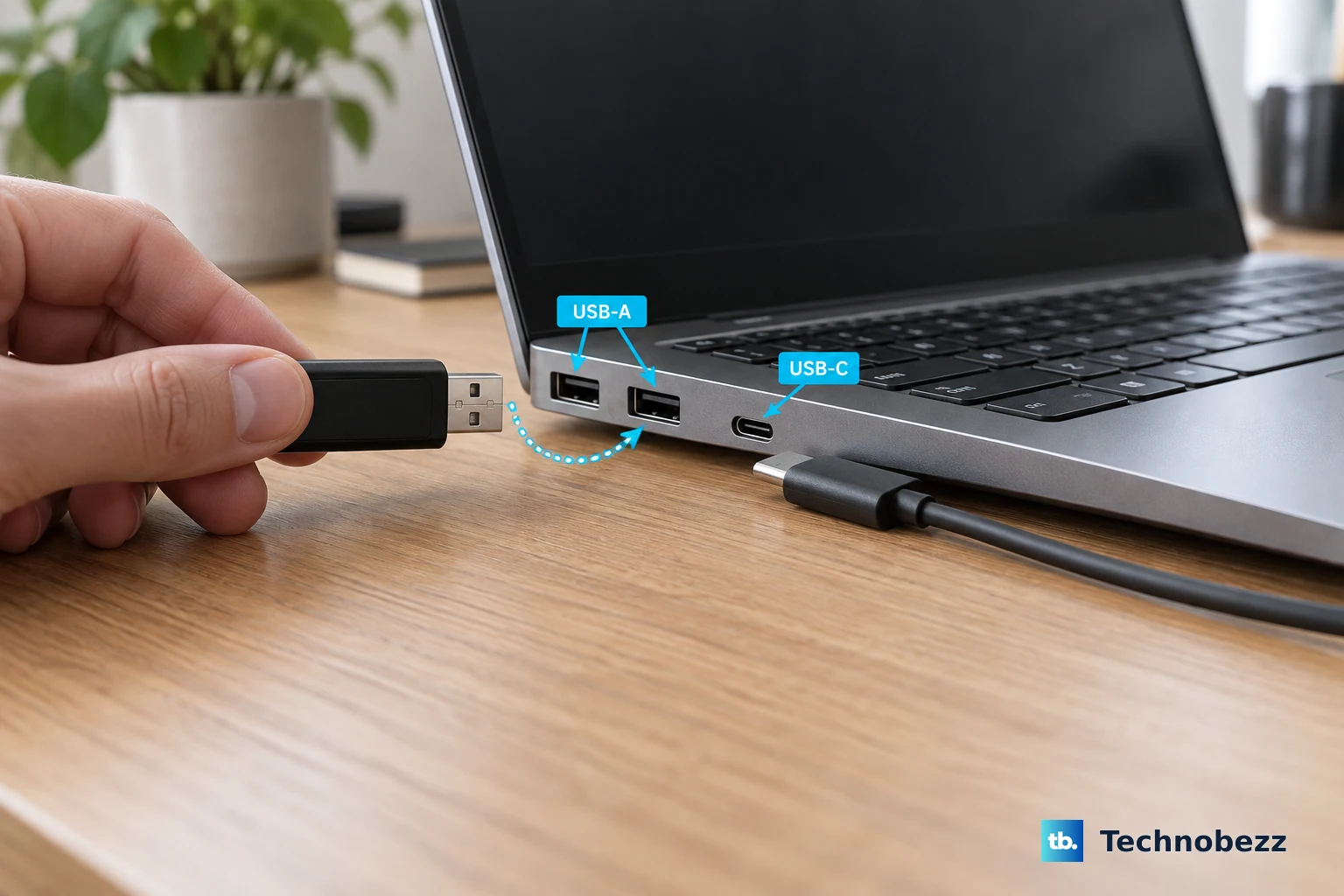
Unplug the device and connect it to another USB port on your laptop. The IdeaPad 5 15 typically has a mix of USB-A and USB-C ports. If the device works in a different port, the original one might be physically damaged or have a software issue. This is the quickest way to narrow down the source of the problem.
Perform a Full Restart
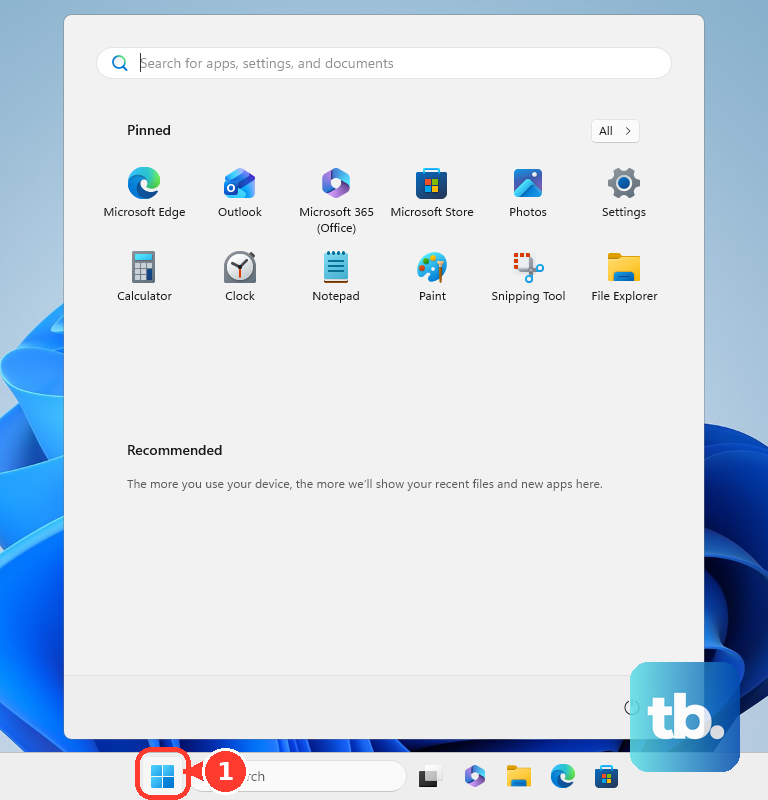
A complete restart reloads all your USB drivers and resets the laptop's USB controller. Many transient recognition errors are caused by temporary driver glitches that a reboot clears up. Make sure you select "Restart" from the Start menu, not just putting the laptop to sleep and waking it.
If the system is unresponsive, you can force a shutdown by holding the power button for about 10 seconds until it turns off. Wait a few seconds, then press the power button again to boot up normally.
Test the USB Device Elsewhere
Plug the problematic USB device into another computer. If it isn't detected there either, the device itself is likely faulty. If it works perfectly on another machine, you know the issue is isolated to your Lenovo IdeaPad's configuration, which points to software or driver fixes.
Swap Out the Cable
For devices that use a detachable cable, like external hard drives or phones, try a different cable. Cables can fail over time, especially near the connectors. A common failure mode is a cable that still delivers power (so a light might come on) but has broken data lines, preventing communication.
Update or Reinstall USB Drivers
Press the Windows key + X and select Device Manager. Expand the section labeled Universal Serial Bus controllers. Look for any entries with a yellow exclamation mark. Right-click on them and choose Update driver.
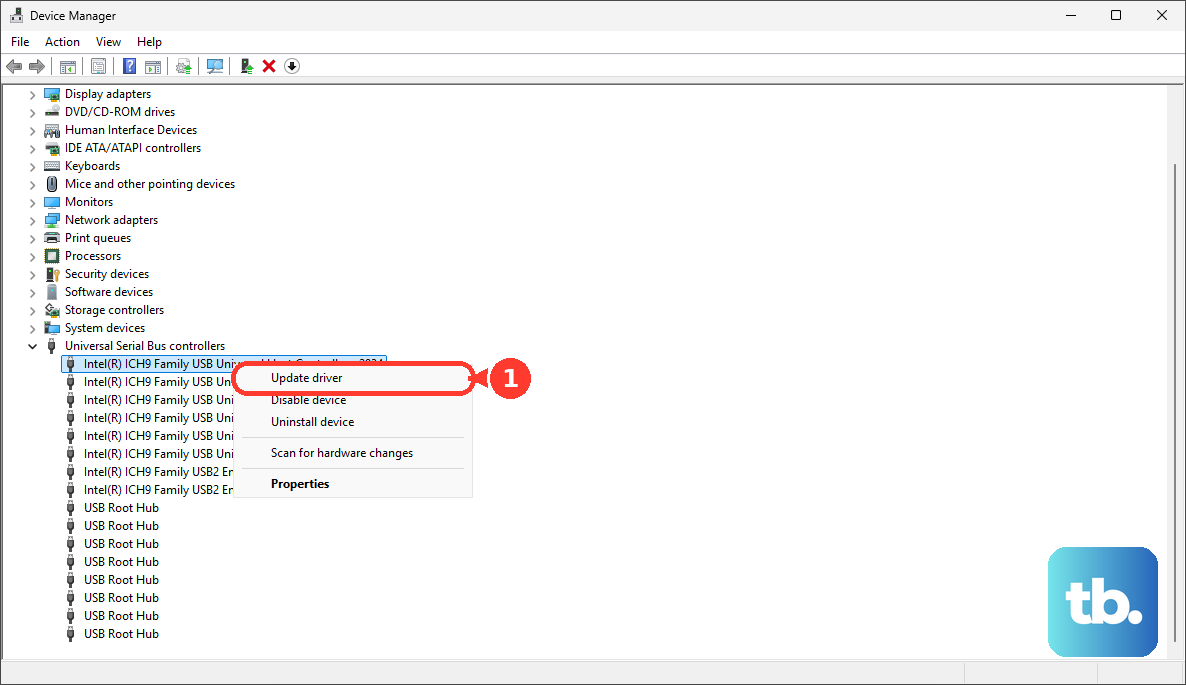
You can also try right-clicking on the specific USB controller (like "USB Root Hub") and selecting Uninstall device. Restart your laptop, and Windows will automatically reinstall the driver. For a more comprehensive update, use the Lenovo Vantage app to check for official system and driver updates.
Disable USB Selective Suspend
This is a known power-saving feature that can sometimes be too aggressive. Go to Control Panel > Power Options. Next to your selected plan, click Change plan settings > Change advanced power settings.
In the new window, scroll down and expand USB settings, then expand USB selective suspend setting. Set both "On battery" and "Plugged in" to Disabled. This prevents Windows from turning off USB ports to save power, which can interrupt device detection.
Run the Built-in Hardware Troubleshooter
Open the Start menu, type "cmd", right-click on Command Prompt, and select Run as administrator. In the window, type the command msdt.exe -id DeviceDiagnostic and press Enter. This launches the Hardware and Devices troubleshooter, which can automatically find and fix some common USB configuration problems.
Install All Windows Updates
Go to Settings > Windows Update and click Check for updates. Install all available updates, including any optional driver updates. You can find these by going to Advanced options > Optional updates after the main check is complete. Microsoft and Lenovo often release patches that improve hardware compatibility.
Manually Scan for Hardware Changes
With the USB device plugged in, go back to Device Manager. Click on the Action menu at the top and select Scan for hardware changes. This forces Windows to re-poll all its hardware buses and can jolt the system into recognizing a connected device it previously missed.
If you've tried all these steps and a specific port still doesn't work, it may indicate a physical hardware fault with that port. In that case, using the other available ports on your IdeaPad is a reliable workaround for your USB devices.