
Screen flickering on your Lenovo IdeaPad 5 15 is incredibly distracting, turning simple tasks into a headache. The display might flash, show horizontal lines, or have intermittent blackouts. Let's get it fixed.
I'd start by checking the refresh rate. Right-click your desktop and select Display settings. Scroll down and click Advanced display. Look at the Choose a refresh rate dropdown. If it's set to something like 59.940 Hz, try switching it to 60Hz, or vice versa. This mismatch can cause a persistent flicker, and switching it is a quick fix that often works.
Update Your Graphics Drivers
Outdated or corrupted display drivers are a prime suspect. For the most reliable update, don't just use Windows Update. Visit the Lenovo support website, enter your IdeaPad 5 15's exact model number, and download the latest graphics driver from there. You can also use the Lenovo Vantage app, which is pre-installed, for a one-click driver and system update scan.
After downloading, run the installer. It will typically handle the uninstallation of the old driver for you. A full restart of your laptop after the installation is crucial for the new driver to take effect properly.
Boot Into Safe Mode to Diagnose
If the flickering is constant, booting into Safe Mode is your best diagnostic tool. Safe Mode loads Windows with only the essential drivers. To get there, hold the Shift key while clicking Restart from the Windows power menu.
Navigate through Troubleshoot > Advanced options > Startup Settings and then restart. Press 4 or F4 to enable Safe Mode. If the flickering stops here, you know a third-party driver or startup program is the culprit. You can then start uninstalling recent software or drivers from within Safe Mode.
Roll Back a Problematic Driver Update
Did the flickering start right after a Windows or driver update? You can roll the driver back. Press Windows Key + X and select Device Manager. Expand Display adapters, right-click your Intel or AMD graphics device, and select Properties.
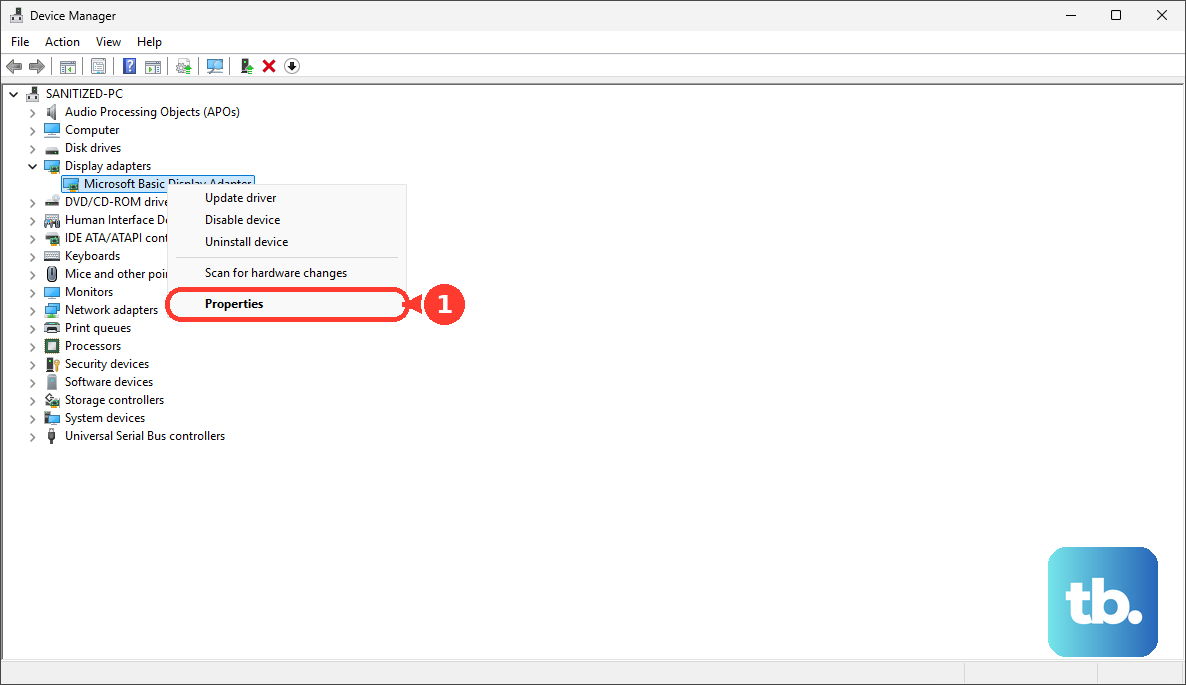
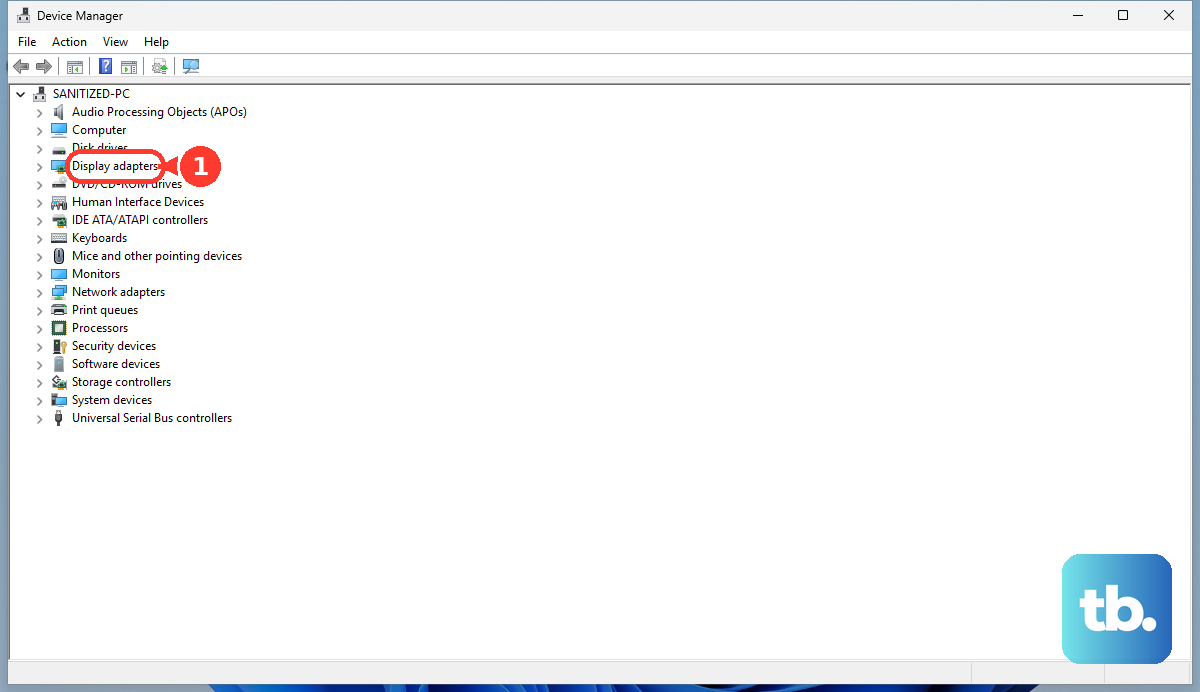
Go to the Driver tab. If the Roll Back Driver button is clickable, select it and choose a reason. This will revert to the previous driver version. This fix is often immediate if a new update introduced a compatibility glitch with your IdeaPad's display panel.
Disable Hardware Acceleration in Apps
Specific applications, especially web browsers like Chrome or Edge, can cause flickering. This is often due to their hardware acceleration feature, which hands off tasks to your GPU. In Chrome, go to Settings > System and turn off Use hardware acceleration when available.
Remember to restart the browser after changing this setting. Other apps like Discord, Slack, or video players have similar options in their settings menus. Toggling hardware acceleration off can resolve flickering that only happens within a particular program.
Check for Physical Connection Issues
Pay attention to when the flickering happens. Does it get worse when you adjust the screen angle or open the lid? This can point to a loose internal display cable (called an eDP cable) connecting the motherboard to the screen.
Over time, the repeated motion of the hinge can loosen this connection. While not extremely common, it's a known hardware possibility. Fixing this usually requires opening the laptop chassis and reseating the cable, which is best left to a professional if you're not comfortable with internal repairs.
Use the Windows Display Troubleshooter
Windows has a built-in tool that can automatically find and fix some common display problems. Go to Settings > System > Troubleshoot > Other troubleshooters. Find Display in the list and run the troubleshooter.
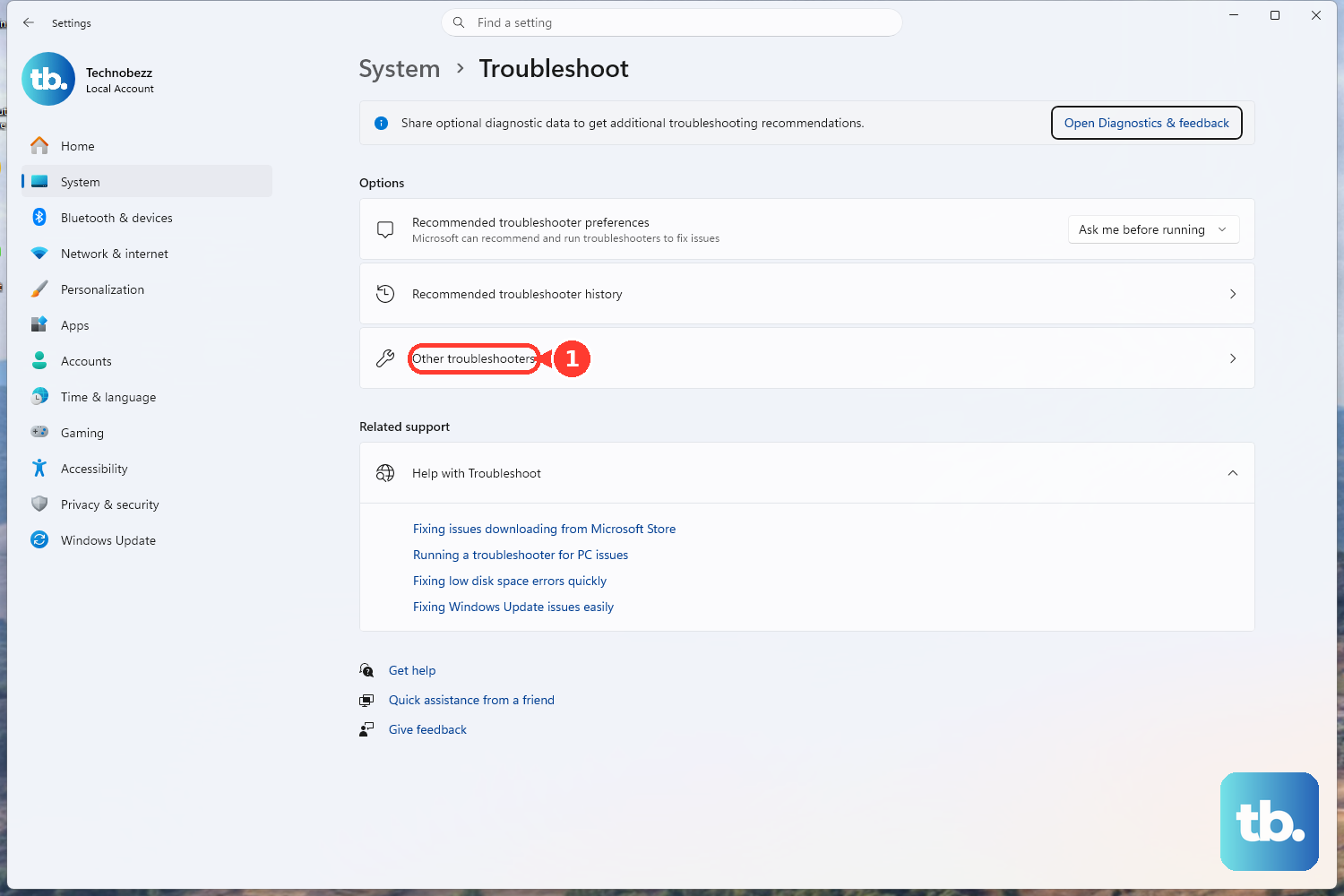
It will walk through a series of checks and might apply fixes like changing the refresh rate or scaling settings automatically. It's a straightforward step that can sometimes catch an easy miss.
Perform a Clean Boot
A clean boot starts Windows with a minimal set of drivers and startup programs. It's more thorough than a quick app check. Type msconfig into the Windows search bar and open System Configuration. Go to the Services tab, check Hide all Microsoft services, and then click Disable all.
Next, open the Startup tab (this is managed via Task Manager now, so click the link to open it). Disable all startup items. Restart your laptop. If the flickering is gone, you enabled items back in groups to isolate the problematic software causing the conflict.
Check Your Power Settings
Some power-saving features can interfere with display stability. For your graphics, right-click on the desktop and select your GPU control panel (like Intel Graphics Command Center). Look for power-saving settings and try setting the graphics power plan to Maximum Performance or disabling adaptive brightness features.
Also, a general Windows power setting can help. Go to Settings > System > Power & battery and set the power mode to Best performance temporarily to see if it stabilizes the display. This rules out aggressive power management throttling the display controller.