
Unlock your iPhone SE 4 from carrier restrictions and use any network provider
What to Know
- Network Unlock Code is an 8-16 digit code that removes carrier restrictions from your iPhone SE 4.
- Contact your carrier first - most will provide the code for free if you've paid off the device.
- Your IMEI is essential - you'll need this unique identifier to get the unlock code.
- Third-party services exist for when carriers can't or won't provide the code.
- Be careful with attempts - too many wrong codes can permanently lock your device.
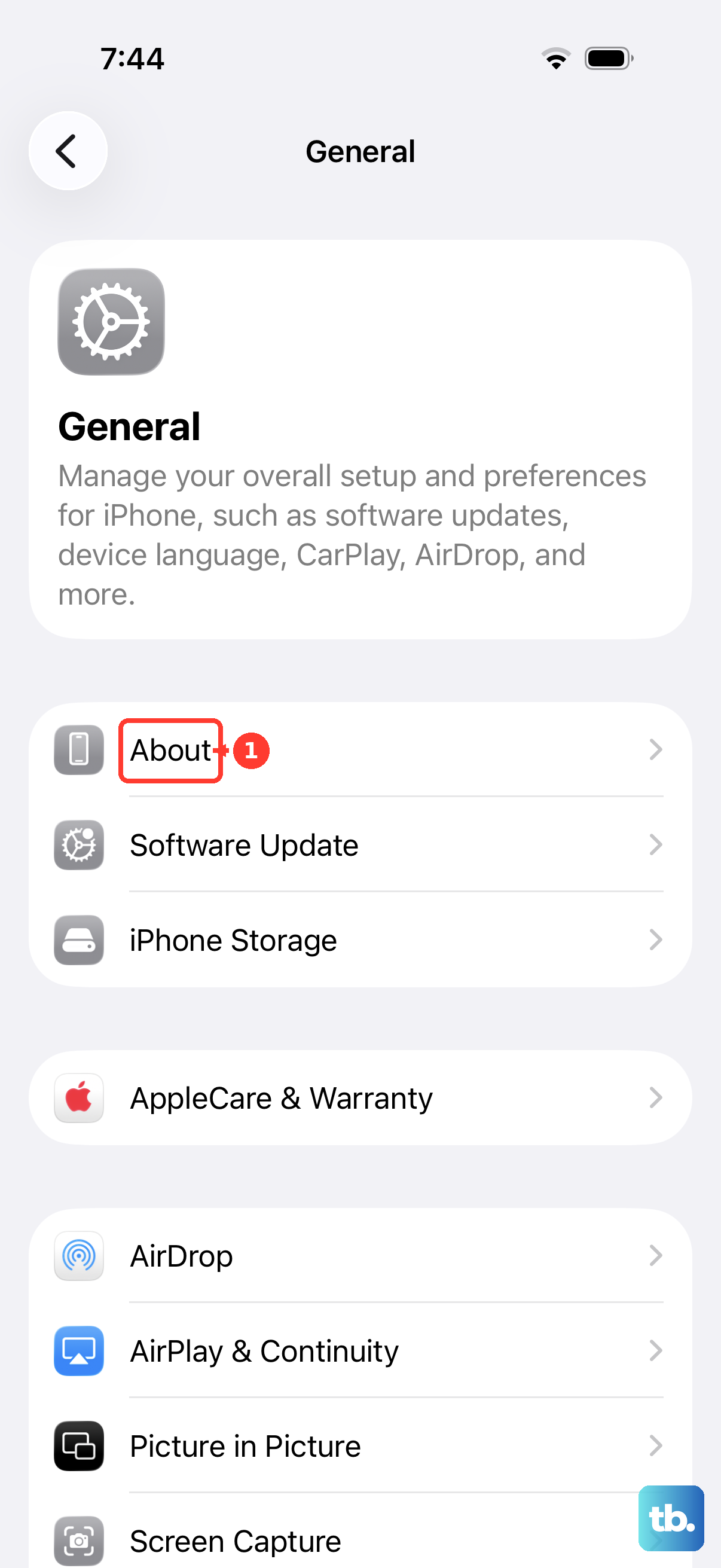
Getting your iPhone SE 4 unlocked is a straightforward process, but it starts with understanding what you need. The key is a Network Unlock Code, which is tied specifically to your phone's IMEI number. You can find your IMEI by going to Settings > General > About, or by dialing *#06# on the keypad.
I'd start by contacting your current carrier. For the iPhone SE 4, which launched in 2025, most major carriers in the US have policies to unlock devices that are paid off and not reported lost or stolen. This is almost always the fastest and most reliable method.
How to Get Your Unlock Code from Your Carrier
Your first and best step is to go directly through the company that sold you the phone. The process is largely the same across carriers, but they each have their own specific forms and wait times.
First, check your eligibility. Your iPhone SE 4 must be fully paid off, whether that means completing an installment plan or fulfilling a contract term. The device cannot be reported as lost or stolen, and your account must be in good standing with no outstanding balances.
Once you've confirmed you're eligible, gather your information. You'll need your account details, the phone number associated with the line, and that all-important IMEI number. Then, contact your carrier's customer support.
You can usually do this online through your carrier's website portal, via a dedicated unlock request page, or by calling their customer service line. Submit your request and be prepared to wait. Processing can take anywhere from 24 hours to a few business days.
When your request is approved, the carrier will send the unlock code to the email address on file. They might also push the unlock directly to your iPhone SE 4 over the air, especially if it's running iOS 18. If you get a code, save it somewhere safe.
Carrier-Specific Unlock Processes
While the general idea is the same, the exact steps can vary depending on who your provider is. Here’s a quick rundown for the major US carriers.
AT&T Unlock Process
For AT&T, you'll need to visit their official device unlock portal online. You can submit the request there by entering your IMEI number and following the prompts. They typically process requests within 24 to 48 hours if you meet all the requirements. You'll receive a confirmation email once it's complete.
T-Mobile Unlock Process
T-Mobile also has an online unlock portal for eligible devices. Your iPhone SE 4 must be fully paid for and have been active on their network for at least 40 days. You can submit the request through your T-Mobile account online or via the T-Mobile app. They often complete unlocks within 24 hours.
Verizon Unlock Process
Verizon phones are typically unlocked automatically after 60 days from purchase, but if you need to confirm or request an unlock, you should contact their customer support at 800-922-0204. For the iPhone SE 4, you can also check the unlock status directly in Settings > General > About. If it says "No SIM restrictions," your device is already unlocked.
Using the Unlock Code on Your iPhone SE 4
If you received a numeric code from your carrier or a third-party service, using it is simple. First, make sure you have a SIM card from a different carrier that you want to switch to. You'll need a physical nano-SIM or an active eSIM profile from the new provider.
Turn off your iPhone SE 4. Remove your current carrier's SIM card and insert the new one. Power the phone back on. If the device is still locked, you should see a message on the screen prompting you to enter the unlock code.
Type in the code carefully. You usually only get a limited number of attempts, so accuracy is key. Once entered correctly, you should see a confirmation message that says "Unlock Successful" or something similar. Your iPhone SE 4 will then restart, and you'll be free to use the new carrier's network.
In many cases with newer iPhones on iOS 18, you might not even see the prompt. The unlock is often applied server-side, and you can just swap the SIM. If the new SIM card works immediately after inserting it, the unlock was already processed remotely.
Using a Third-Party Unlocking Service
If your carrier is unable or unwilling to provide an unlock code, third-party services are an alternative. This is common with older phones, phones from smaller carriers, or if you purchased the device second-hand and the original owner can't help.
Choose a service carefully. Look for companies with strong, verifiable reviews and clear guarantees. They will ask for your iPhone SE 4's IMEI number and the original carrier it's locked to. Be wary of any service that promises "instant" unlocks for free, as these are frequently scams.
Once you provide your IMEI and pay the fee, the service will work to obtain the code. This can take from a few hours to a couple of days. They will then email you the unlock code and instructions. You use this code exactly the same way as one from a carrier, by inserting a new SIM card and entering the code when prompted.
Troubleshooting Unlock Issues
Sometimes, things don't go perfectly smoothly. If you're having trouble, there are a few common fixes to try.
If your unlock code isn't working, double-check that you're entering it correctly. Ensure you're using a SIM card from a different, compatible carrier. Don't just keep guessing, as too many failed attempts can permanently lock the device. If it fails, contact the provider who gave you the code for verification.
You might see a message like "SIM Not Supported." This usually means the unlock hasn't been processed yet or the code was incorrect. Make sure you've followed all the steps from your carrier, and try connecting your iPhone SE 4 to Wi-Fi and iTunes or a computer, as sometimes a sync can finalize the unlock process.
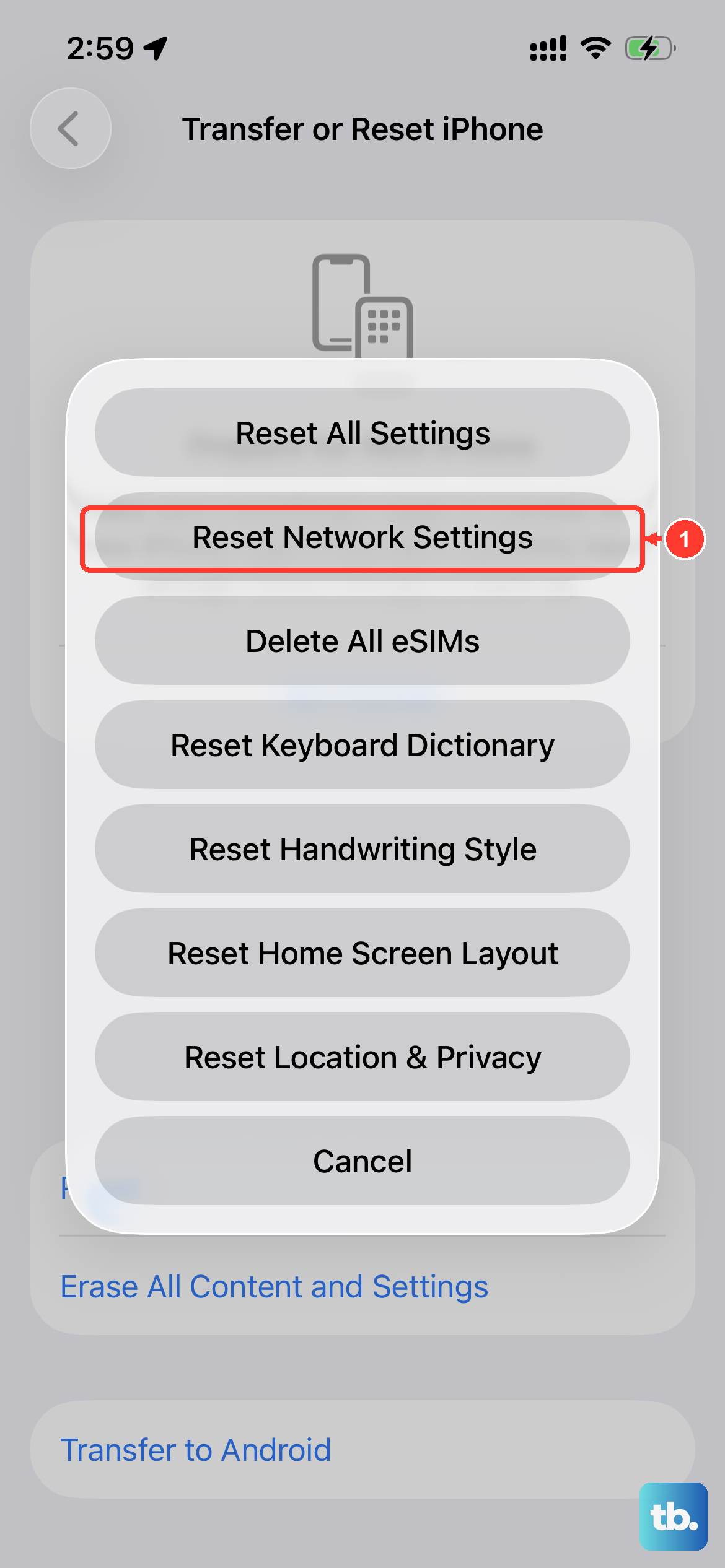
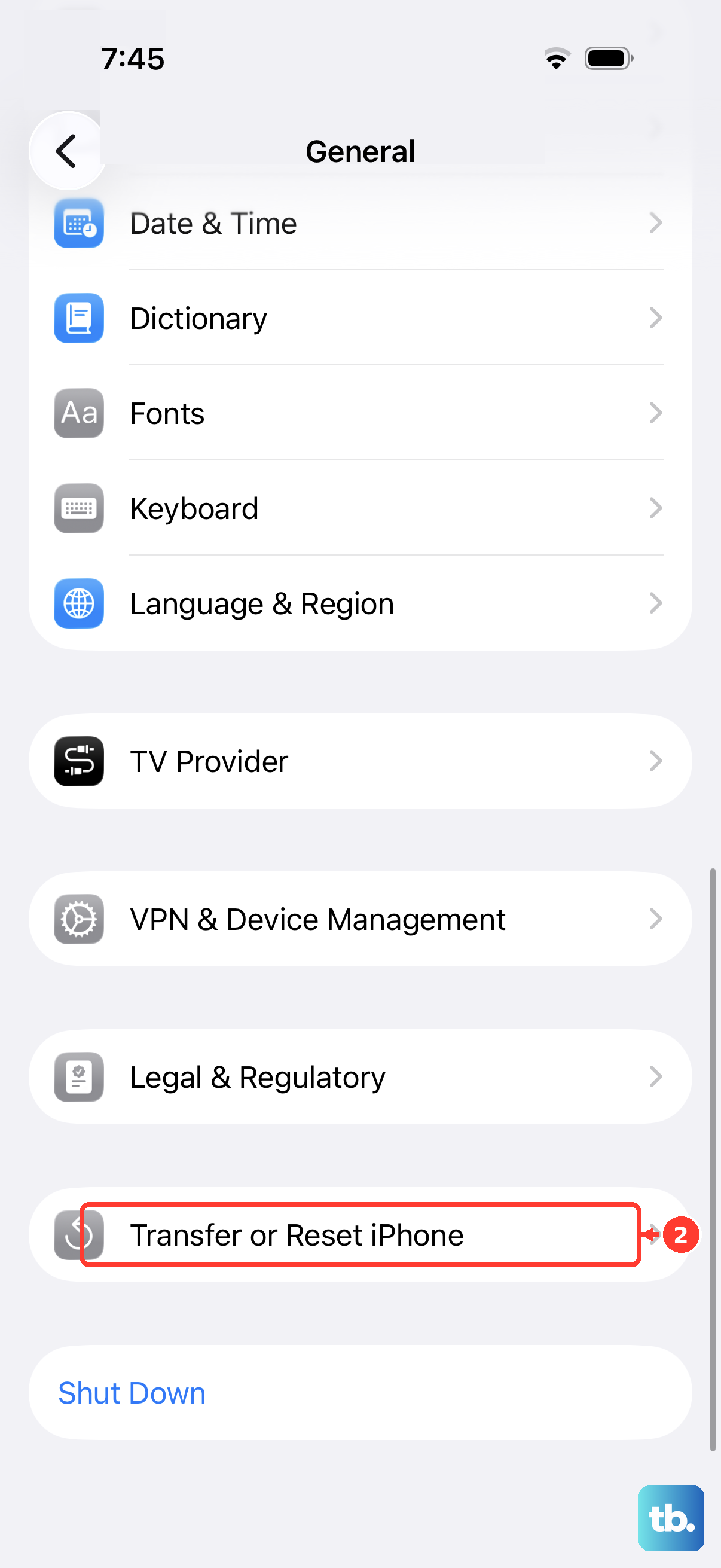
If you believe your phone should be unlocked but it's not, you can try a network settings reset. Go to Settings > General > Transfer or Reset iPhone > Reset > Reset Network Settings. This will clear all carrier settings and may help the phone recognize its new unlocked status. Just remember, this will also erase your saved Wi-Fi passwords.
For persistent issues, restoring your iPhone SE 4 via a computer can be a last resort. Connect to a Mac or PC, open Finder or iTunes, and choose to restore the device. This installs a fresh copy of iOS 18 and can clear any software glitches preventing the unlock from taking effect. Be sure to back up your phone first.