
If your iPhone SE 4's Settings app keeps crashing or freezing, it usually means there's a temporary software hiccup. The good news is you can almost always fix it yourself without losing any data. Let's start with the quickest solution.
First, try a simple restart. Press and hold the side button and either volume button until the power slider appears. Drag the slider to turn your phone off, wait about 30 seconds, then press and hold the side button again until you see the Apple logo. This clears out any minor glitches in memory that might be causing the crash.
Update iOS on Your iPhone SE 4
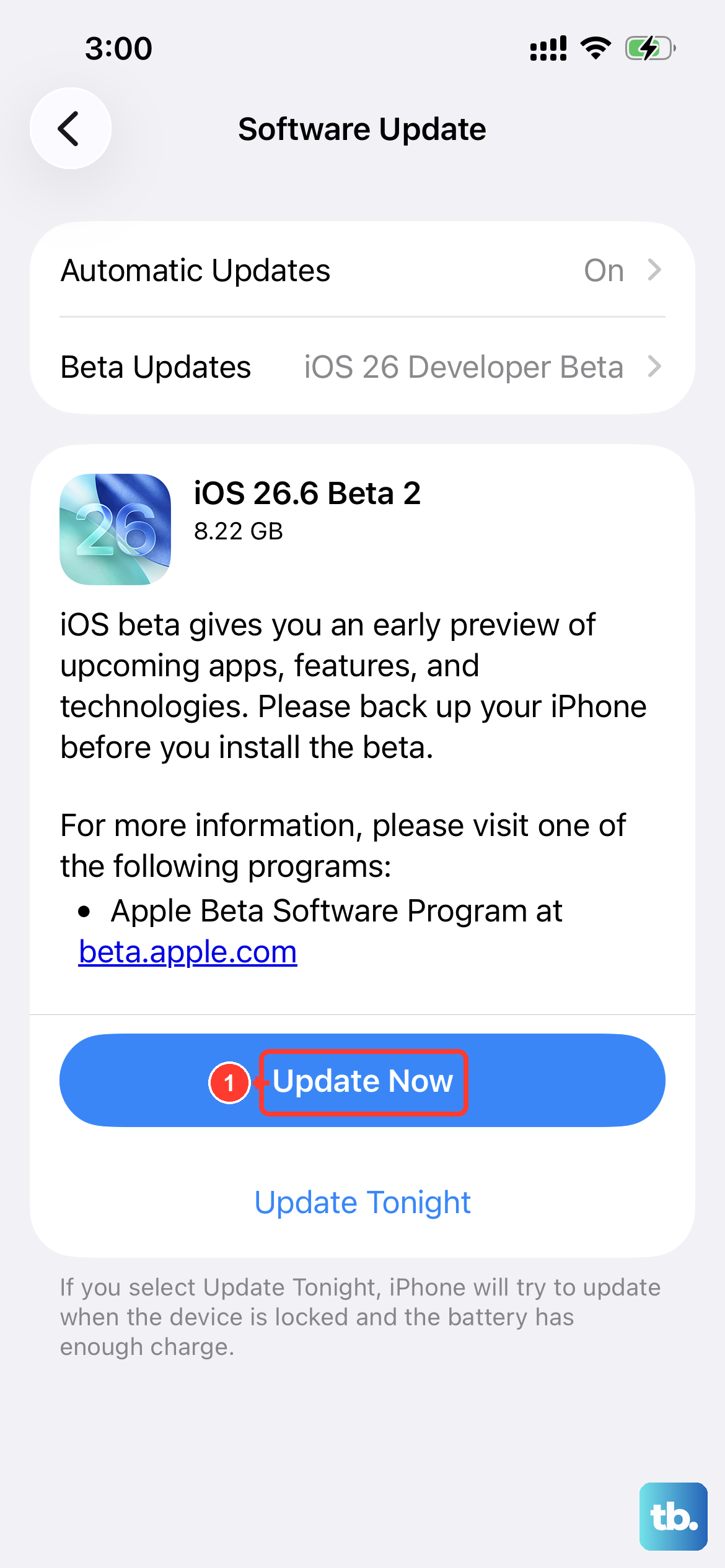
Apple frequently releases iOS updates that include bug fixes for system apps like Settings. Since your SE 4 runs iOS 18, it's important to keep it current. Go to Settings > General > Software Update. If an update is available, tap "Download and Install." Make sure your phone is connected to Wi-Fi and has at least 50% battery, or plug it into your 20W USB-C charger.
I've found that many random app crashes, especially with system apps, are resolved by installing the latest iOS version. It's a good habit to enable automatic updates in that same menu to prevent future issues.
Force Restart Your iPhone
A normal restart didn't do the trick? A force restart is a bit more thorough. It doesn't erase any data, but it forces the phone's hardware and software to fully reboot, which can clear more stubborn problems.
On the iPhone SE 4, you do this by quickly pressing and releasing the Volume Up button, then quickly pressing and releasing the Volume Down button. Finally, press and hold the Side button. Keep holding it even when you see the power off slider, just continue holding until the screen goes black and the Apple logo appears, then you can let go.
Check Your iPhone SE 4's Storage
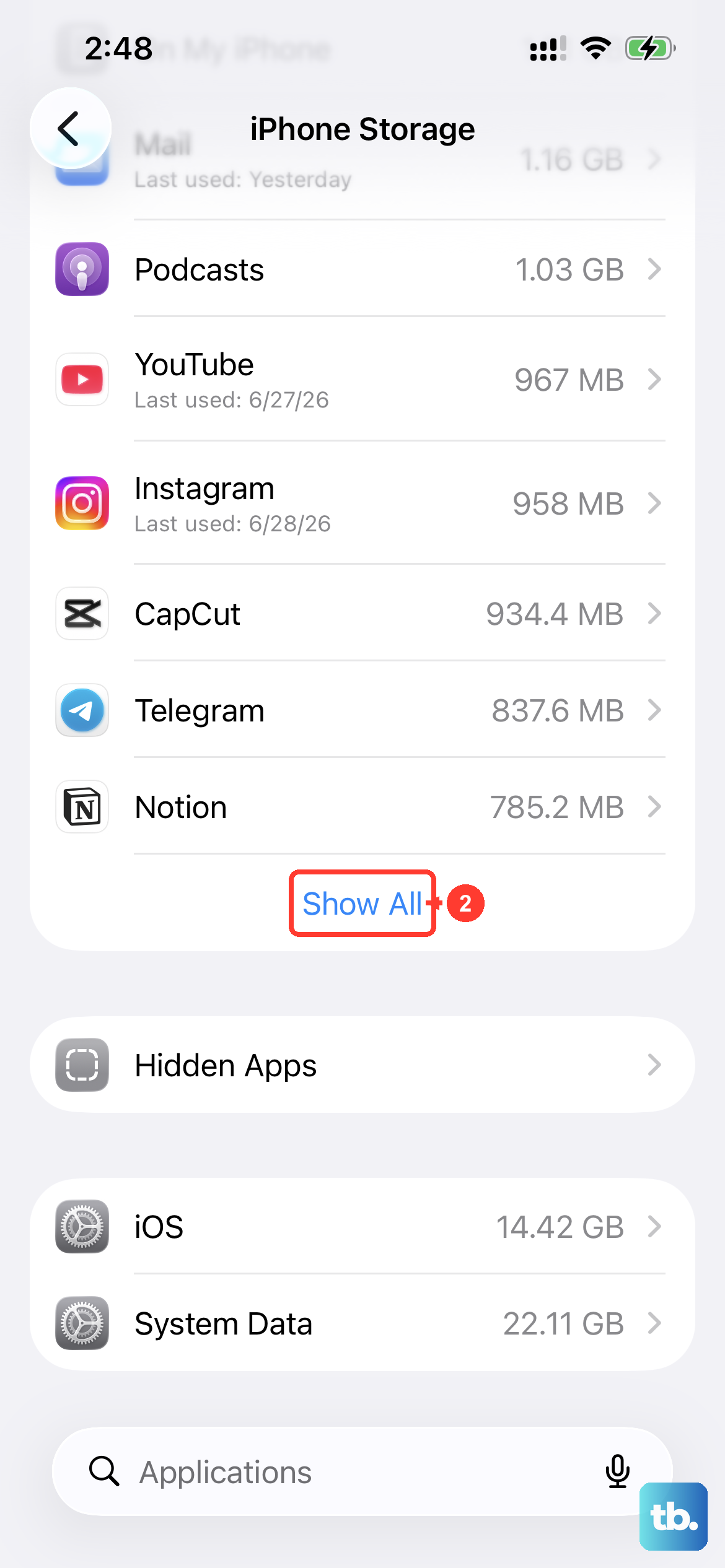
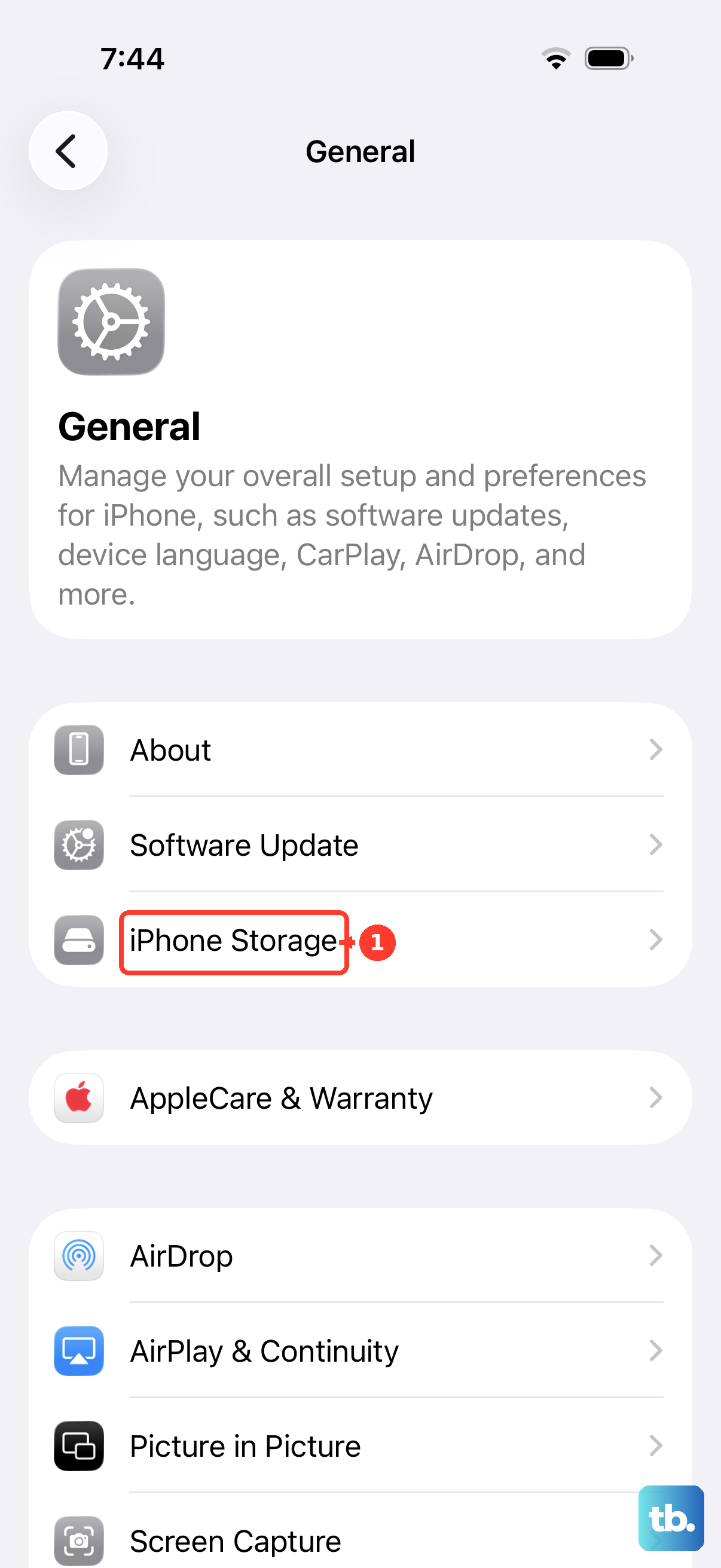
If your phone's storage is completely full, system apps can start to behave strangely, including crashing. Your SE 4 needs some free space to operate smoothly. Head to Settings > General > iPhone Storage.
Take a look at the graph at the top. If you're in the red or very close to full, you'll need to free up some space. The system will usually offer recommendations, like offloading unused apps or reviewing large attachments in Messages. Clearing out some old photos or videos can make a big difference.
Reset All Settings
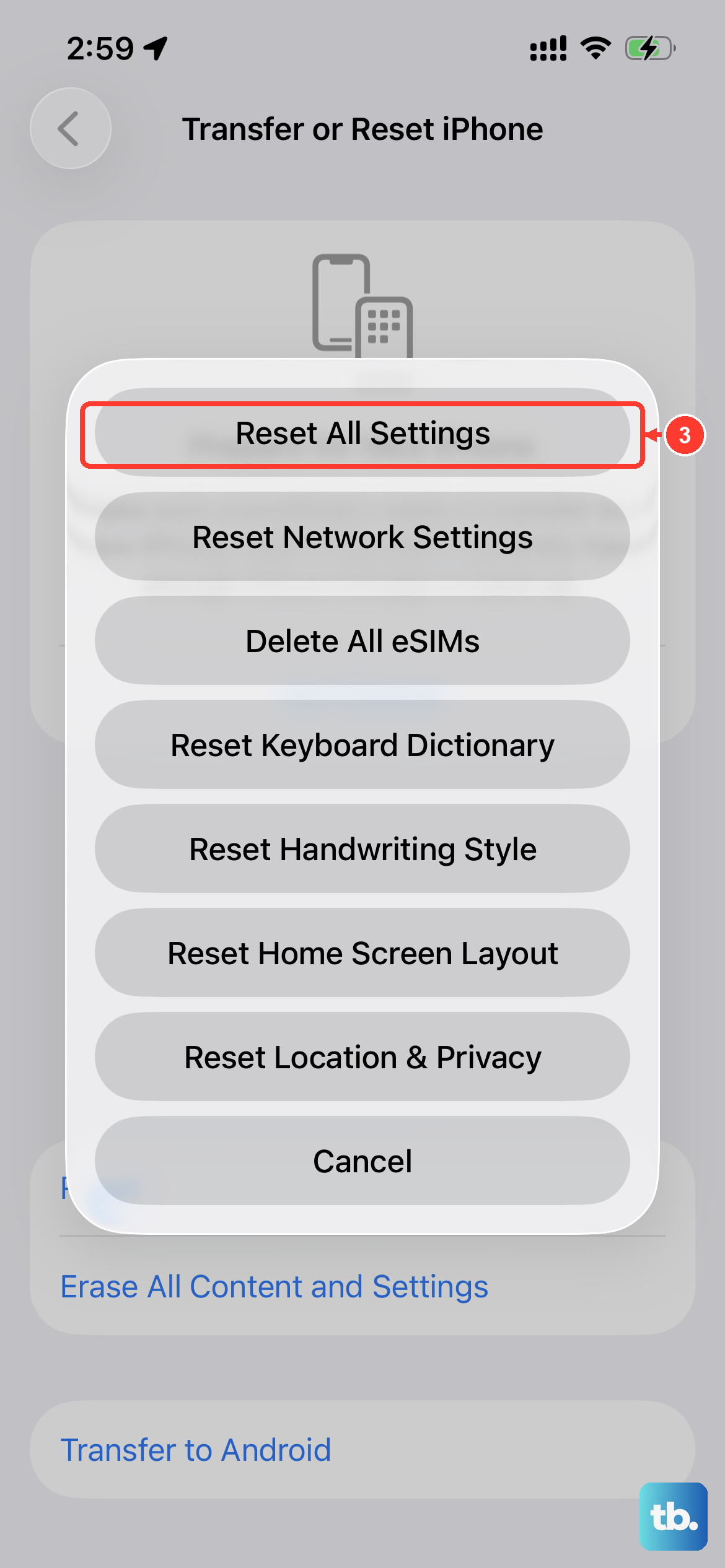
This is a more involved step, but it's very effective for persistent crashes. Resetting all settings will return every system preference, like your Wi-Fi passwords, wallpaper, and privacy settings, back to their factory defaults. Crucially, it does not delete any of your personal data, photos, or apps.
To do this, open Settings > General > Transfer or Reset iPhone. Tap "Reset" at the bottom, then choose "Reset All Settings." You'll need to enter your passcode. After it completes, you'll have to reconnect to Wi-Fi networks and re-setup things like Face ID, but it often clears deep-seated software conflicts causing the Settings app to fail.
Update Your Apps
Sometimes, a bug in a third-party app you've installed can interfere with system processes. It's a good idea to make sure everything is up to date. Open the App Store and tap your profile icon in the top right. Scroll down to see if any app updates are pending.
If you see a lot of updates, you can tap "Update All." After the updates are finished, restart your iPhone SE 4 one more time to see if the Settings app stabilizes.
Restore Your iPhone via a Computer
If the Settings app is still crashing after all the previous steps, the last software fix is to restore your iPhone using a Mac or PC. This will install a completely fresh copy of iOS. You have two options: a standard restore, which erases everything, or a restore that preserves your data.
First, make sure you have a recent backup in iCloud or on your computer. Then, connect your iPhone SE 4 to the computer using a USB-C cable. On a Mac with macOS Catalina or later, open Finder. On a PC or older Mac, open iTunes. Select your device, and you'll see an option to "Restore iPhone."
This process downloads the latest iOS firmware and installs it cleanly. If you choose the erase option, you can then set up your phone as new or from your backup. A fresh install is the most definitive way to rule out any corrupted system software files.