
If your iPhone SE 4 won't send pictures or videos in a text, it's almost always a quick setting that needs to be flipped. The most common fix is to make sure your cellular data is on, even if you're connected to Wi-Fi.
Go to Settings > Cellular and ensure the main Cellular Data switch is green. Then, scroll down and tap Messages to make sure it's also allowed to use cellular data. MMS can't send over Wi-Fi alone, so this is the first thing I'd check.
Check Your MMS Messaging Setting
There's a specific toggle for MMS that can sometimes get turned off, especially after a software update. You'll find it in your Messages settings.
Open Settings and scroll down to Messages. In the SMS/MMS section, make sure MMS Messaging is enabled. If it's off, your phone will try to send everything as an iMessage or fail to send photos and group texts to non-iPhone users.
Restart Your iPhone SE 4
A simple restart can clear out a temporary software glitch that's hanging up the messaging service. It only takes a minute.
To restart your iPhone SE 4, press and quickly release the Volume Up button, press and quickly release the Volume Down button, then press and hold the Side button until you see the Apple logo appear. Let go and wait for it to boot back up, then try sending an MMS again.
Update iOS to the Latest Version
Running an old version of iOS 18 can sometimes cause conflicts with your carrier's messaging services. Apple releases updates that often include fixes for connectivity bugs.
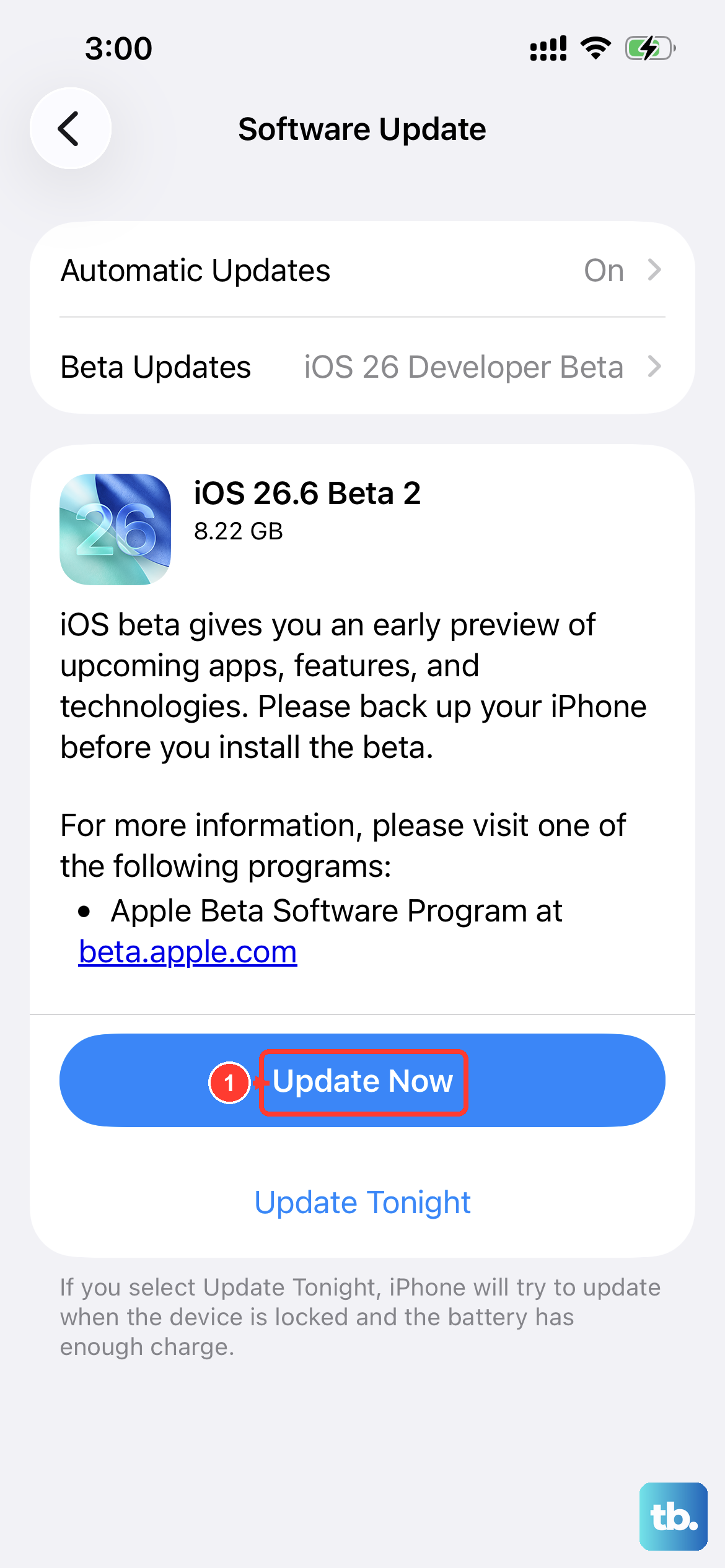
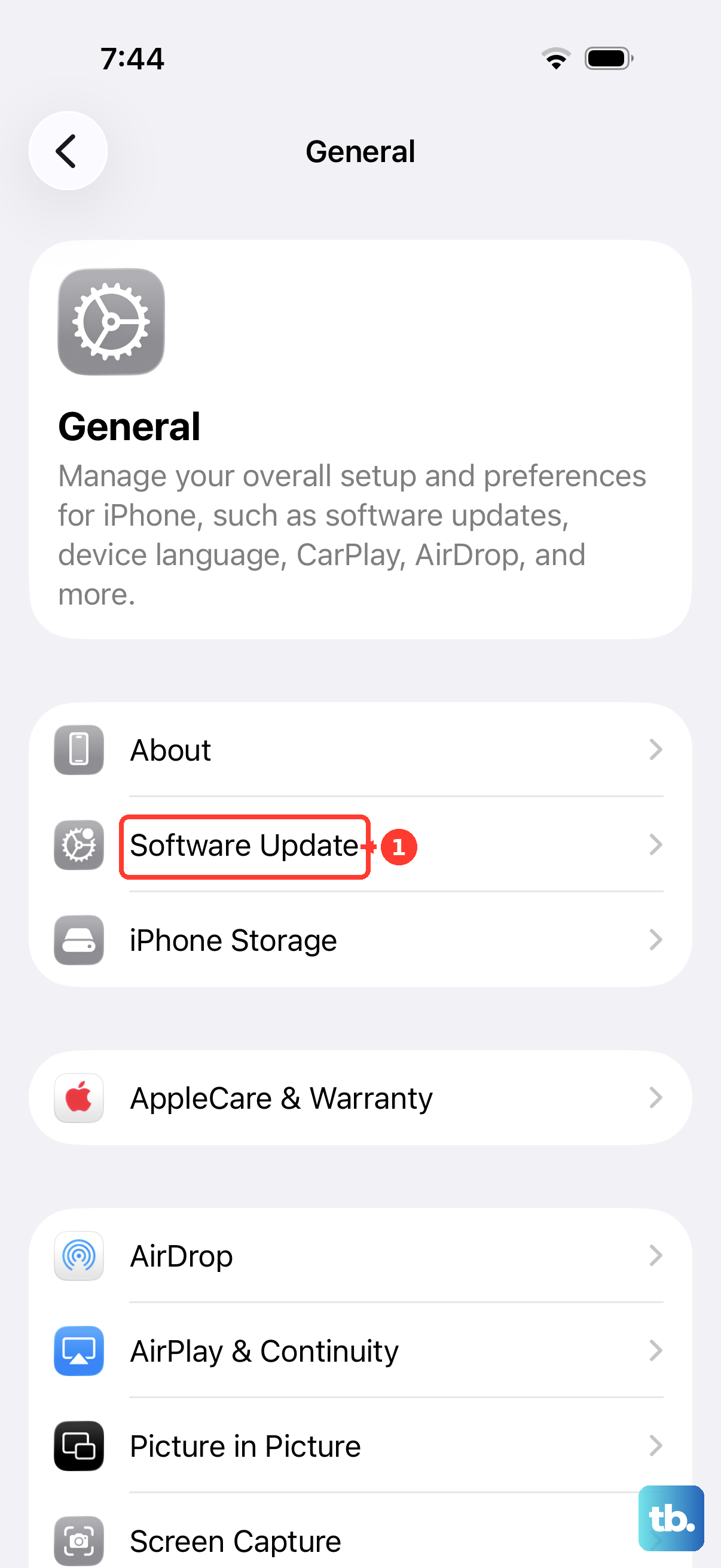
Go to Settings > General > Software Update. If an update is available, tap Download and Install. Make sure your phone is plugged into power and connected to Wi-Fi first. After it updates and restarts, test your MMS.
Reset Your Network Settings
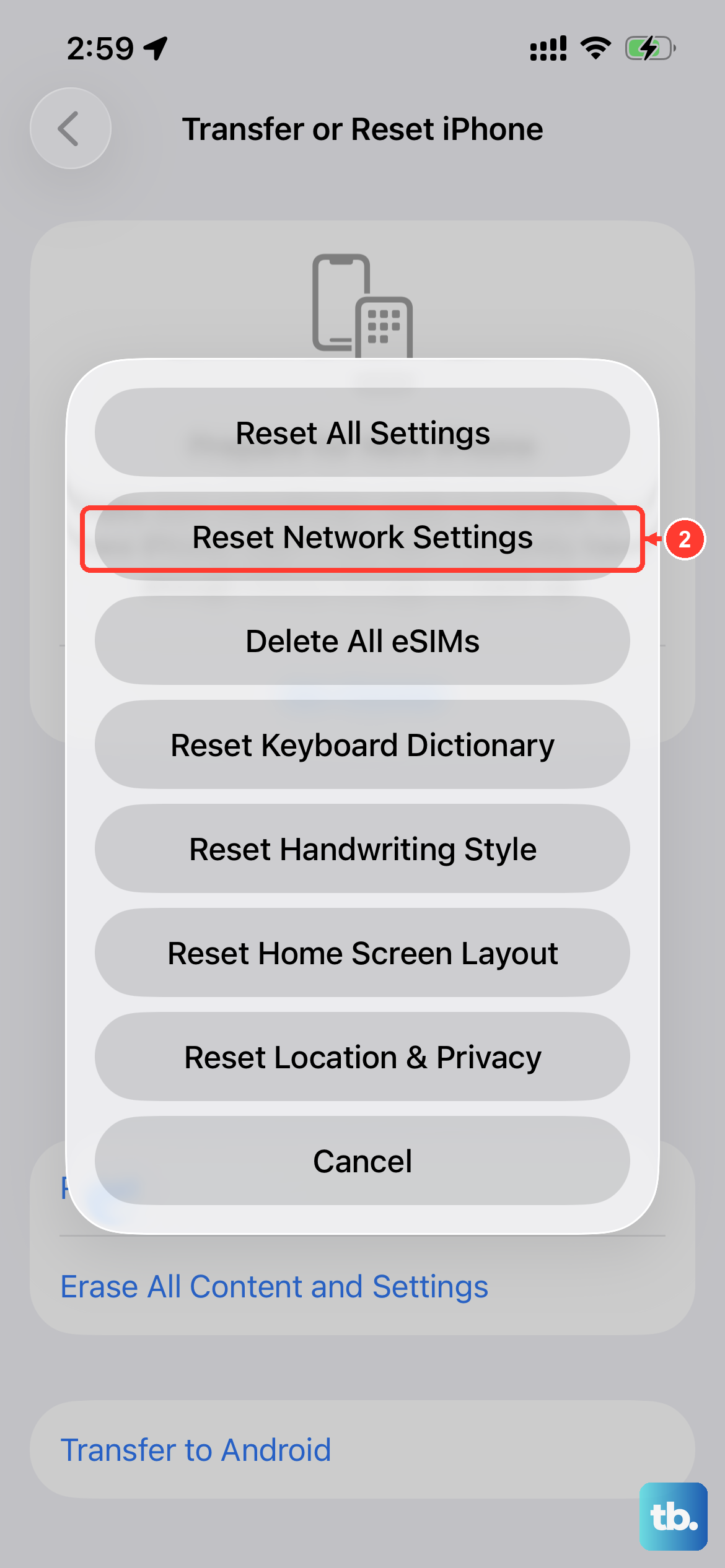
This is a more thorough step that clears all your network-related data without touching your personal files. It will erase saved Wi-Fi passwords, Bluetooth pairings, and cellular settings, then reinstall them fresh.
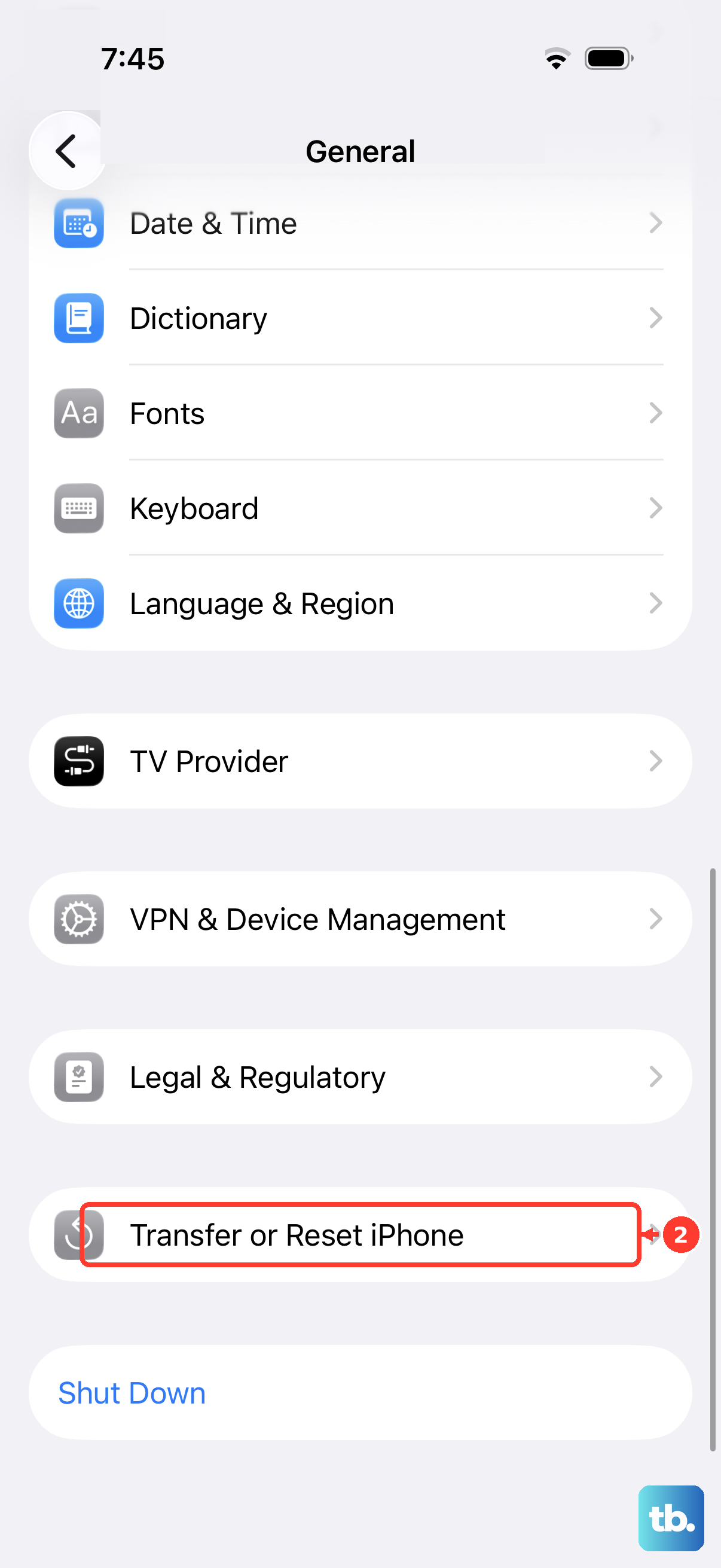
Before you do this, note down any Wi-Fi passwords you'll need. Then, go to Settings > General > Transfer or Reset iPhone. Tap Reset and choose Reset Network Settings. Enter your passcode when prompted and confirm. Your iPhone will restart.
Verify Your Carrier Settings Are Updated
Carrier settings are small files from your mobile provider that configure things like MMS and data. Updates for these can happen automatically, but sometimes they need a nudge.
Make sure your iPhone SE 4 is connected to Wi-Fi. Go to Settings > General > About. If a carrier settings update is available, a pop-up will appear asking you to update. Tap OK. If nothing happens, you're likely already on the latest version.
Check for a Carrier Outage or Contact Support
Sometimes the issue isn't with your phone at all. Your carrier might be experiencing a service disruption in your area that's affecting MMS.
You can check your carrier's official website or their support account on social media for outage reports. If everything seems fine on their end, it's worth giving them a call. They can check your account provisioning on their side and resend the activation signals to your iPhone SE 4, which often clears up stubborn messaging problems.
Try Sending to a Different Contact
This is a quick way to narrow down the problem. If the MMS fails to send to one person but works for another, the issue might be with the recipient's phone or their carrier, not yours.
It could also be related to a very long message thread. If you've been texting the same person or group for years, try starting a brand new message thread with them and sending the photo there. Old, bloated threads can sometimes cause hiccups.