Your iPhone 16e (the phone plenty of shoppers went looking for as the "iPhone SE 4") shows Personal Hotspot right there in Settings, yet the laptop or tablet sitting next to it never connects, keeps dropping, or joins the network but loads nothing. It is one of the more frustrating problems on an otherwise capable phone, because the feature looks available even when something quietly blocks the connection. The good news is that the iPhone 16e absolutely supports Personal Hotspot; it has full 5G cellular data through the Apple C1 modem and A18 chip, and tethering shares exactly that connection.
The catch most people miss is that turning the hotspot on is not entirely up to the phone. Apple is explicit that Personal Hotspot is not available with all carriers, that additional fees may apply, and that your wireless plan has to support it. So work through these fixes in order, starting with the quickest carrier and settings checks and only moving toward a network reset or a full erase if nothing earlier sticks.
Check that your carrier actually allows tethering
Before changing anything technical, confirm the basics on the phone itself. Open Settings > Personal Hotspot and make sure 'Allow Others to Join' is turned on, since that is the switch that lets other devices connect over Wi-Fi.
If you cannot find Personal Hotspot at all, or the option simply will not turn on, the cause is often outside the phone. Apple states that Personal Hotspot is not available with all carriers, that additional fees may apply, and that your wireless plan must support it. A quick call or message to your carrier to confirm tethering is enabled on your line can save you from chasing settings that were never the problem.
Switch Cellular Data back on
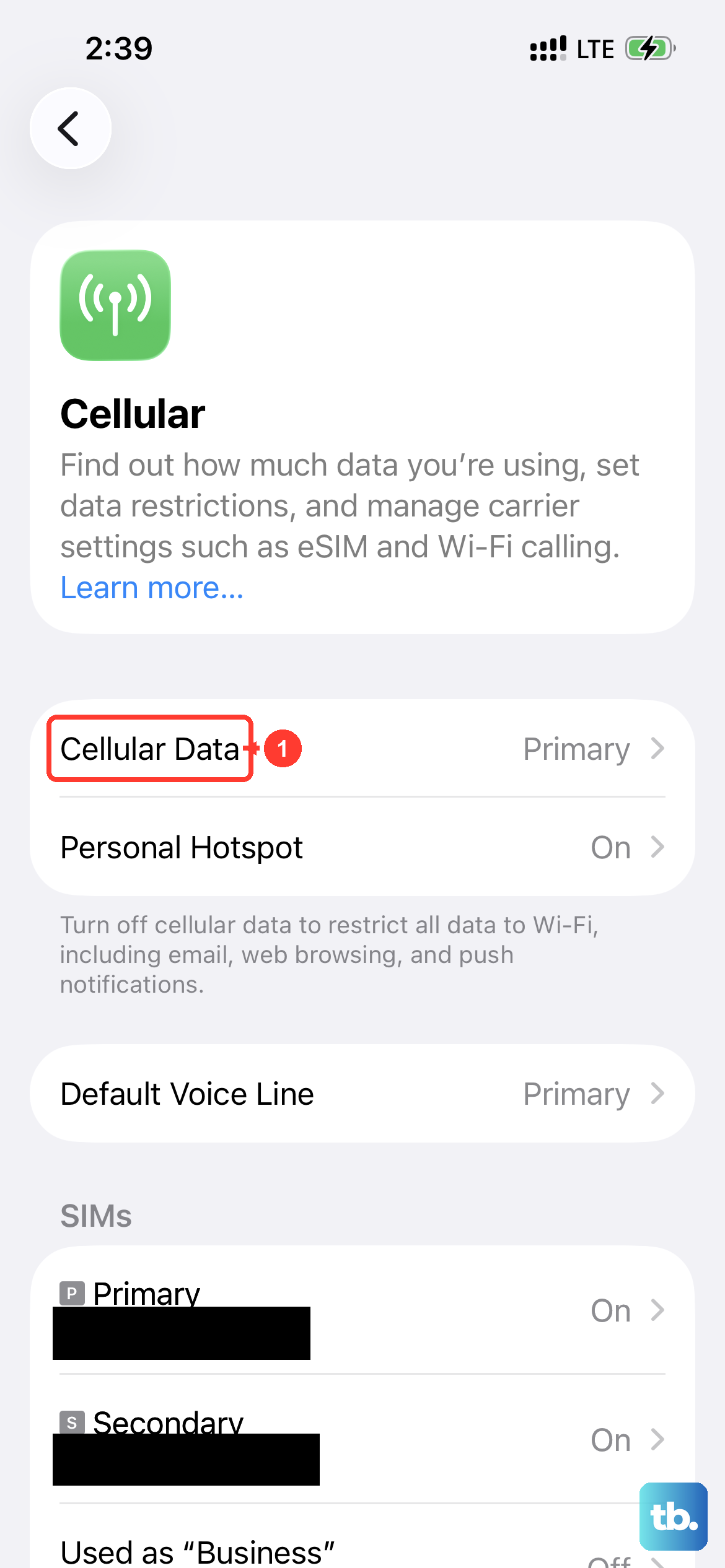
Personal Hotspot has nothing to share if the phone's own data connection is off. This is the single most common reason the option appears dimmed, missing, or refuses to pass internet to a connected device.
Go to Settings > Cellular and make sure Cellular Data is turned on. Because the hotspot shares the iPhone 16e's cellular data, this has to be enabled for tethering to work at all. While you are there, you can also use Settings > Cellular > Set Up Personal Hotspot and follow the onscreen instructions if you have never configured the feature before.
Give your hotspot a password devices will accept
A password problem can stop devices from joining even when everything else is configured correctly. The requirements are specific, so it is worth checking the one you have set.
In Settings > Personal Hotspot, set a Wi-Fi password that is at least eight characters and uses ASCII characters. Non-ASCII characters, such as Japanese, Russian, or Chinese characters, will prevent other devices from joining your Personal Hotspot, so stick to standard letters, numbers, and symbols.
Power cycle both the iPhone and the device joining it
A plain restart clears a surprising number of temporary glitches on either side of the connection. It is harmless and takes under a minute, which makes it worth doing early.
Restart the iPhone 16e that is providing the Personal Hotspot, then restart the other device that needs to connect to it. Once both are fully back up, try the connection again before moving on to anything more involved.
Reconnect from the other device the right way
Sometimes the iPhone is broadcasting correctly and the issue is on the device trying to join. A stale Wi-Fi state on a laptop or tablet can leave it stuck.
On the device that needs to join, turn Wi-Fi off and back on. Then make sure you are selecting the correct Wi-Fi network; the hotspot's network name is the same as the name of the iPhone that provides Personal Hotspot, so look for that name rather than guessing at a similar one.
Flip on Maximize Compatibility for stubborn devices
If 'Allow Others to Join' is on but some devices still cannot connect, the hotspot's default band may be the obstacle. There is a built-in setting designed for exactly this situation.
Go to Settings > Personal Hotspot and turn on Maximize Compatibility, which is available on iPhone 12 or later and therefore on the iPhone 16e. Keep in mind Apple's note that internet performance and Wi-Fi security might be reduced for connected devices while this is on, so it is best used when a device flatly refuses to join rather than left on by default.
Share over USB or Bluetooth when Wi-Fi keeps dropping
Personal Hotspot is not limited to Wi-Fi. If the wireless link will not hold or keeps cutting out, a wired or Bluetooth connection is a reliable workaround.
For USB, connect the computer to the iPhone with a cable and, if you are prompted, tap Trust. You can also pair over Bluetooth instead. Either option sidesteps Wi-Fi entirely, which is handy when the Wi-Fi hotspot connects but will not stay connected.
Bring the iPhone 16e up to the latest iOS
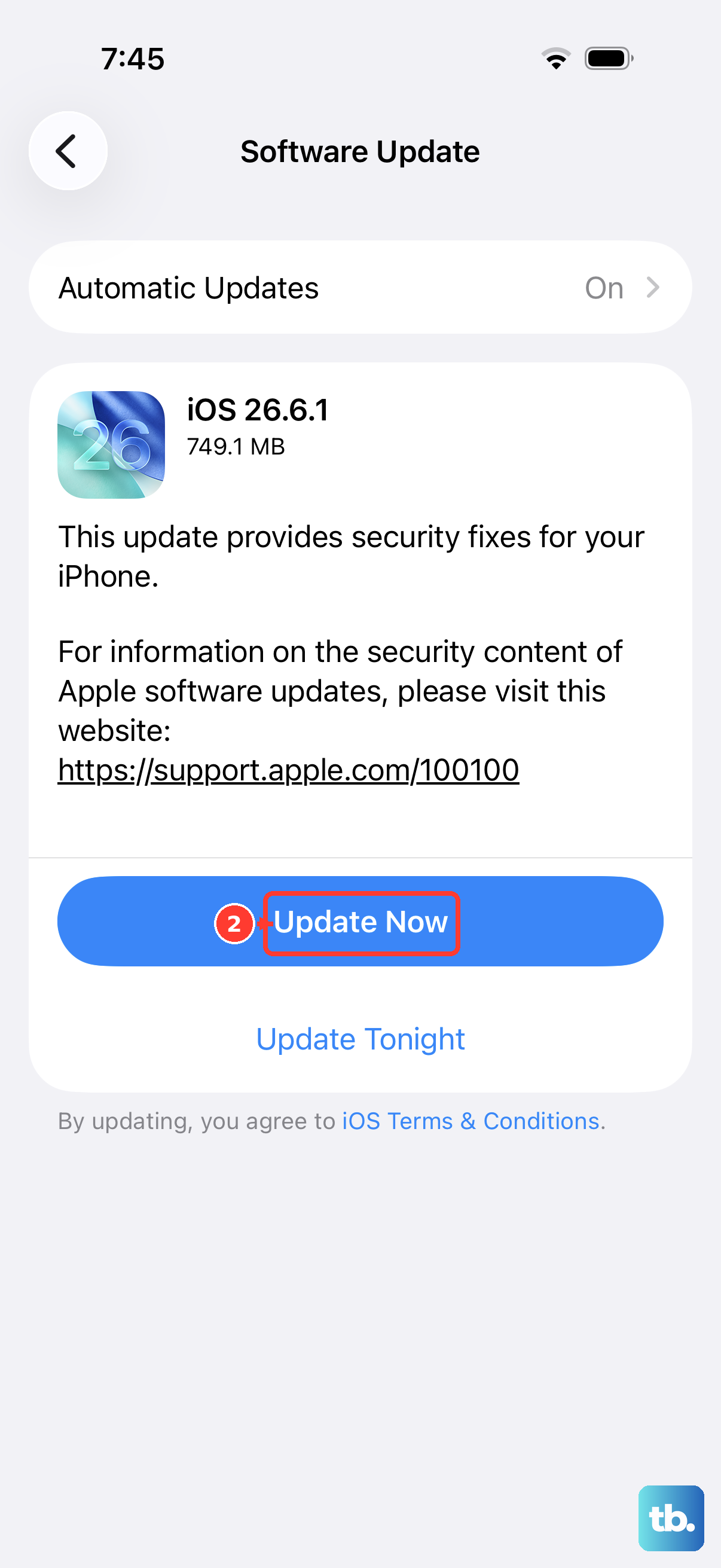
Software bugs that affect connectivity are often fixed in updates, so running current software can resolve hotspot trouble on its own. This applies to both ends of the connection where possible.
On the iPhone, go to Settings > General > Software Update, then tap Download and Install if an update is available and follow the onscreen instructions. If the device you are connecting is also an Apple device, make sure it is on its latest software too.
Force restart a frozen hotspot
When the hotspot has become unresponsive or frozen and a normal restart does not help, a force restart resets the phone more firmly without erasing anything. The button sequence for the iPhone 16e, a Face ID model, has to be performed in the exact order below.
- 1.Press and quickly release the volume up button.
- 2.Press and quickly release the volume down button.
- 3.Press and hold the side button.
- 4.When the Apple logo appears, release the side button.
Once the phone restarts, open Settings > Personal Hotspot and try sharing again.
Reset Network Settings to clear bad configurations
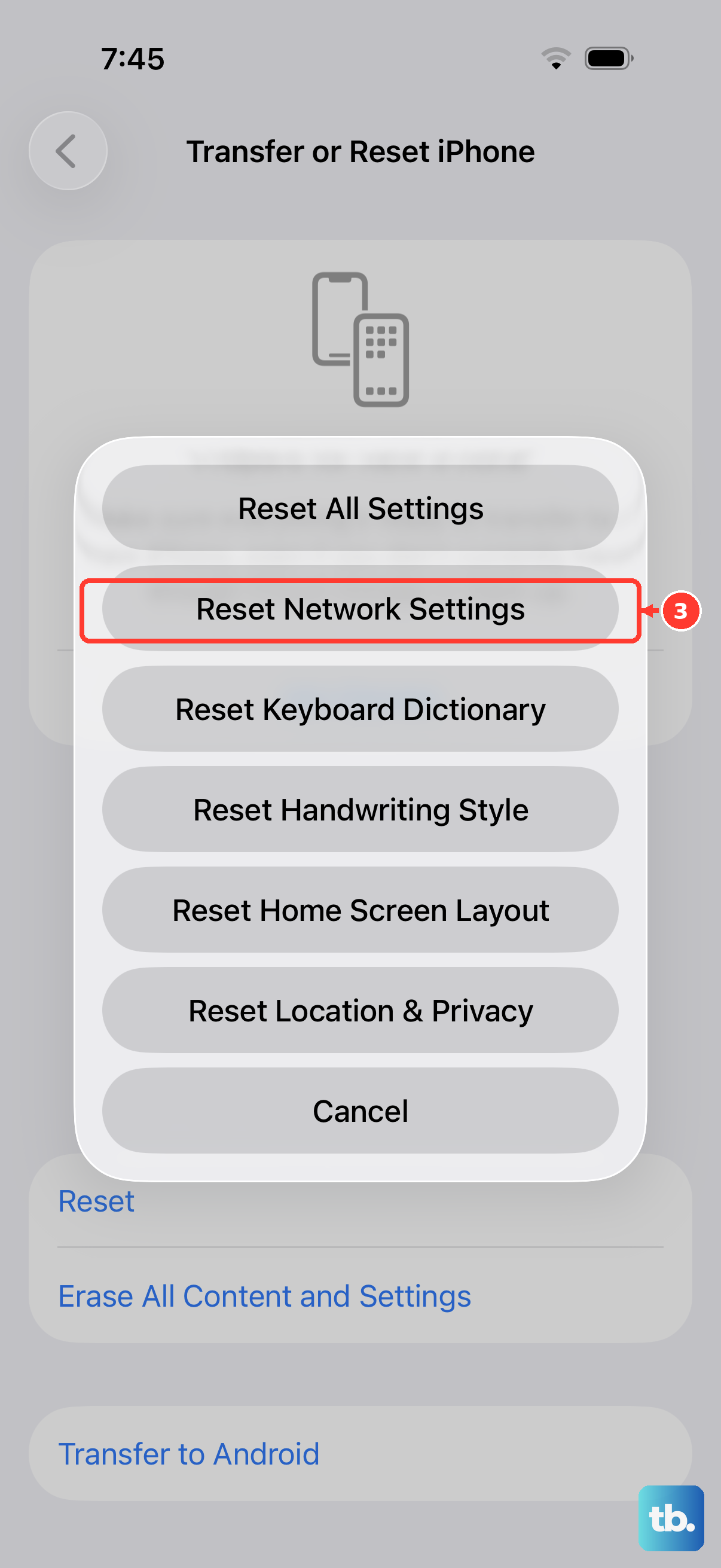
If the hotspot still will not cooperate, a corrupted network configuration may be to blame. Resetting network settings wipes the slate clean without touching your photos, apps, or other personal data.
Open Settings > General > Transfer or Reset iPhone > Reset, then tap Reset Network Settings. Be aware that this also resets saved Wi-Fi networks and passwords, cellular settings, and any VPN and APN settings you have used before, so you will need to rejoin Wi-Fi networks afterward. Once it finishes, set your hotspot password again and test the connection.
When to erase the iPhone or call for help
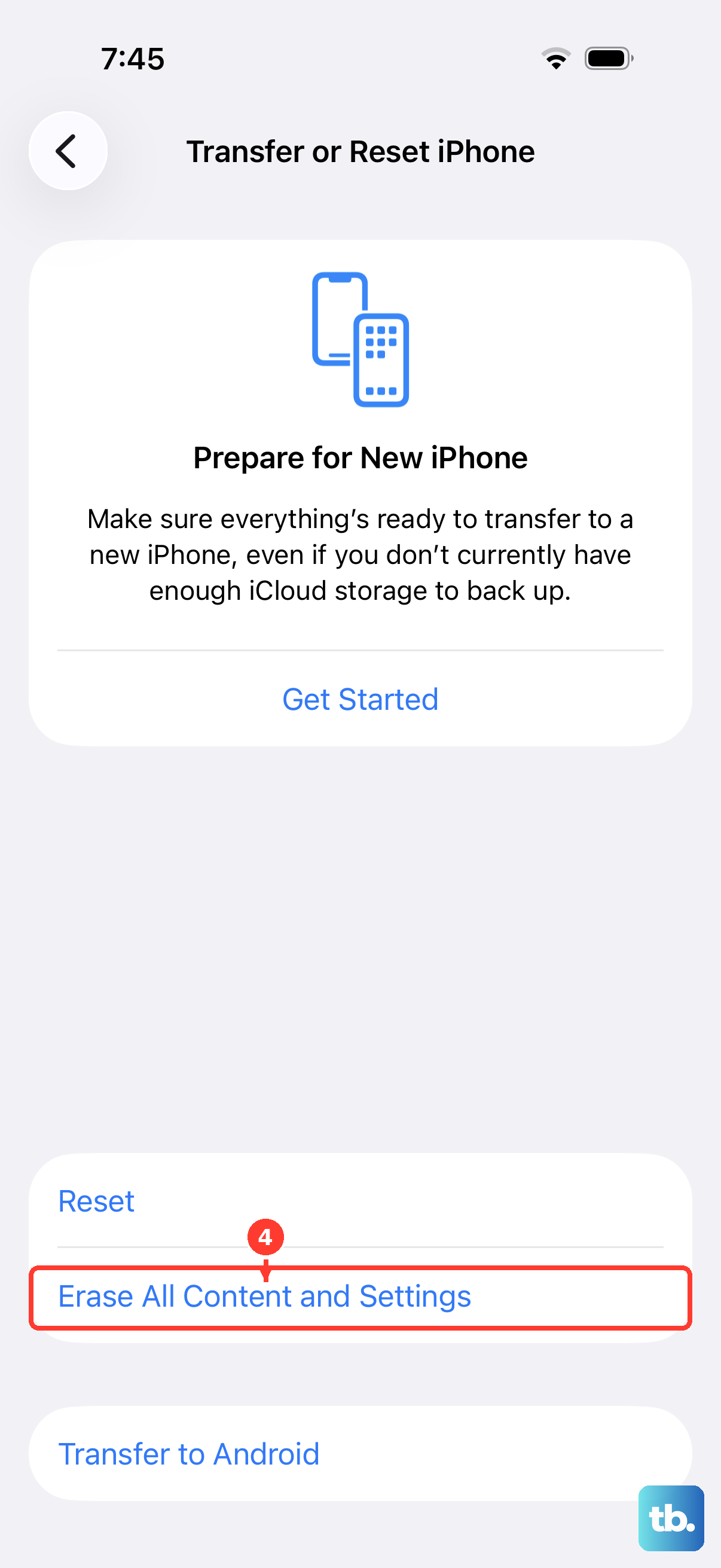
If you have worked through everything above and the hotspot still does not function, the problem is likely either account-level or a deeper software fault. Start by contacting your wireless carrier, since the plan itself may not include tethering, and contact Apple Support through the Apple Support app for anything that looks like a device issue.
Only as a true last resort should you erase the phone. Back up your data first, then go to Settings > General > Transfer or Reset iPhone > Erase All Content and Settings, which restores the iPhone to factory settings and permanently removes all of your content, settings, and personal information. Because this is irreversible, treat it as a final step after support has been unable to help.
Frequently Asked Questions
Does the iPhone 16e (iPhone SE 4) actually support Personal Hotspot?
Yes. There is no product officially named iPhone SE 4; Apple's 2025 affordable model is the iPhone 16e, and it has full 5G cellular connectivity through the Apple C1 modem and A18 chip. Personal Hotspot shares that cellular data connection, though whether you can turn it on depends on your carrier and whether your plan supports tethering.
Why is Personal Hotspot greyed out or missing on my iPhone 16e?
The most common cause is that Cellular Data is off, so check Settings > Cellular and turn it on. If the option is still unavailable, your carrier may not have enabled tethering on your line, because Apple notes Personal Hotspot is not available with all carriers and additional fees may apply.
Can I use the hotspot without Wi-Fi?
Yes. Personal Hotspot can also be shared over USB or Bluetooth. For USB, connect the computer to the iPhone with a cable and tap Trust if you are asked, which is a dependable workaround when the Wi-Fi connection will not hold.
Will Reset Network Settings delete my photos or apps?
No. Reset Network Settings only clears network-related data such as saved Wi-Fi networks and passwords, cellular settings, and VPN and APN settings you have used before. Your photos, apps, and other personal content are not removed. A full erase that removes everything is a separate, last-resort step.
How many devices can connect to my hotspot at once?
Apple says the number of devices that can connect simultaneously depends on your carrier and iPhone model, and it does not publish a fixed figure for the iPhone 16e. If you need a specific limit for your plan, check with your wireless carrier.