
When you plug in your headphones or connect them wirelessly to your iPhone SE 4 and get no sound, it's a real buzzkill. The audio might be stuck on the phone's speaker, sound distorted, or the headphones might not be detected at all. Let's get your audio back on track.
If you suspect one side has failed, an online online headphone test settles it quickly. Play each channel on its own and you will know whether it is the headphones or the source.
Start With a Quick Restart
For the iPhone SE 4, a force restart is often the fastest fix. Press and quickly release the Volume Up button, then press and quickly release the Volume Down button. Finally, press and hold the Side button until you see the Apple logo appear. This clears out temporary software bugs that can mess with audio routing.
Check the Simple Stuff First
Make sure your wired headphones are fully plugged into the USB-C port. For Bluetooth models, ensure they're charged and in pairing mode. Try the headphones with another device, like a computer or tablet, to confirm they're actually working. If they're silent everywhere, the problem is with the headphones themselves.
Adjust Your Volume and Silent Mode
Press the Volume Up button on the side of your iPhone SE 4 while your headphones are connected. Check that the on-screen slider isn't all the way down. Also, look at the switch on the left side above the volume buttons; make sure the orange strip isn't showing, which indicates the ringer is set to silent.
Clean the USB-C Port
If you're using wired headphones, pocket lint and debris can get packed into the USB-C port, preventing a good connection. Gently use a wooden or plastic toothpick to carefully scrape out any gunk. Avoid using metal objects that could damage the contacts. A clean port solves a huge number of "no sound" issues.
Re-Pair Your Bluetooth Headphones
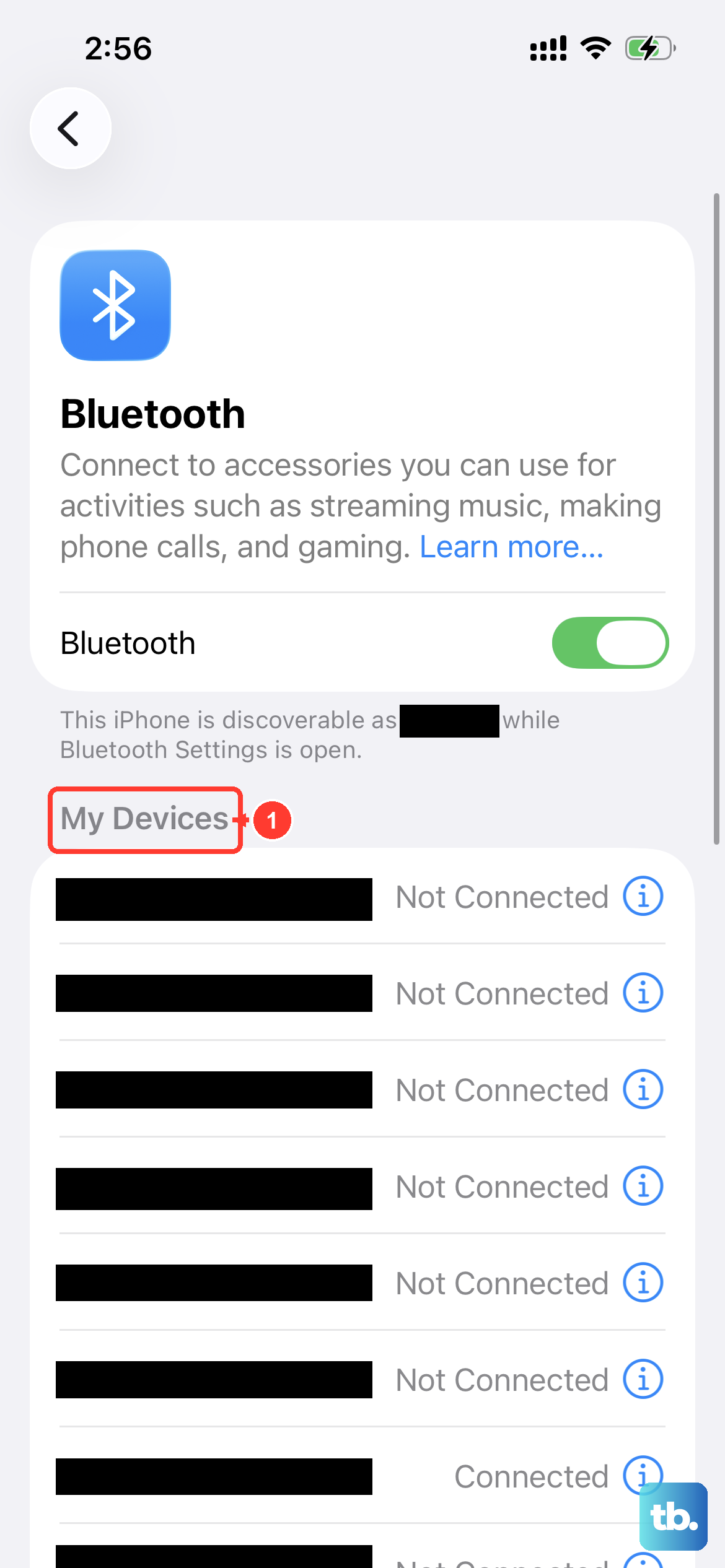
Go to Settings > Bluetooth. Find your headphones in the "My Devices" list and tap the blue (i) icon next to them. Tap Forget This Device and confirm. Then, put your headphones back into pairing mode and select them from the list of available devices to pair fresh.
Verify the Audio Output Destination
Sometimes your iPhone SE 4 sends sound to the wrong place. Open Control Center by swiping down from the top-right corner. Press and hold the volume slider in the top-right corner. A menu will pop up showing all available audio outputs; make sure your headphones are selected here and not the iPhone speaker.
Refresh the Bluetooth Connection
A simple Bluetooth reset can work wonders. Swipe into Control Center and tap the Bluetooth icon to turn it off (it will turn gray). Wait about ten seconds, then tap it again to turn it back on. This forces your iPhone SE 4 to re-establish connections and can clear up audio glitches.
Fix a Stuck Headphone Mode
Occasionally, your phone gets stuck thinking headphones are plugged in. You might see a headphone icon in the status bar even when nothing is connected. Clean the USB-C port thoroughly as described above, then plug and unplug your wired headphones a few times. If that doesn't work, a force restart usually clears the phantom connection.
Install the Latest iOS Update
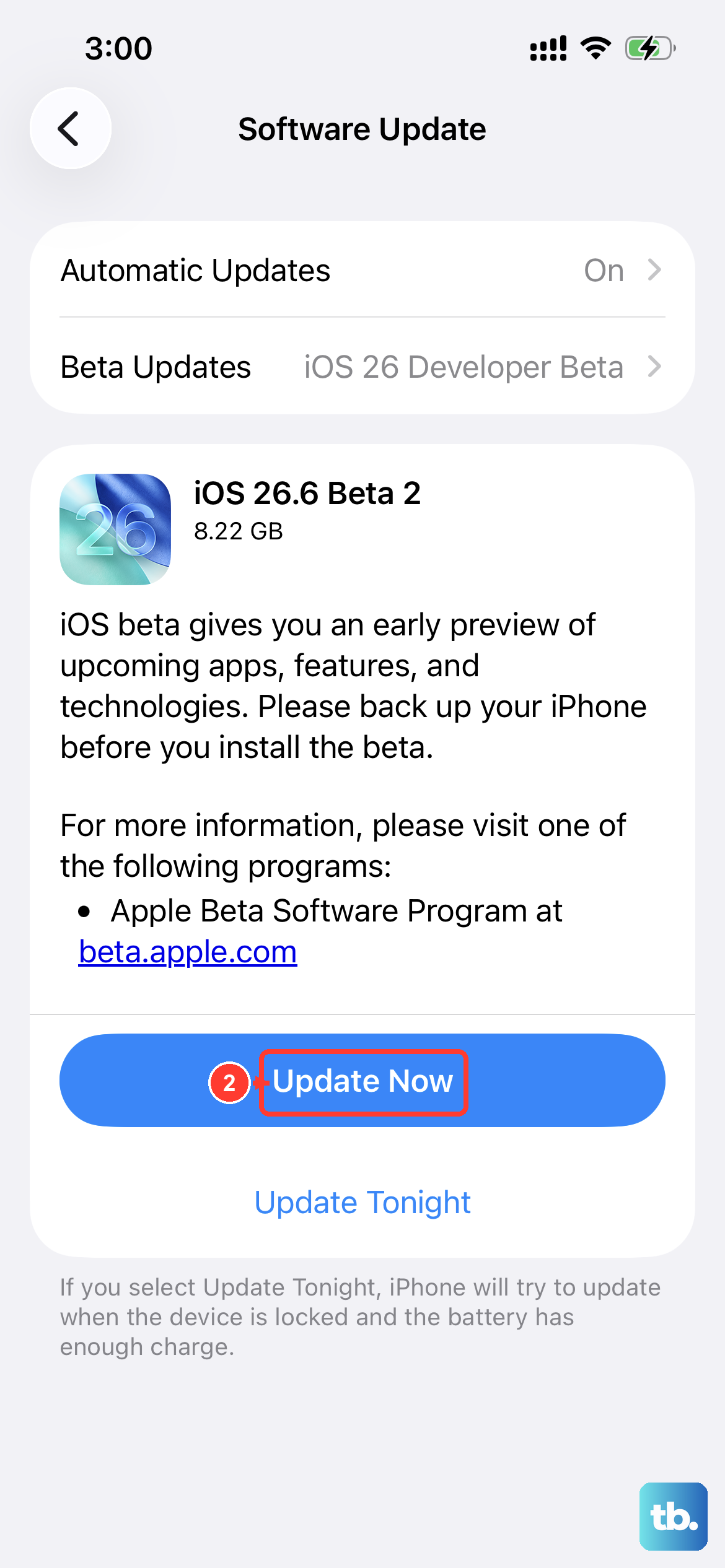
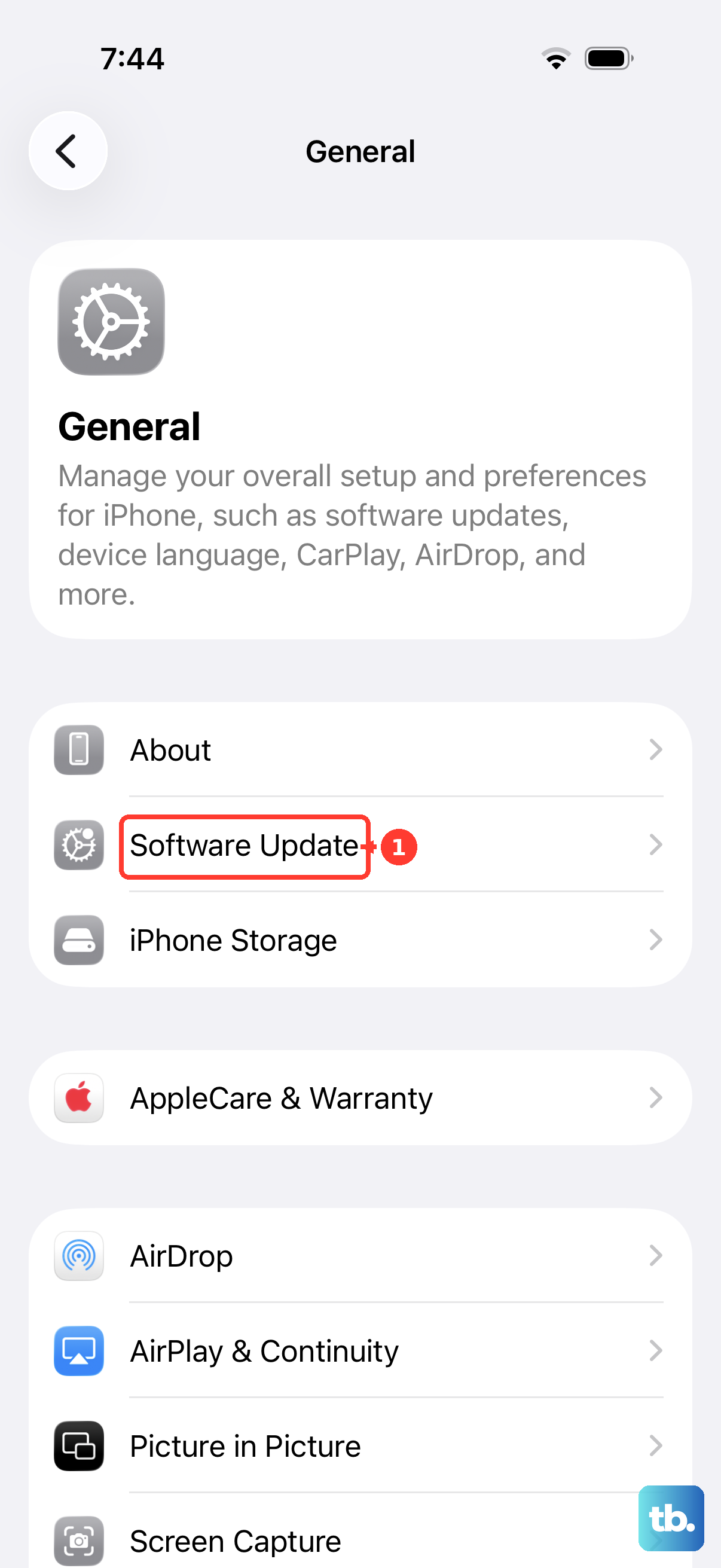
Head to Settings > General > Software Update. Apple frequently releases updates for iOS 18 that include fixes for Bluetooth and audio-related bugs. Keeping your iPhone SE 4 updated ensures you have the latest patches for headphone compatibility, especially for AirPods or Beats.
Reset All Settings on Your iPhone SE 4
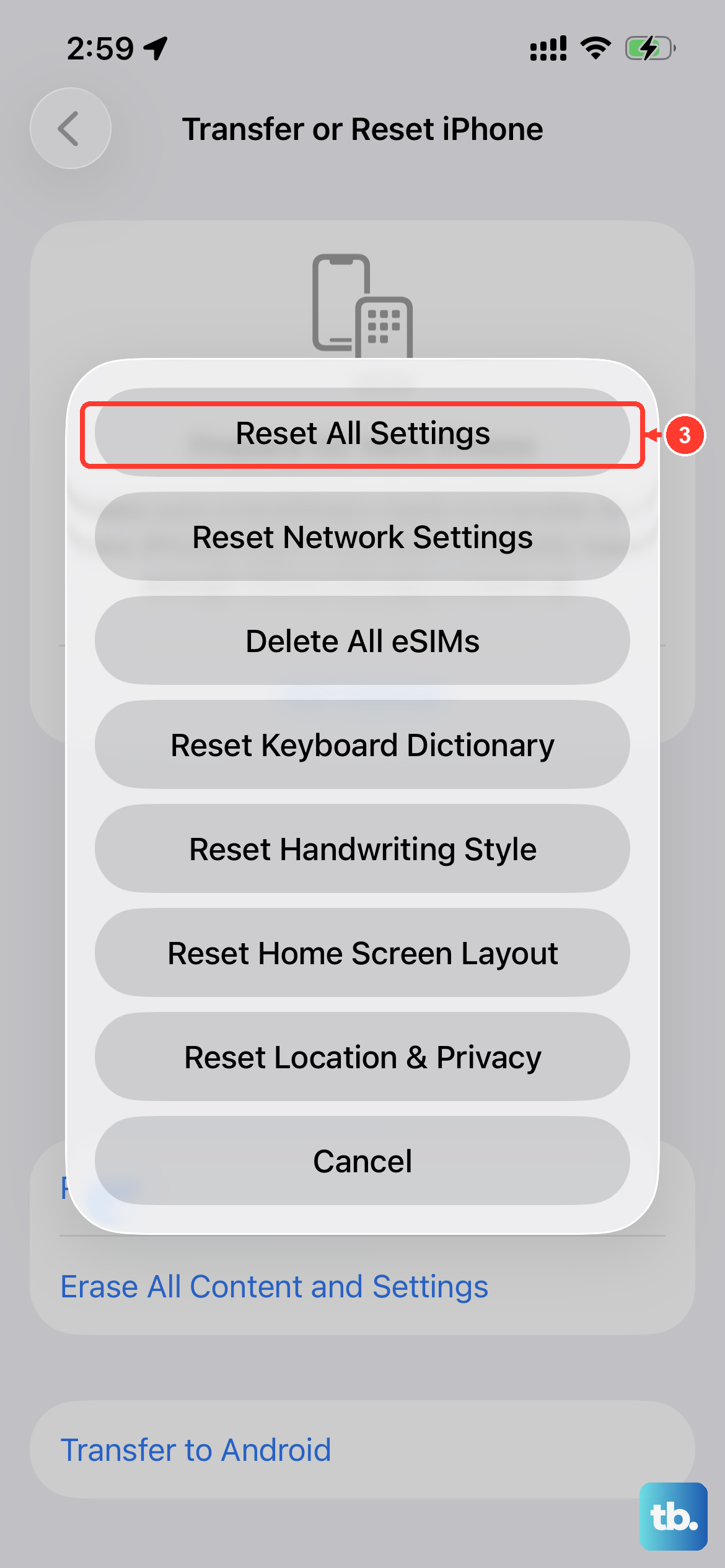
If nothing else has worked, this is a strong final step. Go to Settings > General > Transfer or Reset iPhone > Reset > Reset All Settings. This will not erase your personal data, but it will reset all system preferences, including Bluetooth connections and sound settings. You'll need to re-pair your headphones and adjust any custom settings afterward.