When your iPhone refuses to download apps from the App Store, it is one of the more frustrating problems to land on, partly because there is no single cause. A download can stall because of a weak network, a signed-out Apple ID, low storage, a wrong date, a Screen Time restriction, or a temporary App Store hiccup. The good news is that almost every case is fixable from Settings, and you rarely need a computer or a repair.
This guide walks through 16 fixes in order, from the fast ones that solve most cases to the deeper account and software checks. All steps reflect current iOS behavior in 2026, so they still work on the latest iPhone models. Work down the list and stop as soon as your app starts downloading.
If your problem is on Android instead of an iPhone, read our companion guide on Android Phone Won't Download Apps. It covers the Play Store version of these fixes, since the underlying causes and steps differ from iOS.
Match Your Symptom to the Fastest Fix
App download problems show up in a few distinct ways, and the symptom usually points to the most likely fix. Use this quick-reference table to jump straight to the right starting point, then continue through the rest of the list if the first attempt does not clear it.
| What you see | Most likely cause | Try this first |
|---|---|---|
| App stuck on "Waiting" | Stalled or queued download | Prioritize, or pause and resume the download |
| Greyed-out icon that never loads | Frozen download or App Store glitch | Restart your iPhone |
| "Unable to Download App" | Network, storage, or Apple ID issue | Check connection, storage, and sign-in |
| Progress bar frozen partway | Weak or dropped network | Toggle Airplane Mode, switch Wi-Fi or cellular |
| "Cannot Connect to App Store" | Connection or date and time error | Set date and time automatically |
| Download blocked on cellular | Size warning over the cellular threshold | Connect to Wi-Fi or allow the download |
Restart Your iPhone
A restart clears the temporary glitches behind a surprising number of frozen or greyed-out downloads, so it is the right first move. On Face ID models, press and hold the side button and either volume button, then drag the slider to power off.
Wait about 30 seconds, then press and hold the side button until the Apple logo appears. Open the App Store and try the download again.
If the screen is unresponsive, force restart instead. Press and quickly release volume up, press and quickly release volume down, then press and hold the side button until the Apple logo appears.
Check Your Internet Connection
App downloads need a stable connection, so confirm you are actually online before changing anything deeper. Open a web page or stream a short video to test, since a connected Wi-Fi icon does not guarantee the network is passing traffic.
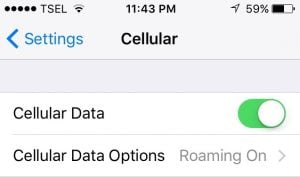
For Wi-Fi, go to Settings > Wi-Fi and make sure it is on and joined to a working network. For cellular, go to Settings > Cellular and confirm Cellular Data is enabled with data left in your plan.
If one network is flaky, switch to the other and retry. A quick way to test is to start the download on Wi-Fi, then try the same app on cellular.
Read more - How To Fix No Service On iPhone
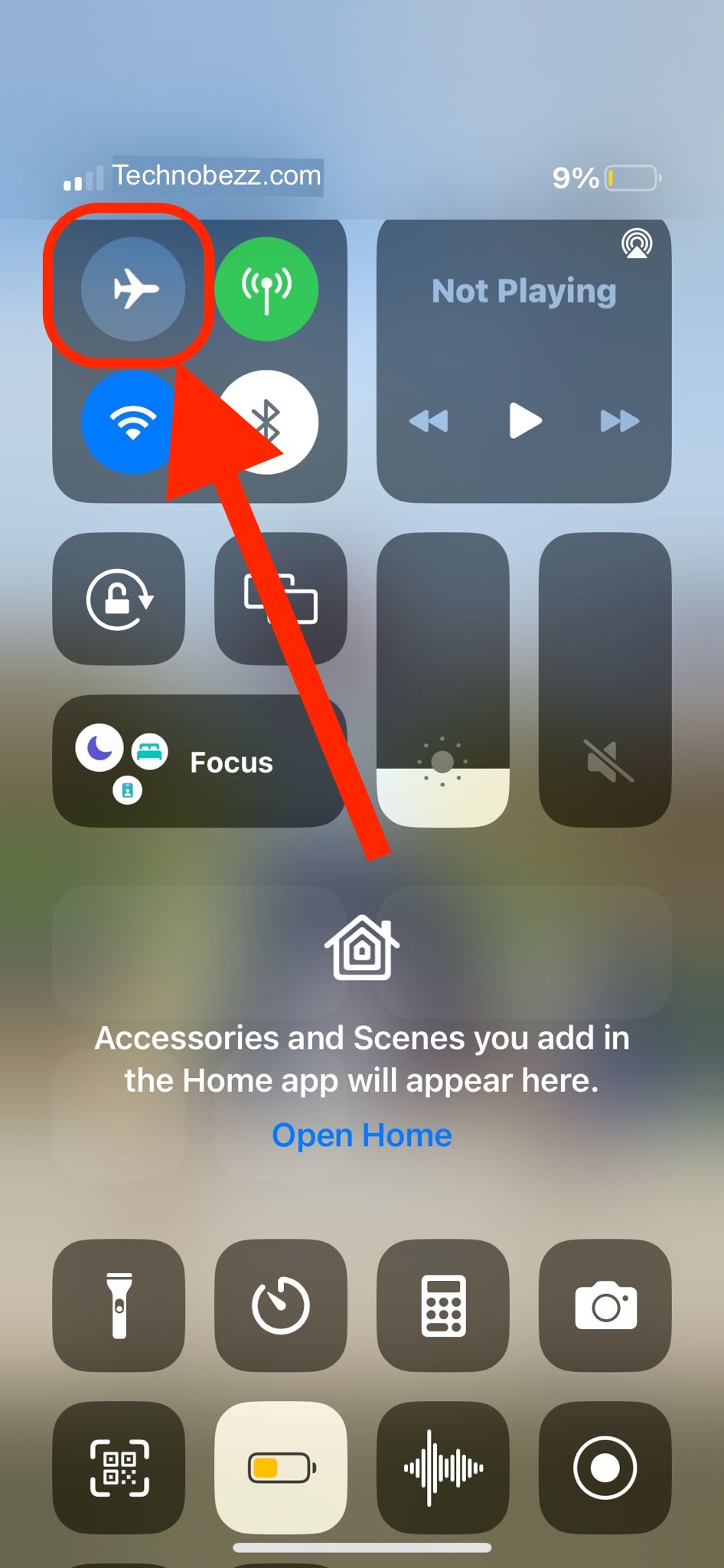
Toggle Airplane Mode
Flipping Airplane Mode forces your iPhone to drop and re-establish every network connection, which often unsticks a frozen progress bar. It takes seconds and is safe to do mid-download.
Open Settings or Control Center, turn Airplane Mode on, wait 15 to 20 seconds, then turn it off. Let Wi-Fi or cellular reconnect, then return to the App Store and resume.
Force Quit and Reopen the App Store
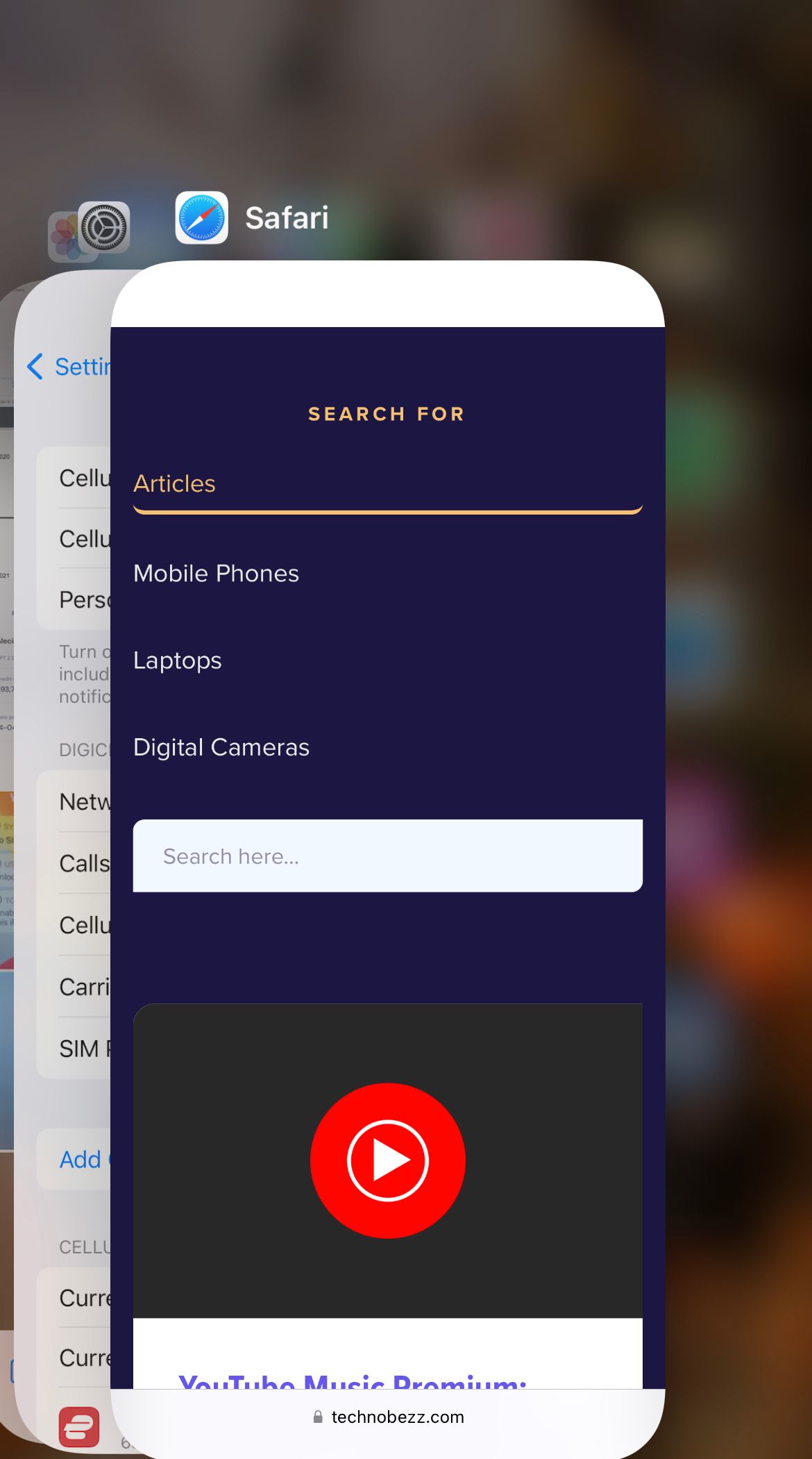
If the App Store itself is misbehaving, fully closing and reopening it gives the app a clean start. This is different from a restart because it only resets the App Store, not the whole phone.
Swipe up from the bottom of the screen and pause in the middle to open the App Switcher, then swipe the App Store card up to close it. On older iPhones with a Home button, double-click Home instead. Reopen the App Store and try the download again.
Prioritize or Resume the Download
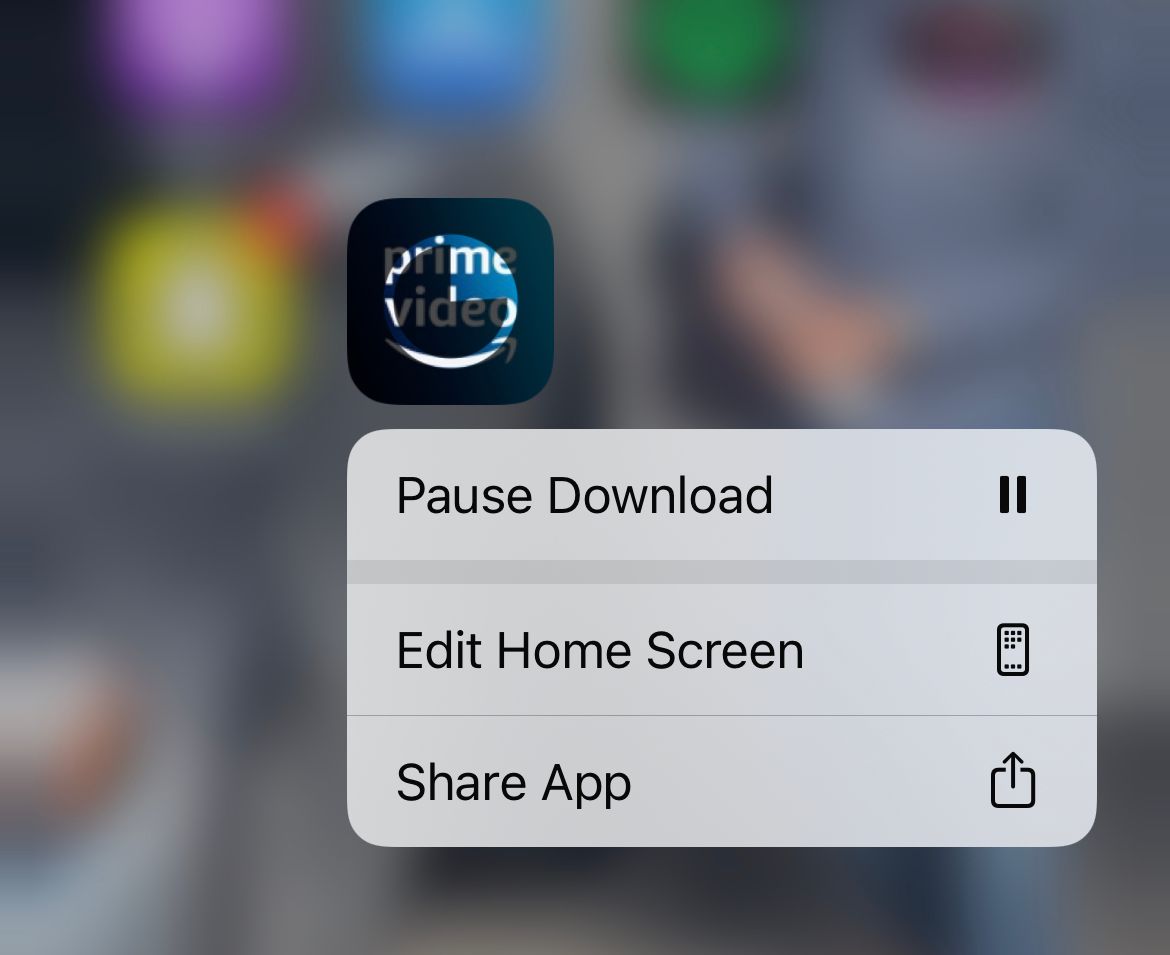
When an app sits on "Waiting" or stalls partway, you can often nudge it from the Home Screen. Apple's own fix is to prioritize the download so your iPhone moves it to the front of the queue.
Touch and hold the app icon that is downloading, then choose Prioritize Download from the menu. If you do not see that option, choose Pause Download, wait a moment, then touch and hold again and choose Resume Download.
This is the quickest fix for stuck or queued downloads, so try it before anything more involved. If the icon still will not budge, move on to the storage and account checks below.
Check Available Storage
An app will not finish downloading if there is not enough free space, and iOS sometimes shows this as a greyed icon rather than a clear warning. Larger apps and games need room to download and unpack, so a few hundred free megabytes may not be enough.
Go to Settings > General > iPhone Storage to see what is free and what is using the most space. Delete apps you no longer use, clear old videos, or offload large apps to reclaim room, then retry the download.
To remove an app, touch and hold its icon on the Home Screen, tap Remove App, then tap Delete App. Offloading from iPhone Storage frees the app while keeping its documents and data.
Check Screen Time Restrictions
Screen Time can quietly block app installs, which is easy to overlook on a shared, work, or family device. If installing apps is turned off, the App Store may even disappear from the Home Screen.
Go to Settings > Screen Time > Content & Privacy Restrictions. If Content & Privacy Restrictions is on, open iTunes & App Store Purchases, then set Installing Apps to Allow.
You may be asked for your Screen Time passcode to change this. On a child's device managed through Family Sharing, an organizer may need to make this change.
Verify Your Apple ID Sign-in
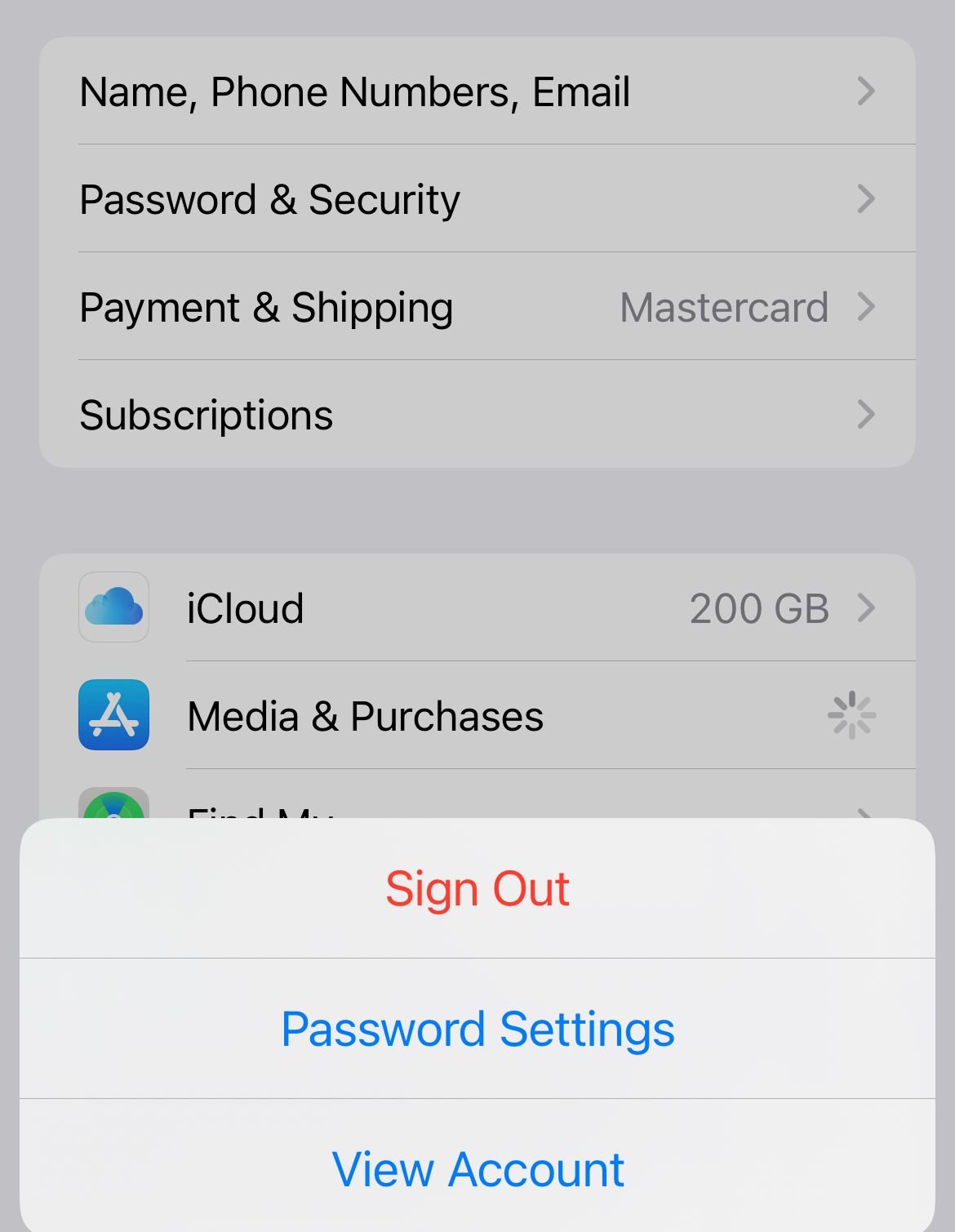
You must be signed in with a valid Apple Account, formerly called your Apple ID, to download anything. A silent sign-out or a mismatched account is a common reason downloads fail without an obvious error.
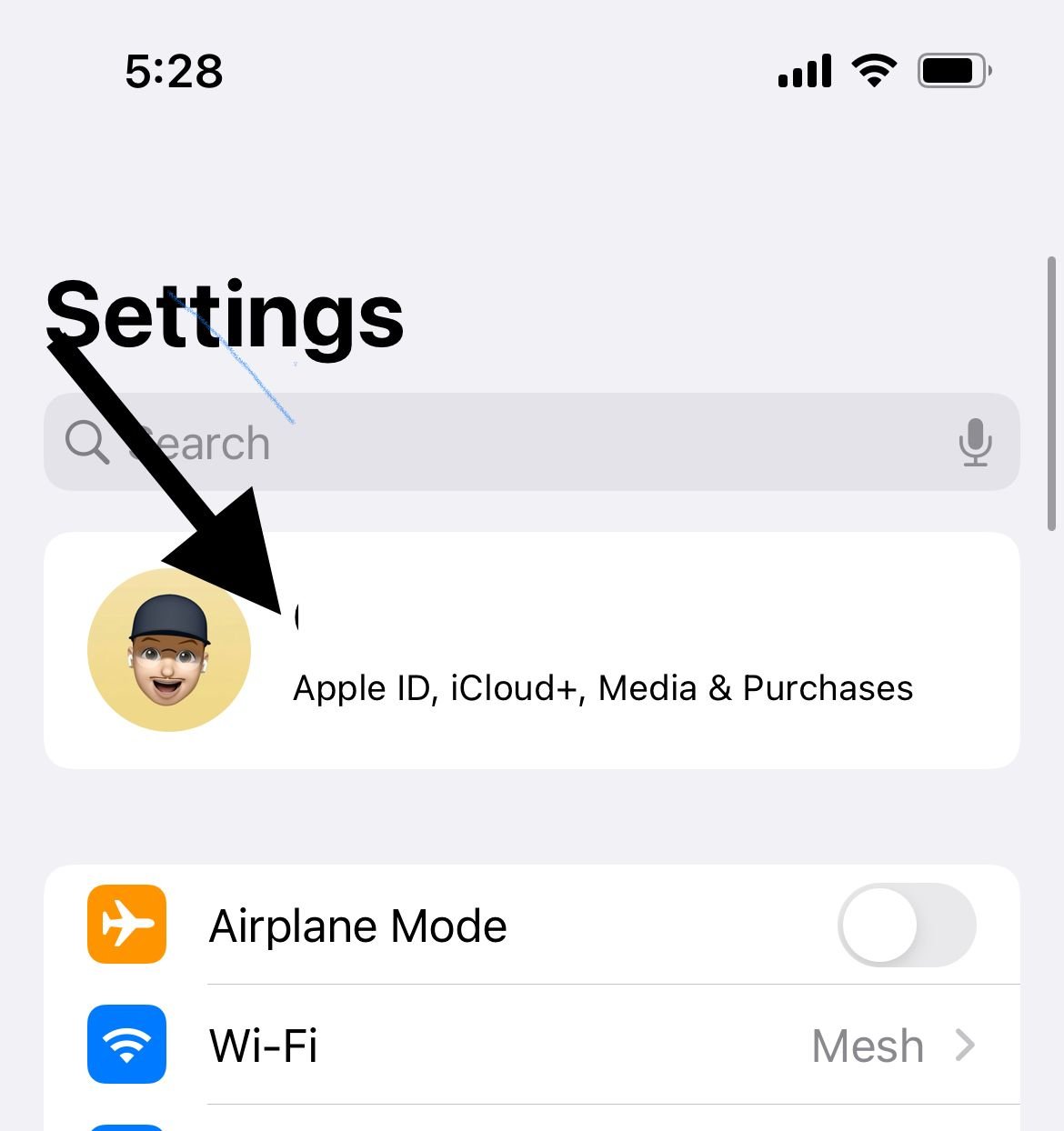
Go to Settings and tap your name at the top to confirm you are signed in with the correct account. If a download still fails, scroll down, sign out, then sign back in to refresh the session.
- 1.Open Settings and tap your name at the top
- 2.
 Click to expand
 - 3.Confirm the correct account is shown, then sign out and back in if needed
- 4.
 Click to expand
Check Your Payment Method
Apple may require a valid payment method on file before it lets you download apps, even free ones, and a billing problem can hold up every download. Messages like "verification required" or "there is a billing problem with a previous purchase" point straight to this.
Go to Settings, tap your name, then tap Media & Purchases and choose View Account. Confirm your payment details are current, update them if a card has expired, or set the payment method to None if you prefer not to keep one on file and your account allows it.
Set Date and Time Automatically
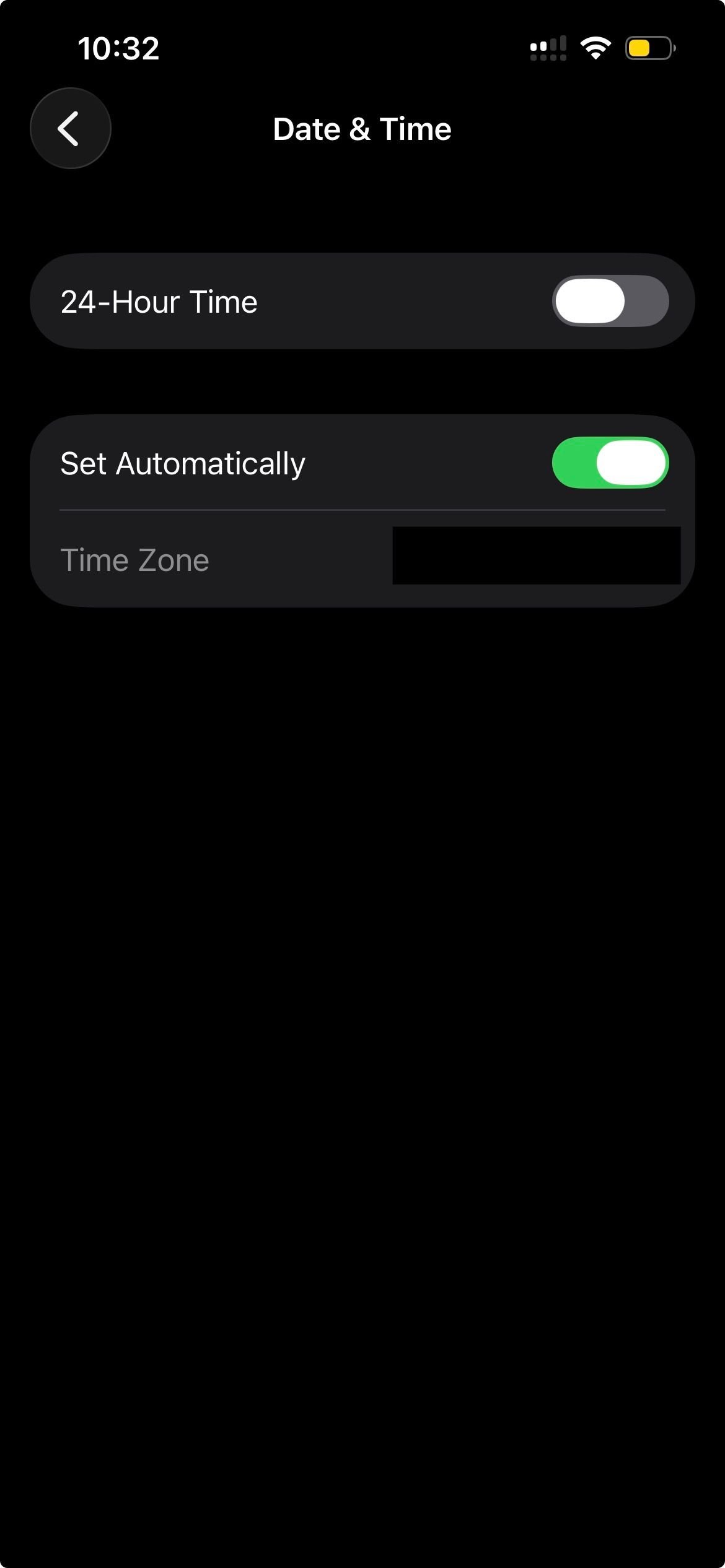
A wrong date or time can break the secure connection to Apple's servers and trigger "Cannot Connect to App Store." Letting iOS set the clock from the network resolves it.
Go to Settings > General > Date & Time and turn on Set Automatically. If it is already on, toggle it off and back on, then retry the download.
Reset Network Settings
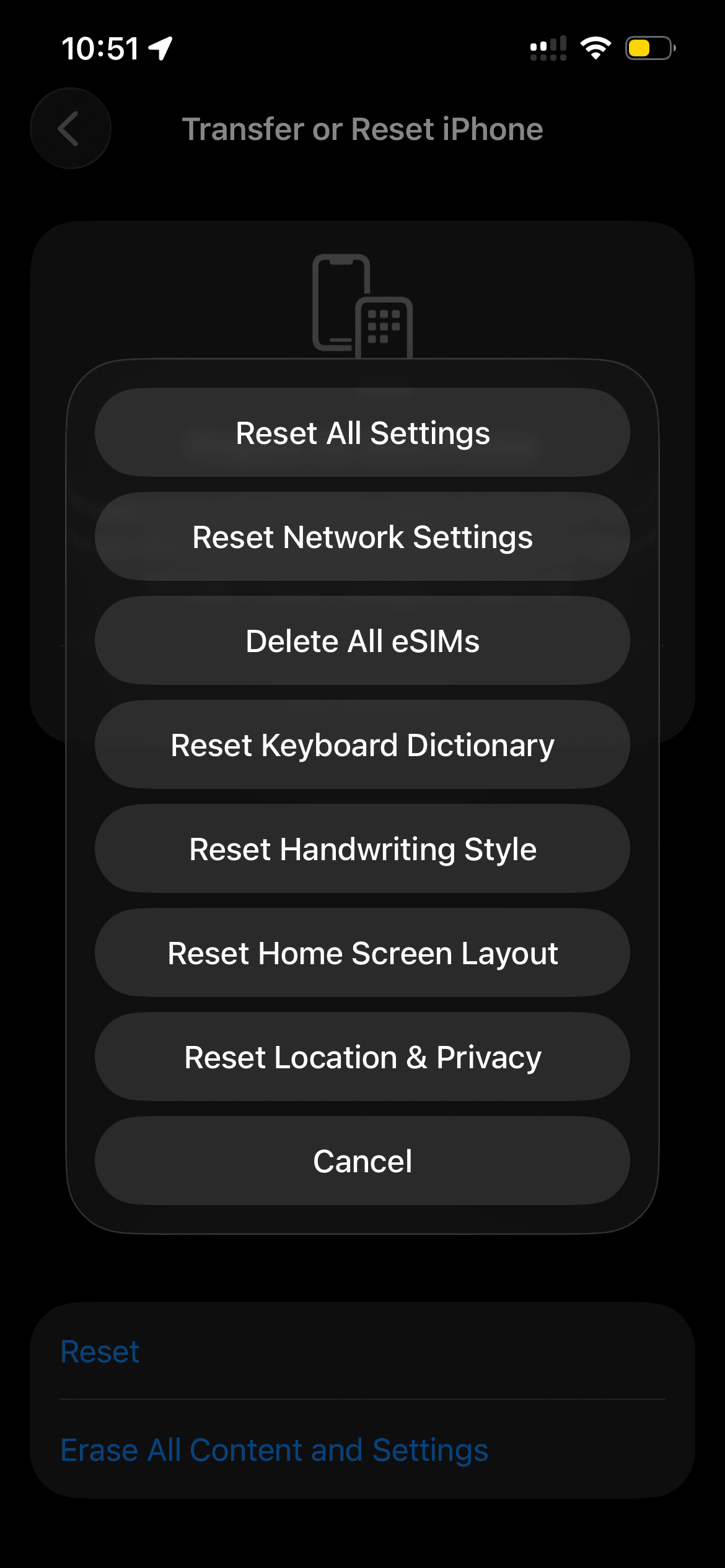
When downloads keep failing despite a working connection, resetting network settings clears corrupted network configurations that cause persistent issues. This does not delete your photos, apps, or personal data.
Go to Settings > General > Transfer or Reset iPhone > Reset, choose Reset Network Settings, and enter your passcode to confirm. Note that this erases saved Wi-Fi passwords and Bluetooth pairings, so have your Wi-Fi password handy.
Turn On Wi-Fi Assist
Wi-Fi Assist lets your iPhone fall back to cellular data when Wi-Fi is weak, which can keep a download alive on a spotty connection. It uses cellular data, so leave it off if your plan is tightly capped.
Go to Settings > Cellular, scroll to the bottom, and turn on Wi-Fi Assist. Then return to the App Store and try the download again.

Disable Your VPN
A VPN can route App Store traffic through a server that interferes with downloads or lands you in the wrong storefront region. Turning it off temporarily is a fast way to rule it out.
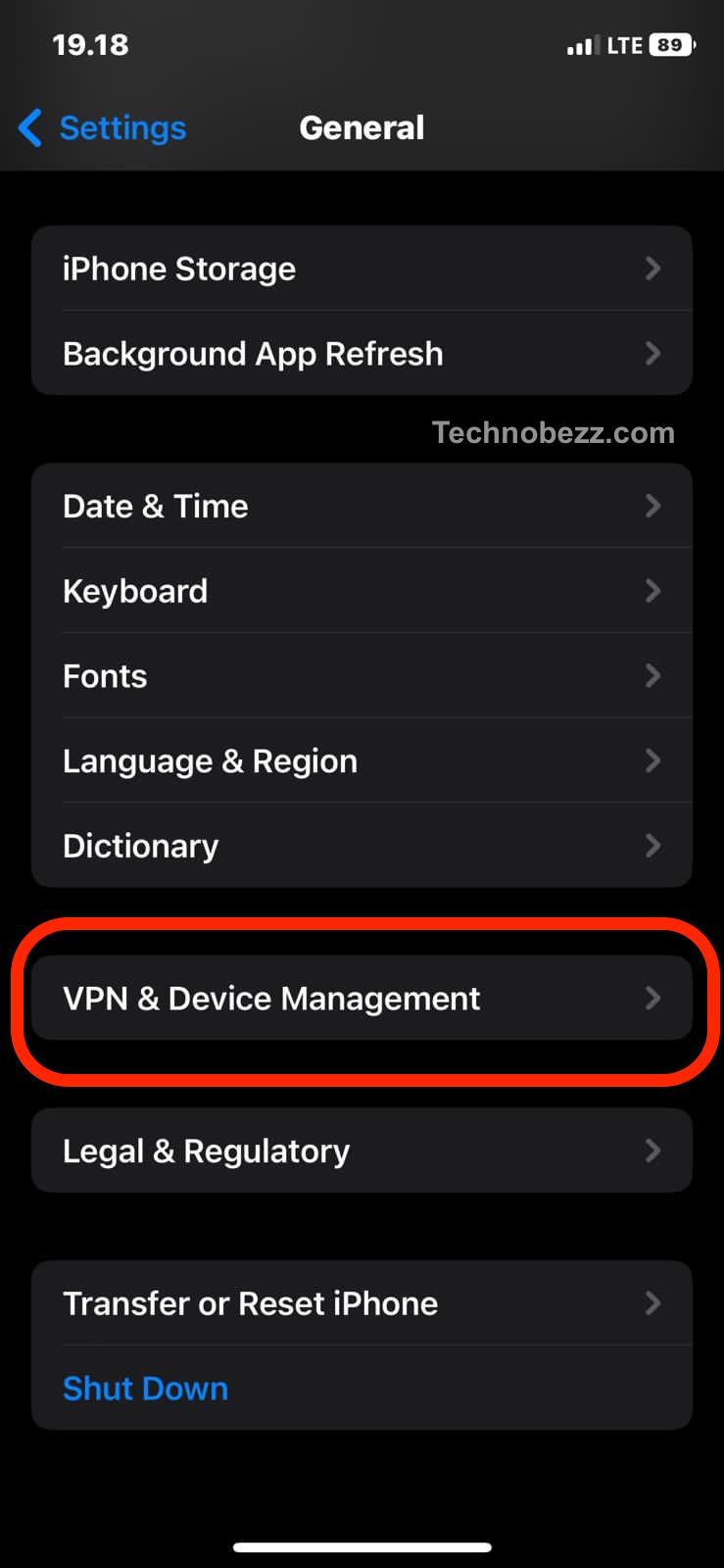
Go to Settings > General > VPN & Device Management or Settings > VPN and switch off any active connection. Retry the download, and turn the VPN back on afterward if you still need it.
Handle Large Downloads on Cellular
Apple no longer enforces a hard 200MB cap on cellular downloads. Instead, the App Store warns you before downloading a large app on cellular and lets you continue or wait for Wi-Fi.
If a big app or game will not download away from Wi-Fi, connect to Wi-Fi and it should proceed. To change how the warning behaves, open your App Store settings from Settings (look under the App Store entry, which newer iOS versions group inside the Apps list) and adjust the App Downloads option for cellular data.
Check App Store Region and Compatibility
Some apps are unavailable in certain countries or require you to be in the matching App Store region, which can make a download silently fail. An app may also need a newer iOS version than your iPhone is running.
Confirm your account region matches where you are, and check the app's page for an age confirmation or a "Requires iOS" note. In some regions you must confirm you are an adult before certain apps will download.
Update iOS
An outdated iOS version can cause App Store bugs and app compatibility problems, and updating often clears download failures other steps miss. Apple regularly ships fixes that affect downloading and installing.
Connect to Wi-Fi, plug into power, then go to Settings > General > Software Update. Download and install anything available, then try the app again.

When a Download Is Just Slow
Sometimes nothing is broken and the download is simply crawling because of network congestion or a busy Apple server. Before assuming a fault, give it a moment and rule out the connection.
Restart your Wi-Fi router, test your speed on another device, and try again at a quieter time of day. If only one app stalls, download a different free app first to confirm the App Store works, then return to the one that was stuck.
Frequently Asked Questions
Why do my iPhone apps get stuck on "Waiting"?
A "Waiting" status usually means the download is queued behind other downloads or has stalled because of a weak network or low storage. Touch and hold the app icon and choose Prioritize Download, or pause and resume it, then confirm you have a stable connection and enough free space.
How do I force a stuck app to resume downloading?
From the Home Screen, touch and hold the app that is downloading and choose Prioritize Download to push it to the front of the queue. If that option is missing, touch and hold to Pause Download, wait a moment, then touch and hold again and choose Resume Download.
Does resetting network settings delete my data?
No. Resetting network settings does not remove your photos, apps, or personal files. It only clears network configurations, which means saved Wi-Fi passwords and Bluetooth pairings are erased, so reconnect to your Wi-Fi afterward.
Why does my iPhone say "Unable to Download App"?
That message points to a network problem, not enough storage, a signed-out Apple Account, or a billing issue. Check your connection, free up space in iPhone Storage, confirm you are signed in under Settings with your name, and verify your payment method under Media & Purchases.
Why won't large apps download on cellular?
Apple no longer blocks large cellular downloads outright, but the App Store warns you above a size threshold and may ask you to wait for Wi-Fi. Connect to Wi-Fi to download big apps, or adjust the App Downloads cellular option in your App Store settings.
Why won't an app reinstall when it shows a cloud icon?
A cloud icon means the app was previously installed and is ready to redownload, but a stalled queue can keep it from starting. Restart your iPhone, download a different free app to reset the queue, then tap the cloud icon again.
First published October 17, 2025. Last updated June 4, 2026.