
When the sound cuts out on your new iPhone 17e, it can feel like you're holding a very expensive paperweight. This is a brand new device, and while the A19 chip is powerful, early software bugs in iOS 26 can sometimes cause audio to drop. The good news is that most sound issues, whether it's no ringtone, silent calls, or media that won't play, are fixable without a trip to the store.
Check the Action Button and Volume
First, look at the left side of your iPhone 17e. The iPhone 17e replaces the old Ring/Silent switch with a customizable Action button. If Silent mode is set as its function (the default), press and hold the Action button until the on-screen banner confirms Silent mode has turned off. Next, press the volume up button on the side a few times while you're on the Home Screen or playing a video.
You can also check all your volume levels in one place. Swipe down from the top-right corner to open Control Center and make sure the volume slider is all the way up. If you have headphones connected, you'll see a headphone icon next to the slider.
Disconnect Bluetooth and Audio Routes
Your iPhone might be trying to send sound to a device that isn't there anymore. Open Control Center by swiping down from the top-right. In the audio card in the top-right corner, tap the name of the current output device.
Select iPhone or iPhone Speakers from the list. If you see a device you don't recognize, your audio is being hijacked. To be thorough, go to Settings > Bluetooth and turn the toggle off completely for a minute to reset all connections.
Clean the Speaker Grills Carefully
The speaker grills on the bottom edge and top of your iPhone 17e are tiny and can easily get clogged with lint from your pocket. Take a close look with a flashlight. You'll see a series of small holes along the bottom edge and a slim grill up by the front-facing camera.
Use a soft, clean, dry toothbrush or a brand-new, dry makeup brush. Gently brush across the grills in one direction to dislodge any debris. You can also use a can of compressed air, but hold it upright and use very short, gentle bursts from a few inches away. Never poke anything metal into the holes.
Force Restart Your iPhone 17e
A force restart is different from just turning your phone off and on. It clears the device's memory and can knock loose a temporary software glitch that's affecting the audio drivers. It won't delete any of your data.
Here’s the exact sequence for the iPhone 17e: quickly press and release the Volume Up button, then quickly press and release the Volume Down button. Immediately press and hold the Side button. Keep holding it until you see the Apple logo appear, then let go. This usually takes about 10-15 seconds.
Check Focus Modes and Accessibility Settings
Focus modes in iOS 26 are more advanced and can sometimes mute sounds you still want to hear. Swipe down to open Control Center and look at the Focus button. If it shows anything other than a moon with a line through it (like a crescent moon for Sleep or a car for Driving), tap it to turn the Focus off.
Also, go to Settings > Accessibility > Audio/Visual. Make sure the balance slider in the middle is centered. While you're there, check Settings > Sounds & Haptics to ensure your ringtone and alert volumes are up and that "Change with Buttons" is turned on.
Update iOS to the Latest Version
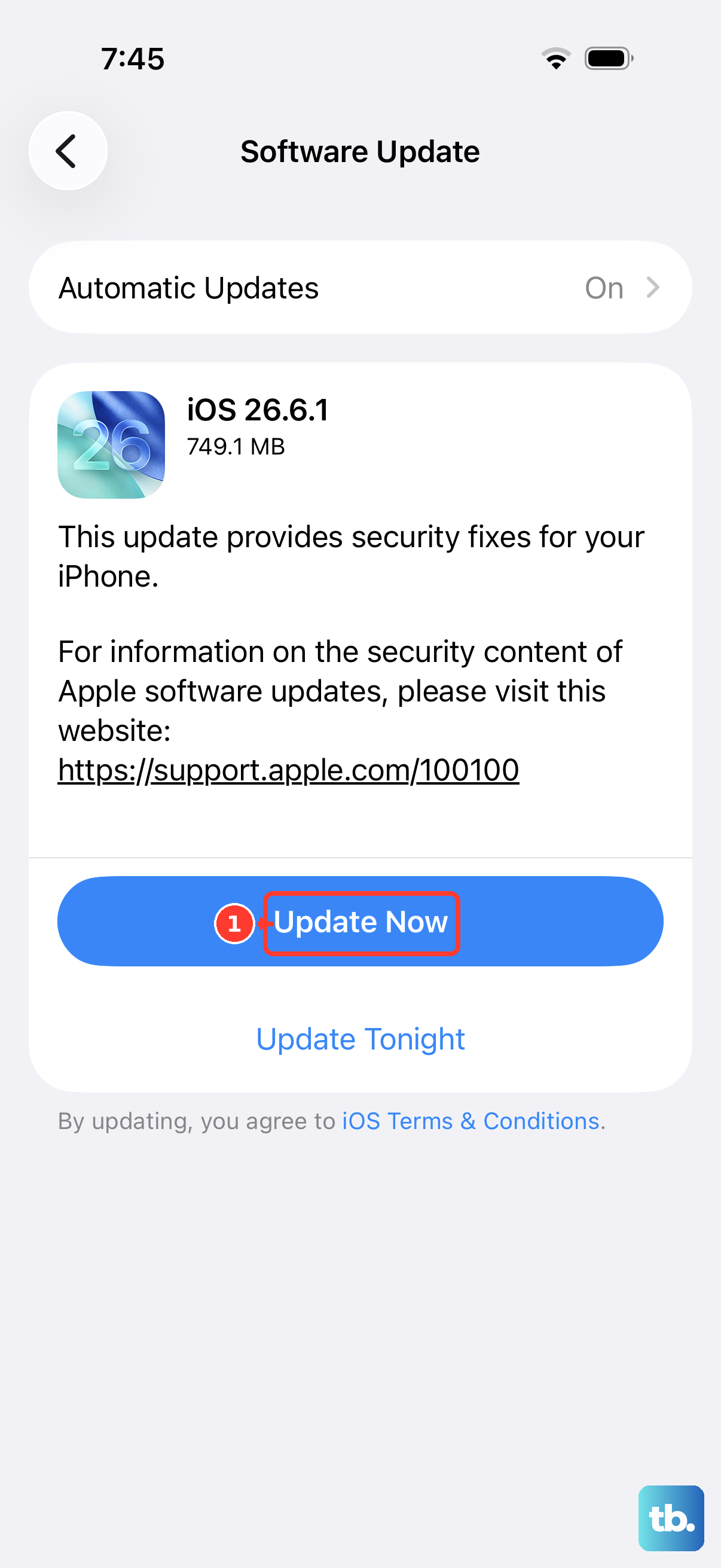
Since the iPhone 17e launched with iOS 26, Apple is actively releasing updates to squash early bugs. A sound issue you're experiencing might already have a patch. Connect to Wi-Fi and plug your phone into power.
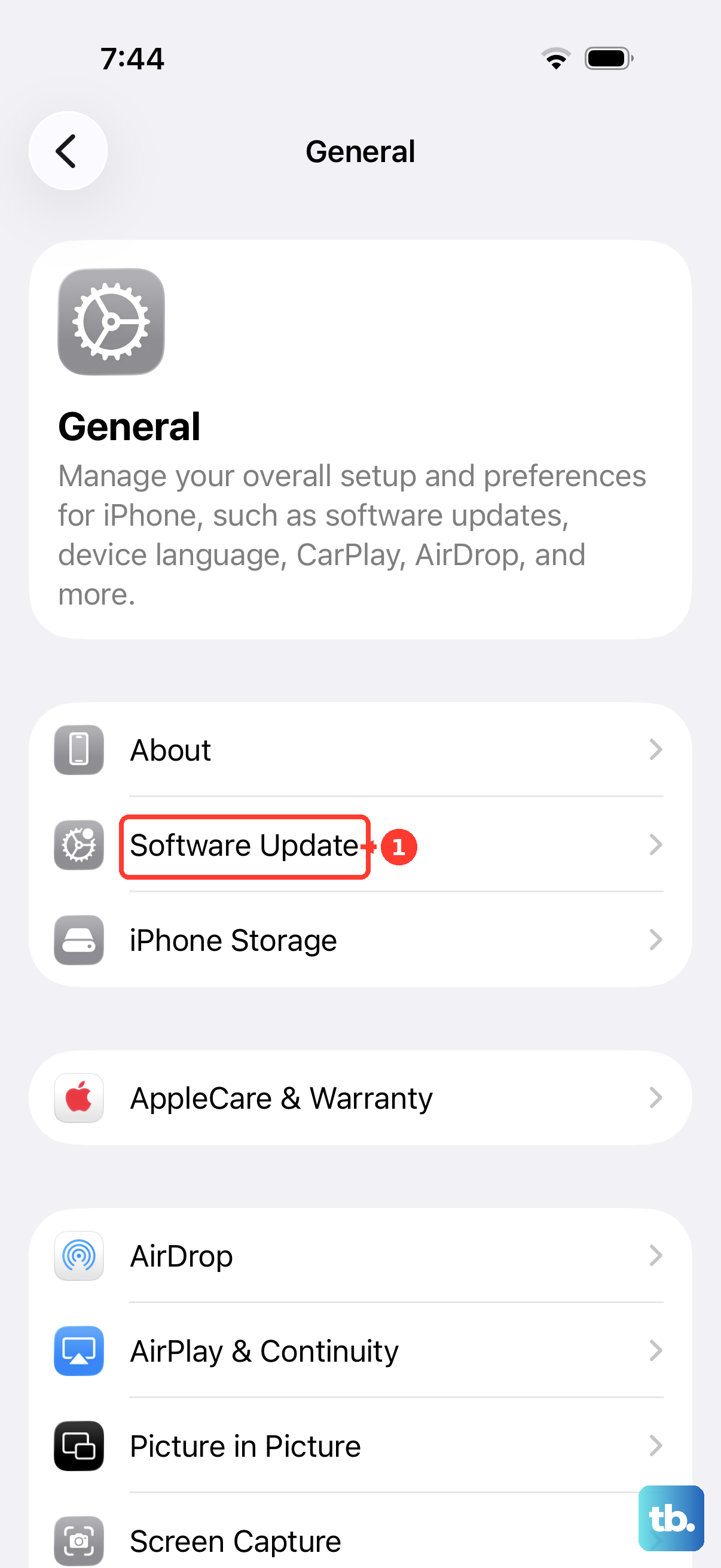
Go to Settings > General > Software Update. If an update is available, tap "Download and Install." I've seen minor point updates, like going from iOS 26.0 to 26.0.1, resolve weird audio problems on new devices.
Reset All Settings
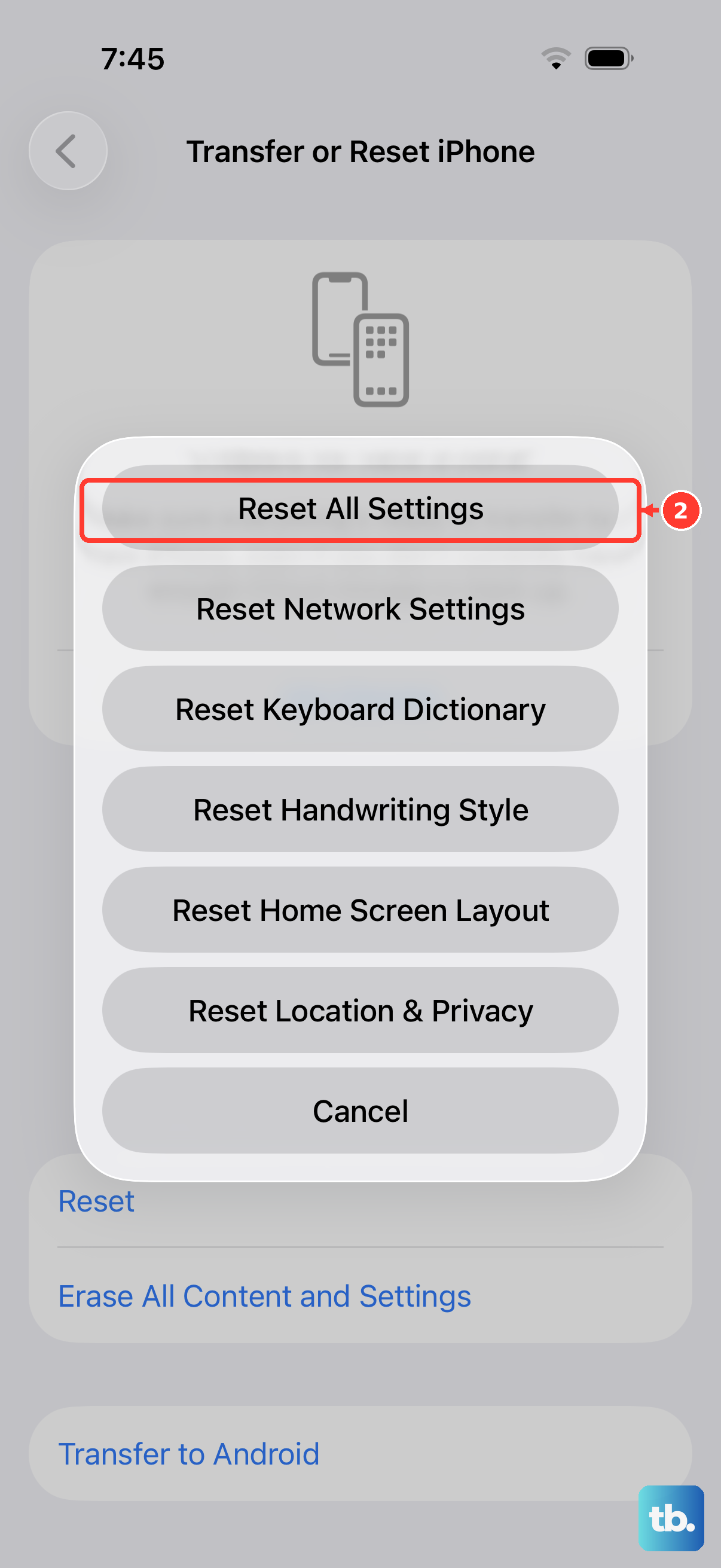
This is a bigger step, but it's useful if a specific setting got corrupted. It will reset your network settings, wallpaper, privacy permissions, and keyboard dictionary back to factory defaults, but it won't touch your photos, messages, or apps.
Go to Settings > General > Transfer or Reset iPhone. Tap "Reset" at the bottom, then choose "Reset All Settings." You'll need to enter your passcode and confirm. Your iPhone will restart, and you'll have to reconnect to Wi-Fi and redo some preferences, but it often clears deep-seated glitches.
Test Sound in Safe Mode (Diagnostic Boot)
This isn't a traditional "Safe Mode" like on older computers, but you can boot your iPhone 17e with third-party app extensions disabled. This helps you figure out if a recently downloaded app is causing the conflict. Turn off your iPhone completely.
Press and hold the Side button to turn it back on, but keep holding the button. Continue holding it until you see the Apple logo appear and then disappear a second time. You should see "iPhone" on the screen with a progress bar. When it boots, try playing some sound. If it works now, an app is likely the culprit. Restart normally to exit this state.
Check for Physical or Liquid Damage
Finally, think back. Has the phone been dropped recently, even with a case on? Did it get exposed to any moisture? While the iPhone 17e is water-resistant, damage can still occur. Look very closely at the speaker grills for any dents or obstructions.
You can also check the Liquid Contact Indicator (LCI). With the phone off, remove the SIM tray from the left side. Shine a flashlight into the SIM slot. If you see a solid white or silver dot, it's dry. If the dot is red or pink, it indicates liquid contact, which could have affected the internal speakers and would require service.