
When your headphones stop working with your iPhone 17e, it can feel like a brand new phone is already broken. Whether you're using the USB-C port for wired buds or trying to connect your favorite wireless pair, the silence is frustrating. The good news is, most headphone issues on the iPhone 17e are quick software fixes, even with it being such a new model running iOS 26.
To rule out the headphones themselves, try a quick headphone test in the browser. If every tone plays cleanly, focus on the device settings covered next.
Restart Your iPhone 17e
This is almost always my first move with any new device glitch. For the iPhone 17e, press and quickly release the Volume Up button, then press and quickly release the Volume Down button. Finally, press and hold the Side button until you see the Apple logo appear. This force restart clears out temporary software bugs that can mess with audio routing.
Check the Audio Output
With all the connectivity in iOS 26, your audio might be trying to play somewhere else. Swipe down from the top-right corner to open Control Center. Press and hold the audio card in the top-right corner. A menu will pop up showing all available outputs. Make sure your headphones are selected here, not the iPhone speaker or another nearby Bluetooth device.
Forget and Re-Pair Your Bluetooth Headphones
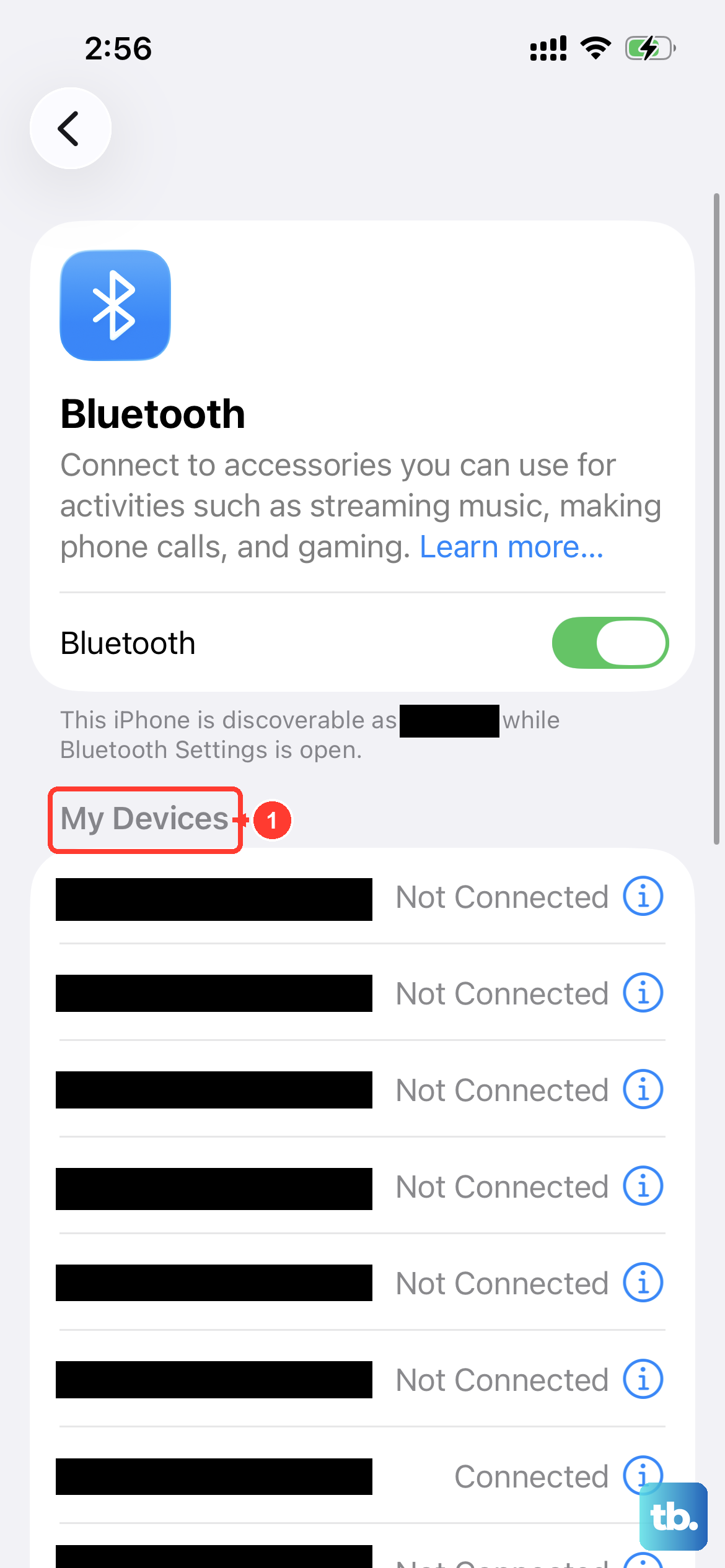
If you're using wireless headphones, a corrupted connection profile is a common culprit. Open Settings and tap Bluetooth. Find your headphones in the "My Devices" list and tap the info (i) icon next to them. Tap Forget This Device and confirm. Then, put your headphones back into pairing mode and reconnect them fresh from the Bluetooth menu.
Clean the USB-C Port
For wired headphones, a little pocket lint in the port can block the connection. The iPhone 17e uses a standard USB-C port, which is great for compatibility but still collects debris. Gently use a wooden toothpick or a soft-bristled brush to clean out the port. Avoid using anything metal, as you could damage the delicate pins inside.
Check for a Stuck Headphone Icon
Sometimes, after unplugging wired headphones, your iPhone 17e might still think they're connected. You'll see a headphone icon in the status bar or on the volume slider. If you see this, try plugging and unplugging your headphones a few times firmly. If that doesn't work, the force restart mentioned earlier usually clears this phantom connection.
Update iOS to the Latest Version
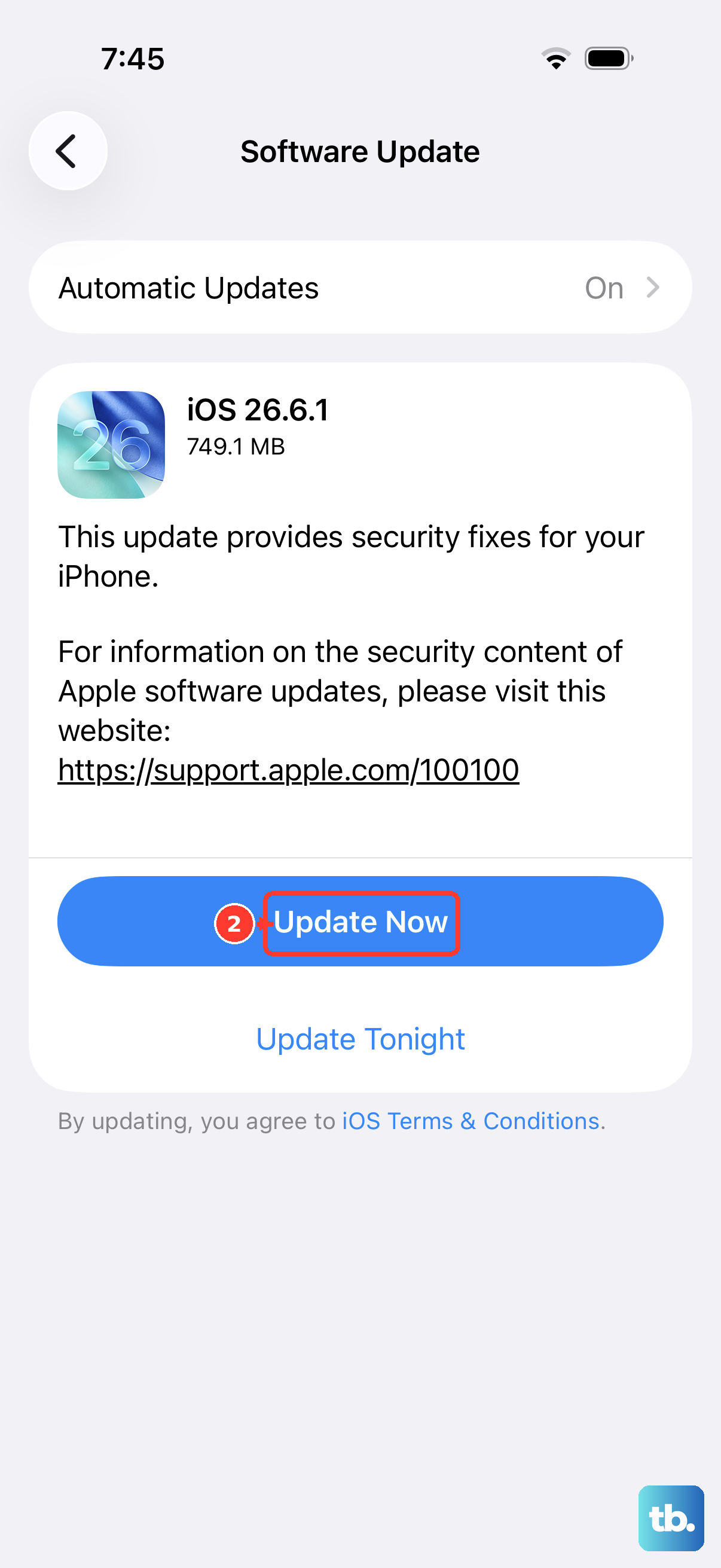
Since the iPhone 17e and iOS 26 are so new, Apple is actively releasing updates to squash early bugs. Go to Settings > General > Software Update. If an update is available, install it. These updates often include fixes for Bluetooth stability and audio driver issues that could be affecting your headphones.
Turn Bluetooth Off and Back On
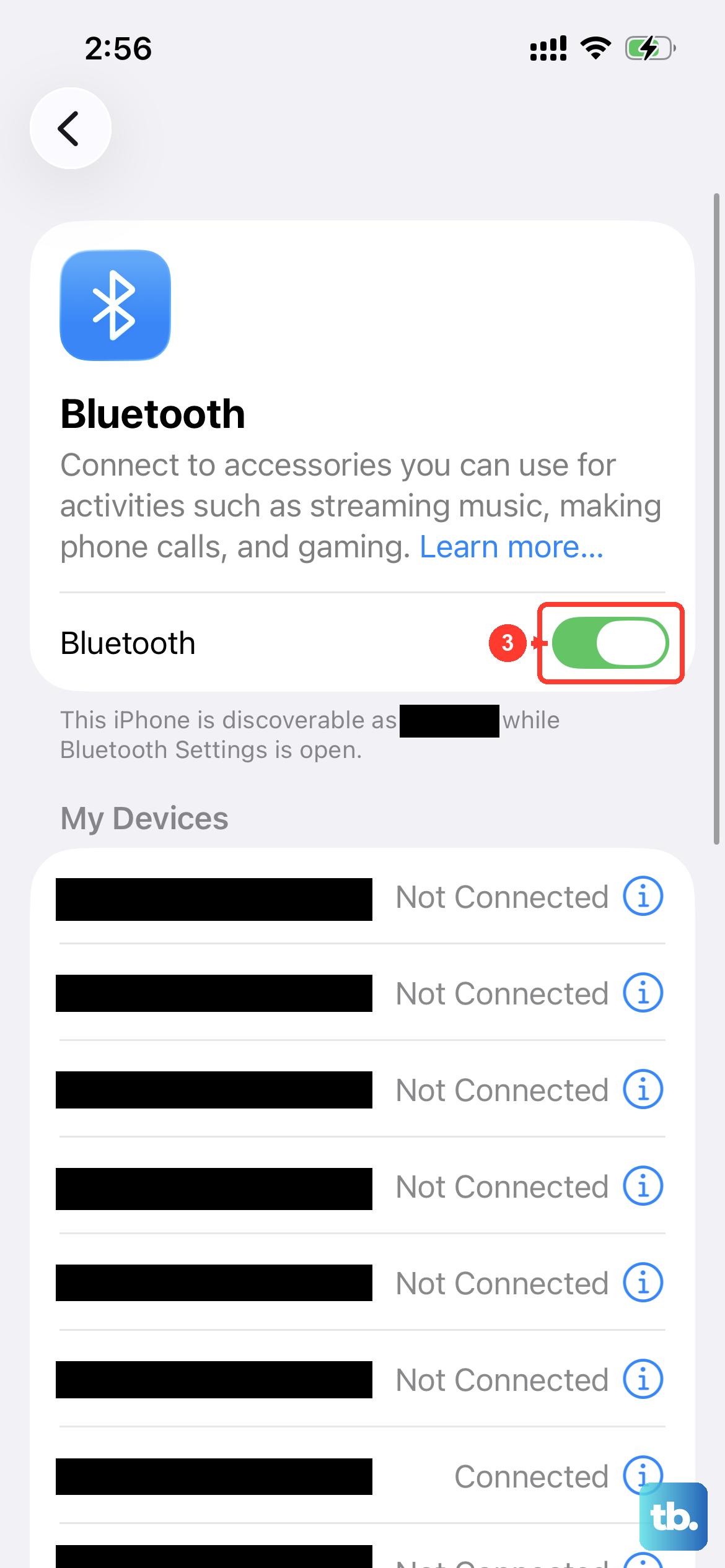
A simple refresh of the Bluetooth radio can work wonders. Go to Settings > Bluetooth and toggle the switch at the top to Off. Wait about ten seconds, then turn it back on. This resets the connection stack and can solve problems where audio is choppy or won't play through your wireless headphones at all.
Check Your Volume and Focus Modes
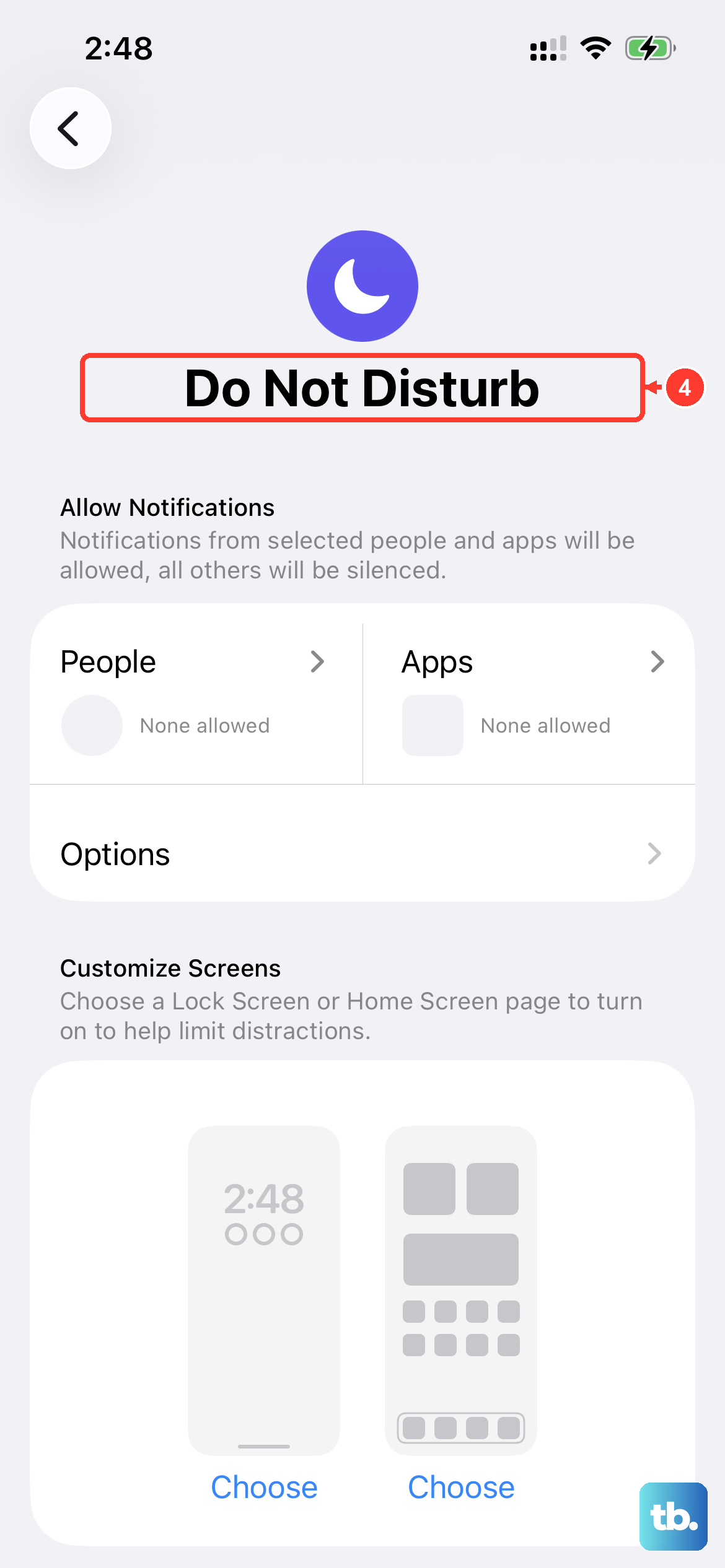
It sounds obvious, but press the Volume Up button on the side of your phone to make sure the volume isn't all the way down. Also, check if a Focus mode like Do Not Disturb or Sleep is active. Some Focus modes can silence audio alerts or route calls differently, which might make it seem like your headphones aren't working for notifications.
Reset All Settings
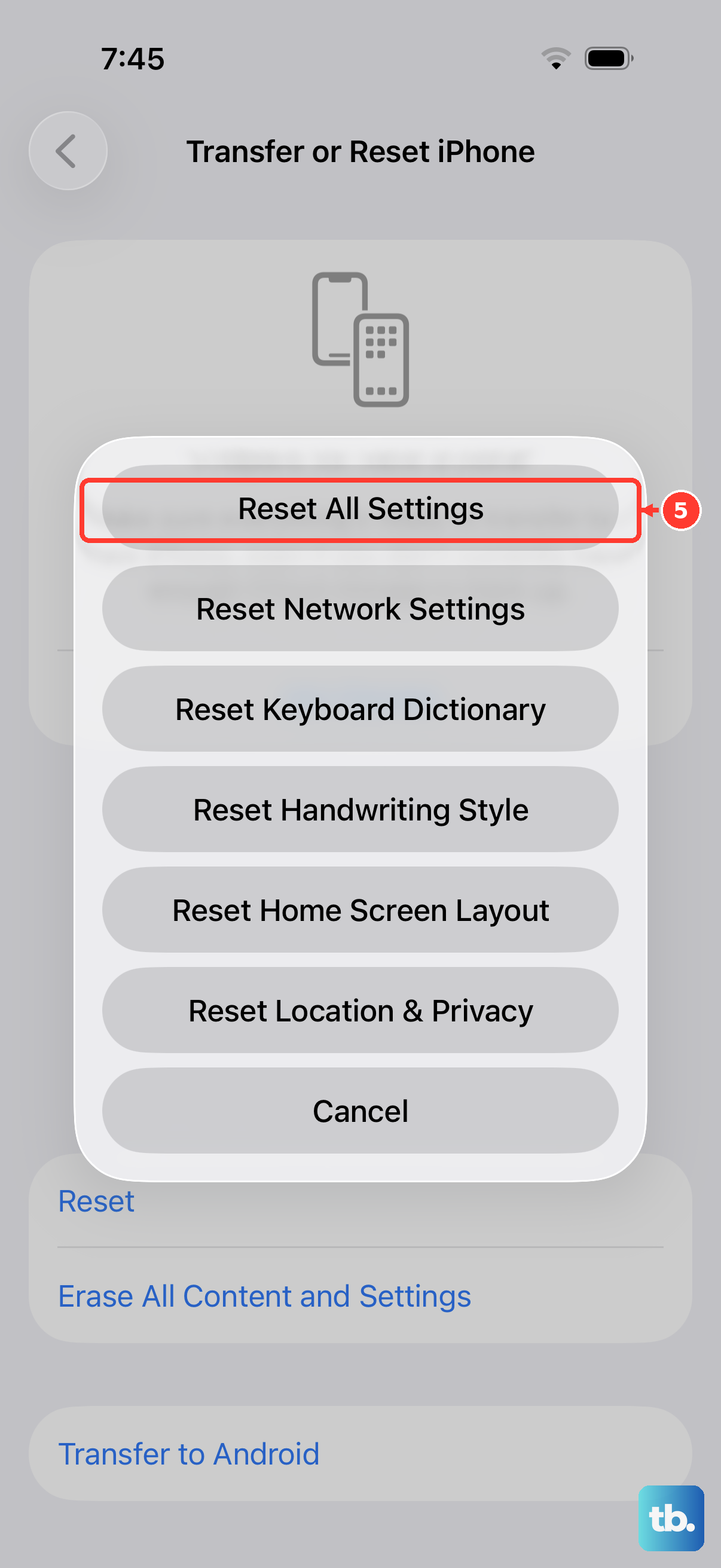
If you're still having persistent issues and you've tried everything else, this nuclear option can help. Go to Settings > General > Transfer or Reset iPhone. Tap Reset and then choose Reset All Settings. This will not erase your apps or data, but it will reset all system preferences. You'll need to re-pair Bluetooth devices and reconfigure things like wallpaper and notifications, but it often resolves deep-seated audio glitches.
Test With Another Pair of Headphones
To rule out a problem with the headphones themselves, try a different pair. If a second pair of wired headphones works in your iPhone 17e's USB-C port, then the original headphones are likely the issue. If a second pair of Bluetooth headphones also fails to connect properly, it points more firmly to a setting or software bug on the phone itself.