
That spinning wheel next to your Wi-Fi network on your iPhone 17 Pro is incredibly frustrating, especially when you know you have a fast connection. This is a common hiccup on iOS 26, but the good news is it's almost always something you can fix yourself in a few minutes.
Toggle Wi-Fi and Restart Your iPhone
Start with the simplest fix. Swipe down from the top right of your screen to open Control Center and tap the Wi-Fi icon to turn it off. Wait about ten seconds, then tap it again to turn it back on. This forces your iPhone to drop the connection and re-establish it fresh, which clears up a lot of temporary glitches.
If that doesn't work, give your iPhone 17 Pro a full restart. Press and quickly release the Volume Up button, then quickly press and release the Volume Down button. Finally, press and hold the Side button until you see the Apple logo appear and then release it.
Use Airplane Mode to Reset All Radios
This is a more thorough version of toggling Wi-Fi alone. Go into Control Center and tap the airplane icon to enable Airplane Mode. Leave it on for a full 30 seconds. This completely shuts down the Wi-Fi, cellular, and Bluetooth radios. After the half-minute, turn Airplane Mode off again. Your iPhone will then re-scan and attempt to connect to all available networks, which often resolves deeper connection issues.
Forget the Problem Network and Rejoin
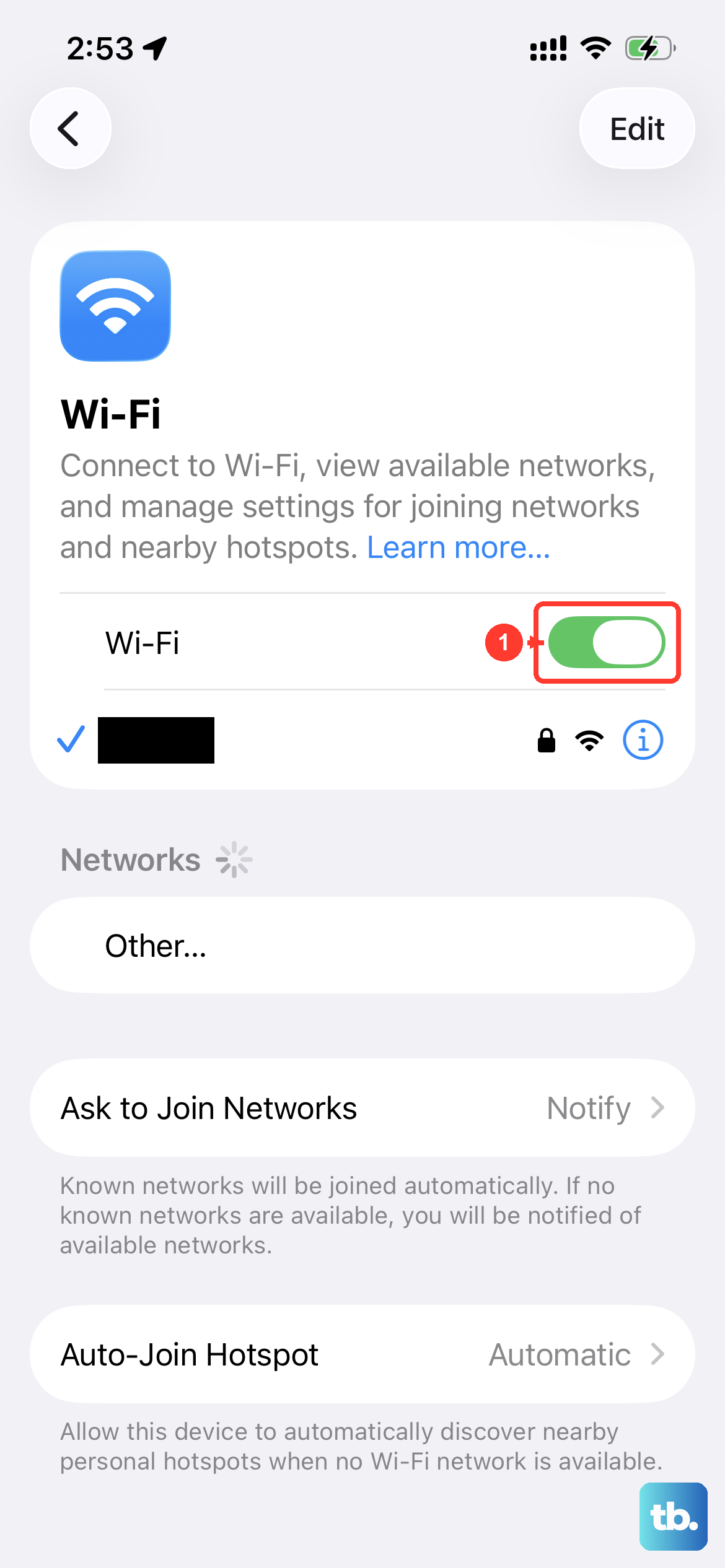
Your iPhone might be holding onto corrupted information for that specific Wi-Fi network. To clear it out, open the Settings app and tap Wi-Fi. Find the network giving you trouble and tap the information (i) icon next to it. At the top of the next screen, tap Forget This Network and confirm. This removes the network and its password from your phone.
Now, go back to your list of available networks, tap on the same network name, and re-enter the password. I've found this solves the issue about half the time, especially if you recently changed your router or its password.
Check for iOS and Carrier Updates
Apple regularly releases updates for iOS 26 that include bug fixes for connectivity problems. Go to Settings, then General, and tap Software Update. Install any available update. While you're there, also check for a carrier settings update, which can improve how your phone interacts with networks. You'll usually get a prompt for this if one is available, but a restart can sometimes trigger it.
Disable Wi-Fi Assist
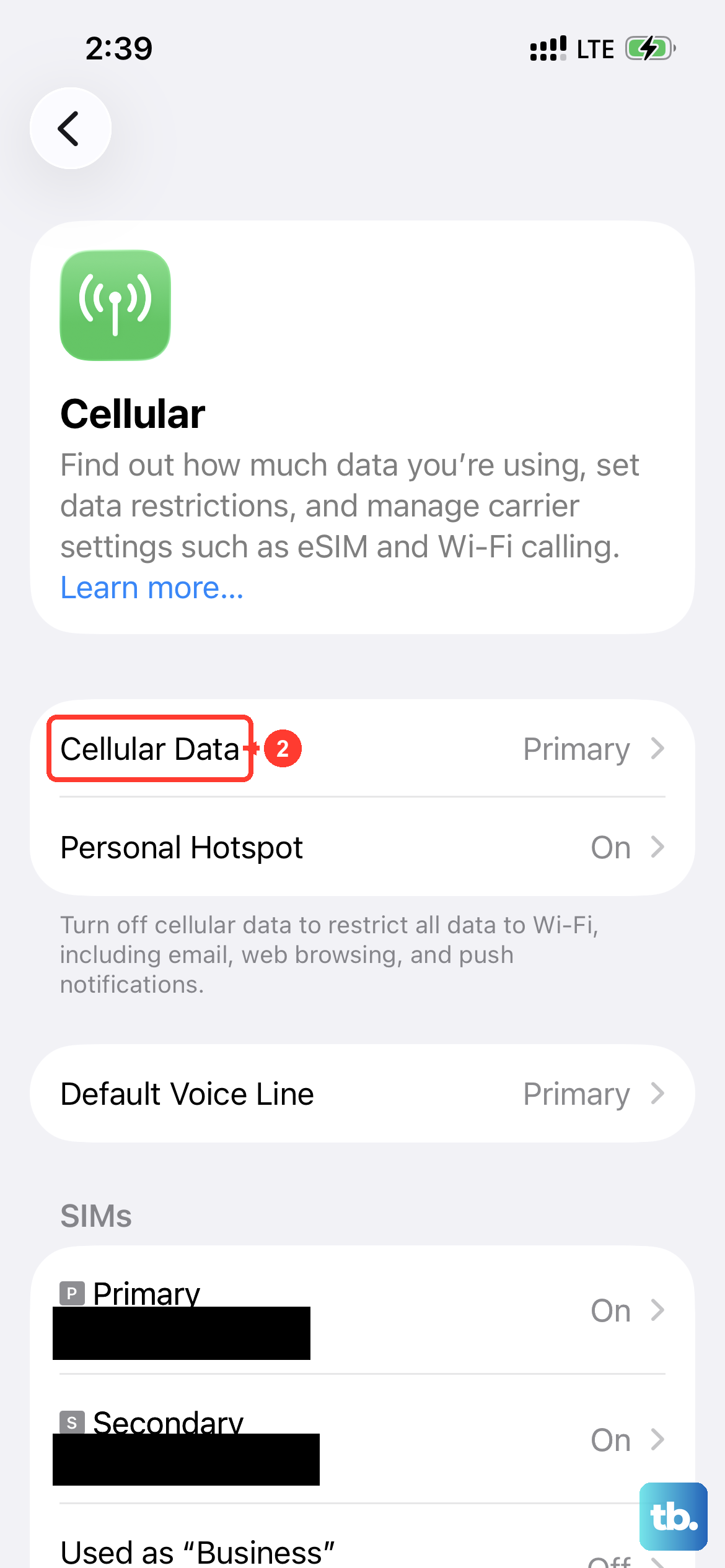
Wi-Fi Assist is a feature designed to seamlessly switch you to cellular data when your Wi-Fi signal is poor. Sometimes, it can be a little too aggressive and interrupt a connection that's actually fine. To turn it off, go to Settings, tap Cellular, and scroll all the way to the bottom. You'll find the Wi-Fi Assist toggle there.
Reset Your Network Settings
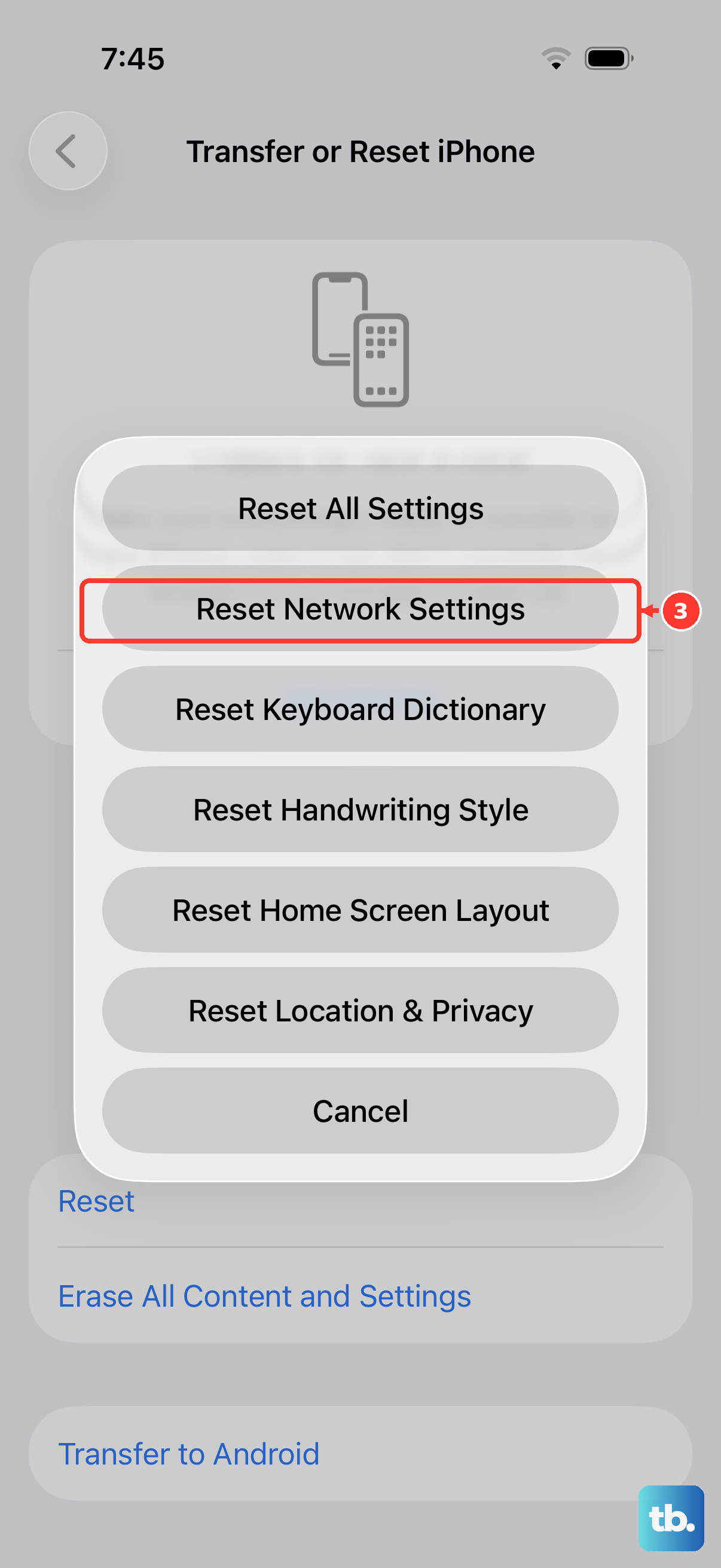
This is a more significant step, but it's very effective for persistent Wi-Fi, Bluetooth, and cellular issues. It will erase all your saved Wi-Fi networks, passwords, VPN settings, and APN configurations. To do it, open Settings, go to General, then Transfer or Reset iPhone. Tap Reset and choose Reset Network Settings. Your iPhone will restart, and you'll need to rejoin your Wi-Fi networks and re-pair Bluetooth devices afterward.
Check Your Router and Internet Source
The problem might not be your iPhone at all. First, try restarting your router and modem. Unplug them from power, wait a full 60 seconds, and then plug them back in. It's also worth checking if other devices in your home can connect to the internet. If they can't, the issue is definitely with your internet provider or router.
If other devices work, try moving closer to your router with your iPhone. Thick walls, especially newer energy-efficient ones, can significantly weaken a Wi-Fi signal. Also, log into your router's settings (usually via a web browser) to see if there's a firmware update available, as outdated router software can cause compatibility problems.
Review Your Date and Time Settings
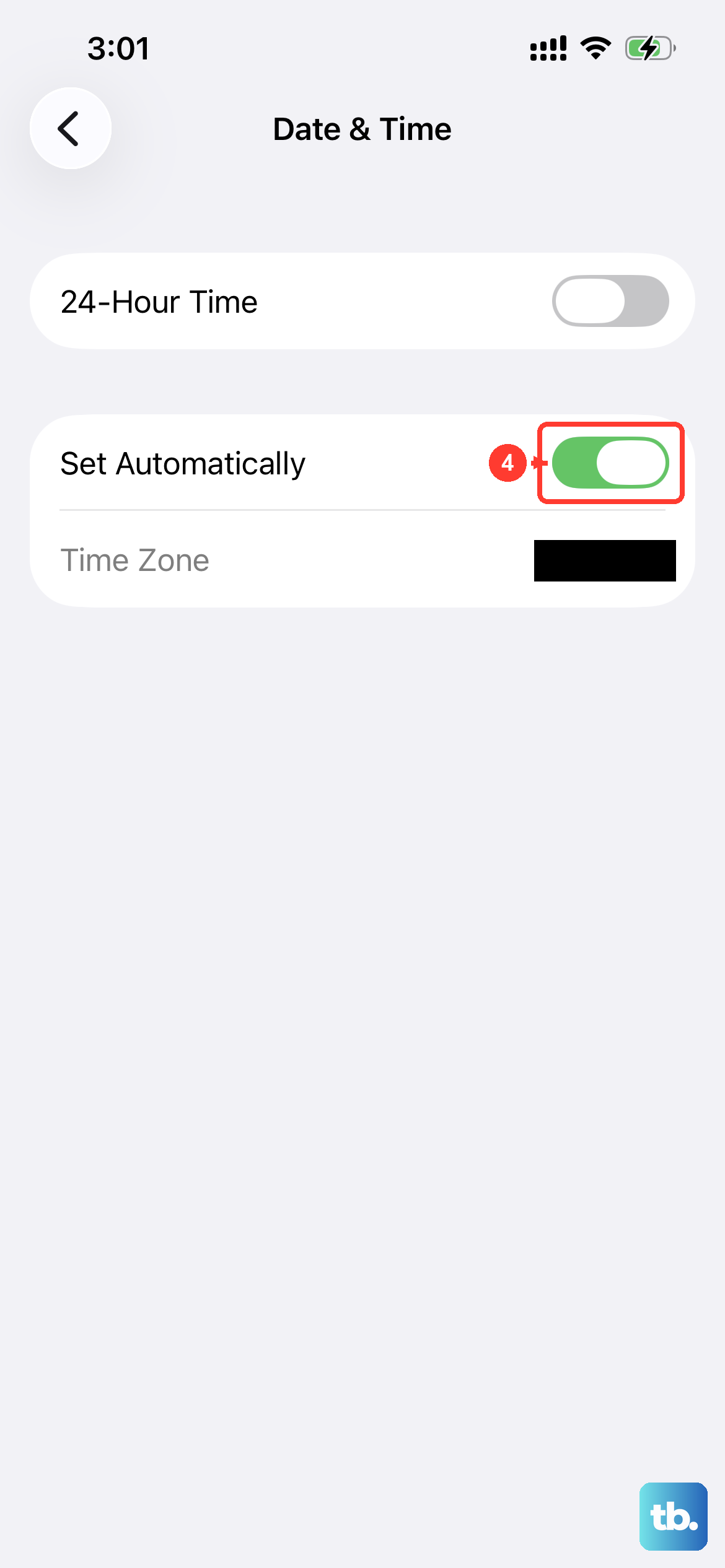
This seems unrelated, but it's critical for network security. If your iPhone's date and time are incorrect, it can fail to authenticate with secure Wi-Fi networks because security certificates appear invalid. Go to Settings, then General, and tap Date & Time. Make sure the Set Automatically option is turned on.
Look for VPN or Security App Conflicts
If you use a VPN app, try disconnecting from it or turning the VPN off completely to see if your Wi-Fi returns. Some content blocker or firewall apps can also interfere with network connections. Try temporarily disabling any apps like this to test.
Try a Different Wi-Fi Network
To rule out a hardware problem with your iPhone's Wi-Fi antenna, try connecting to a completely different network. This could be a public hotspot, a friend's network, or even by using your iPhone's Personal Hotspot feature on another device. If your iPhone 17 Pro connects to other networks without issue, the problem is isolated to your home network setup.