
Missing important calls on your iPhone 17 Pro is a real headache. You're carrying the phone, but it stays silent while notifications for missed calls pile up. The cause may be a changed setting, a software issue, or a network problem.
Check Silent mode first. If your Action button is set to Silent mode, press and hold the button on the left side to turn Silent mode off. If the button controls another feature, go to Settings > Sounds & Haptics and turn Silent mode off there. With Silent mode off, your phone can ring and play alerts again.
Check Your Focus Modes
Focus modes have become more sophisticated and can sometimes be too aggressive. Swipe down from the top right to open Control Center and look for any active Focus icon, like the moon for Do Not Disturb or a bed for Sleep. Tap the icon to turn it off.
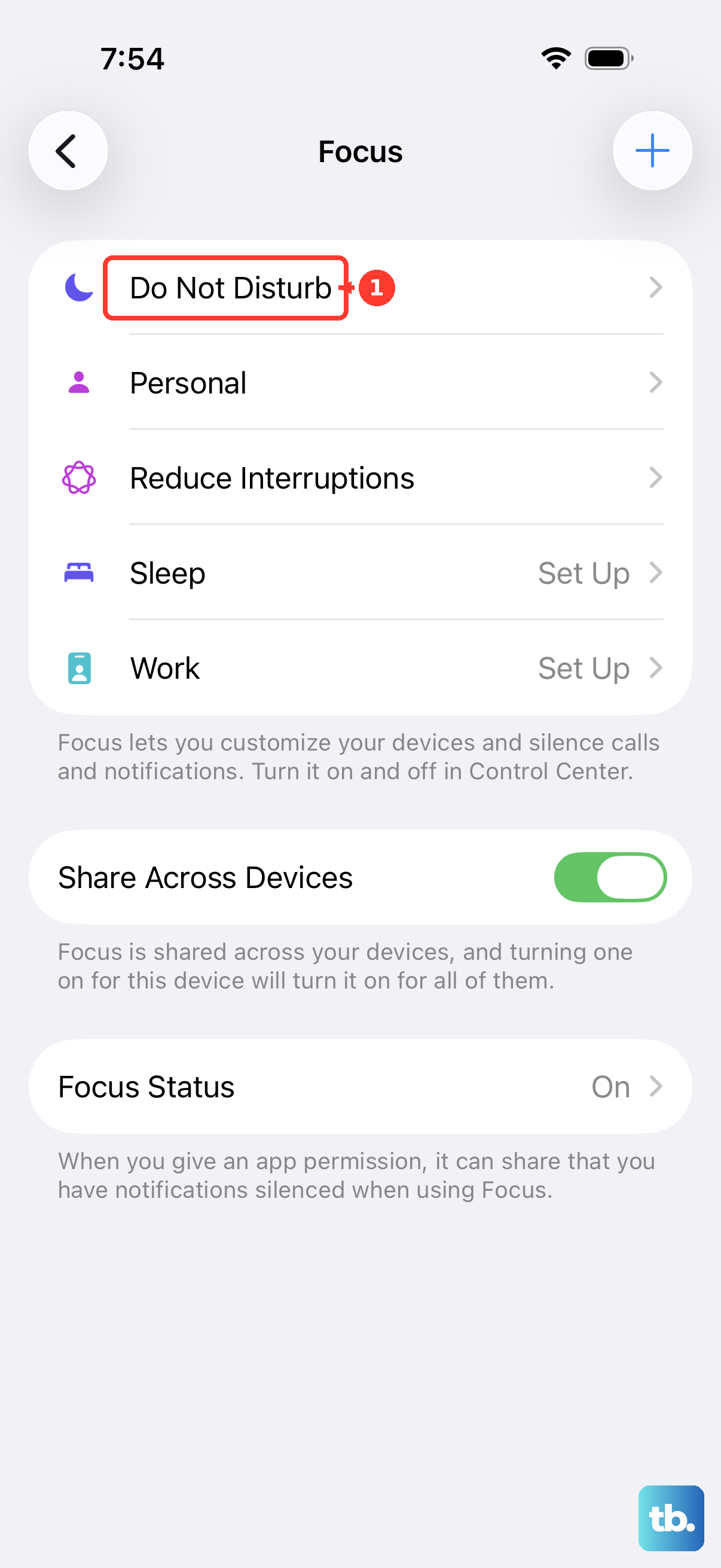
You should also check the schedules. Go to Settings > Focus. Look at each mode like Work, Personal, or Sleep. For Do Not Disturb, scroll down to "Set a Schedule" and turn off any active schedules that are silencing calls during your day.
Adjust Your Ringer Volume and Sound
Go to Settings > Sounds & Haptics and drag the ringer volume slider to the right. Make sure it's not set all the way down. If you want the side volume buttons to adjust the ringer volume, turn on "Change with Buttons" on this screen.
While you're there, try changing your ringtone. Tap "Ringtone" and pick a different default sound, then have a friend call you to test it.
Disconnect Bluetooth and Check Audio Routing
If your iPhone 17 Pro is connected to AirPods, a car stereo, or a speaker, disconnect the accessory and test another incoming call. Go to Settings > Bluetooth and toggle it off temporarily to test.
Also, check the Call Audio Routing setting. Go to Settings > Accessibility > Touch > Call Audio Routing. This setting controls where call audio plays after you answer.
Review Call Blocking and Screening Settings
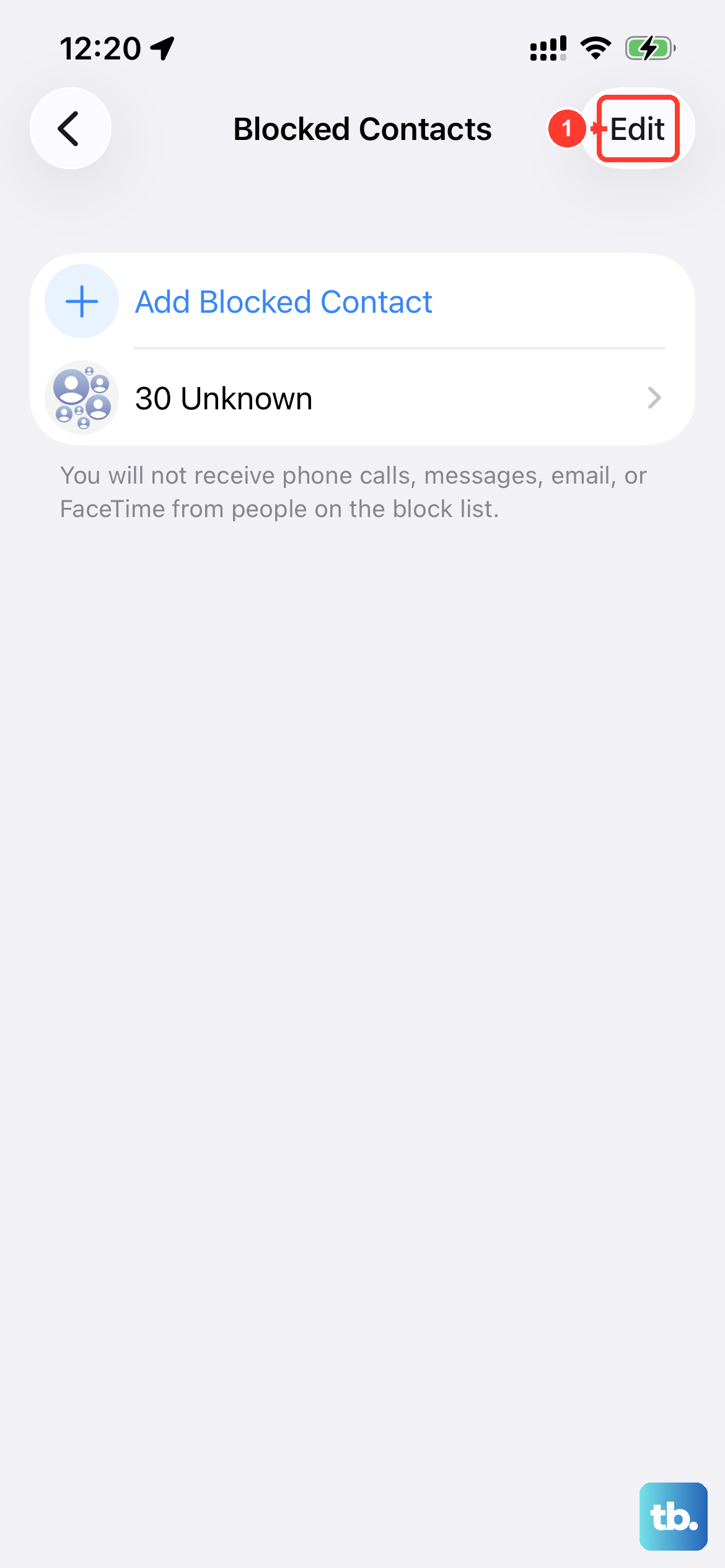
A couple of features designed to reduce spam can sometimes be too effective. First, check if you've blocked the caller. Go to Settings > Apps > Phone > Blocked Contacts and see if the number is listed.
Next, look at "Screen Unknown Callers" in Settings > Apps > Phone. Select "Never" so calls from unsaved numbers ring normally. "Ask Reason for Calling" screens these calls before your phone rings, while "Silence" sends them to voicemail. Add important callers to Contacts so their calls aren't treated as unknown.
Perform a Force Restart
A simple restart fixes many temporary glitches. For the iPhone 17 Pro, the force restart sequence is specific. Quickly press and release the Volume Up button, then quickly press and release the Volume Down button. Finally, press and hold the Side button until you see the Apple logo appear, then release.
This is different from a normal shutdown and can clear out minor software bugs that might be affecting the ringer system.
Update to the Latest iOS Version
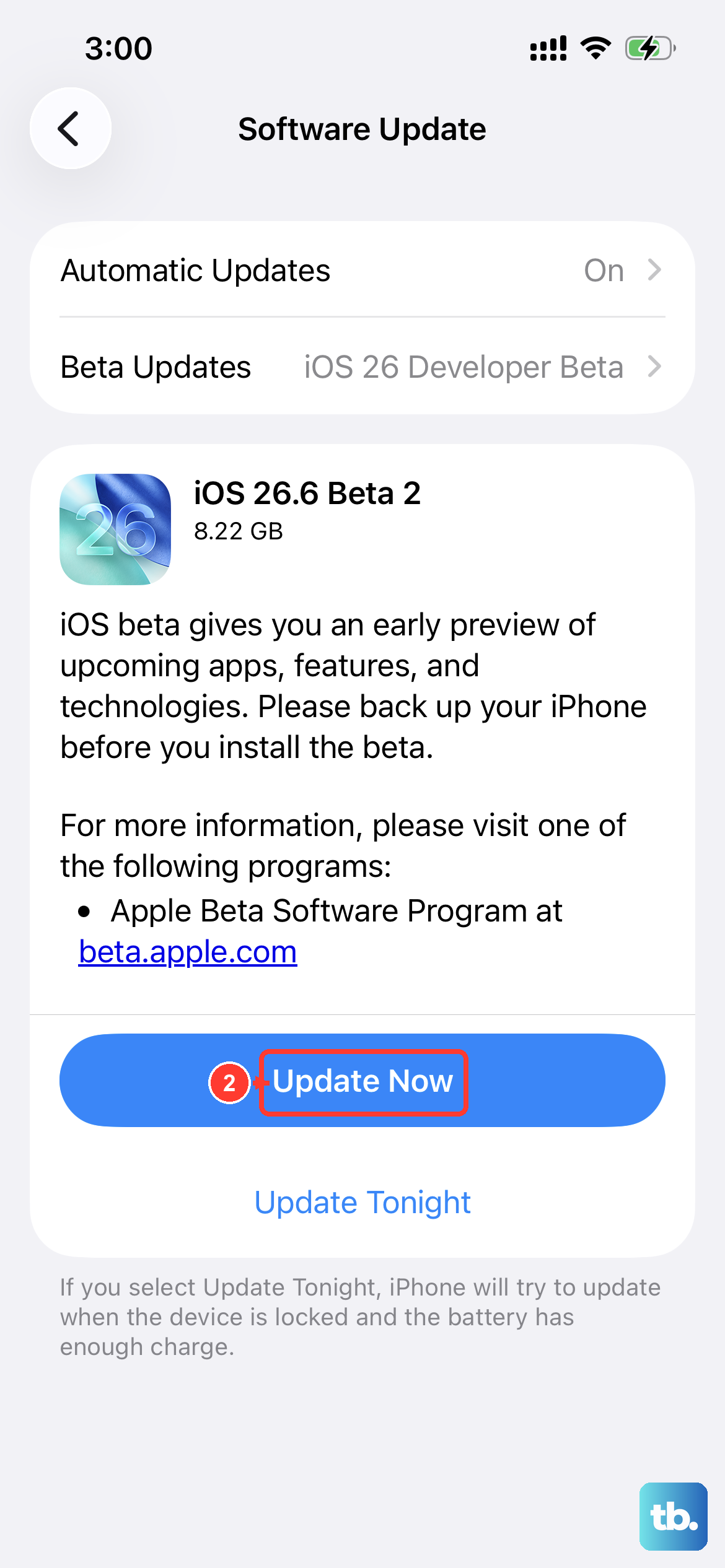
Apple frequently releases updates that patch bugs, including ones related to audio and calling. Connect to Wi-Fi and plug your phone into a charger. Go to Settings > General > Software Update.
If an update is available, tap "Download and Install."
Reset All Settings
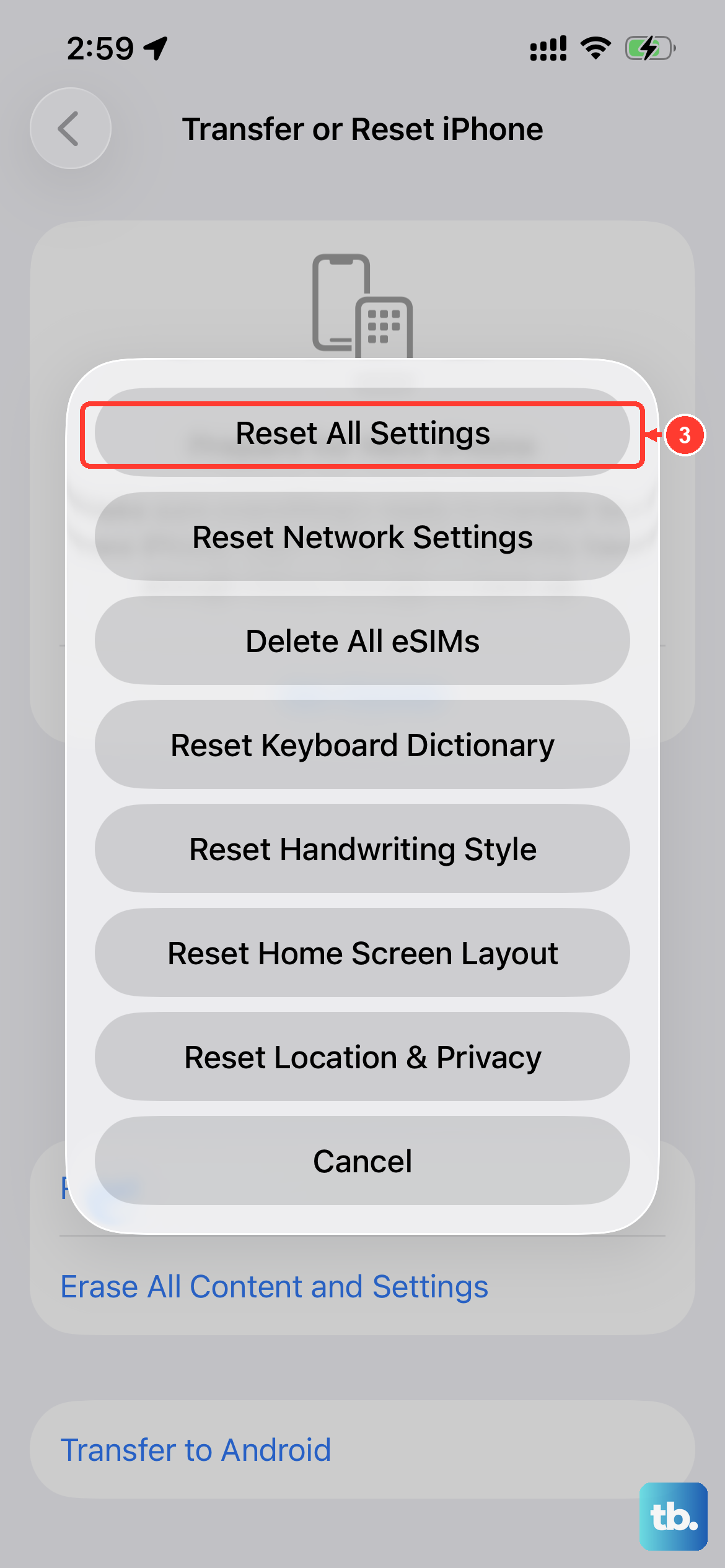
If you're still having trouble, this step returns many system settings on your iPhone 17 Pro to defaults without deleting your photos, apps, or data. You will need to rejoin Wi-Fi, re-pair Bluetooth devices and Apple Watch, set up Face ID again, and reconfigure things like wallpaper and privacy permissions. Apple Pay cards are also removed.
Go to Settings > General > Transfer or Reset iPhone > Reset. Then tap "Reset All Settings" and enter your passcode. This may help if a changed setting is causing the problem.
Check for Carrier Settings Updates
Sometimes the issue is related to how your phone connects to your cellular network. Carrier settings updates are small files that Apple and your provider release. To check, go to Settings > General > About.
If an update is available, a prompt will appear. Follow the onscreen instructions to install it, then test another call.
Examine Third-Party App Permissions
If the problem only happens with calls from apps like WhatsApp or Signal, start by checking that app's settings. First, make sure the app is updated from the App Store. Then, check its notification permissions.
Go to Settings > Apps > [App Name] (e.g., WhatsApp) and ensure notifications are turned on. Also, go to Settings > Notifications, find the app, and make sure "Sounds" is enabled.