
When your iPhone 17 Pro Max volume buttons stop responding, it's a real nuisance. You press them and get no click, no volume change, nothing. The good news is that most of the time, this is a software hiccup or a simple obstruction that you can fix yourself without a trip to the Genius Bar.
I'd start with the quick fixes at the top of this list. They resolve the majority of these issues in just a few minutes.
Remove Your Phone Case
This is always step one. Take off your case, especially if it's a thick one or if it's been on there since you got the phone. Sometimes a case can shift and put just enough pressure on the button edges to keep them from clicking properly.
With the case off, press the volume up and down buttons a few times. If they work now, you've found your culprit. Try repositioning the case or consider using a different one.
Perform a Force Restart
A force restart clears out temporary software glitches that can make the buttons unresponsive. It doesn't delete any of your data or settings.
For the iPhone 17 Pro Max, here's the exact sequence: press and quickly release the Volume Up button, then press and quickly release the Volume Down button. Finally, press and hold the Side button. Keep holding it until you see the Apple logo appear on the screen, then let go.
Once your phone boots back up, test the volume buttons immediately. This simple restart fixes more problems than you'd think.
Check the Volume Button Setting
There's a software setting that can disable the physical buttons, though it's easy to toggle by accident. Open the Settings app and go to Sounds & Haptics.
Scroll down and make sure the switch for "Change with Buttons" is turned on (green). If it's off, your volume rocker won't do anything, and you'll need to use the on-screen slider.
Clean Around the Buttons
Dust, lint, and pocket debris are common enemies of the volume buttons. Over time, they can get packed in around the edges and stop the button from moving.
Grab a can of compressed air and give short, gentle bursts around each button. Don't shake the can, and hold the phone upright so the debris falls out. For any sticky residue, a cotton swab dipped in a tiny amount of isopropyl alcohol can help. Just be careful not to get liquid inside the phone.
Test the Buttons in Different Apps
Open your Music app and try to change the volume while a song is playing. Then, try it in the YouTube app or while watching a video in your Photos library.
If the buttons work in one app but not another, the problem is likely with that specific app, not your hardware. Try force-closing the problematic app and reopening it, or check the App Store for an update.
Check the Action Button
It sounds too simple, but the iPhone 17 Pro Max has no Ring/Silent switch. Press and hold the Action button if it is assigned to Silent mode, or open Settings > Sounds & Haptics and make sure Silent mode is set the way you expect.
Flip it from silent to ring a couple of times, then test your volume buttons again. It's a five-second trick that has worked for me on older models when nothing else seemed to.
Use AssistiveTouch for a Soft Reset
Enabling AssistiveTouch creates a virtual button on your screen that can control volume. Using it can sometimes jog the physical buttons back to life. Go to Settings > Accessibility > Touch > AssistiveTouch and turn it on.
A grey circle will appear on your screen. Tap it, then tap Device > Volume Up (or Volume Down). Tap the virtual button several times. After doing this, try your physical volume buttons again.
Update to the Latest iOS
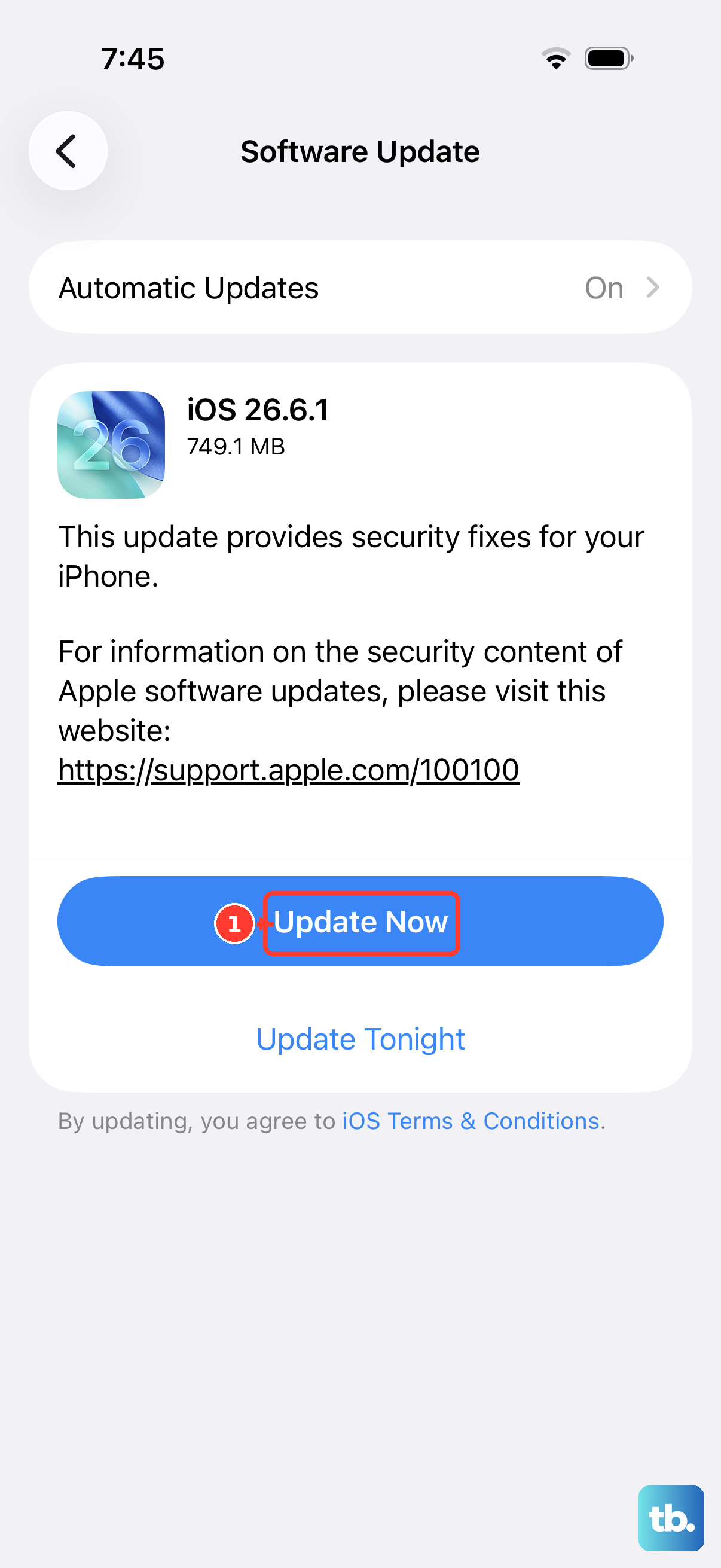
Since your iPhone 17 Pro Max runs iOS 26, it's crucial to keep it updated. Apple frequently releases patches for bugs, including ones that might affect button responsiveness.
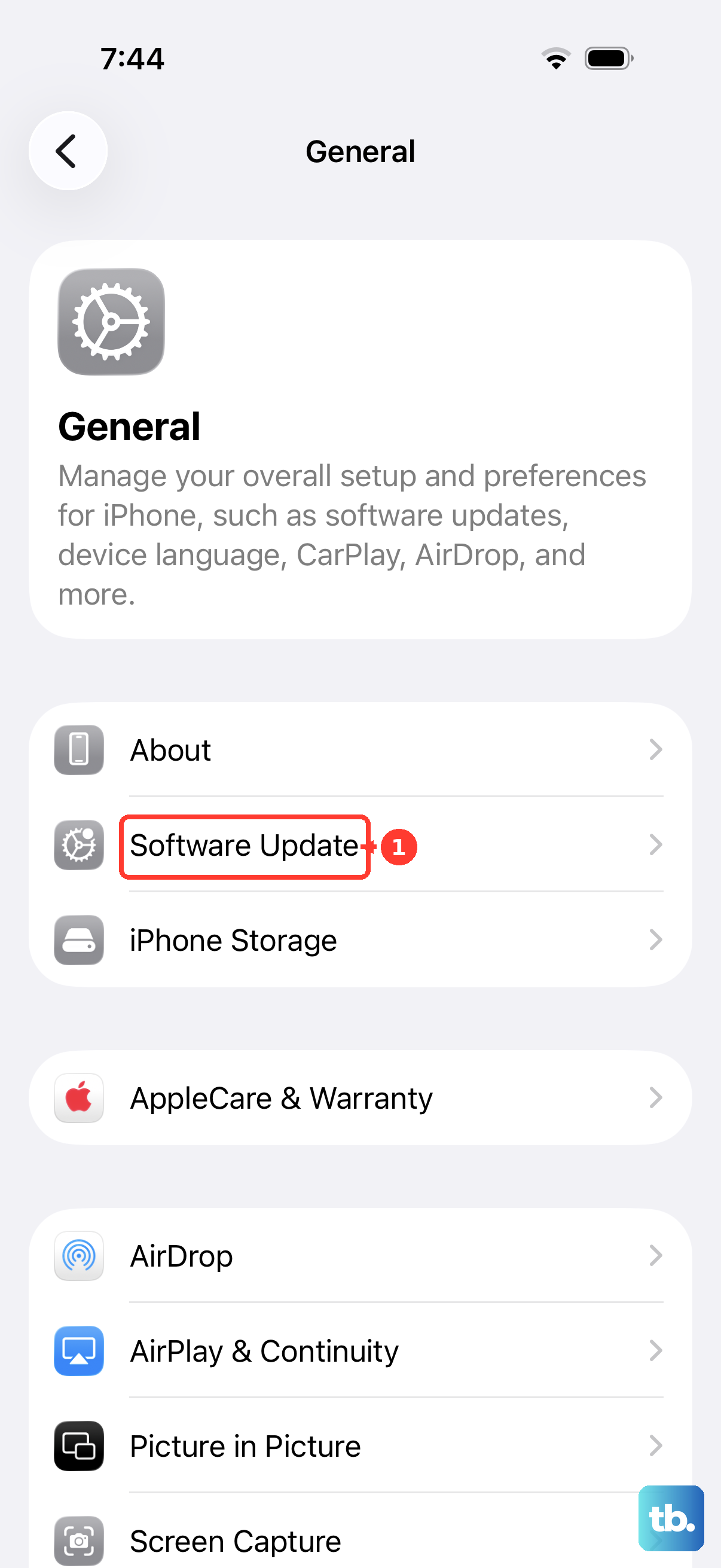
Connect to Wi-Fi and plug in your charger. Go to Settings > General > Software Update. If an update is available, tap "Download and Install." An update can clear up underlying software conflicts causing the issue.
Check for Focus Modes or Accessibility Settings
Certain Focus modes, like Driving or Sleep, can be configured to limit certain controls. Swipe down from the top-right corner to open Control Center and see if a Focus icon (like a crescent moon or car) is highlighted.
Also, check if any accessibility shortcuts are enabled. Go to Settings > Accessibility > Accessibility Shortcut. Make sure nothing is selected that could be interfering with normal button function.
Reset All Settings
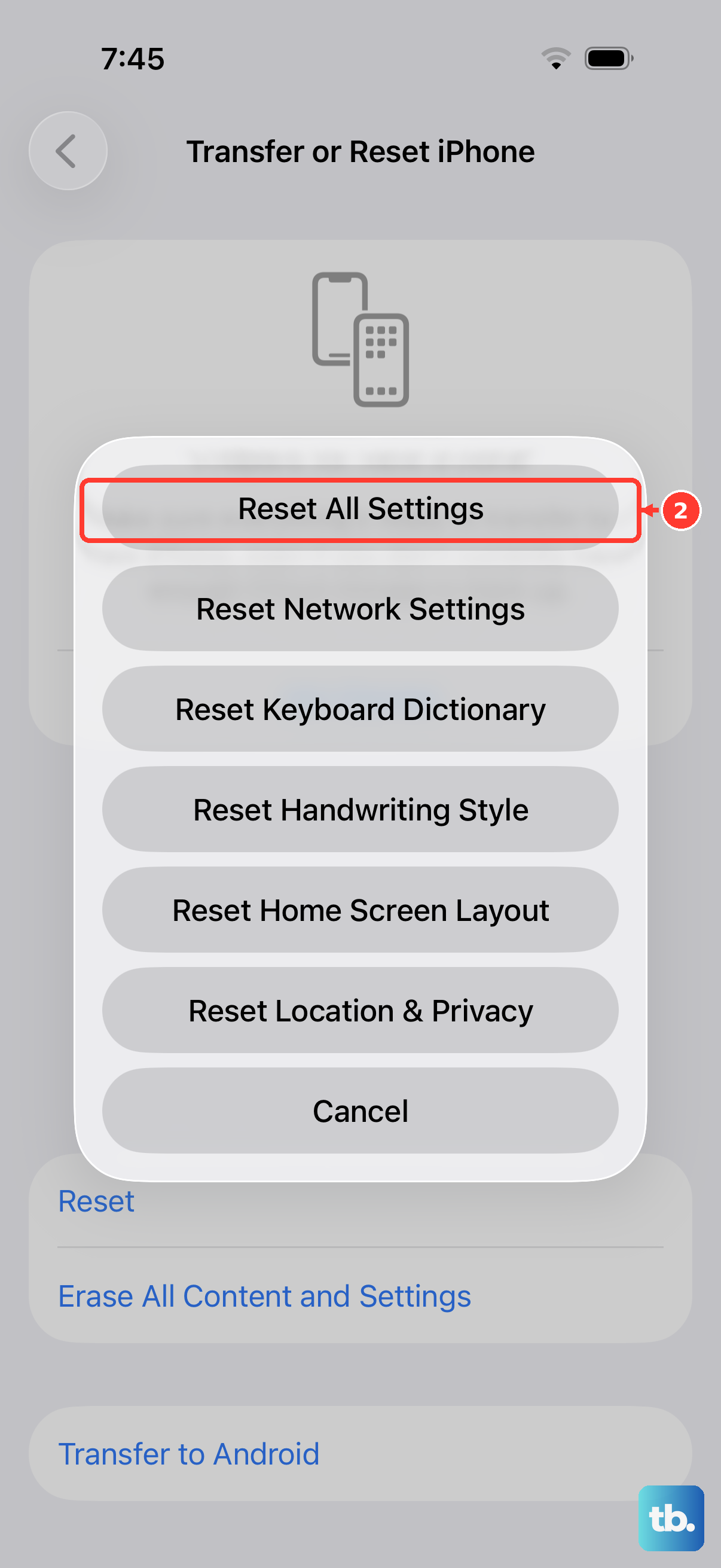
If you're still stuck, a "Reset All Settings" can help. This won't erase your personal data like photos or messages, but it will reset all your system settings to default, things like Wi-Fi passwords, wallpaper, and display brightness.
Go to Settings > General > Transfer or Reset iPhone > Reset. Then, choose "Reset All Settings." Your phone will restart. After it reboots, you'll need to reconfigure your preferences, but it often resolves persistent software glitches.