Your iPhone 17 Pro Max is a brand new phone, so it is jarring when you plug in USB-C headphones or pop in your AirPods and hear nothing. Sound might keep blasting from the built-in speaker, your AirPods might refuse to connect, or wired audio might cut out the moment you move the cable. The good news is that most headphone problems on this model come down to volume routing, a loose connector, debris, or a Bluetooth hiccup rather than a broken phone.
A browser based online headphone test makes this easy to confirm. If both sides play test tones correctly there, the headphones are fine and the problem is in the device or app.
Before you assume the worst, it helps to know what you are working with. The iPhone 17 Pro Max has no 3.5mm headphone jack; it ships with iOS 26 and sends audio out through its USB-C port (wired), over Bluetooth 6 (wireless), or to AirPods. That means the fixes below target USB-C wired headphones, the Apple USB-C-to-3.5mm Headphone Jack Adapter, Bluetooth headphones, and AirPods.
Work through them in order, starting with the quick, safe checks and saving the full erase or a support visit for last.
Start With Volume and Where the Sound Is Going
It sounds almost too simple, but audio routing trips up plenty of people. Your iPhone can be playing perfectly while sending the sound to the wrong place, so the headphones stay silent even though everything is technically working.
Turn the volume up using the volume buttons on the iPhone, or open Control Center and drag the Volume slider.
For Bluetooth headphones or AirPods, open Control Center and tap the AirPlay button.
Confirm the audio is being sent to your headphones and not the iPhone speaker, then play something to test.
If the AirPlay menu shows the iPhone speaker selected, just tap your headphones to reroute the sound. This one step resolves a surprising number of "no audio" complaints.
Reseat USB-C Headphones and Take Off the Case
Because this model relies on the USB-C port for wired audio, a slightly loose plug is enough to kill the sound or make it crackle. Plug your USB-C headphones, or the Apple USB-C-to-3.5mm Headphone Jack Adapter, directly into the USB-C port.
Firmly plug your headphones back in and make sure they are fully seated.
If your iPhone has a case, you might need to remove the case to get a firm connection, since a thick case can stop the connector from going all the way in.
Look for Damage and Clear Out Debris
Lint and pocket grime collect in ports faster than you would expect, and a worn cable can cut audio intermittently. A quick inspection often reveals the culprit.
Check your headphone cable, connector, remote, and earbuds for damage such as wear or breakage.
Then check for debris in the port itself.
To remove debris, gently brush all openings with a small, soft-bristled brush that is clean and dry.
For the USB-C connector, Apple advises using a soft, dry, lint-free cloth and warns against inserting a foreign object such as a cotton swab or paper towel, which can pack the debris in deeper or cause damage.
Swap In a Different Pair to Find the Real Culprit
When you are not sure whether the phone or the headphones are at fault, this test settles it quickly. Connect another pair of headphones and play some audio.
If the different pair works, your original headphones likely need to be replaced.
If no headphones work at all, the issue points to the iPhone, and the remaining steps are aimed at fixing that.
Give the iPhone a Simple Restart
A normal restart clears temporary glitches in how iOS 26 handles audio output, and it is completely safe. Restart your iPhone, then connect your headphones and test them again.
If sound returns after the restart, a background hiccup was the problem and you are done.
If not, keep going.
Install the Latest iOS Update
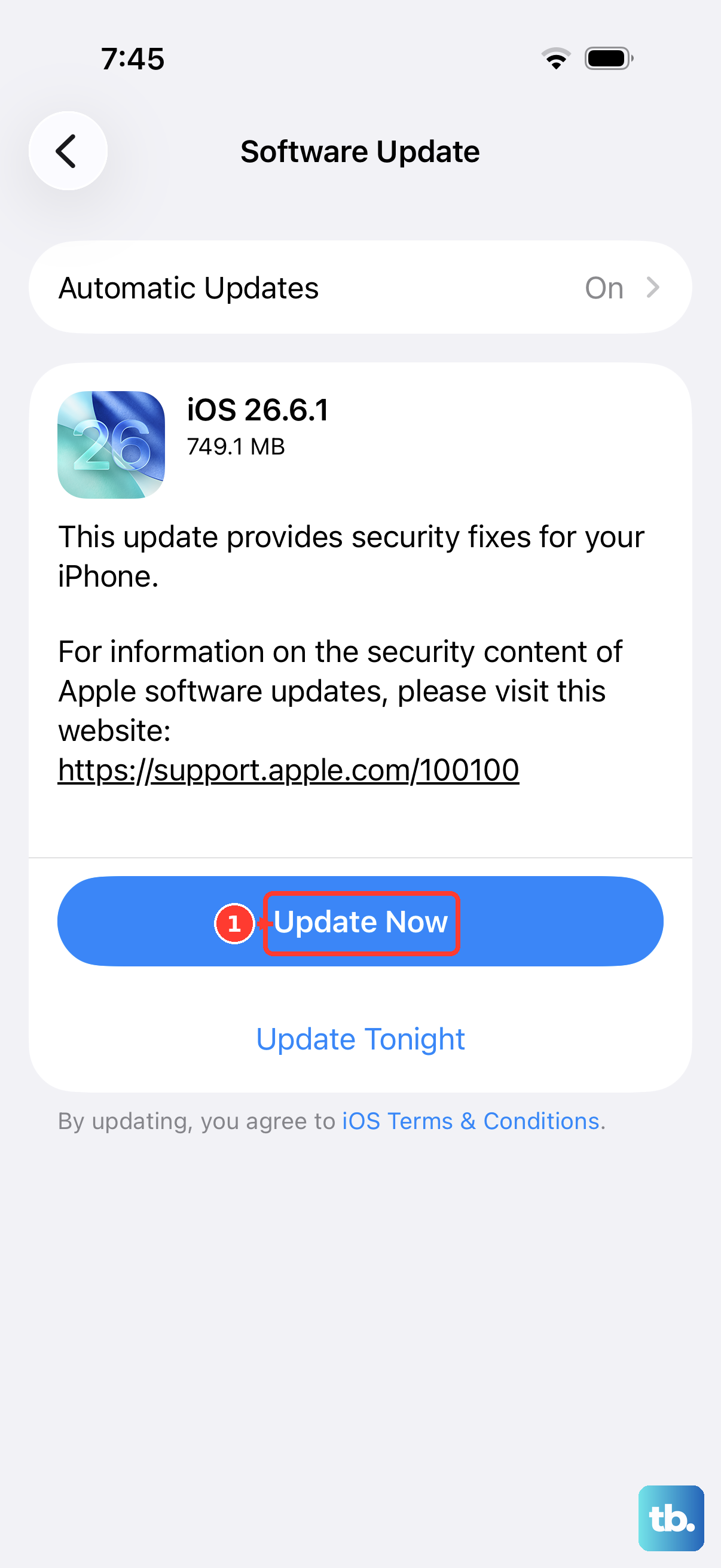
Audio bugs are sometimes patched in software, so running the current version of iOS can fix issues you have no other way of resolving. Keeping the phone updated is also good general maintenance.
Go to Settings > General > Software Update.
If an update is available, tap Download and Install and follow the onscreen instructions.
While you are there, you can open Settings > General > Software Update > Automatic Updates to turn on automatic updates, so future fixes arrive without you having to check.
Fix Bluetooth Headphone Problems
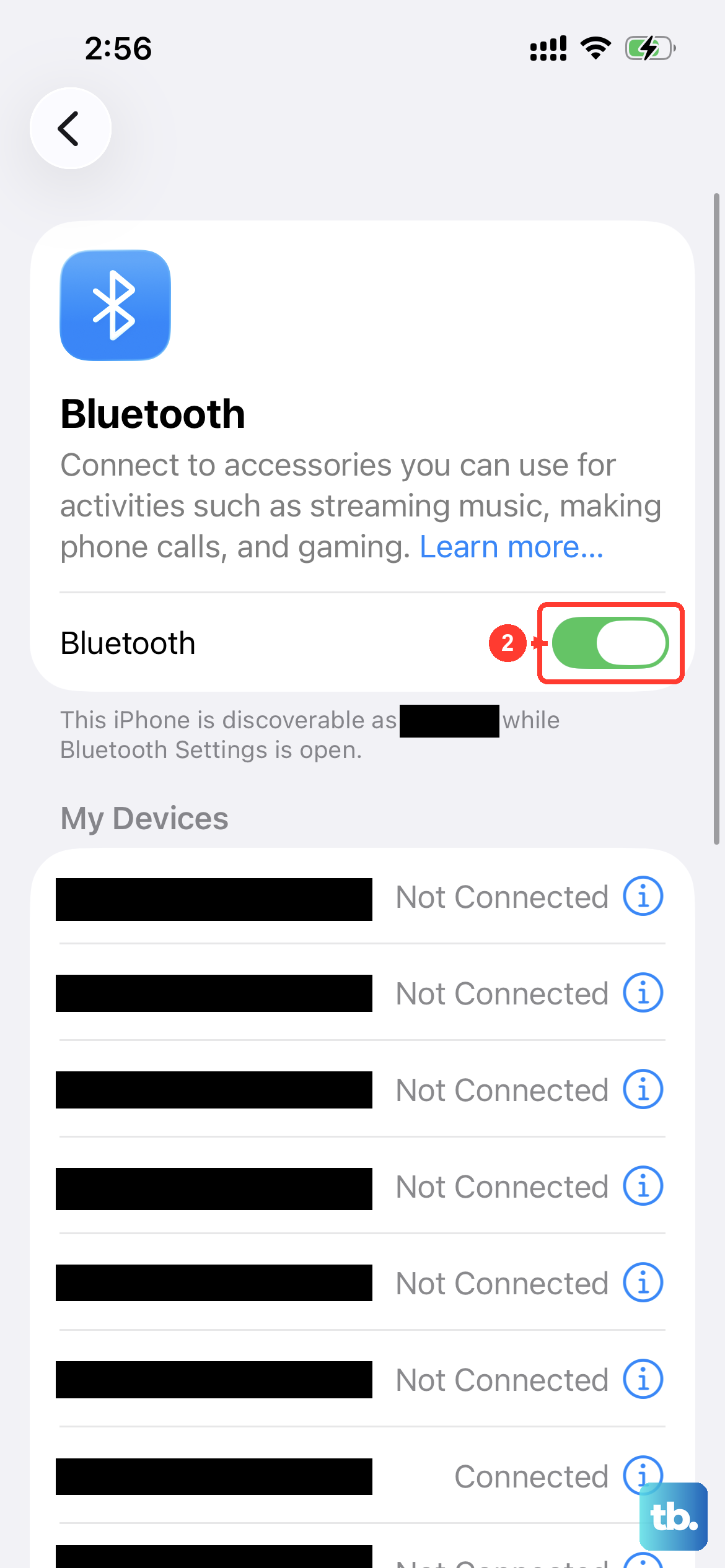
Wireless headphones add a few more failure points, namely power, range, and the Bluetooth connection itself. Run through each one before assuming anything is broken.
Make sure your Bluetooth accessory is on and fully charged or connected to power, and replace the batteries if it uses them.
Keep it within about 33 feet (10 meters) of the iPhone, since distance and walls weaken the signal.
On the iPhone, go to Settings > Bluetooth and make sure Bluetooth is on, then tap the accessory's name to connect.
If you use an app with the accessory, go to Settings > Privacy & Security > Bluetooth and make sure Bluetooth is turned on for that app.
Turn the Bluetooth accessory off and back on again, then try once more.
If the accessory connected fine in the past but now refuses, clearing the existing pairing and starting fresh usually does the trick. Unpair the accessory, put it back in discovery mode, then try to pair and connect it again.
One common snag is an accessory that is already tied up with another device. If it pairs with some devices but not your iPhone, unpair it from those other devices first, then pair it again with your iPhone.
Charge, Reconnect, and Reset Your AirPods
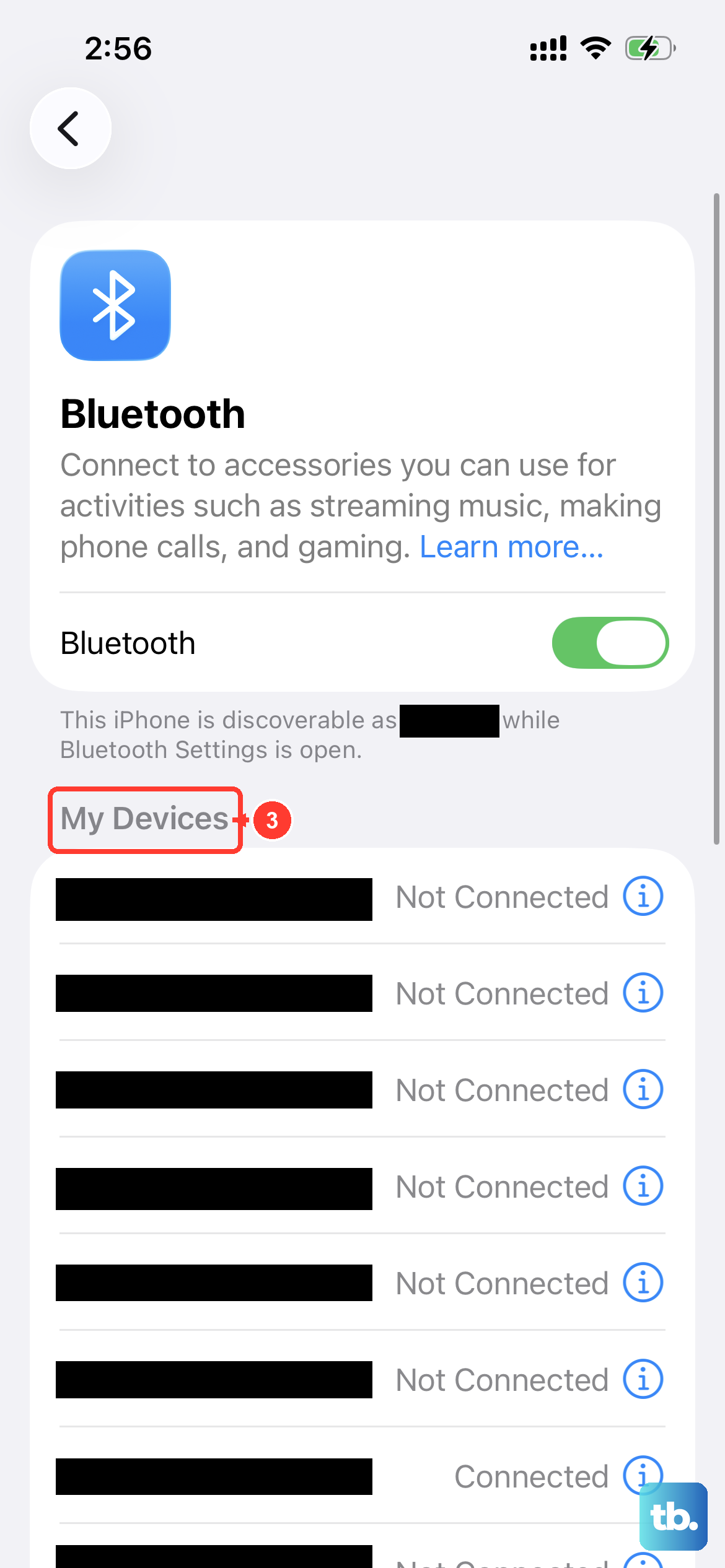
AirPods have their own quirks, and a near-dead earbud or a stale connection is often all that is wrong. Put both AirPods in the charging case and make sure both are charging.
On the iPhone, go to Settings > Bluetooth.
If a simple reconnect does not help, you can reset the AirPods.
Tap the More Info button next to your AirPods, tap Forget This Device, then tap again to confirm.
With the case lid open, press and hold the setup button on the back of the case for about 15 seconds.
When the status light flashes amber, then flashes white, follow the onscreen steps to reconnect.
This rebuilds the pairing from scratch, which clears up most stubborn AirPods audio problems.
Force Restart When the iPhone Is Unresponsive
If the phone has frozen or stopped responding and you cannot restart it normally, a force restart will reboot it without erasing anything. Use this exact sequence on the iPhone 17 Pro Max:
- 1.Press and quickly release the volume up button.
- 2.Press and quickly release the volume down button.
- 3.Press and hold the side button until you see the Apple logo (this might take longer than 10 seconds).
Once the Apple logo appears, let go and let the phone finish starting up, then test your headphones again.
Erase the iPhone or Reach Out to Apple Support
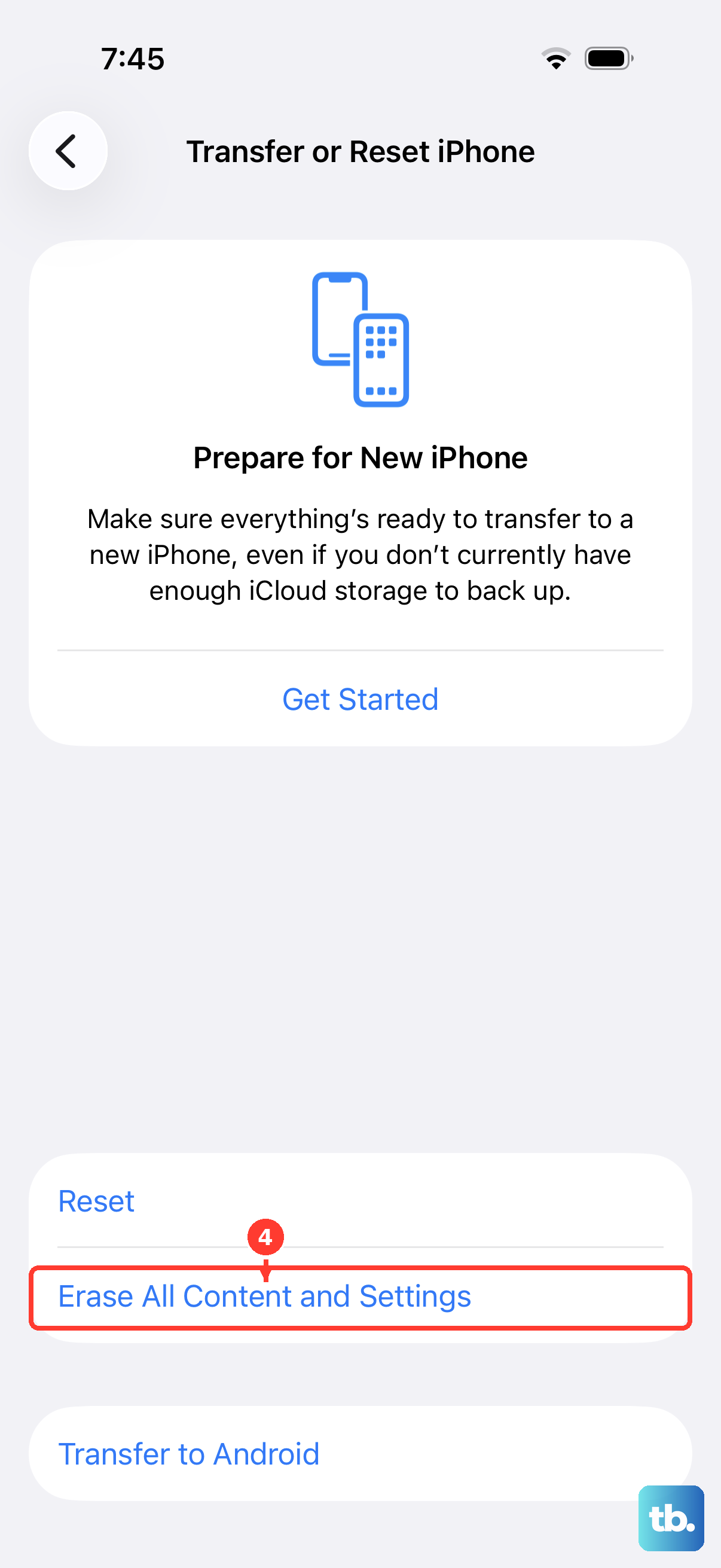
If headphones still do not work after everything above, you have reached the point of contacting Apple Support, which can help diagnose a possible hardware fault. A full erase is the final software option, and it should only be done after a backup.
Before any full erase, back up first.
Erasing restores the iPhone to factory settings and removes your personal information, content, and settings, so create a backup beforehand to avoid losing your data.
Go to Settings > General > Transfer or Reset iPhone > Erase All Content and Settings.
During the process you will choose to keep or delete your eSIM.
Note that if you erase the eSIM, you must contact your carrier to reactivate cellular service, since this model is eSIM-only. If a clean erase still leaves your headphones silent, the problem is almost certainly hardware, and Apple Support is the right next stop.
Frequently Asked Questions
Does the iPhone 17 Pro Max have a headphone jack?
No. The iPhone 17 Pro Max does not have a 3.5mm headphone jack. It uses a USB-C connector for wired audio, so you connect USB-C headphones directly, use Apple's USB-C-to-3.5mm Headphone Jack Adapter, or go wireless with Bluetooth 6 headphones or AirPods.
Why do my AirPods connect but play no sound?
This is usually a routing or charge issue. Open Control Center, tap the AirPlay button, and confirm the audio is set to your AirPods rather than the iPhone speaker. If that does not help, put both AirPods in the case to charge, then forget and reset them under Settings > Bluetooth.
How do I clean the USB-C port safely?
Gently brush all openings with a small, soft-bristled brush that is clean and dry. For the connector itself, use a soft, dry, lint-free cloth, and never insert a foreign object such as a cotton swab or paper towel, which can push debris deeper or cause damage.
Will erasing my iPhone remove my eSIM?
It can. When you go to Settings > General > Transfer or Reset iPhone > Erase All Content and Settings, you choose to keep or delete your eSIM. If you delete it, you must contact your carrier to reactivate cellular service, so always back up before you erase.
How do I know if the problem is my headphones or the phone?
Try a different pair of headphones. If the second pair works, your original headphones likely need replacing. If no headphones produce sound, the issue is with the iPhone, and the restart, update, and reset steps are the right place to focus.