
Seeing "Call Failed" on your iPhone 17 Pro is a real headache, especially when you're trying to connect. This usually means your phone is having trouble talking to the cellular network. It's often a quick software hiccup or a temporary signal problem that you can fix yourself.
Let's start with the fastest solution, which often clears things up in seconds.
Toggle Airplane Mode On and Off
This is the quickest way to refresh your cellular connection. Swipe down from the top-right corner of your screen to open Control Center. Tap the airplane icon to turn Airplane Mode on, wait about 10 seconds, then tap it again to turn it off.
Your iPhone 17 Pro will reconnect to the network, which can clear out the temporary glitch causing the call failures.
Check Your Signal Strength
Weak signal is the most common culprit. Look at the signal bars in the top-right corner of your screen. If you only have one or two bars, try moving to a different location.
Sometimes just stepping near a window or going outside can make a big difference. If you're in a building with thick walls, the signal might struggle to reach you.
Perform a Force Restart
A simple restart can fix a lot of iOS 26 quirks. For the iPhone 17 Pro, press and quickly release the Volume Up button. Then, press and quickly release the Volume Down button. Finally, press and hold the Side button until you see the Apple logo appear on the screen.
This is a bit different from older iPhones, so it's good to know the correct sequence for your model.
Verify Your Focus Modes
Your Focus modes, like Do Not Disturb or Sleep, might be interfering. Swipe down into Control Center and look for an active Focus icon at the top. If you see one, tap it to turn that Focus off.
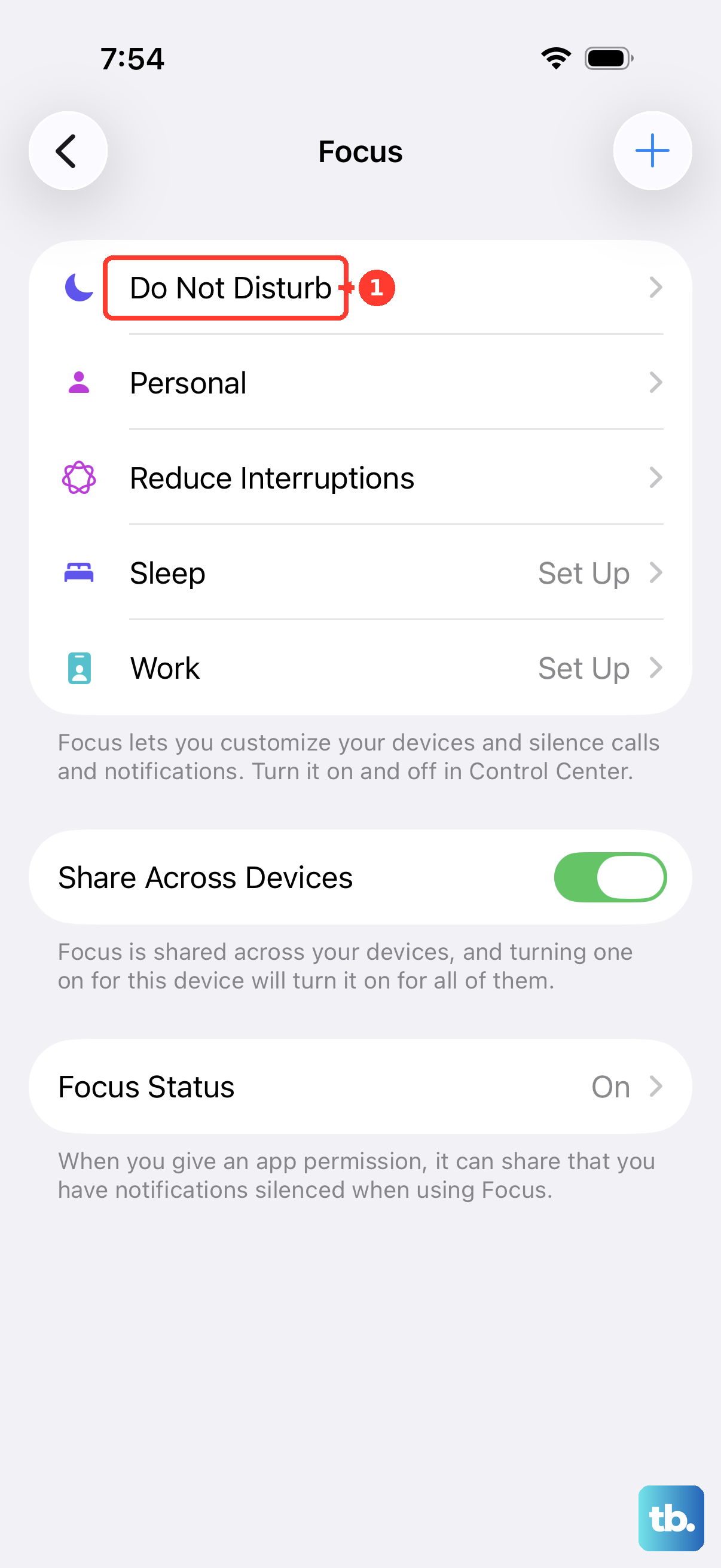
You can also check your settings by going to Settings > Focus to see which modes are scheduled or currently active.
Update Your Carrier Settings
Carrier updates are small files that help your phone communicate better with your specific network. These often install automatically, but it's worth checking.
Make sure you're connected to Wi-Fi, then go to Settings > General > About. If a carrier update is available, a prompt will appear on this screen. Just follow the instructions to install it.
Check for iOS Updates
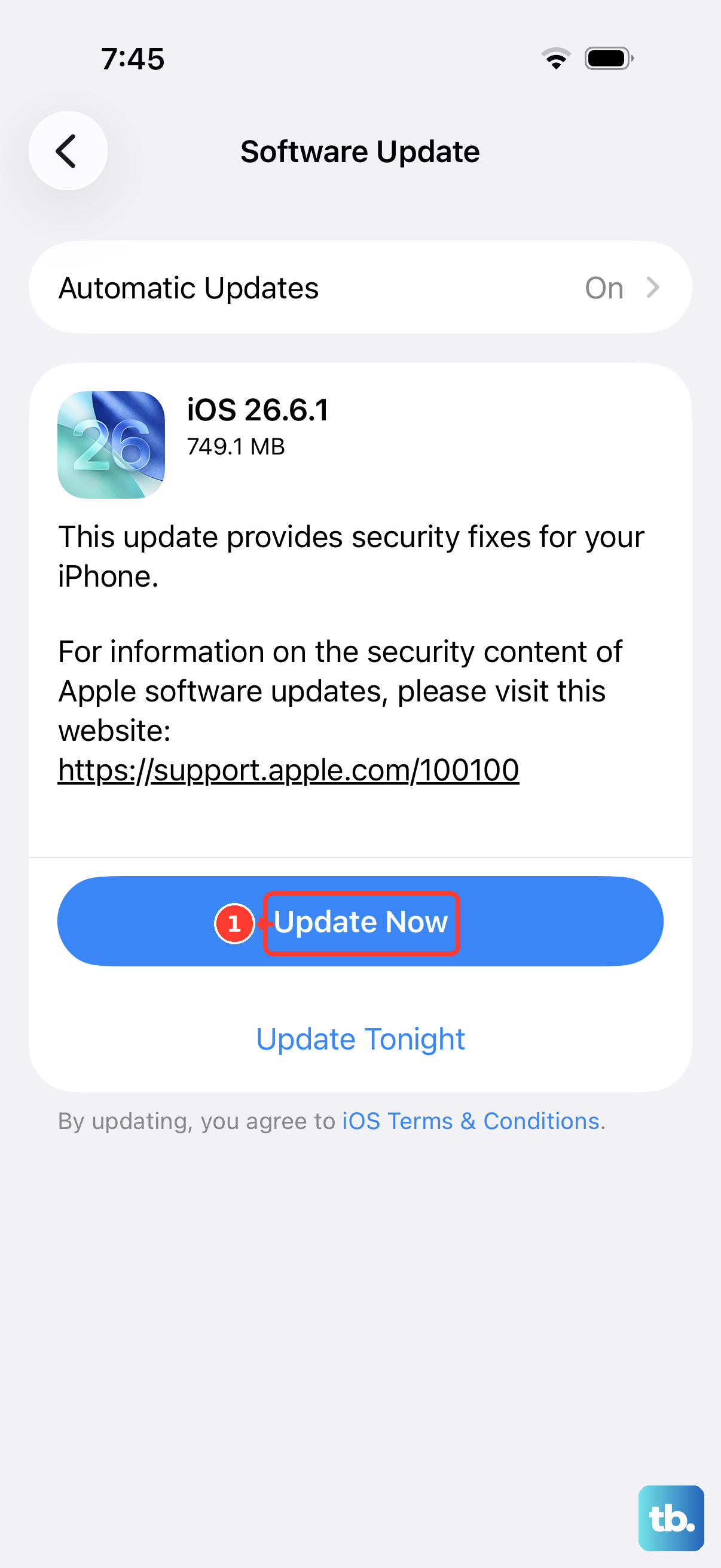
Apple frequently releases iOS updates that include bug fixes for connectivity issues. It's a good idea to make sure your iPhone 17 Pro is running the latest version of iOS 26.
Go to Settings > General > Software Update. If an update is available, connect to Wi-Fi and plug in your charger. The 60W fast charging with the right adapter will make sure it finishes quickly.
Reset Your Network Settings
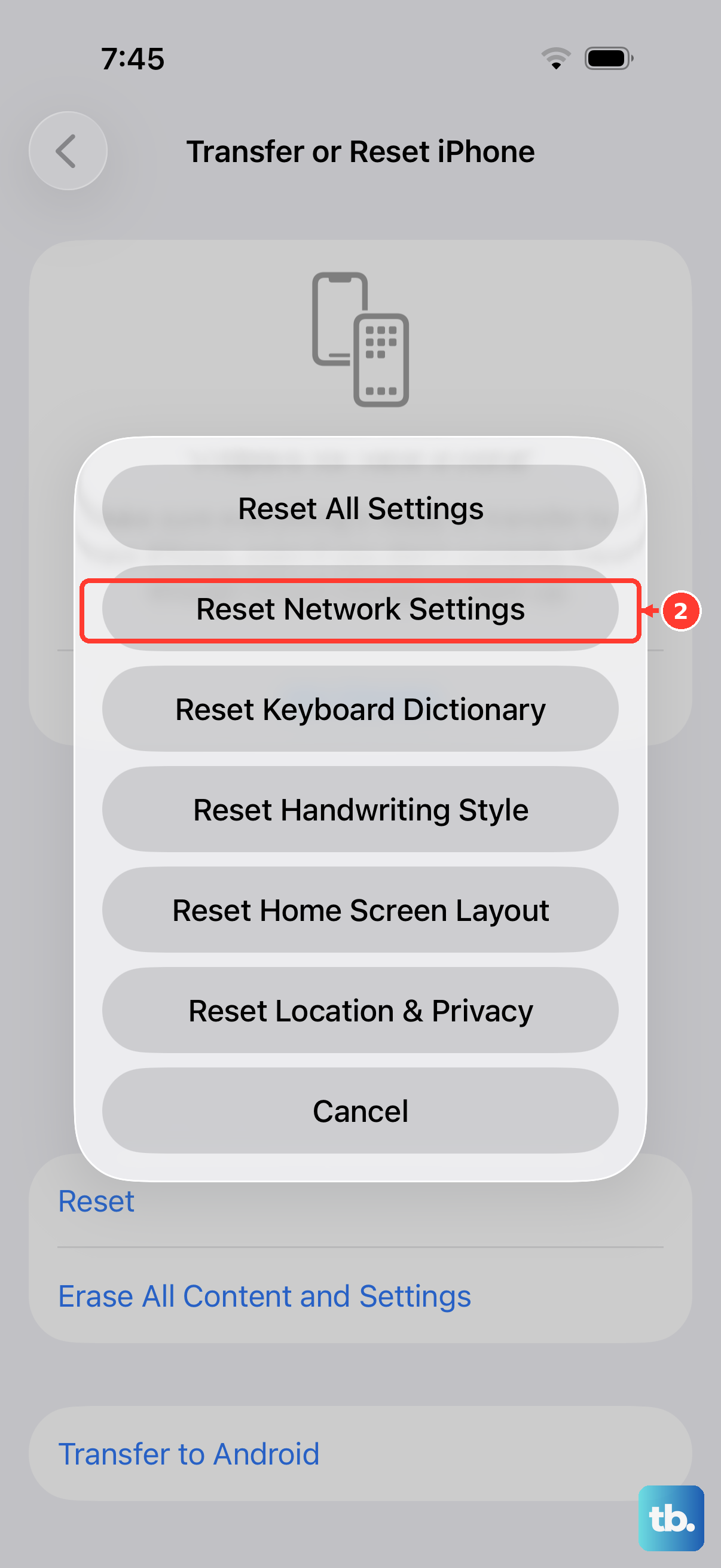
This clears all your saved Wi-Fi passwords, cellular settings, and VPN configurations. It's a stronger fix for persistent network problems.
Go to Settings > General > Transfer or Reset iPhone. Tap Reset, then choose Reset Network Settings. You'll need to enter your passcode to confirm. Afterward, you'll have to rejoin your Wi-Fi networks.
Inspect Your SIM Card
A loose, dirty, or faulty SIM card can definitely cause calls to fail. Grab the SIM eject tool that came with your phone (a paperclip works in a pinch) and pop out the tray on the left side.
Take out the SIM card, give the gold contacts a gentle wipe with a soft, dry cloth, and carefully reinsert it. Make sure the tray slides back in smoothly and completely.
Disable 5G Temporarily
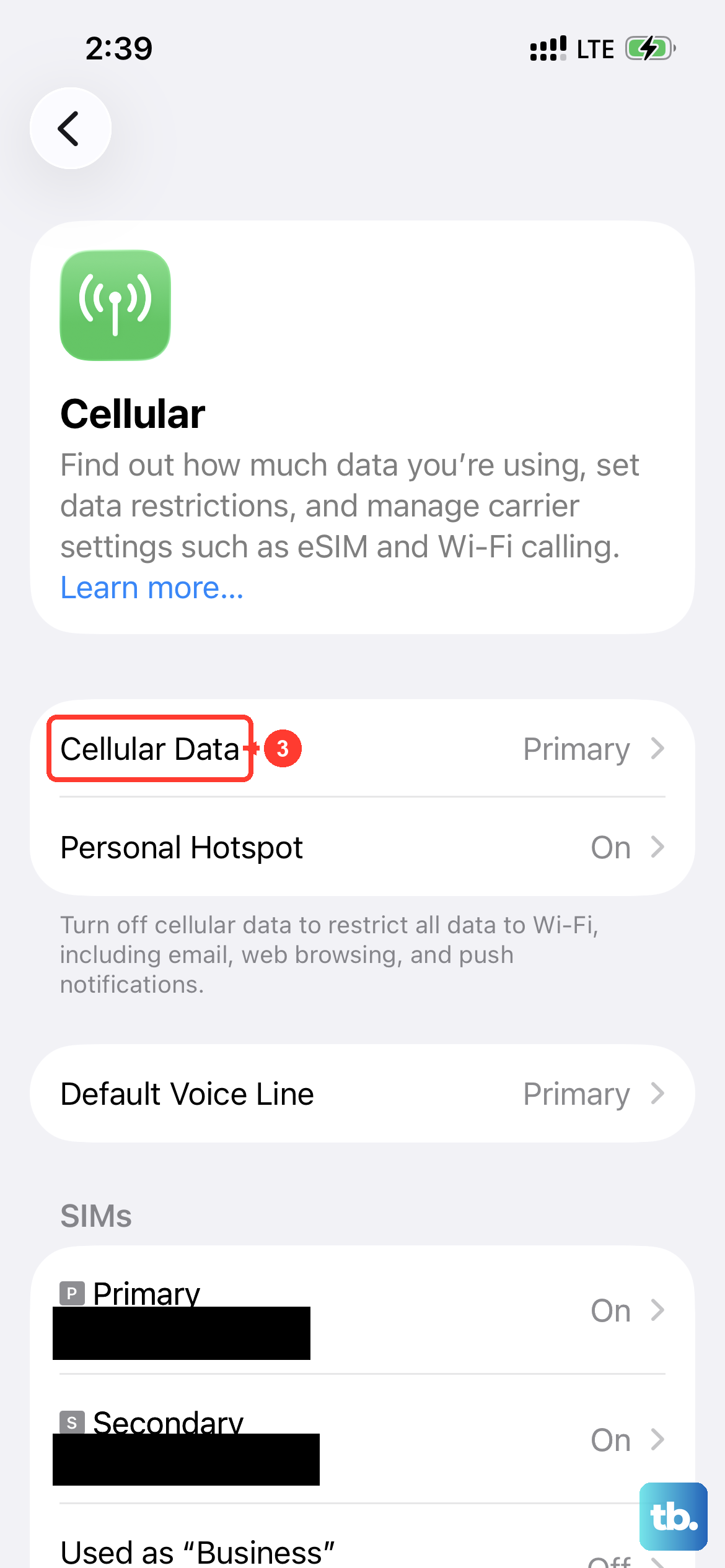
Sometimes the 5G network in your area can be unstable for voice calls. You can try forcing your iPhone 17 Pro to use 4G LTE instead, which is often more reliable for calls.
Go to Settings > Cellular > Cellular Data Options > Voice & Data. Select LTE instead of 5G Auto. Test to see if your calls go through, then you can switch the setting back later.
Contact Your Wireless Carrier
If you've tried everything here and calls are still failing, the problem might be on your carrier's end. Give their customer service a call from another phone, if possible.
They can check for any network outages in your area, verify your account is in good standing, and help determine if you need a replacement SIM card for your iPhone 17 Pro.