
Seeing "Call Failed" on your iPhone 17 is incredibly frustrating, especially when you're trying to reach someone. This error pops up when your phone can't properly connect to the cellular network to complete the call. It's usually due to a weak signal, a minor software hiccup in iOS 26, or a simple setting that needs adjusting.
Let's start with the quickest fixes you can try right now. These often resolve the issue in under a minute.
Toggle Airplane Mode
The fastest way to reset your cellular connection is to use Airplane Mode. This clears any temporary network glitches that might be preventing your calls from going through.
Swipe down from the top-right corner of your screen to open Control Center. Tap the airplane icon to turn Airplane Mode on. Wait about 15 seconds, then tap it again to turn it off. Your iPhone 17 will reconnect to the cellular network, and you can try your call again.
Check Your Signal Strength
Weak signal is the most common culprit for failed calls. Look at the signal bars in the top-right corner of your screen. If you only have one or two bars, try moving to a different location.
Sometimes just stepping near a window or going outside can make a big difference. If you're in a building with known poor reception, this is almost certainly the issue.
Force Restart Your iPhone 17
A force restart is more thorough than a standard shutdown and can clear deeper software glitches that affect calling. It won't erase any of your data.
Press and quickly release the Volume Up button. Then press and quickly release the Volume Down button. Finally, press and hold the Side button. Keep holding it until you see the Apple logo appear on the screen, then let go. Your phone will restart, and you can test a call.
Check Focus and Do Not Disturb
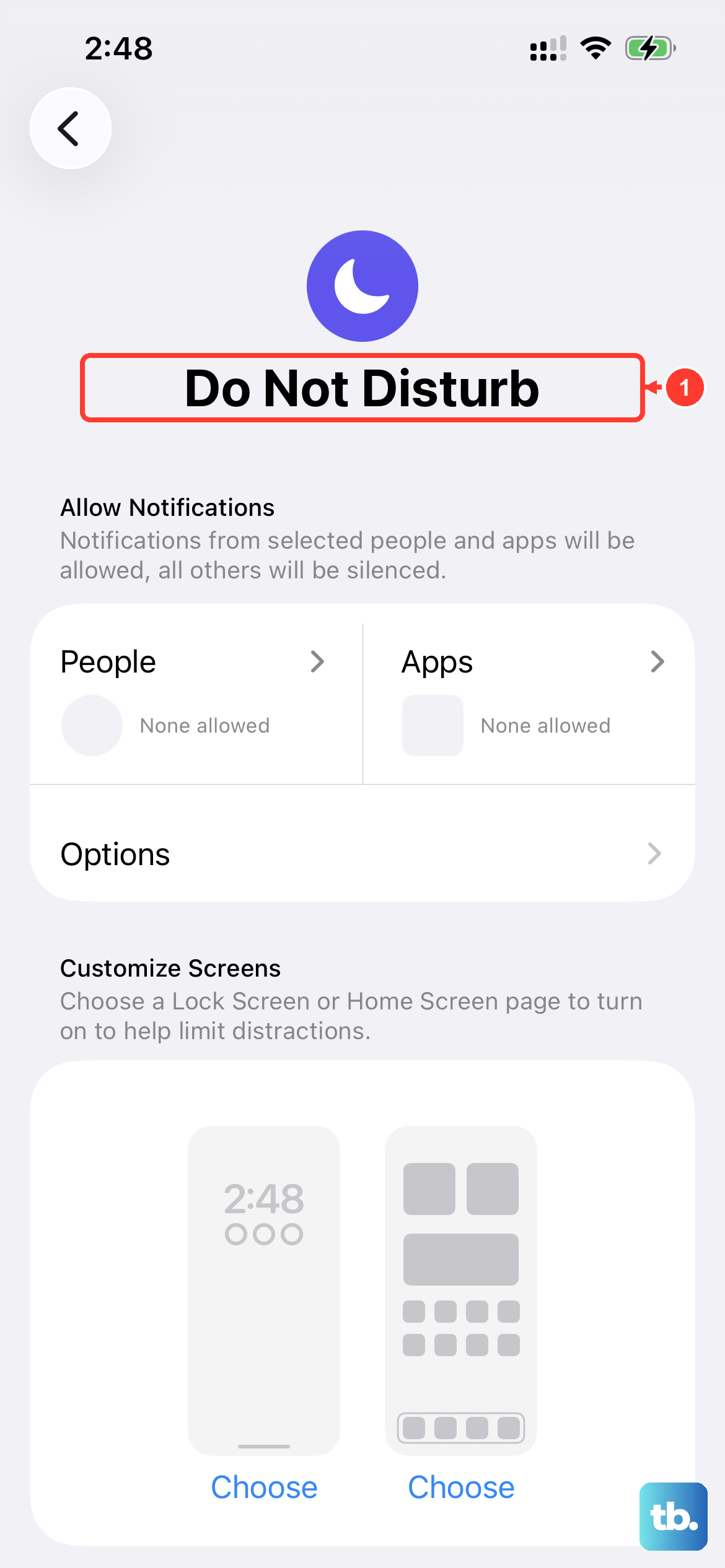
Your Focus modes or Do Not Disturb might be silently blocking calls. It's easy to have one turned on and forget about it.
Swipe down to open Control Center and look at the top. If you see a Focus icon like a moon or a work symbol, tap it to turn it off. You can also go to Settings > Focus to see which modes are active and disable them.
Update Your Date and Time Settings
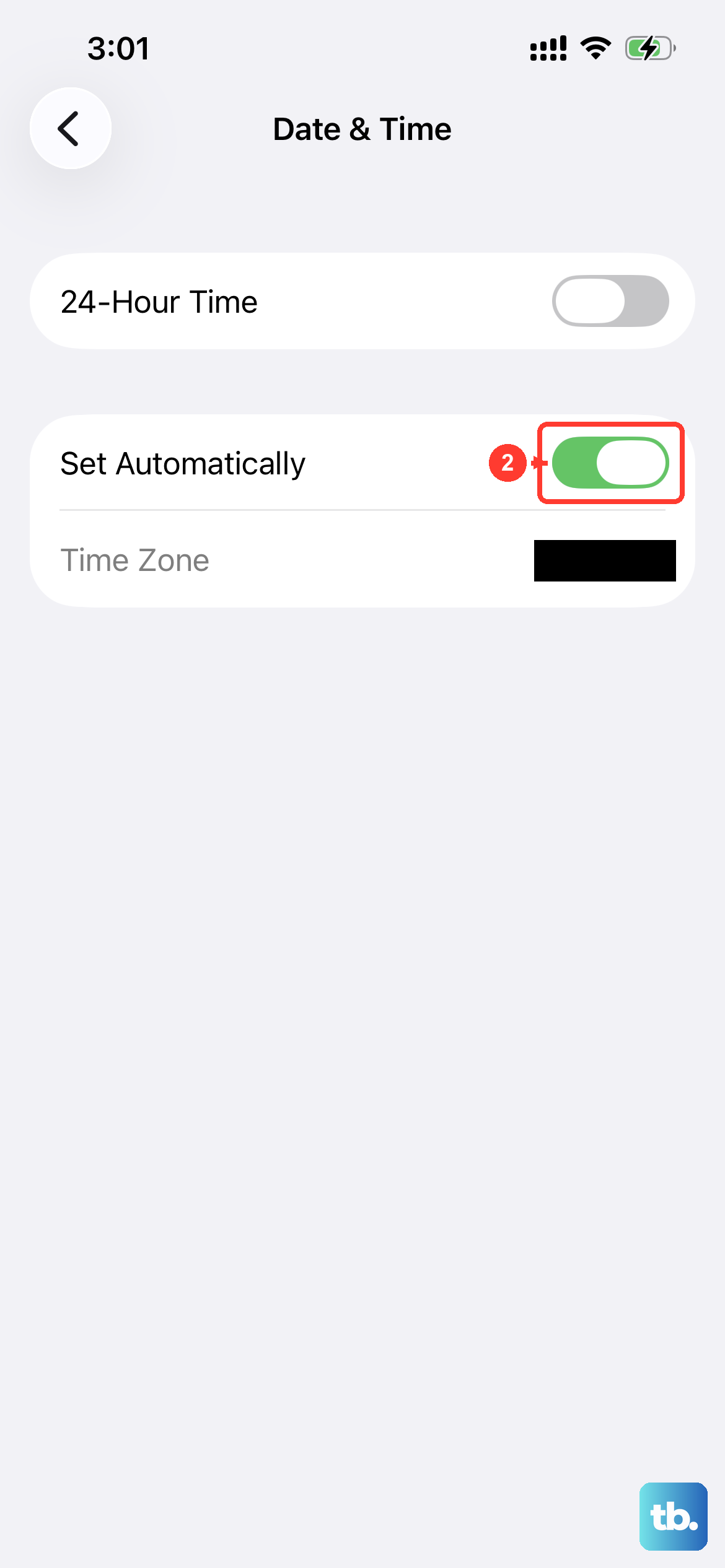
Believe it or not, an incorrect date or time can cause network authentication problems. Making sure this is set automatically fixes it.
Go to Settings > General > Date & Time. Make sure the switch for "Set Automatically" is turned on. If it was off, turn it on and give your phone a moment to sync.
Review Your Blocked Contacts List
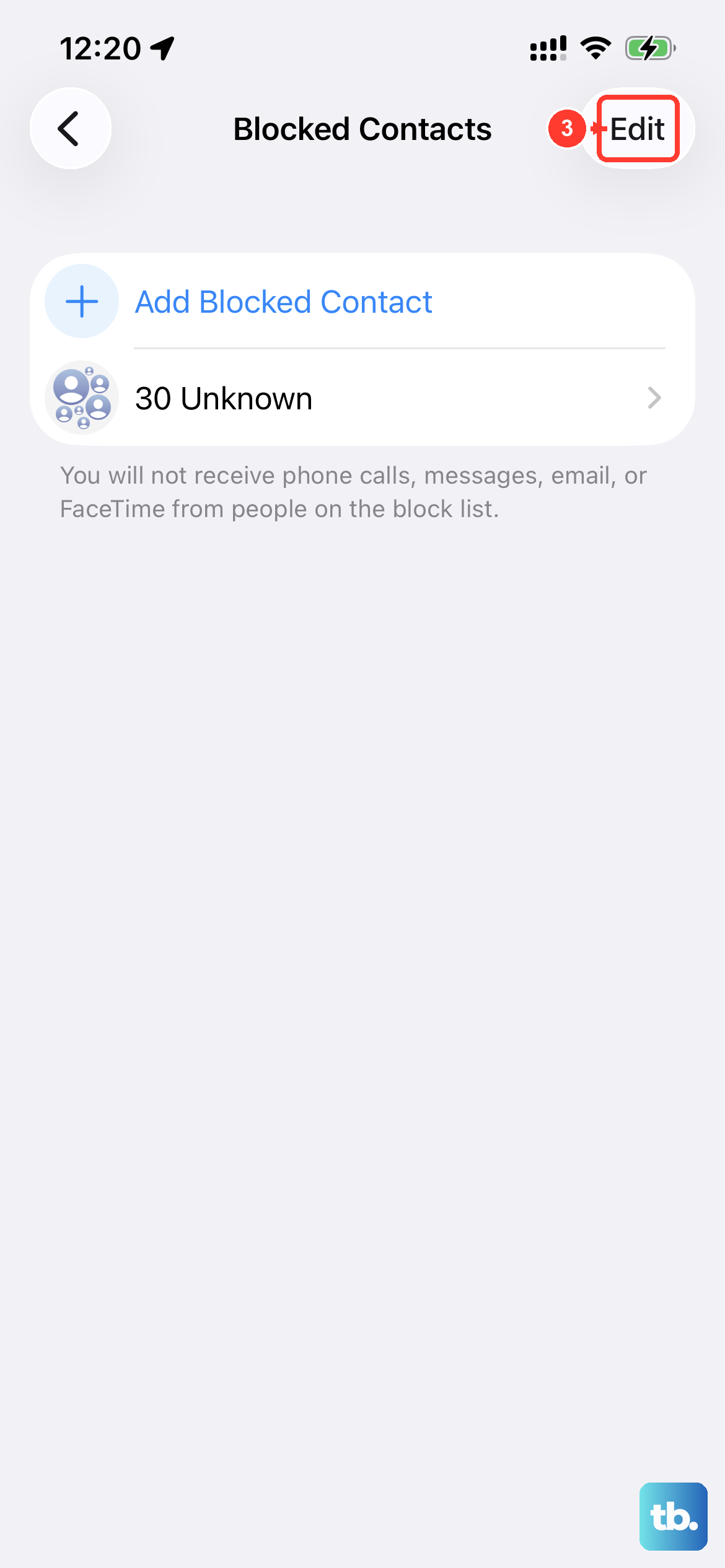
It's worth a quick check to make sure you haven't accidentally blocked the number you're trying to reach. This happens more often than you'd think.
Head to Settings > Phone > Blocked Contacts. Scroll through the list. If you find the number there, swipe left on it and tap "Unblock."
Verify Cellular Data and Roaming Settings
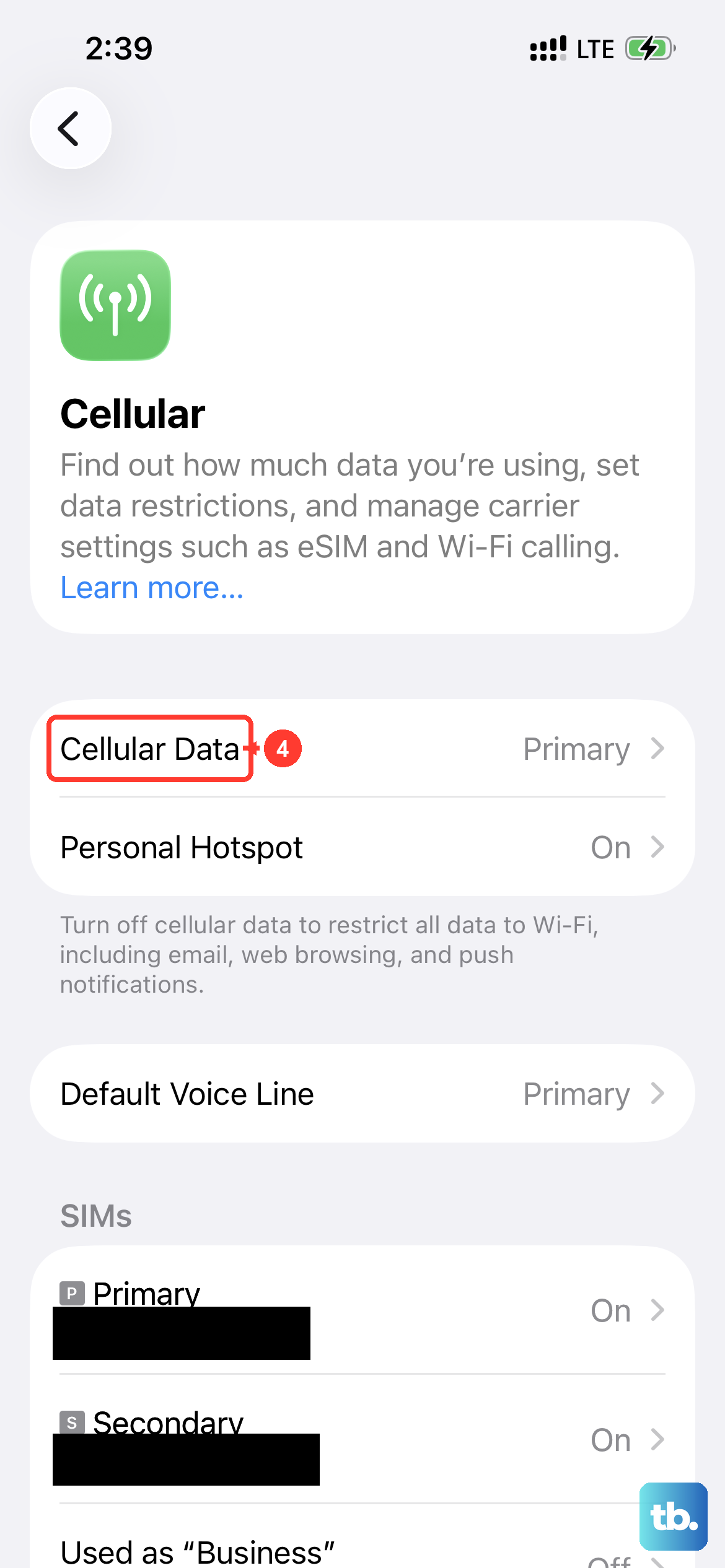
Ensure your cellular connection is fully enabled. Go to Settings > Cellular and confirm that "Cellular Data" is switched on.
If you're traveling, you'll also need to enable data roaming. In the Cellular menu, tap Cellular Data Options and then turn on "Data Roaming." Be aware that roaming charges may apply, so check with your carrier first.
Check for a Carrier Settings Update
Your carrier occasionally sends small updates that improve network connectivity and calling reliability. These are separate from iOS updates.
Make sure you're connected to Wi-Fi. Then go to Settings > General > About. If a carrier settings update is available, a prompt will appear on this screen asking you to update. Just tap to confirm.
Temporarily Switch Off 5G
Sometimes, the 5G network in your area can have issues with voice calls. Switching to an LTE connection for a moment can help.
Navigate to Settings > Cellular > Cellular Data Options > Voice & Data. Instead of "5G Auto," select "LTE." Try making your call. If it works, you can switch back to 5G later, as the issue might have been temporary.
Check and Reseat Your SIM Card
A loose or dirty SIM card can cause intermittent calling problems. The iPhone 17 uses a nano-SIM or an eSIM. If you have a physical SIM, it's worth checking.
Find the SIM tray on the left side of the phone. Use a paperclip or SIM eject tool to pop it open. Gently remove the SIM card, blow on the tray to clear any dust, and reinsert the card. Push the tray back in until it clicks.
Update to the Latest iOS 26 Version
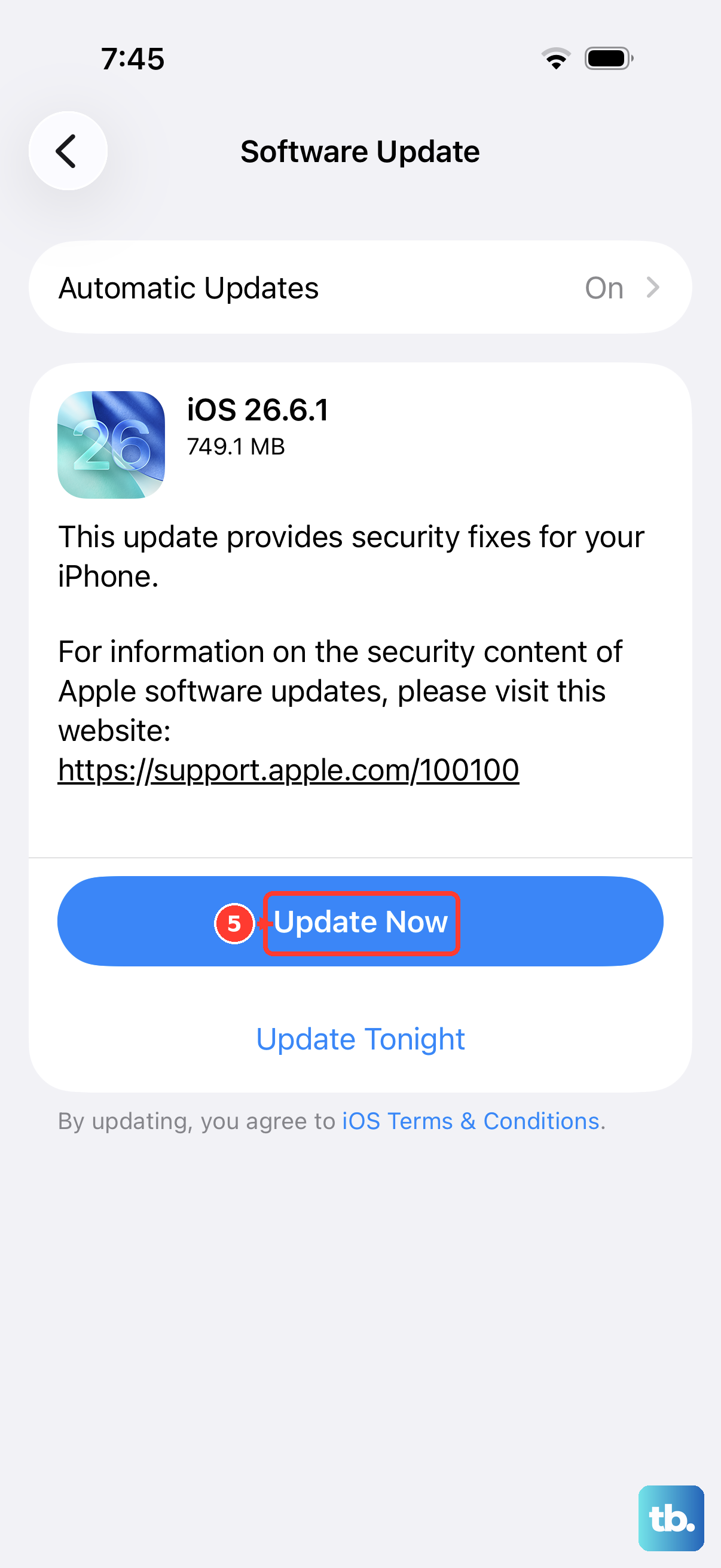
Apple regularly releases iOS updates that fix bugs, including ones related to cellular connectivity and calling. Installing the latest version is a good step.
Connect to Wi-Fi and plug your phone into power. Go to Settings > General > Software Update. If an update is available, tap "Download and Install." I've seen minor point updates for iOS 26 resolve calling issues for many users.
Reset Your Network Settings
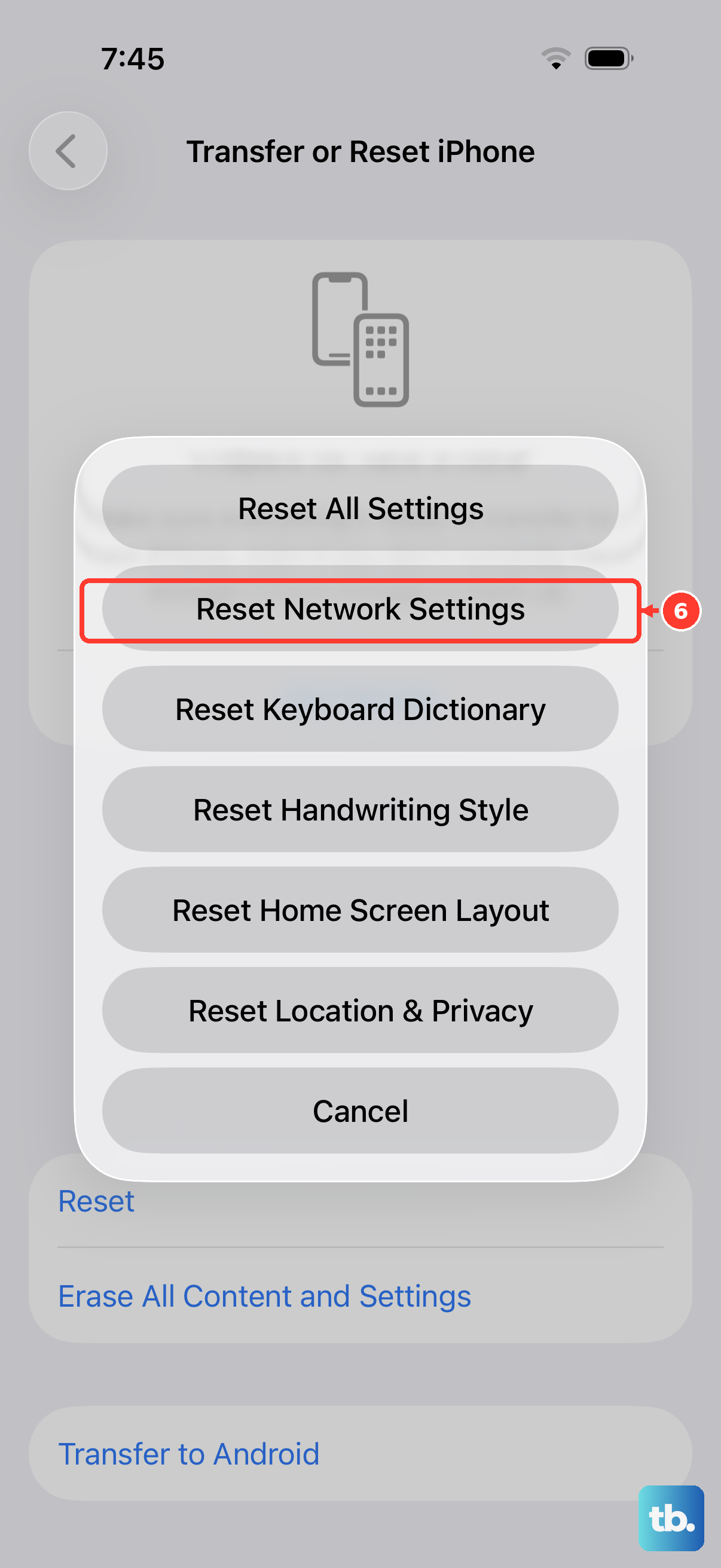
This is a more significant step that clears all your saved Wi-Fi networks, Bluetooth pairings, and cellular settings. It's very effective for persistent network problems.
Go to Settings > General > Transfer or Reset iPhone. Tap "Reset" and then choose "Reset Network Settings." You'll need to enter your passcode to confirm. After the phone restarts, you'll have to rejoin Wi-Fi networks and re-pair Bluetooth devices, but your call function should be refreshed.
Contact Your Wireless Carrier
If you've tried everything here and calls are still failing, the problem is likely on your carrier's end. There could be a network outage in your area, an issue with your account, or a problem with your SIM card's provisioning.
Give your carrier's customer service a call from another phone if possible. Ask them to check for outages and to verify that your line is active and in good standing. They can also walk you through any account-specific settings and send you a replacement SIM card if needed.