
Picture messages that won't send on your iPhone Air can be annoying, especially when you need to share a quick photo. Whether you're seeing the red "Not Delivered" banner or messages stuck on "Sending," these fixes are known to work on iOS 26.
Check your cellular data connection
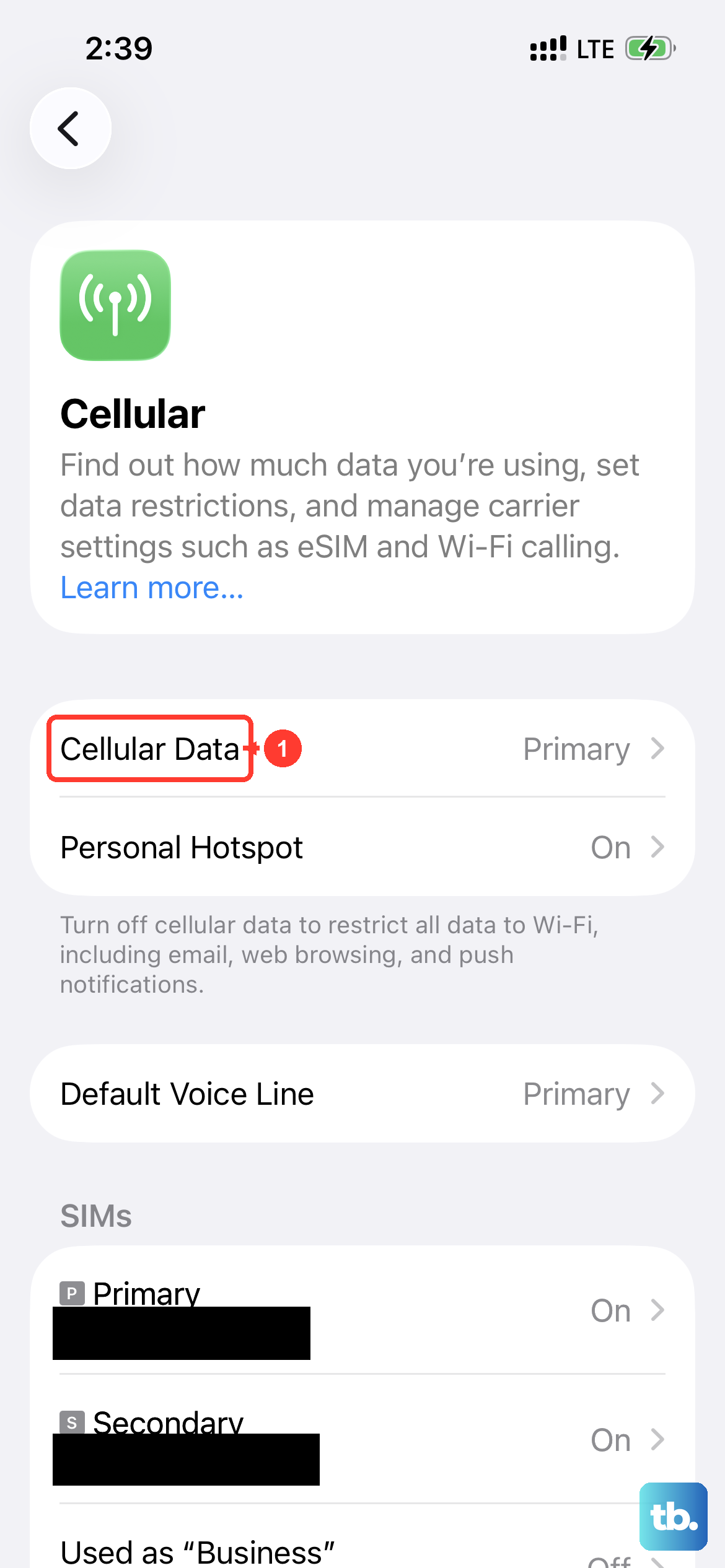
The most common culprit is a weak or disabled cellular data connection. Pictures need mobile data (or Wi‑Fi) to send, and if your data is off or spotty, nothing goes through.
Head to Settings > Cellular and make sure the toggle next to Cellular Data is green. If it's already on but you're in a low‑signal area, try moving to a spot with better reception or switch to Wi‑Fi temporarily.
Enable MMS Messaging and Send as SMS
iPhone uses iMessage (blue bubbles) to send photos to other Apple devices, but if the other person is on Android or has iMessage disabled, it falls back to MMS. If MMS is turned off, the picture won't send at all.
Open Settings > Apps > Messages and make sure MMS Messaging is on. Also toggle Send as SMS to on, this lets your phone send a picture as a text message when iMessage isn't available.
Turn iMessage off and back on
A quick refresh of the iMessage service can clear up activation glitches that stop picture messages from going through.
In Settings > Apps > Messages, tap the iMessage toggle to turn it off, wait five seconds, then turn it back on. This re‑registers your phone number and email with Apple's servers. Try sending a picture right after.
Restart or force restart your iPhone Air
A simple restart clears temporary software hiccups that can interfere with messaging. If a standard restart doesn't do the trick, a force restart is more thorough.
For a normal restart, press and hold the side button and either volume button until you see the power‑off slider, then slide to turn off. Wait 30 seconds, then hold the side button again to turn it back on.
If your phone is unresponsive or the restart didn't help, use the force restart sequence: quickly press and release Volume Up, then quickly press and release Volume Down, then press and hold the Side button until you see the Apple logo. This won't erase any data.
Verify your date and time settings
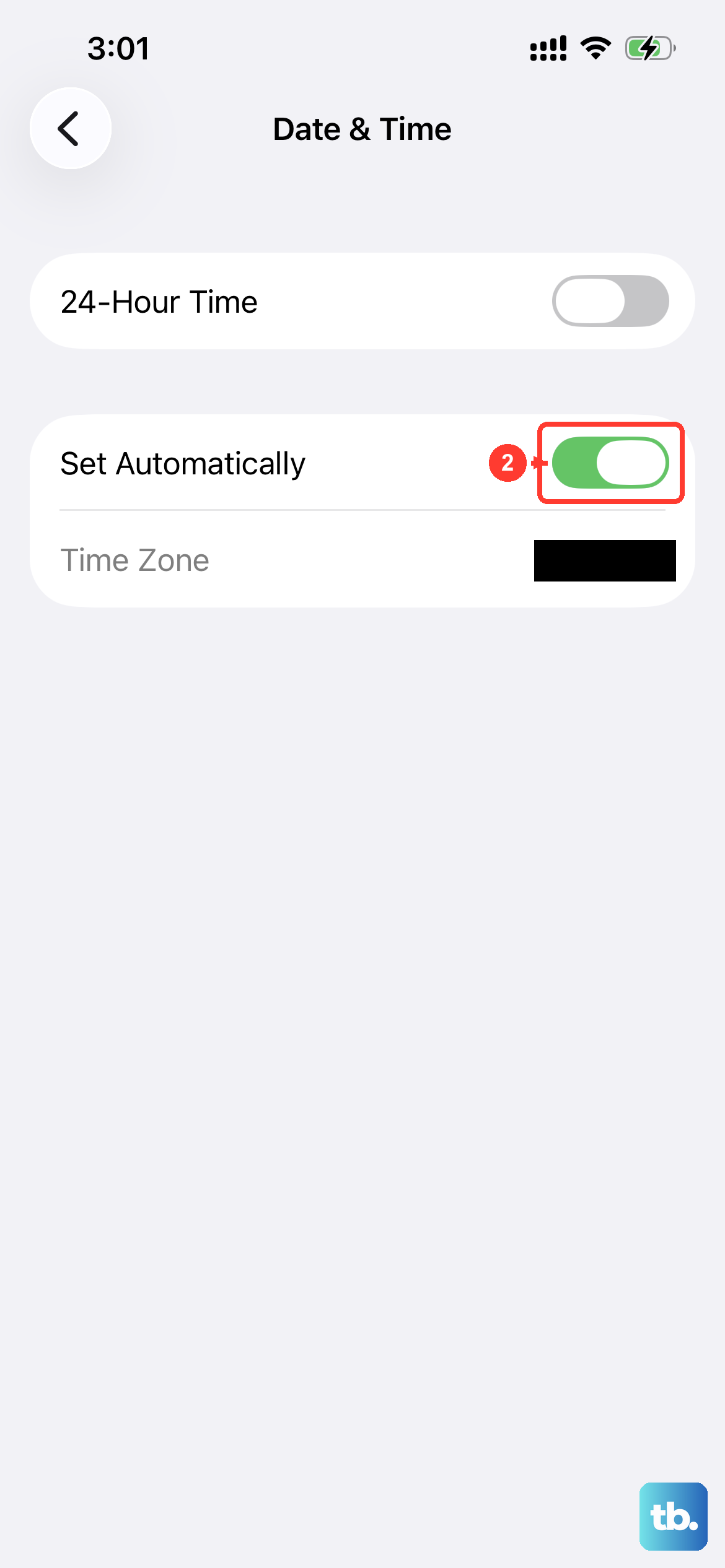
Incorrect date or time can break the encrypted connection iMessage uses to send pictures. This is a surprisingly common cause.
Go to Settings > General > Date & Time and turn on Set Automatically. If it's already on, toggle it off, wait a few seconds, then toggle it back on to force a refresh.
Disable Low Data Mode
Low Data Mode restricts background network activity, which can prevent messages from sending pictures. This setting is often enabled without you realizing it.
Navigate to Settings > Cellular > Cellular Data Options and make sure Low Data Mode is off. Check the same spot under your Wi‑Fi network if you're sending over Wi‑Fi (go to Settings > Wi‑Fi, tap the blue info icon next to your network, and turn off Low Data Mode there too).
Update carrier settings
Carrier settings updates are small configuration files that improve how your iPhone connects to your mobile network. Outdated carrier settings can cause MMS failures.
Make sure you're connected to the internet, then go to Settings > General > About. If an update is available, you'll see a pop‑up asking to install it. Tap Update and follow the prompts.
Sign out of your Apple ID and sign back in
This refreshes the iMessage activation and can fix stubborn authentication issues that stop picture messages from sending.
Go to Settings > tap your name at the top, scroll down, and tap Sign Out. You'll be asked to enter your Apple ID password to turn off Find My iPhone. After signing out, restart the iPhone Air, then sign back in. Wait a minute for iMessage to reactivate.
Update iOS to the latest version
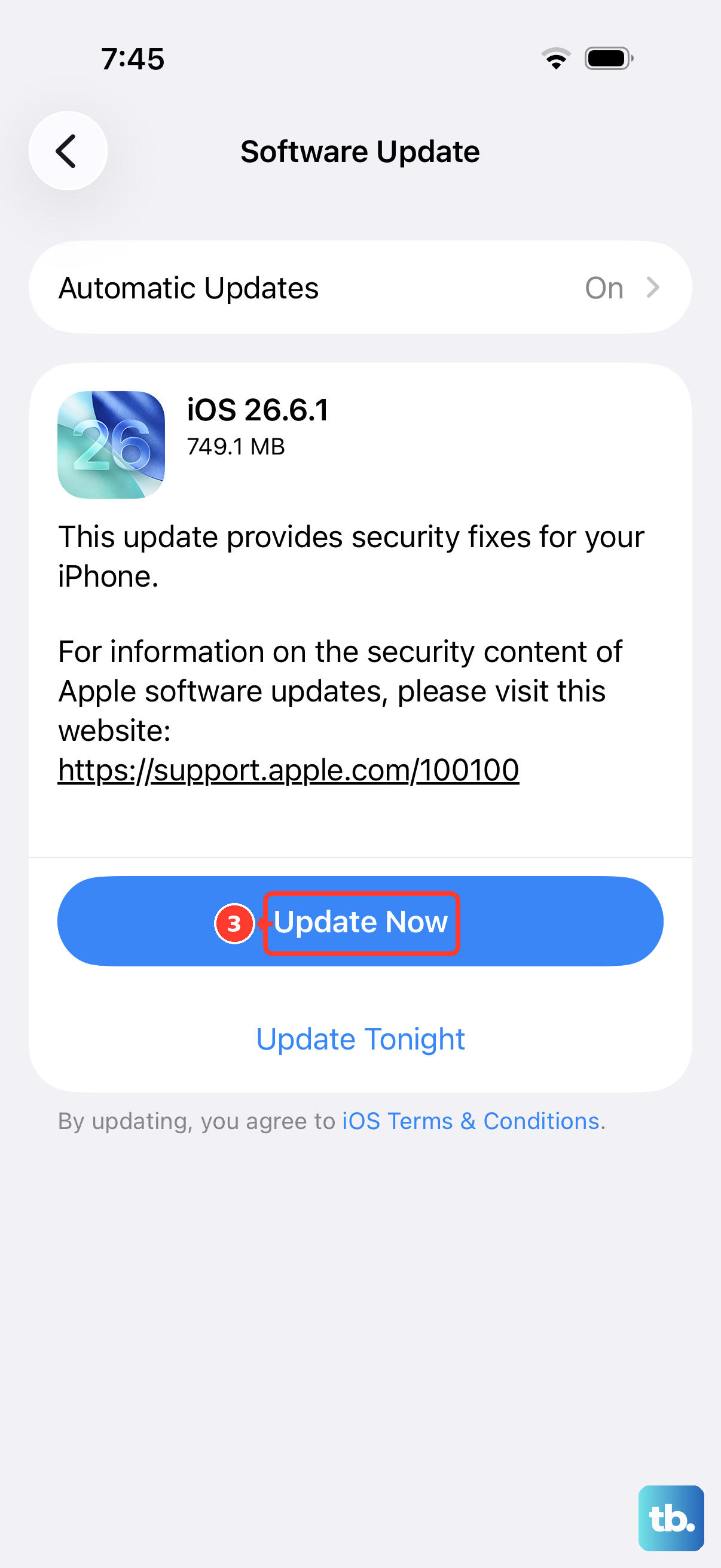
Apple regularly releases iOS updates that patch known bugs, including ones that affect messaging. Being on an older version can cause picture‑sending issues even if everything else looks fine.
Connect to Wi‑Fi, then go to Settings > General > Software Update. If an update is available, tap Download and Install. Make sure your battery is charged enough or plug in to power during the update.
Reset network settings
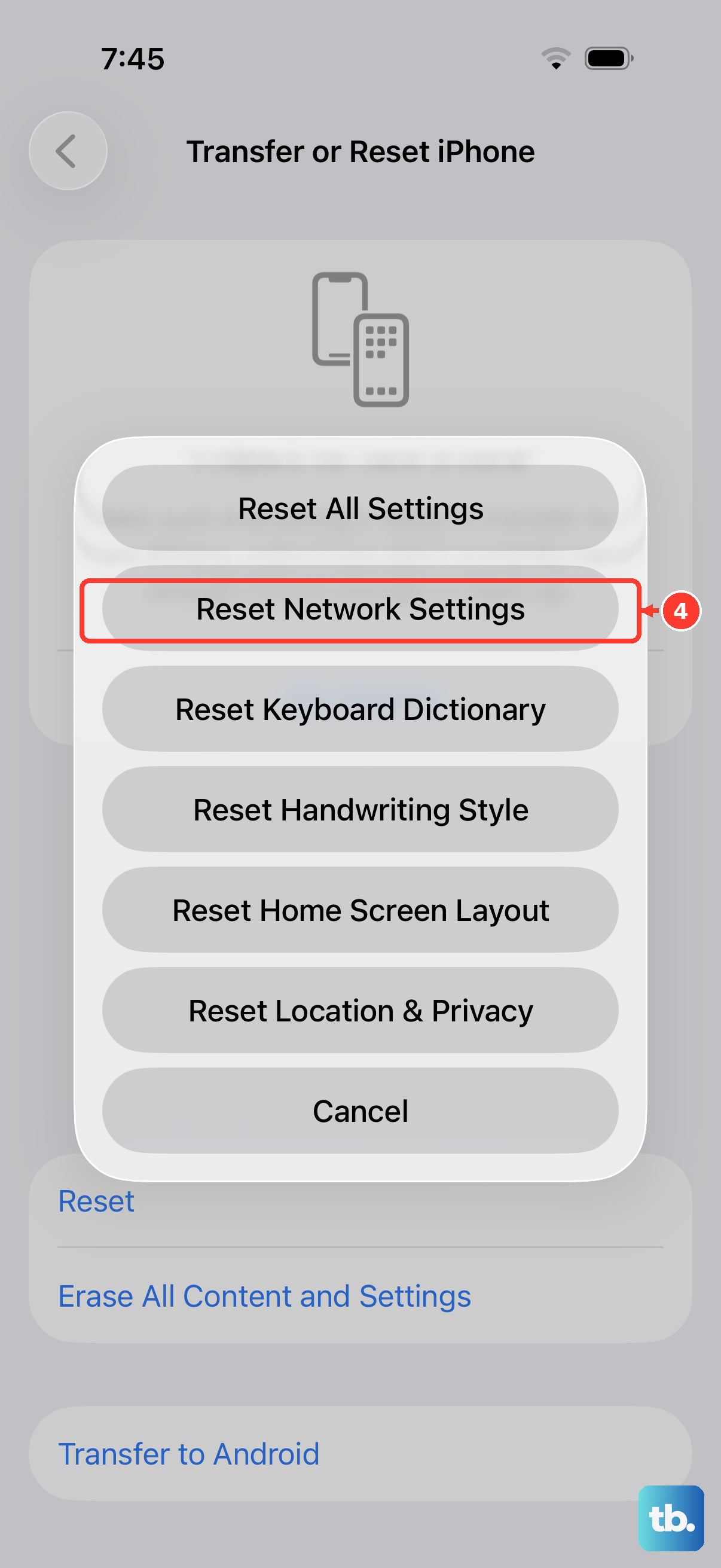
If nothing else has worked, resetting your network settings clears out corrupted Wi‑Fi, Bluetooth, and cellular configurations that can block picture messages. This is a last resort because it removes saved Wi‑Fi passwords.
Go to Settings > General > Transfer or Reset iPhone > Reset > Reset Network Settings. Enter your passcode and confirm. After your iPhone restarts, rejoin your Wi‑Fi network and test sending a picture.