
When your iPhone Air speaker stops working, it is usually a software quirk or a volume setting causing the silence. But sometimes an audio problem starts with a phone that won't even wake up. If your screen is black after the battery drained, try attaching a MagSafe battery pack to the back first to apply power. Once the screen turns on, connect an Apple-certified USB-C cable and let it charge for 15 minutes before you start the specific audio fixes below.
To separate hardware from software, open a quick sound test and play the channel tones. What you hear, or do not hear, tells you which fixes below matter most.
Check the Ringer and Volume Settings
First, make sure Silent mode is not turned on. The iPhone Air uses the Action button instead of a Ring/Silent switch, and a crossed-out bell icon appears in the status bar when Silent mode is active.
Press the volume up button while playing music or a video to confirm the media volume is turned up. You can also open the Control Center by swiping down from the top-right corner and dragging the main volume slider up.
Go to Settings > Sounds & Haptics and make sure the Ringer and Alerts slider is set to about halfway. Toggle "Change with Buttons" on so your physical volume buttons always control ringer volume.
Review Your Focus Modes
If you only miss calls or notifications from specific contacts while the rest of the phone works fine, a Focus mode might be the culprit. iOS 26 includes Focus profiles like Do Not Disturb, Sleep, and Work that can silence audio depending on the time of day or your activity.
Open Settings > Focus and check if any profiles are currently active. Tap the active profile to see what people and apps are allowed to interrupt you. Turning the Focus off completely is the quickest way to test if it was blocking your sound.
Clean the Speaker Grills
Dust and pocket lint love to collect in the bottom speaker grills and the earpiece mesh of the iPhone Air. This buildup is a common cause of muffled or very quiet audio.
Take a soft-bristled brush, like a clean and dry toothbrush, and gently sweep across the speaker openings. Hold the phone with the speakers facing down and tap it lightly against your palm to dislodge any loose debris.
Don't use a toothpick or SIM eject tool to dig into the grills. Piercing the speaker membrane causes permanent damage that requires a professional repair to reverse.
Disconnect Bluetooth Accessories
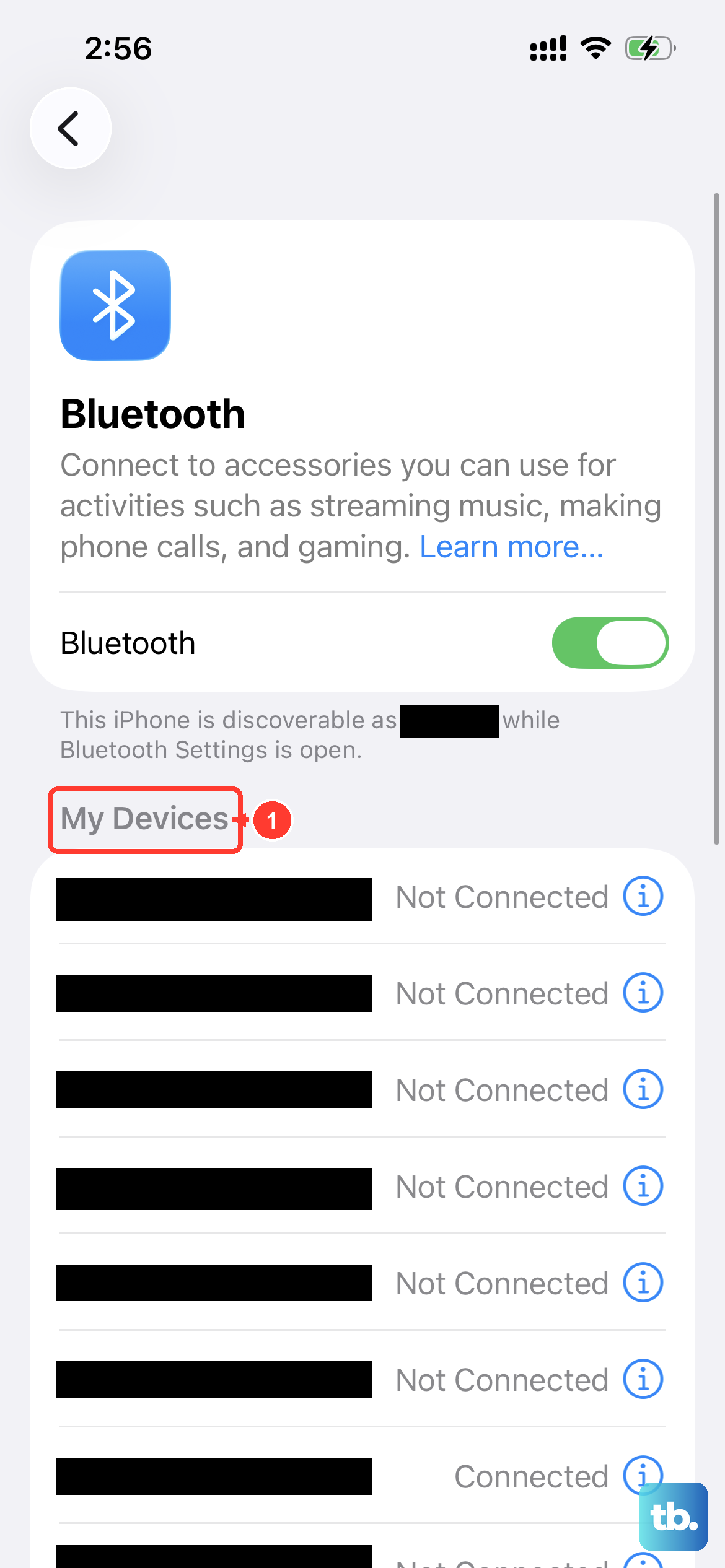
Your iPhone might be sending audio to a connected Bluetooth device even if you are not actively using it. Open the Control Center and tap the Bluetooth icon to disconnect all accessories at once.
For a more targeted fix, go to Settings > Bluetooth and tap the "i" icon next to any paired headphones or speakers. Select "Forget This Device" to stop your phone from routing audio to it automatically.
You can also check the audio output destination in the Control Center's Now Playing widget by tapping the AirPlay icon. Make sure "iPhone" is selected instead of a nearby HomePod or Apple TV.
Check Accessibility Sound Settings
iOS has a setting buried in Accessibility that can mute the ringer or degrade audio quality if toggled the wrong way. Go to Settings > Accessibility > Audio & Visual.
Ensure "Mono Audio" is turned off unless you need it for a hearing aid. Verify that "Phone Noise Cancellation" is enabled to keep call audio clear. These settings are easy to flip by accident, so it is worth a quick look.
Restart or Force Restart
A normal restart clears out temporary software glitches that can hang onto the audio drivers. Hold the Side button and either volume button until the power-off slider appears, then drag it to turn the phone off. Wait 30 seconds, then hold the Side button again to power back on.
If the screen is frozen or a normal restart does not help, perform a force restart. Quickly press and release Volume Up button, then quickly press and release Volume Down button, then press and hold Side button until Apple logo appears.
This specific force restart sequence is safe to use and instantly revives many unresponsive iPhone Air units that had audio issues after charging anomalies or a full battery drain.
Update to the Latest iOS 26 Version
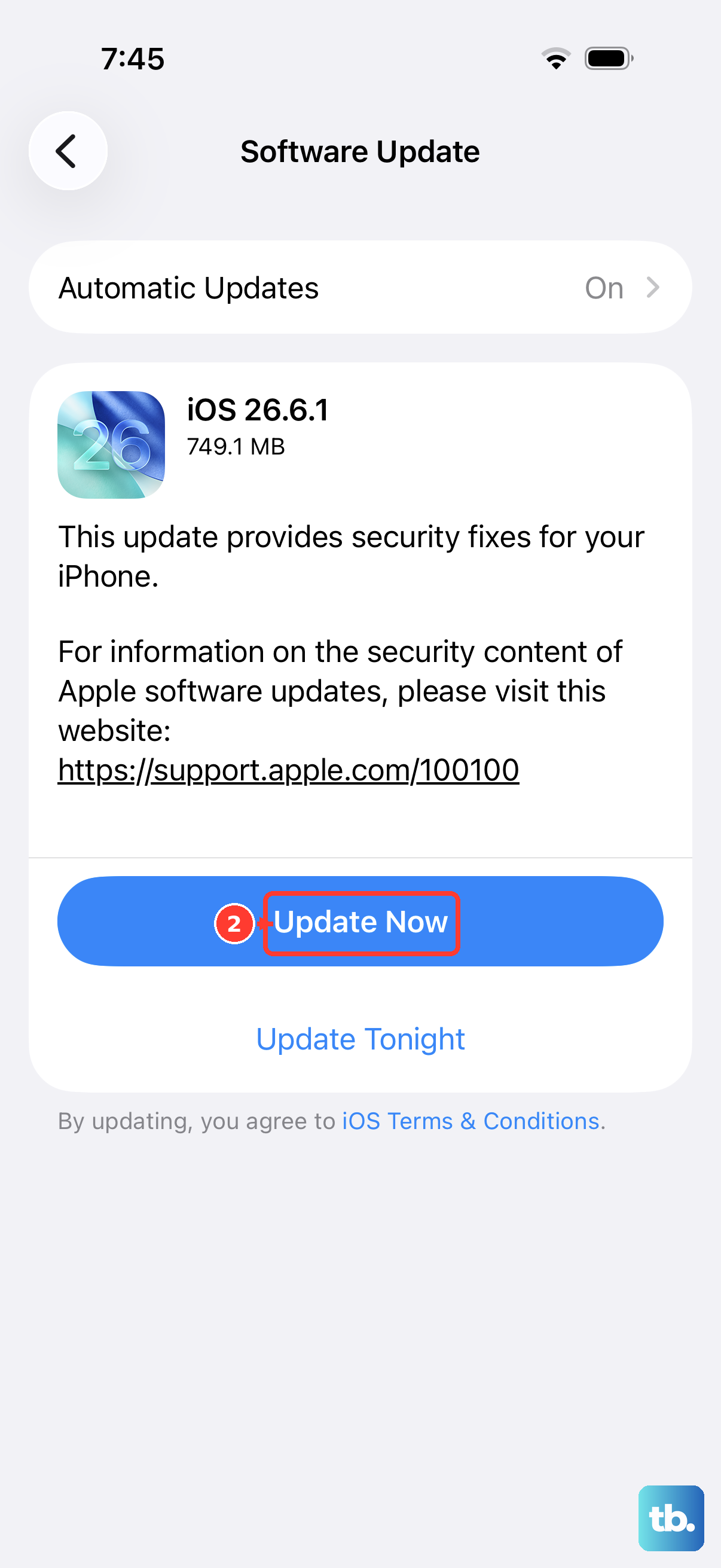
Software bugs in early versions of iOS 26 have been linked to random audio drops on the iPhone Air. Apple usually patches these issues in later updates.
Plug your phone into power using an Apple-certified USB-C cable, then go to Settings > General > Software Update. If an update is available, download and install it. Keeping the OS current prevents a lot of weird audio and charging behavior.
Reset All Settings
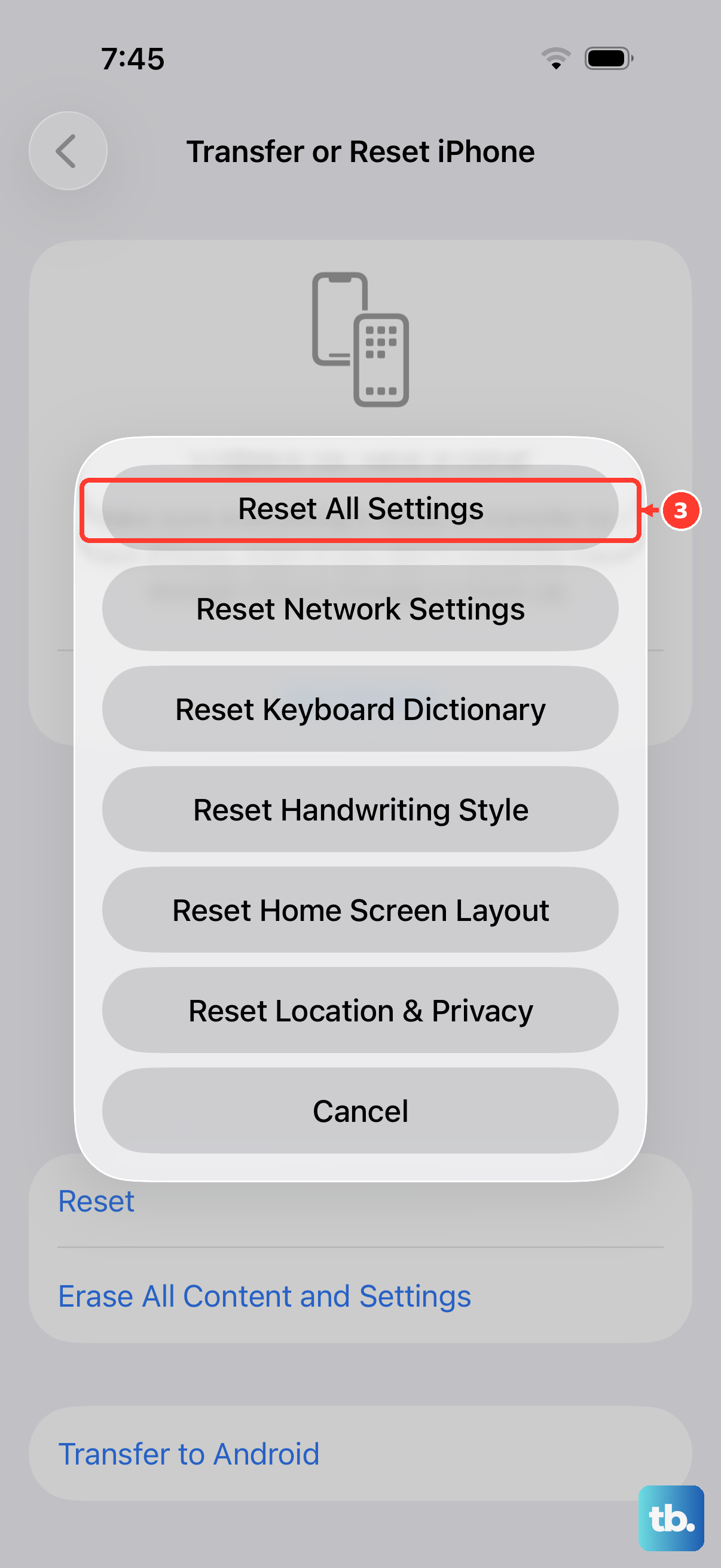
If the speaker issue started after you changed a specific system setting or installed a beta profile, resetting all settings can untangle it without deleting your photo library or apps.
Go to Settings > General > Transfer or Reset iPhone > Reset > Reset All Settings. Your phone will restart, and you will need to set up your Wi-Fi passwords, wallpapers, and privacy settings again.
Factory Restore as a Last Resort
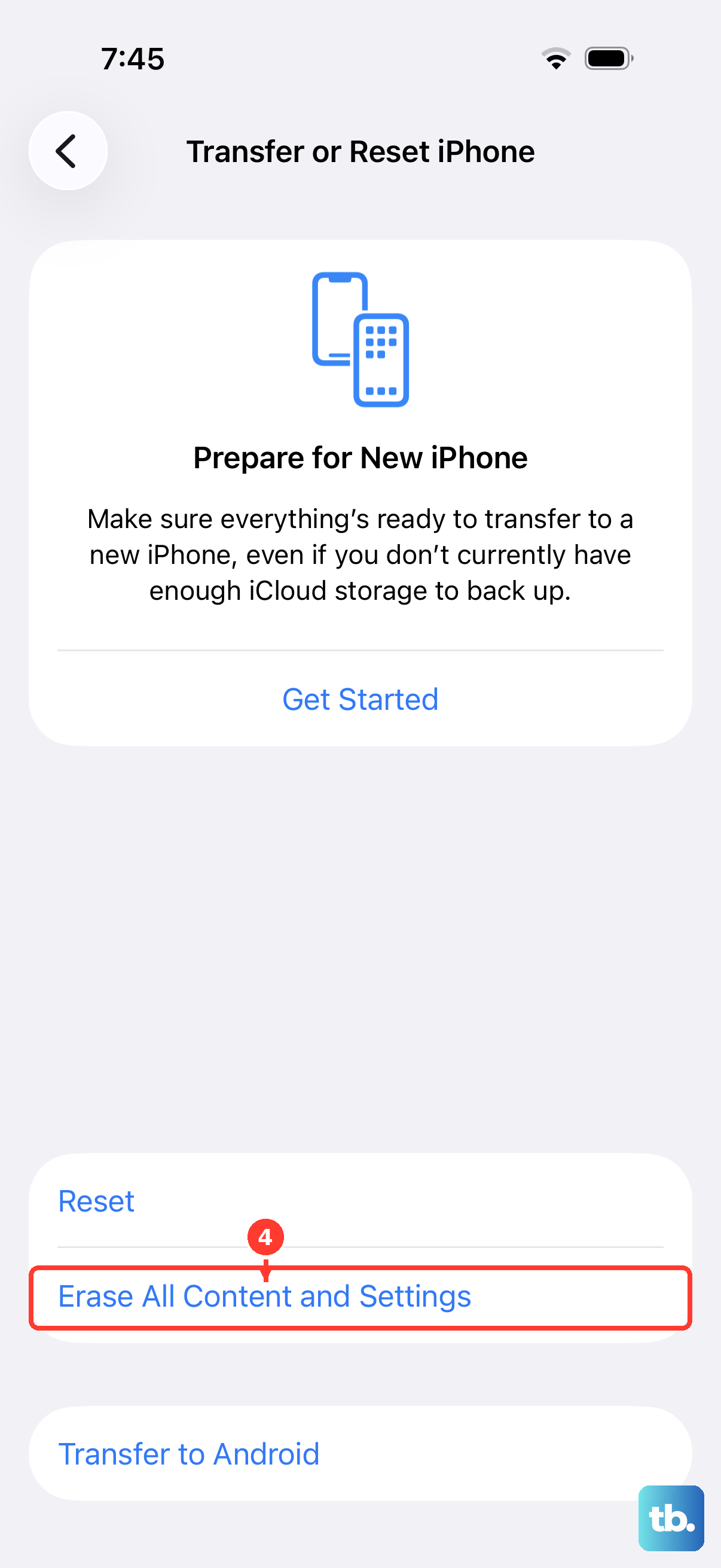
If you have tried every software fix here and the speaker is still completely silent, the problem may be a deep software corruption or a hardware fault. Before erasing everything, make sure you have a current iCloud or computer backup.
Go to Settings > General > Transfer or Reset iPhone > Erase All Content and Settings. After the erase, set the phone up as new. If the audio works during the setup flow, the issue was in your backup data. If it stays silent, the speaker hardware on your iPhone Air likely needs service.