
When your iPhone Air won't send text messages, it's one of those problems that feels bigger than it actually is. Messages might show a red exclamation mark, get stuck on "Sending," or disappear without a trace. The good news is most causes are easy to fix yourself.
Start With a Quick Restart
Hold the Side button and either Volume button until the power slider appears. Slide to power off, wait 30 seconds, then press and hold the Side button to turn it back on. This clears minor glitches in iOS 26 that can interfere with messaging services.
If the phone is unresponsive and won't shut down normally, try a force restart. Quickly press and release the Volume Up button, then quickly press and release the Volume Down button, then press and hold the Side button until the Apple logo appears. This is safe and won't erase any data.
A Weak Signal Can Stop Messages
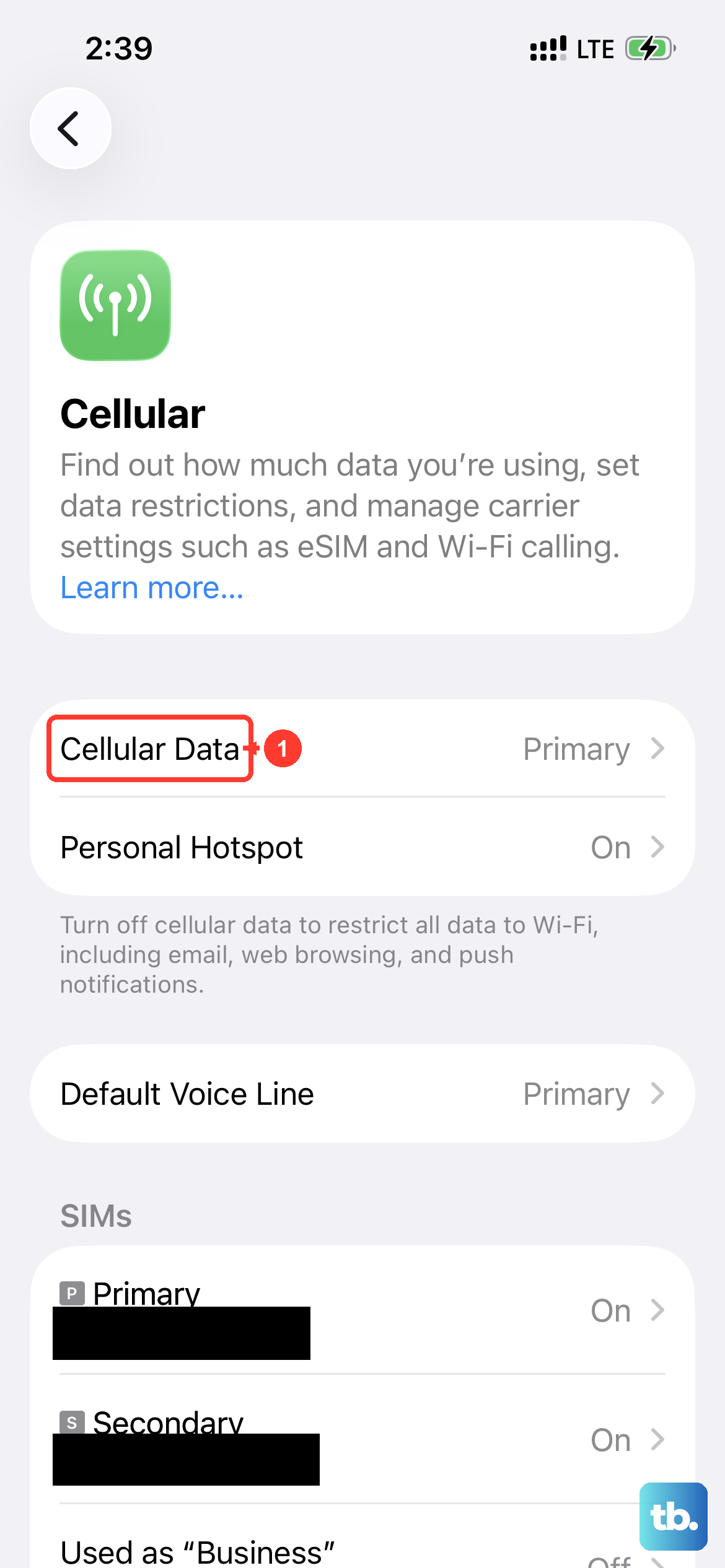
Text messages need a cellular connection to send as SMS or MMS, and iMessages need either cellular data or Wi-Fi. Check your signal bars in the status bar. If they're low or missing, move to a different spot in your home or step outside.
Toggle Airplane Mode on from Control Center, wait 10 seconds, then turn it off again. This forces your iPhone Air to re-register on the nearest tower and often gets messages moving again.
What If iMessage Is Down?
If your messages show up as iMessages (blue bubbles) and they're stuck, Apple's servers might be having an outage. Check Apple's System Status page online to see if iMessage shows any problems. If it's down on their end, there's nothing to do but wait.
In the meantime, you can still send messages as regular SMS texts. Long-press the failed message and tap Send as Text Message. This forces it through your carrier's network instead.
Toggle iMessage Off and Back On
Go to Settings > Apps > Messages and turn off iMessage. Wait about 30 seconds, then toggle it back on. This re-registers your iPhone Air with Apple's messaging servers and clears up most activation-related failures.
Check Your Blocked Contacts List
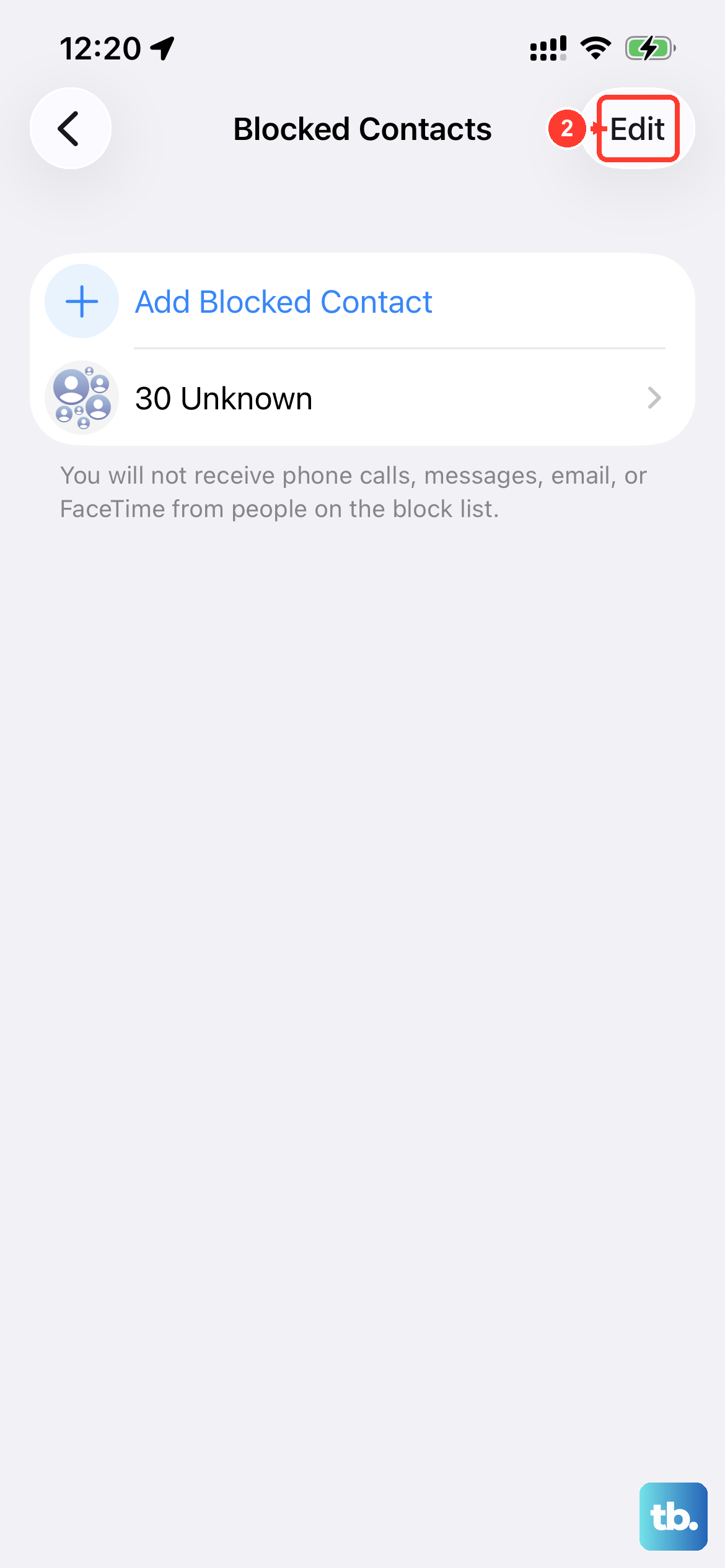
If messages fail to reach only one specific person, you might have accidentally blocked them at some point. Head to Settings > Apps > Messages > Blocked Contacts and scan through the list. If you spot their name or number, tap Unblock and try sending again.
Reset Network Settings to Fix Connectivity Issues
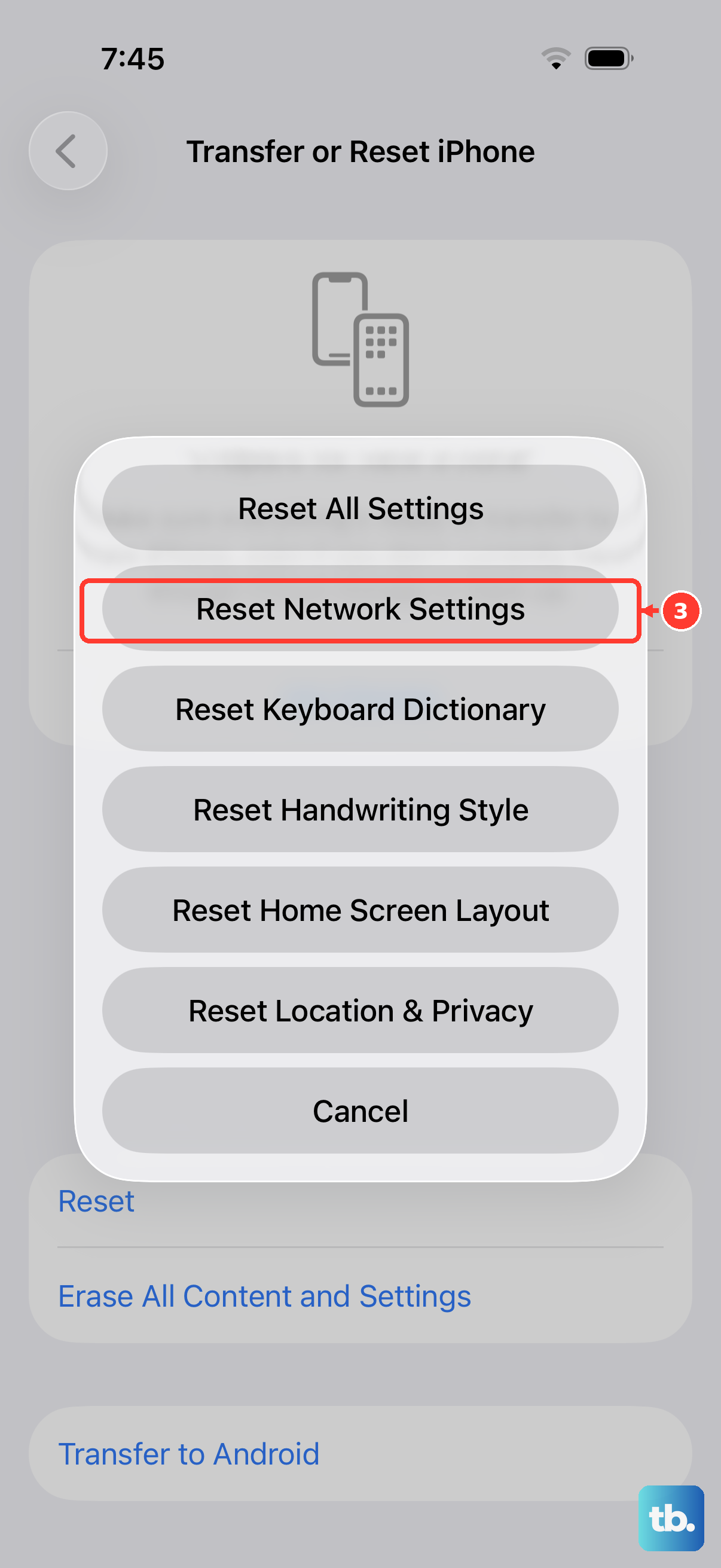
Go to Settings > General > Transfer or Reset iPhone > Reset > Reset Network Settings. This wipes out all saved Wi-Fi networks, Bluetooth connections, and network configurations on your iPhone Air. You'll need to reconnect to Wi-Fi networks afterward, but it often resolves deep messaging problems that other steps miss.
Check Your MMS and SMS Settings
Open Settings > Apps > Messages and make sure MMS Messaging and SMS are both turned on. Also confirm that Send as SMS is enabled, this lets messages switch to standard text when iMessage can't reach the recipient. If any of these are off, toggle them on and try sending your message again.
Your SIM Card Might Need a Refresh
Power down your iPhone Air completely. Use a SIM eject tool or a paperclip to pop out the SIM tray. Remove the SIM card, wait at least 30 seconds, then reinsert it and power the phone back on. This re-establishes the connection between your phone and your carrier's messaging network.
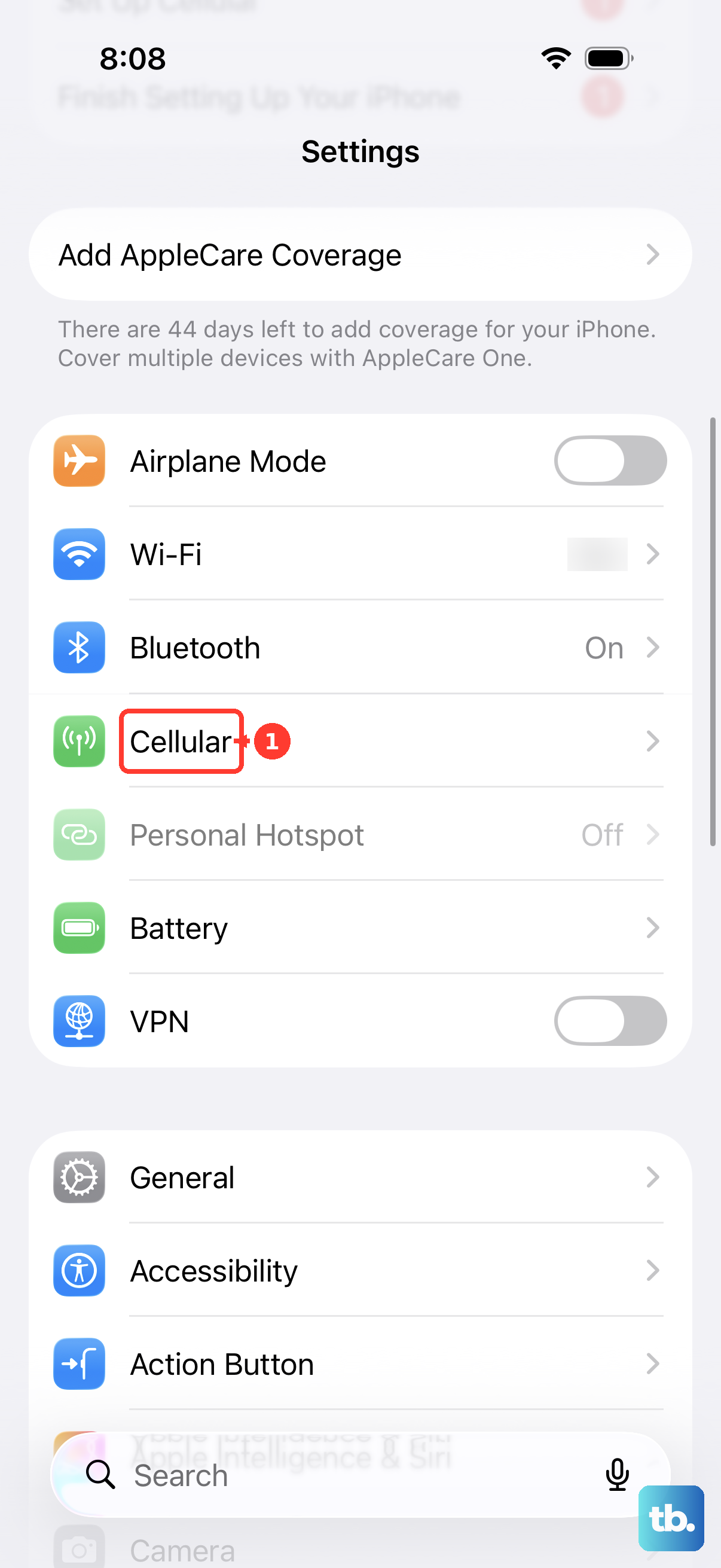
If you're using an eSIM, go to Settings > Cellular and tap your plan. Toggle Turn On This Line off and then on again after a minute.
Update Carrier Settings When Available
Go to Settings > General > About. If a carrier settings update is available, a popup will appear automatically. Tap Update to install it. These updates are pushed by your carrier to fix specific messaging and connectivity issues on iOS 26.
When All Else Fails, Call Your Carrier
If you've gone through every step and messages still won't send, the problem is likely on your carrier's side. Your SMS or MMS service could be suspended on your account, or there might be a provisioning issue. Call your carrier and ask them to verify that messaging is active and correctly set up for your line.