
You plug your iPhone Air into your computer and nothing happens. No detection sound, no device showing up in Finder or File Explorer, no charging indicator. It's a common headache, especially if you're trying to transfer photos or run a backup.
Most detection problems trace back to a handful of predictable causes. Let's walk through them from most likely to least, so you can get your iPhone talking to your computer again.
Start with the USB Cable and Port
The USB-C cable is the most frequent culprit. Even a slightly damaged Apple‑certified cable can deliver power without carrying data. Try a different USB-C cable, ideally one that came with another Apple device or is certified under the MFi program. If you only have one cable, test it with another computer or a charger to rule out a break.
Inspect the charging port on your iPhone Air. Pocket lint and dust can block the connection. Shine a flashlight in there and if you see debris, gently remove it with a dry toothpick or a SIM eject tool. Avoid metal objects, scratching the pins inside will cause permanent damage.
A bad port on the computer is just as likely. Switch to a different USB‑C port, preferably one directly on the motherboard (the one on the back of a desktop, not the front panel).
Force Restart Your iPhone Air
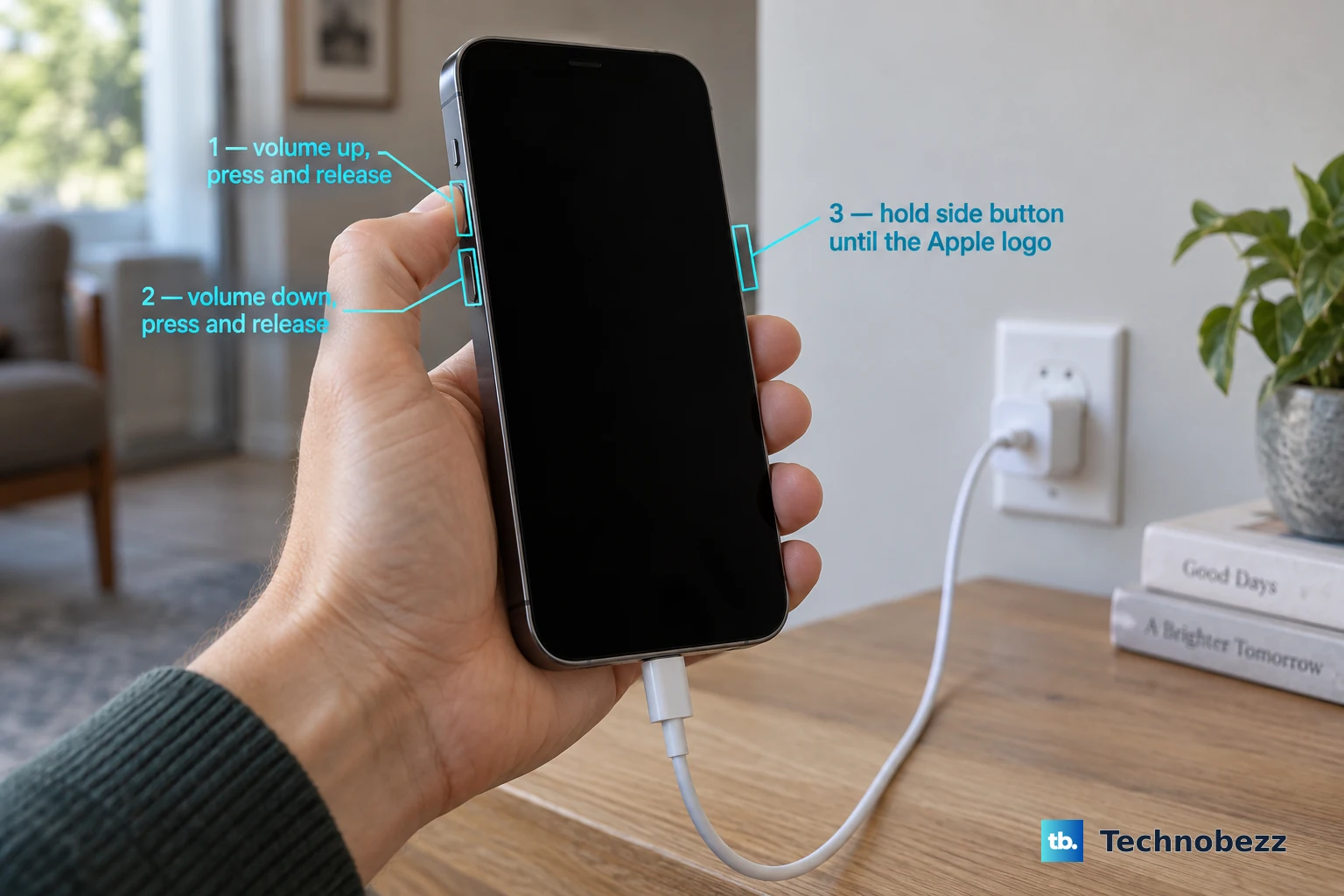
Sometimes a stale software state prevents the phone from responding to the USB connection. A force restart clears that without erasing any data. The sequence is specific to the iPhone Air.
Quickly press and release the Volume Up button, then quickly press and release the Volume Down button, then press and hold the Side button until you see the Apple logo. Let go as soon as the logo appears. Once it boots up, plug it back into the computer and see if it's recognized.
If the Battery is Completely Dead
One of the known quirks of the iPhone Air is that after the battery drains to zero, the device can become unresponsive to cable charging. You might plug it in and still get a black screen. If that happens, grab a magnetic battery pack that supports Qi2 or MagSafe and attach it to the back of the phone. That wakes the charging circuitry enough to let the wired charge take over. After a few minutes, reconnect the USB‑C cable, the phone should start charging and eventually become detectable by your computer.
Check for the "Trust This Computer" Prompt
Your iPhone won't show up on a computer it hasn't trusted yet. When you connect for the first time (or after a restore), a dialog appears on the phone asking if you trust this computer. Tap Trust, then enter your passcode. If you missed the prompt, unplug the cable and reconnect, or check the phone screen while it's connected.
If you can't see the prompt because the screen is damaged or unresponsive, you may need to reset the location and privacy settings. Go to Settings > General > Transfer or Reset iPhone > Reset > Reset Location & Privacy. This clears the trust cache for all computers, and you'll get the prompt again on the next connection.
Update iOS and Computer Software
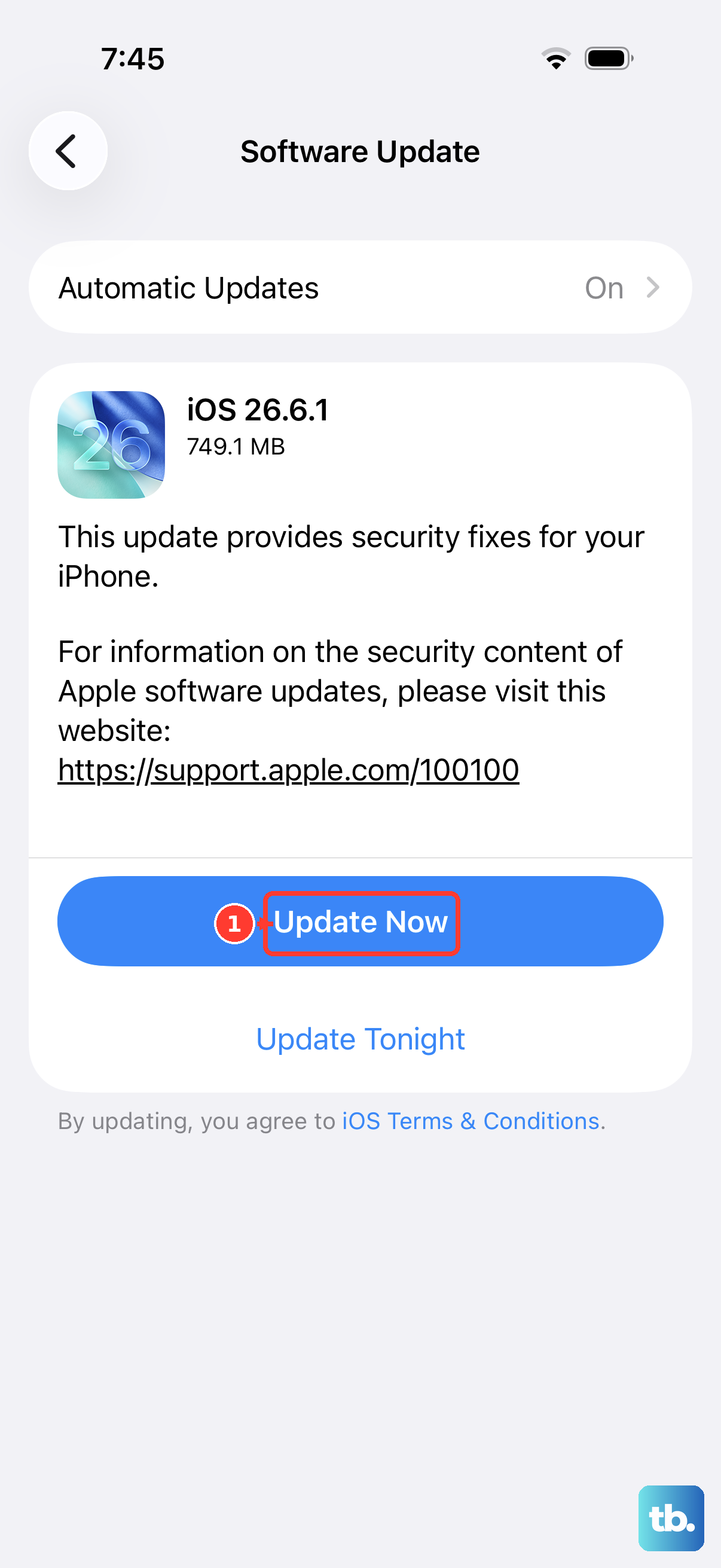
The iPhone Air shipped with iOS 26, and a known firmware issue in early builds of 26.4.2 caused intermittent charging and detection failures. Apple likely fixed it in a later update. To check, go to Settings > General > Software Update. If an update is available, install it. This alone resolves many detection problems.
On the computer side, make sure your system is current. On a Mac running macOS Sequoia or later, open System Settings and install any pending updates. On Windows, run Windows Update. For Windows users, you also need the Apple Devices app (available from the Microsoft Store) or iTunes. If you're running an old version of iTunes, uninstall it and grab the latest from Apple's website. The driver that lets Windows talk to iPhones is included in the Apple Mobile Device Support package, which ships with iTunes or Apple Devices.
Reset Network Settings on the iPhone
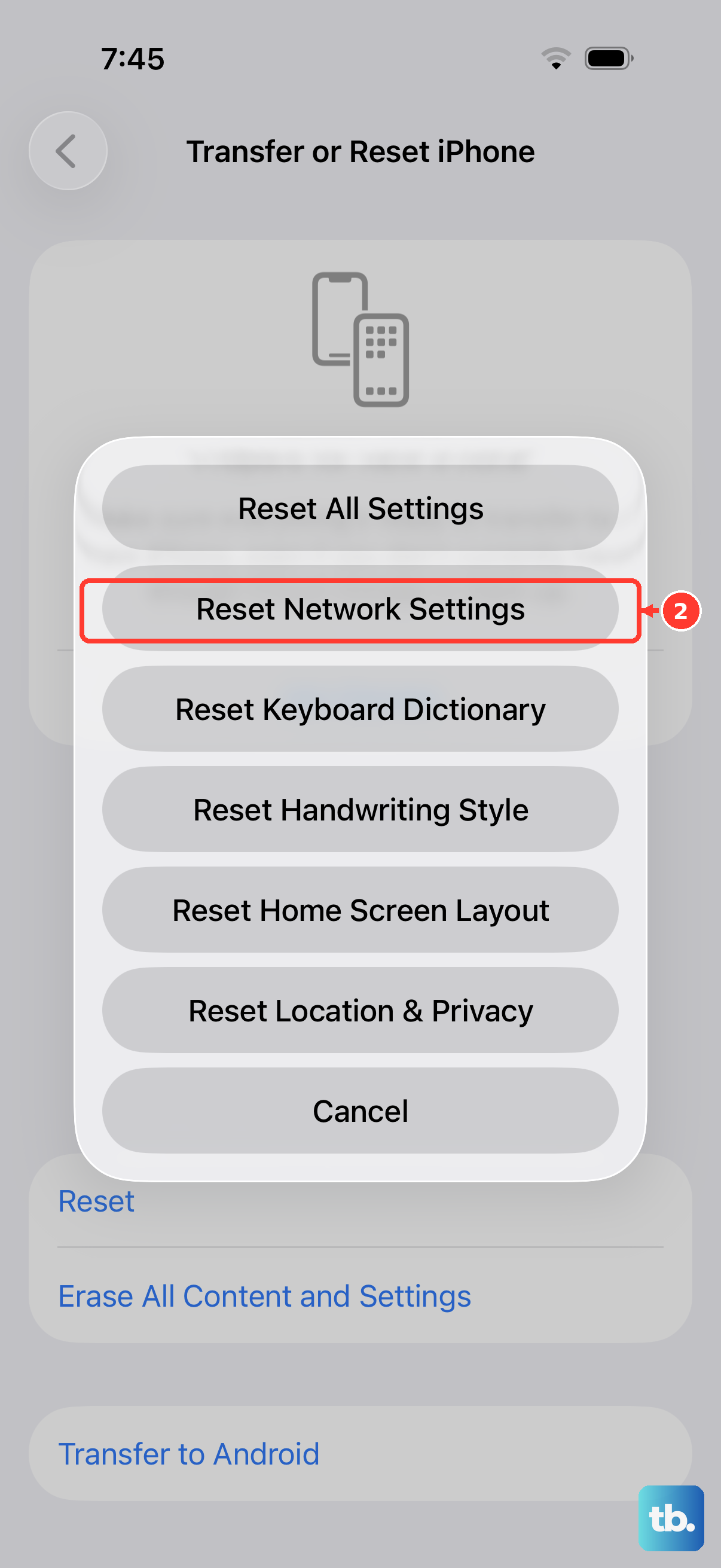
This sounds weird for a cable problem, but network settings manage internal communication stacks that can interfere with USB connectivity. Go to Settings > General > Transfer or Reset iPhone > Reset > Reset Network Settings. This wipes saved Wi-Fi passwords, Bluetooth pairings, and VPN configurations, but doesn't touch your photos or apps. After the phone restarts, reconnect to your computer.
Try a Different Computer or Port Type
If your computer has Thunderbolt ports, plugging into one often works better than a standard USB‑C port because the handshake is more robust. Alternatively, try connecting to another computer entirely, a friend's Mac or a work PC. If the iPhone is recognized on another machine, the problem is software or driver-related on your original computer rather than the phone hardware.
Use Recovery Mode
When nothing else works and the iPhone still won't show up, the device might be in a deeper software jam. Put it into recovery mode. With the phone disconnected from the computer, perform the force restart sequence again, but this time don't release the Side button when the logo appears. Keep holding it until you see the recovery mode screen, which shows a cable pointing to a computer icon. Then plug the iPhone into your computer, iTunes or Finder should now detect it and offer to update or restore the software.
A restore erases all data, so make sure you have a recent backup. This step usually clears stubborn firmware issues that prevent detection.