
When your headphones stop working with your iPhone Air, whether wired or Bluetooth, it kills the experience of music, calls, and podcasts. The phone might not detect them, send audio to the speaker instead, or play distorted sound. Here's how to fix it.
Start with a free online headphone test that checks left and right channels, stereo order, bass, and treble. Two minutes there tells you whether the hardware needs attention at all.
Start With the Basics
Make sure your headphones are charged (if wireless), properly plugged in (if wired through the USB-C port), or correctly paired (if Bluetooth). Try the headphones with another device to confirm they work. If they don't work on anything else either, the headphones themselves are the problem.
Restart Your iPhone Air
A standard restart clears up most temporary audio routing glitches. Press and hold the Side button and either Volume button until you see the power slider. Slide to power off, wait 30 seconds, then hold the Side button again to turn it back on.
If the phone is unresponsive or the standard restart doesn't help, try a force restart. Quickly press and release the Volume Up button, then quickly press and release the Volume Down button, then press and hold the Side button until the Apple logo appears. This is safe and doesn't erase any data.
Make Sure the Volume Is Up
Press the Volume Up button while headphones are connected and confirm the volume is turned up. Also check that the silent switch on the left side isn't set to mute. Open Control Center and look at the volume slider, if it's at zero, drag it up.
Clean the USB-C Port
The iPhone Air uses a USB-C port for wired headphones. Lint, pocket fuzz, or debris in that port can prevent a solid connection. Use a wooden toothpick or a soft brush to gently clean inside the port. Compressed air works too. Avoid metal objects, you can damage the pins. A dirty port is one of the most common causes of wired headphone issues on any USB-C device.
Forget and Re-Pair Your Bluetooth Headphones
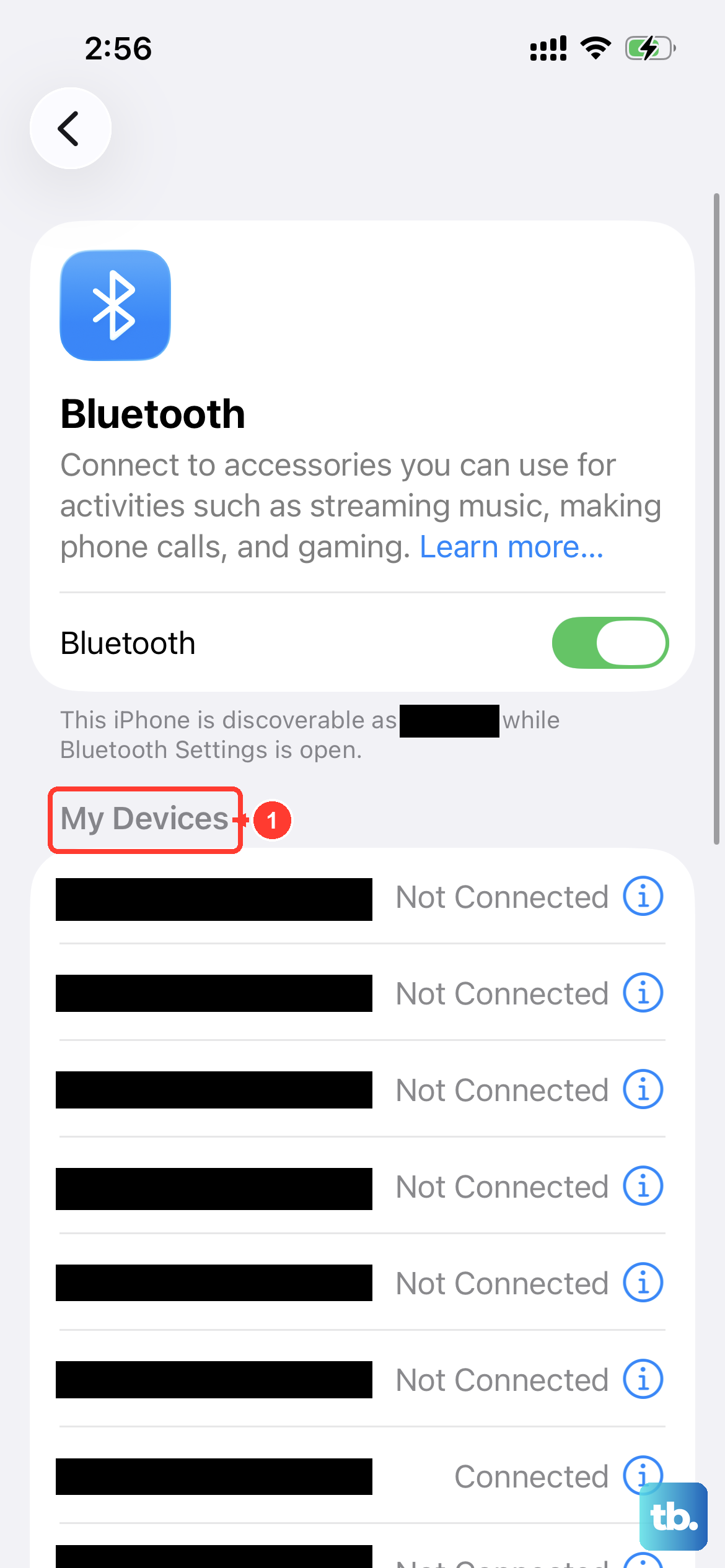
Go to Settings > Bluetooth. Find your headphones in the list and tap the (i) icon next to them. Tap Forget This Device. Then put your headphones in pairing mode and reconnect them from scratch. A fresh pairing fixes corrupted connection profiles that can cause dropouts or no audio.
Check Where the Audio Is Going
Sometimes audio gets routed to the wrong output without you realizing it. Open Control Center, press and hold the audio card in the top-right corner, and check which output is selected. Make sure it shows your headphones, not the iPhone Air speaker or another Bluetooth device. You can also tap the AirPlay icon in any media app to switch outputs.
Toggle Bluetooth Off and On
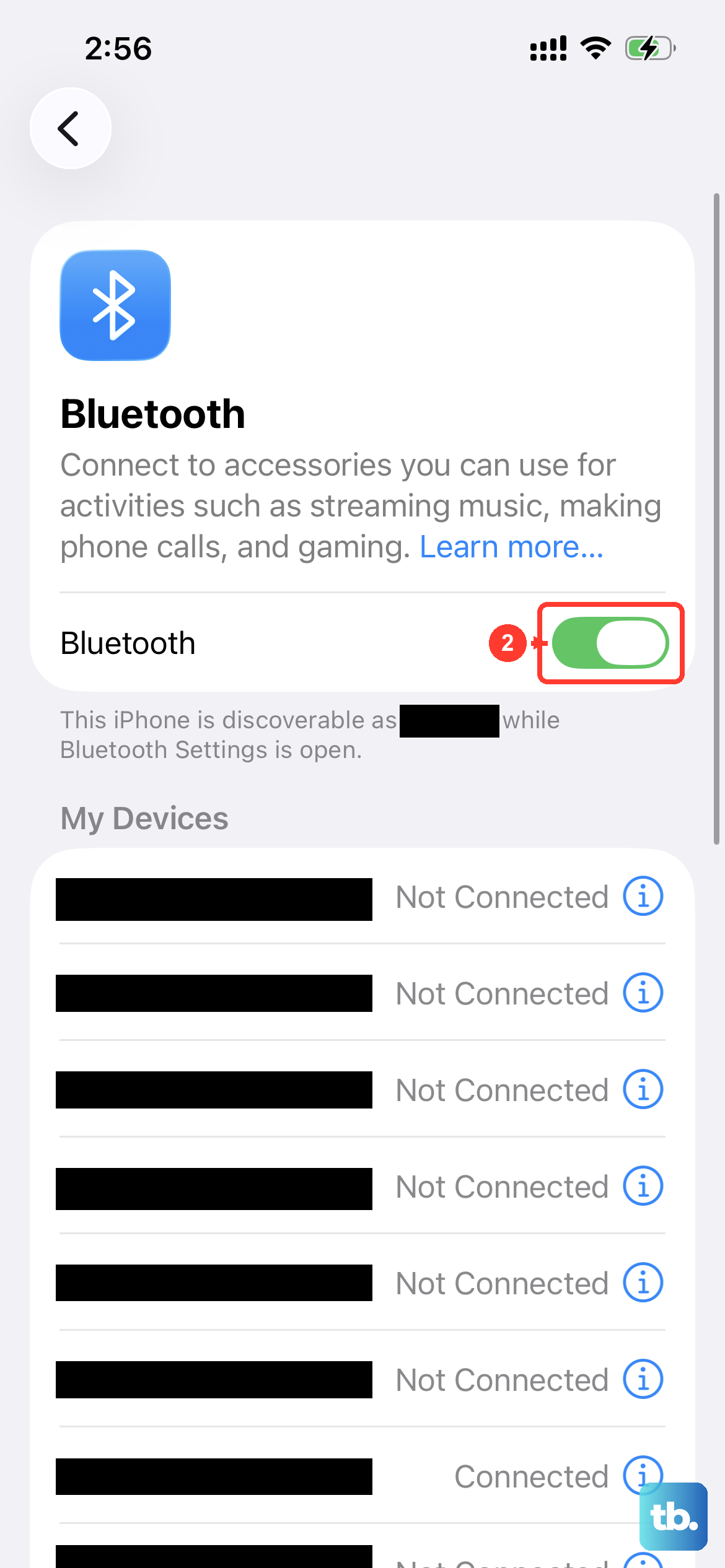
Go to Settings > Bluetooth and toggle it off. Wait 10 seconds, then turn it back on. This refreshes the Bluetooth stack and can fix connection or audio routing issues with wireless headphones without needing a full restart.
Is Your Phone Stuck in Headphone Mode?
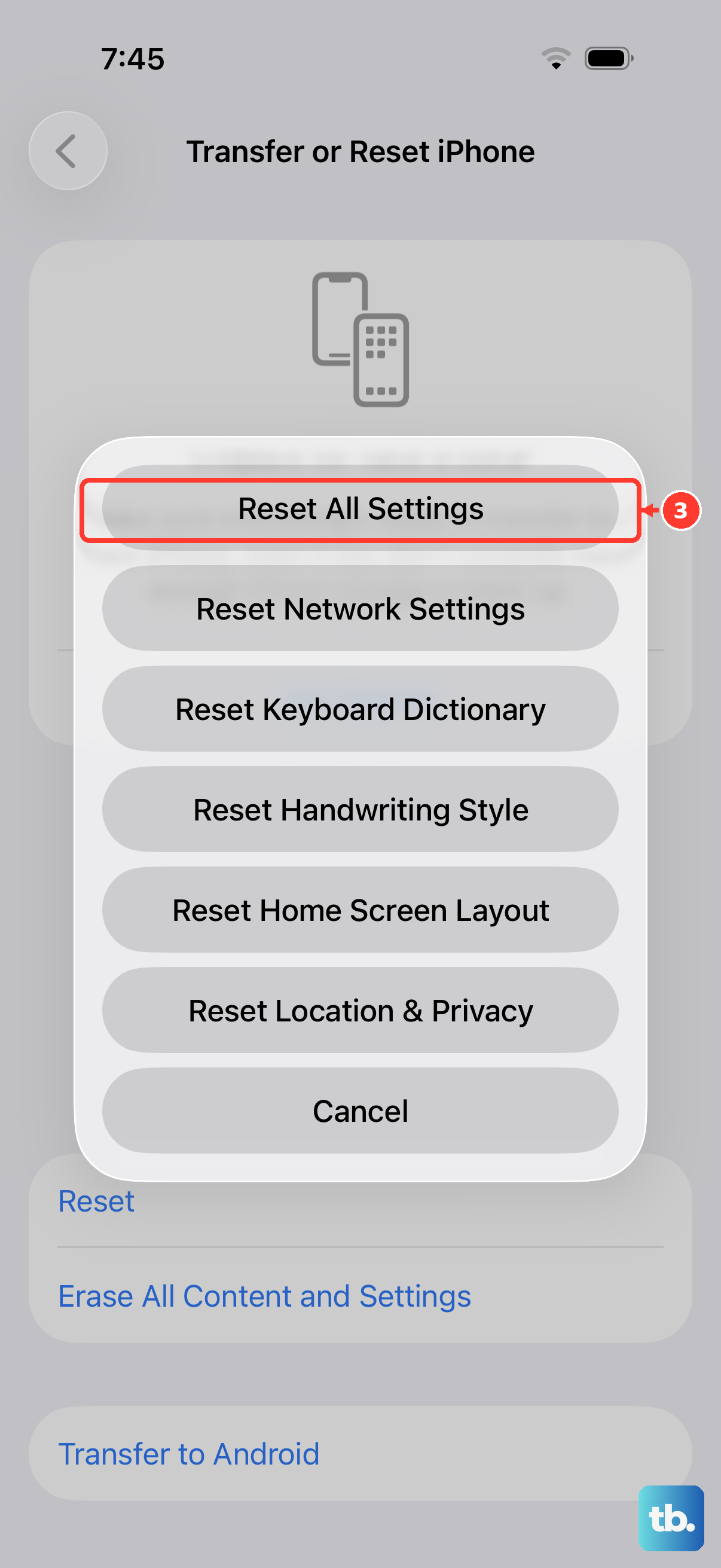
Sometimes your iPhone Air thinks headphones are plugged into the USB-C port when they're not. You'll see the headphone icon in the status bar or volume indicator even without anything connected. Clean the USB-C port thoroughly, plug headphones in and out a few times, or restart the phone. If it persists, Reset All Settings usually clears it.
Update to iOS 26
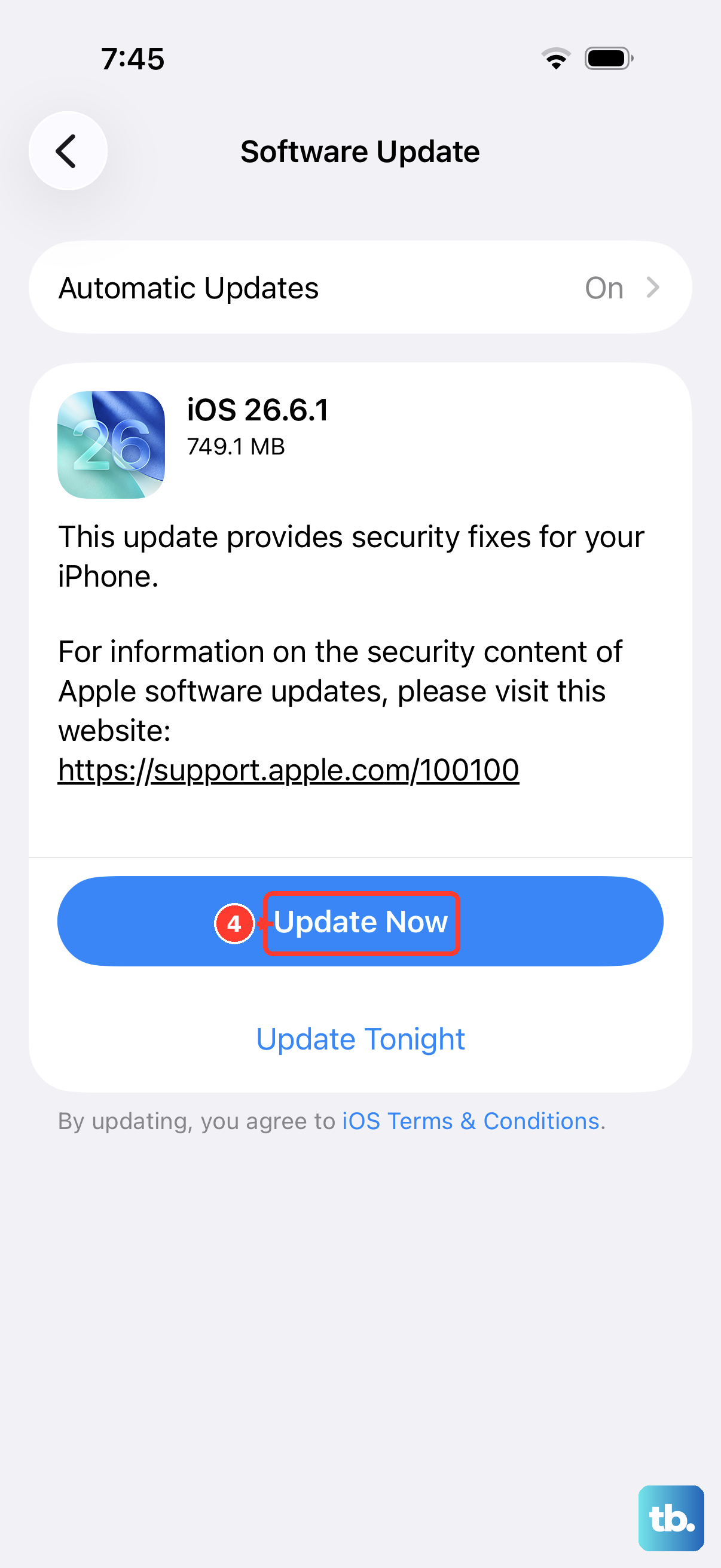
Go to Settings > General > Software Update. Apple regularly fixes Bluetooth and audio bugs in iOS updates. The iPhone Air ships with iOS 26, and it's worth keeping it current. This is especially important for AirPods and Beats headphones, which receive firmware updates through your phone.
Reset All Settings
Go to Settings > General > Transfer or Reset iPhone > Reset > Reset All Settings. This resets all system settings including Bluetooth pairings and audio preferences. You'll need to re-pair all Bluetooth devices afterward, but it resolves persistent audio routing problems that other steps couldn't fix. Your personal data like photos and apps won't be affected.