
Apps that keep crashing or closing on your iPhone Air are usually caused by a software hiccup, a lack of storage, or an app update that went sideways. The good news is you can fix most of these without much fuss. Let's run through the solutions that actually work.
Force Quit and Relaunch the App
Sometimes an app just gets stuck in a bad state. Swipe up from the bottom of the screen and pause in the middle to open the App Switcher. Find the app that's misbehaving and swipe its card up and off the screen. Then tap the app icon again to relaunch it fresh.
This clears the app's active memory and often solves crashes that happen mid-use. Give it a try before moving to anything more involved.
Force Restart the iPhone Air
If multiple apps are crashing or the phone seems sluggish, a force restart clears deeper software glitches without erasing your data. On the iPhone Air, the sequence matters: quickly press and release Volume Up, then quickly press and release Volume Down, then press and hold the Side button until the Apple logo appears.
Let the phone boot back up normally. This resets the system's temporary state and can fix app launch failures caused by memory fragmentation or a hung process.
Update the App
Developers push updates specifically to fix crash bugs. Open the App Store, tap your profile icon in the top right, and scroll down to see pending updates. Tap Update next to the problematic app, or tap Update All to catch everything.
If the app has an update that addresses the crash, this alone will solve it. I've seen this fix work for apps that suddenly close on launch.
Update iOS to the Latest Version
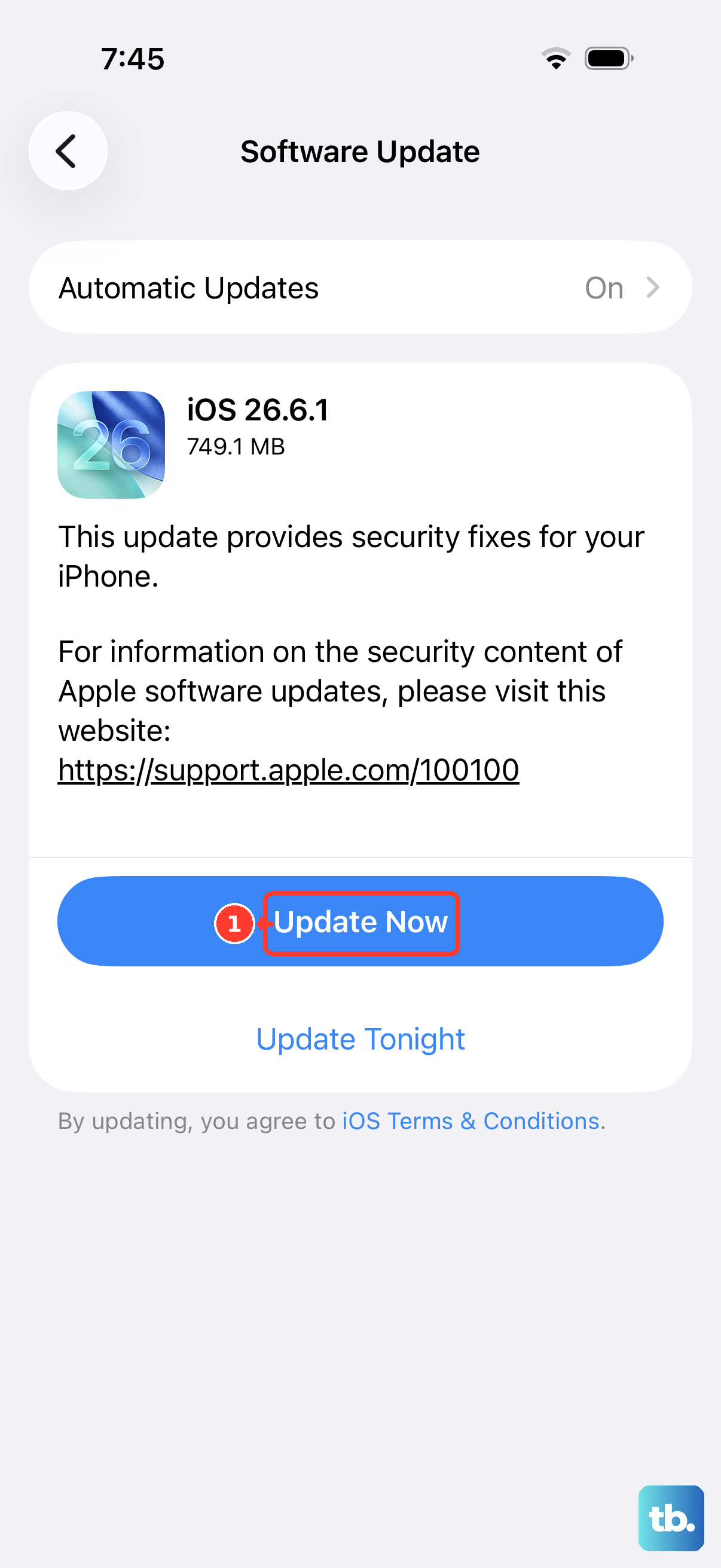
Apple regularly releases iOS updates that patch system-level issues affecting app stability. Go to Settings > General > Software Update and install any available update. iOS 26 has had a few minor releases since launch, and some apps rely on the latest system frameworks to stay running.
Make sure your phone has at least 50% battery or is plugged in before starting the update. It takes about 10-15 minutes.
Offload the App
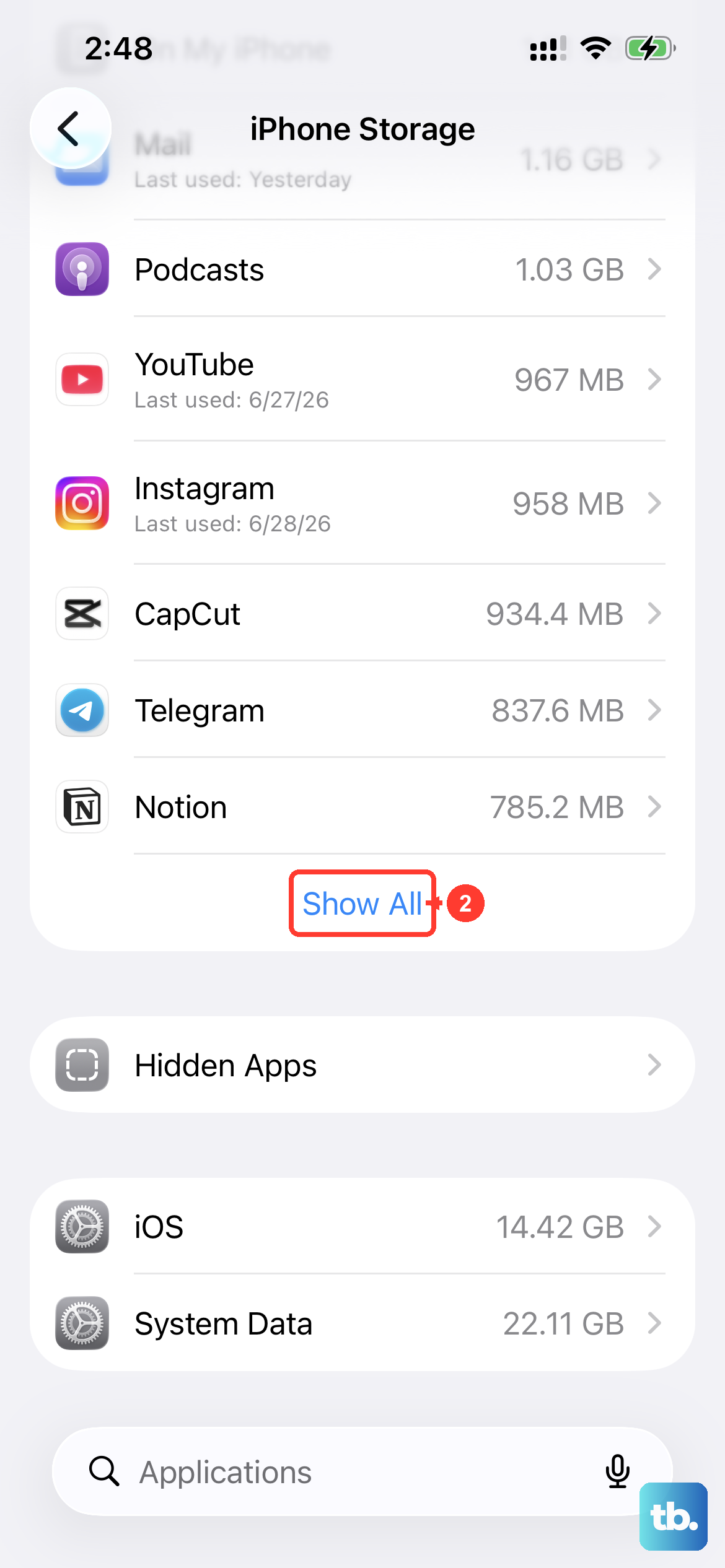
Offloading removes the app but keeps its documents and settings. It can fix corruption in the app's core files without forcing you to log back in or lose data. Go to Settings > General > iPhone Storage, tap the app that's crashing, then tap Offload App.
After it finishes, tap Reinstall App on the same screen. The app will redownload from the App Store and should run cleanly.
Delete and Reinstall the App
If offloading doesn't help, a full deletion is your next step. Press and hold the app icon on the Home Screen, tap Remove App, then Delete App. Go to the App Store and download it fresh.
This wipes all local data for that app, so make sure you won't lose anything important. If the app uses cloud sync (like most games or productivity tools), you'll be fine once you log back in.
Free Up Storage Space
When your iPhone Air is running low on storage, apps can't write temporary files and may crash without warning. Check your storage at Settings > General > iPhone Storage. If you're under 1-2 GB free, start clearing space.
Delete old messages with large attachments, offload unused apps, and move photos to iCloud or a computer. As a rule of thumb, keep at least 5 GB free for smooth operation.
Check Your Internet Connection
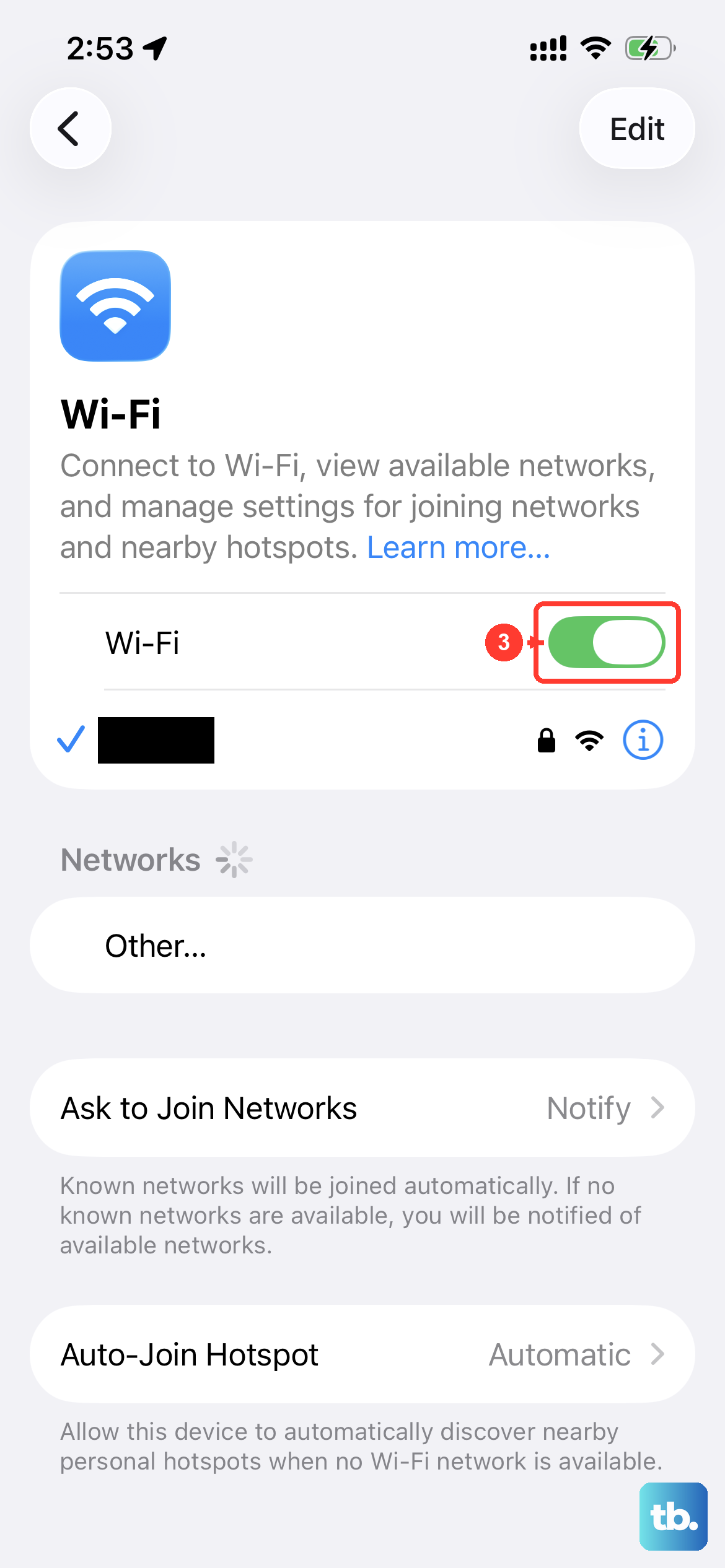
Apps that require a network connection may crash or close if the connection drops suddenly. Toggle Airplane Mode on and off to reset the radio. If you're on Wi‑Fi, forget the network and reconnect. If you're on cellular, try switching to Wi‑Fi or vice versa.
A weak signal can cause timeouts that look like crashes. Open Safari and try loading a webpage to confirm your connection is working.
Reset All Settings
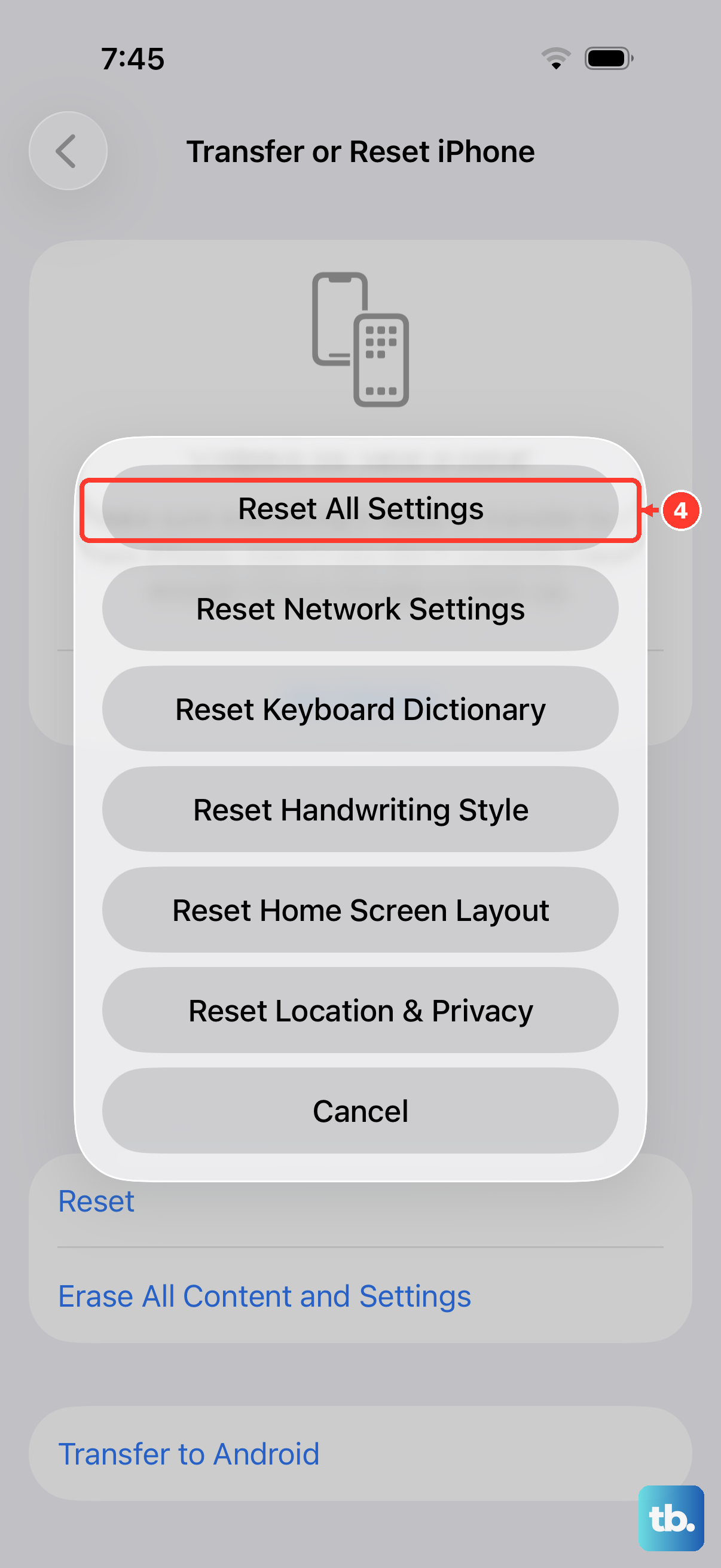
This is more thorough than a force restart but preserves your apps and data. It resets Wi‑Fi networks, Bluetooth pairings, wallpapers, and accessibility settings to defaults. Go to Settings > General > Transfer or Reset iPhone > Reset > Reset All Settings.
You'll need to rejoin your Wi‑Fi networks and reconnect Bluetooth devices after this, but it can fix underlying configuration issues that cause apps to close unexpectedly. I'd use this as a last step before considering a full erase.