
When a photo gets stuck on your iPhone 16 with a "Not Delivered" tag, it's usually a quick network or settings fix. I'd start by checking if you're trying to send via iMessage to someone who doesn't have an iPhone.
If their messages show up in green, your phone is using SMS/MMS. For those, you need a cellular data connection specifically enabled. Let's run through the most common fixes to get your pictures moving again.
Check Your Connection and Toggle iMessage
First, look at the top of your screen. If you see the WiFi icon, try turning WiFi off briefly to force the message to use your cellular data. Sometimes a sluggish WiFi network can cause hangs.
If you're already on cellular, ensure you have a strong signal. A quick test is to load a webpage. No connection means the photo won't send regardless of other settings.
Next, open the Messages app and look at the chat. Are your messages blue? If they're green, iMessage is off for that contact. Go to Settings > Apps > Messages and toggle the iMessage switch off and back on. This refreshes its connection to Apple's servers.
Verify Your Cellular Data for MMS
For sending pictures as text messages (the green bubbles), MMS must be enabled. This is different from standard cellular data. On your iPhone 16, you need to check a specific setting.
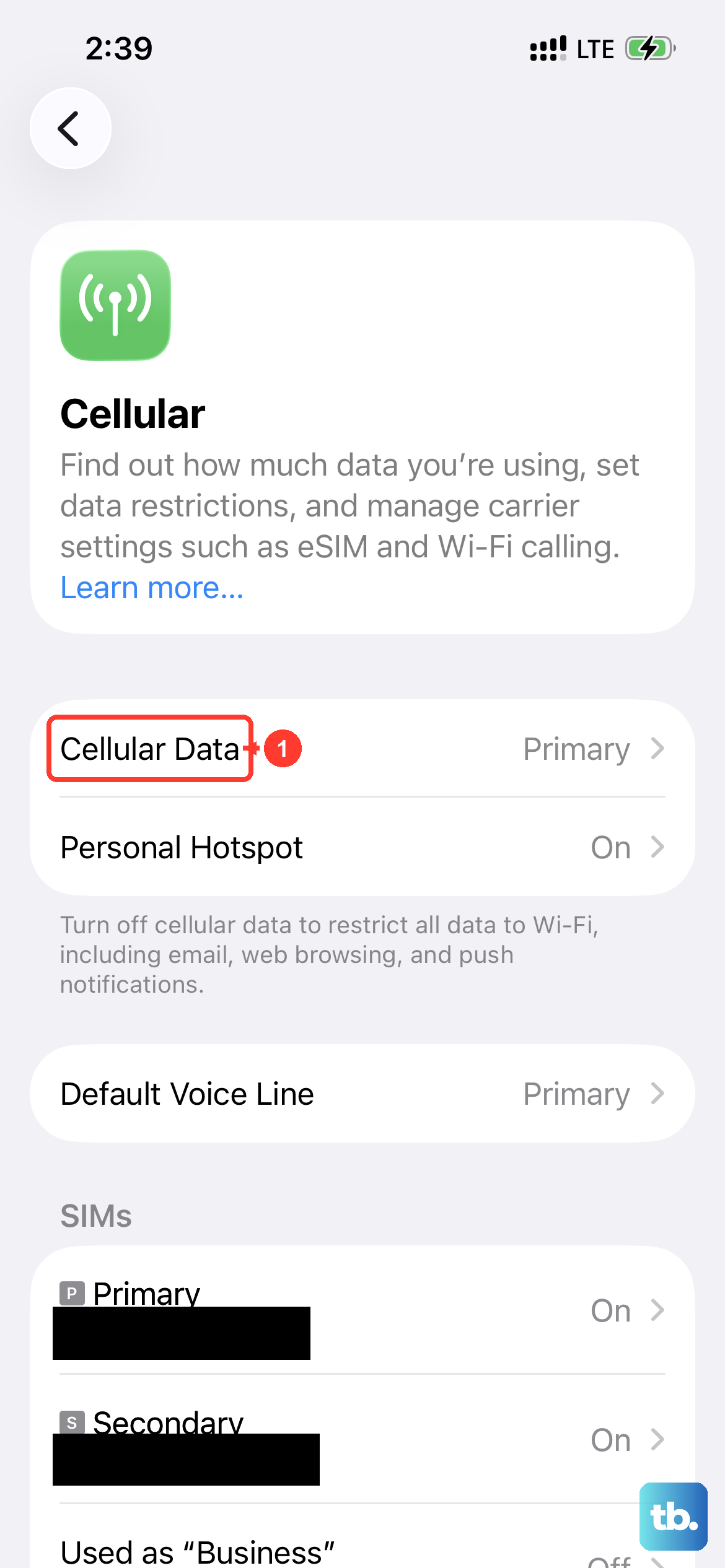
Go to Settings > Cellular. Ensure Cellular Data is on. Then, scroll down to find the "Messages" app in the list and make sure it's allowed to use cellular data. Finally, go to Settings > Apps > Messages and ensure "MMS Messaging" is switched on.
Without this, photos have no pathway to send when iMessage isn't available. This is a very common oversight, especially after a software update.
Restart Your iPhone 16 and Update Software
A simple force restart clears out temporary glitches that can stall the messaging system. On the iPhone 16, you press and quickly release the Volume Up button, press and quickly release the Volume Down button, then press and hold the Side button until you see the Apple logo.
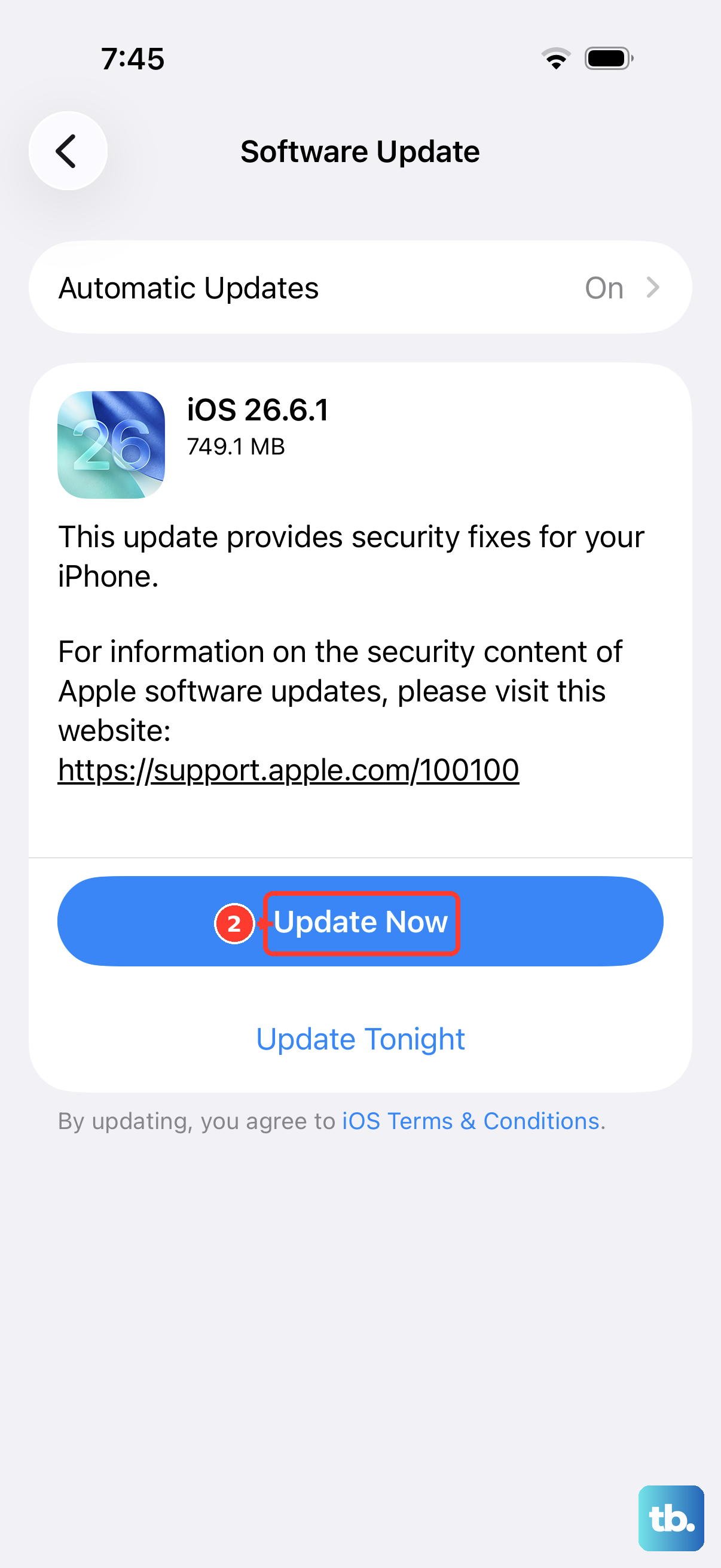
After it reboots, try sending the photo again. If it's still stuck, check for a software update. Go to Settings > General > Software Update. iOS 26 updates often include fixes for connectivity bugs that affect iMessage and MMS.
Installing the latest update can resolve issues that appeared out of nowhere. Make sure your phone is on WiFi and has enough battery before starting the update.
Review iMessage Send & Receive Settings
Your iPhone can be configured to send and receive iMessages using your phone number or your Apple ID email address. If the settings are wrong, sends can fail.
Open Settings > Apps > Messages > Send & Receive. Under "You can be reached by iMessage at," your phone number should be checked. Under "Start new conversations from," make sure your phone number is selected, not an email address.
If your number isn't listed or can't be selected, there might be a deeper activation issue. Toggling iMessage off and on again from the main Messages settings page can sometimes trigger a re-activation.
Disable Low Data Mode and Low Power Mode
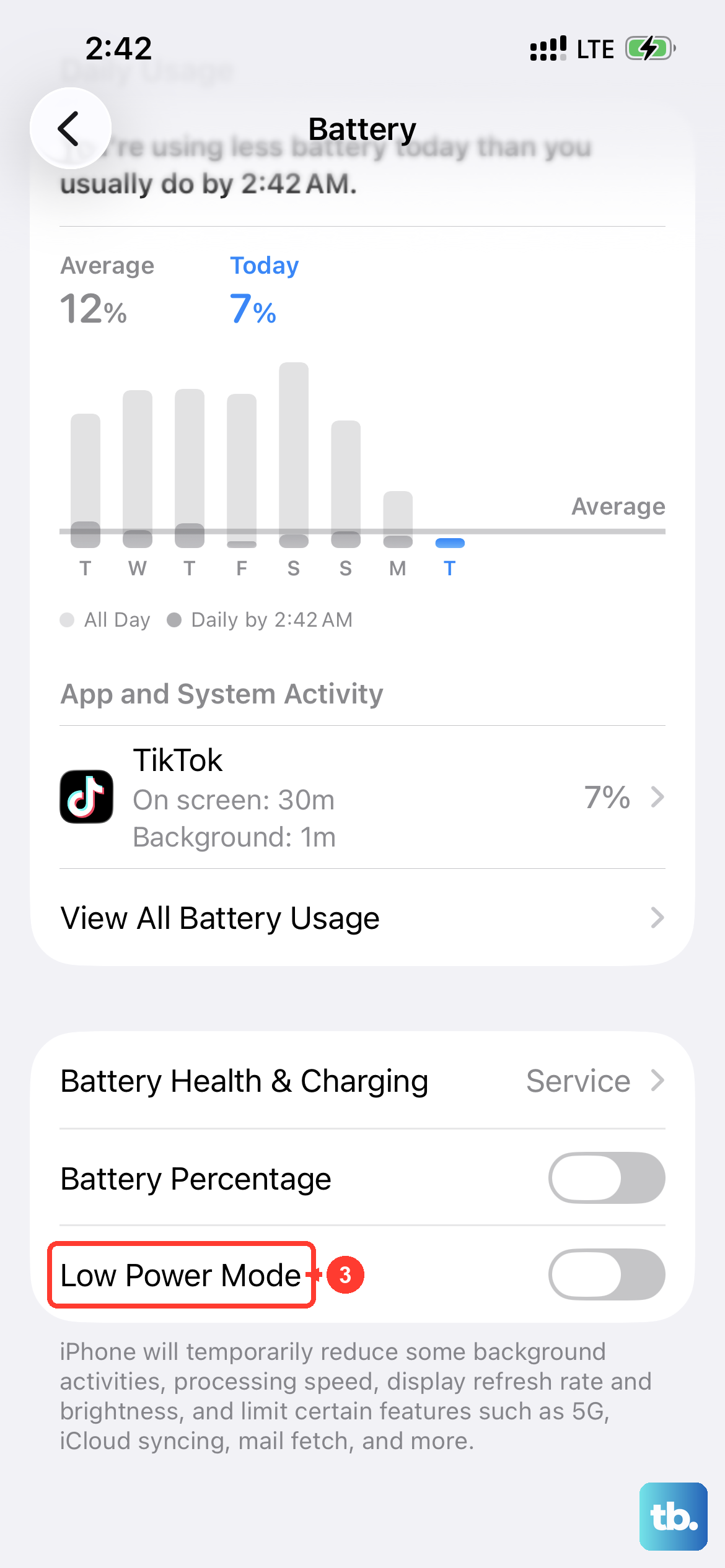
Both Low Data Mode and Low Power Mode restrict background network activity to conserve resources. This can prevent photos from uploading and sending.
For cellular, go to Settings > Cellular > Cellular Data Options and turn off Low Data Mode. For WiFi, go to Settings > WiFi, tap the "i" icon next to your network, and disable Low Data Mode there.
Also, check if the yellow battery icon is in your status bar. If Low Power Mode is on, swipe down from the top-right to open Control Center and tap the battery icon to turn it off. These modes are useful but often block picture messages.
Reset Network Settings
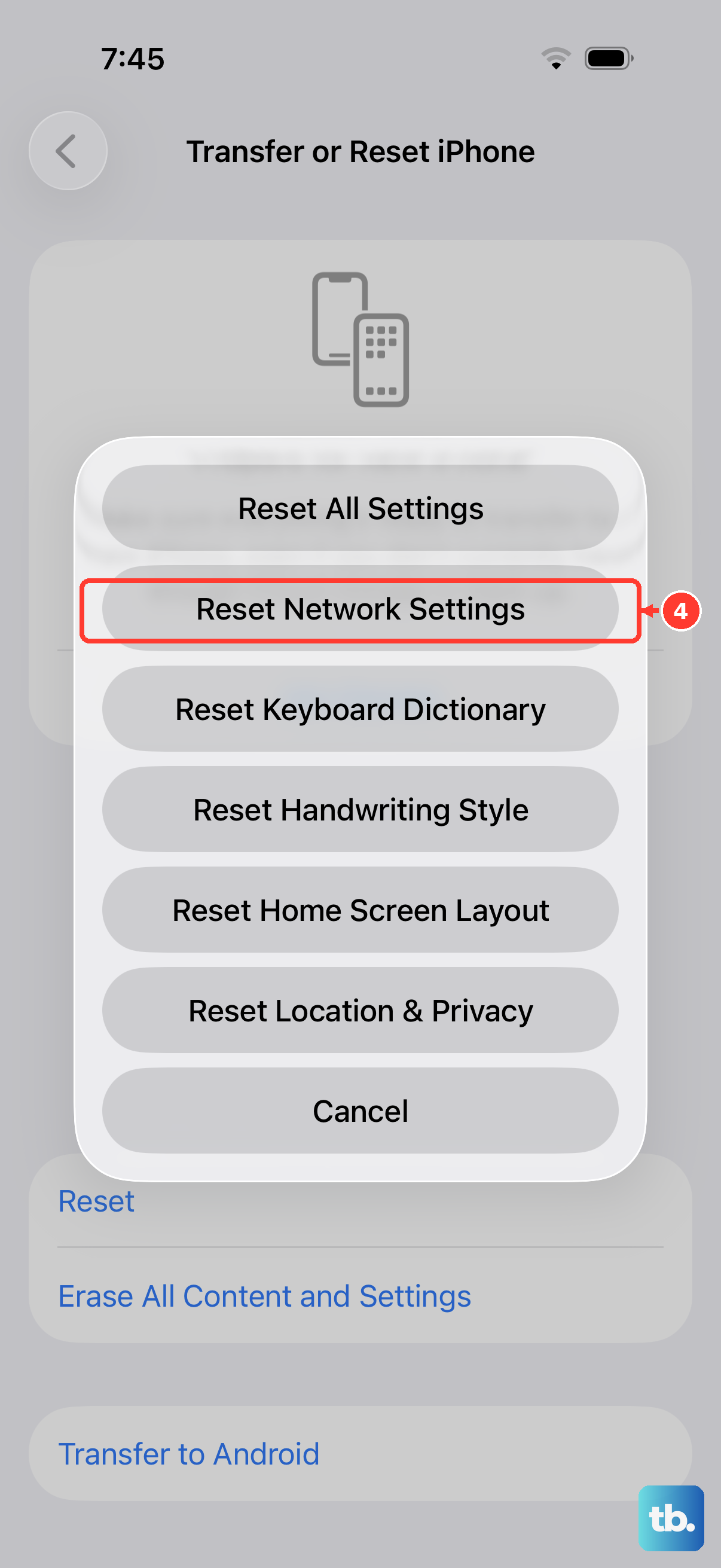
This step clears all network-related configurations, including WiFi passwords, VPN settings, and cellular preferences. It's a strong fix for persistent sending problems.
Go to Settings > General > Transfer or Reset iPhone > Reset. Tap "Reset Network Settings." You'll need to enter your passcode and confirm.
Your iPhone 16 will restart. Afterwards, you'll have to rejoin your WiFi networks and re-pair Bluetooth devices, but this often resolves stubborn messaging issues by starting fresh.
Check the Date & Time and Carrier Settings
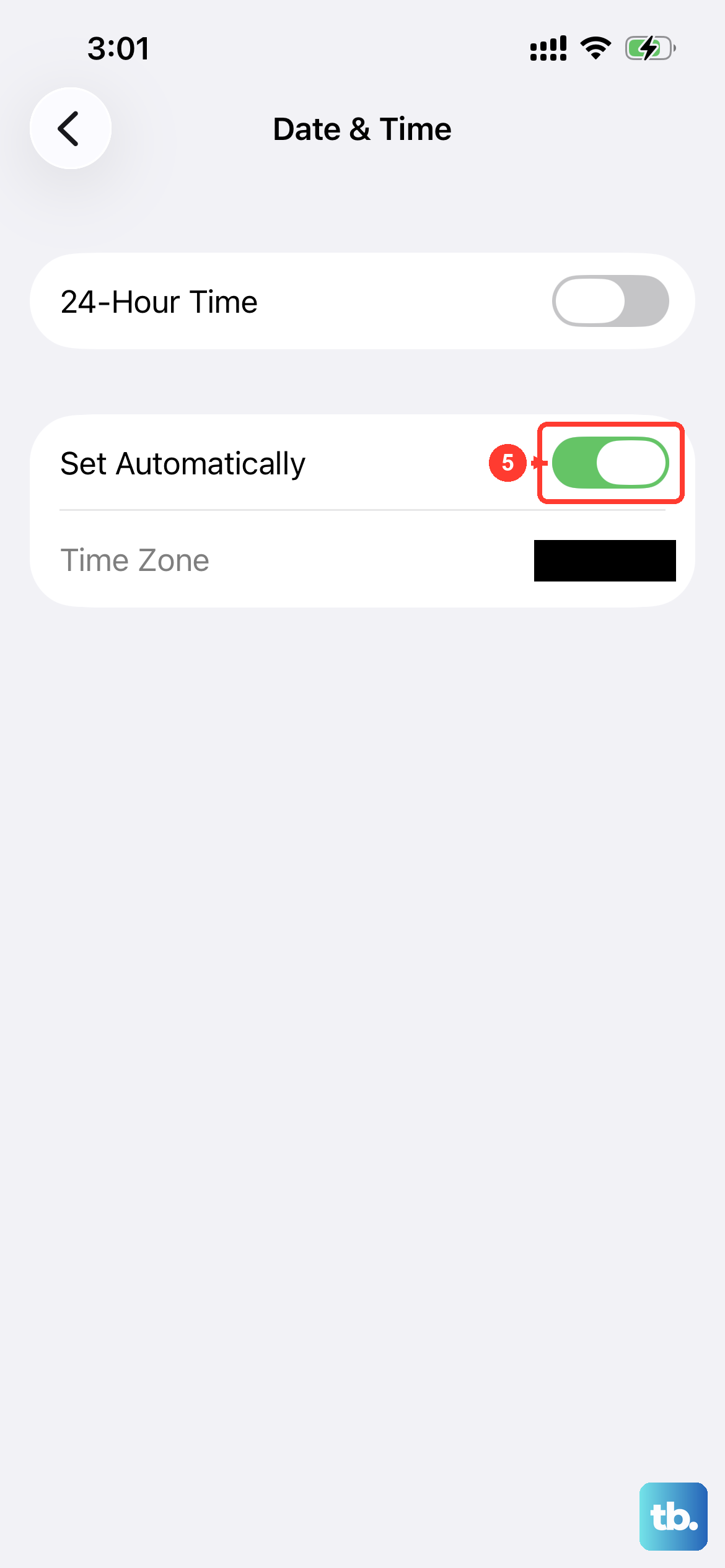
An incorrect date or time can interfere with Apple's servers. Go to Settings > General > Date & Time and make sure "Set Automatically" is enabled. This ensures your phone's clock is perfectly synced.
While you're in settings, you can check for a carrier update. Go to Settings > General > About. If a carrier settings update is available, a prompt will appear on this screen. These updates help optimize your connection to your mobile network.
Sign Out and Back Into Your Apple ID
Since iMessage is tied to your Apple ID, refreshing this connection can help. Go to Settings and tap your name at the top. Scroll all the way down and tap "Sign Out." You'll need your Apple ID password.
After signing out, force restart your iPhone using the button sequence mentioned earlier. Then go back to Settings, sign in with your Apple ID, and return to the Messages settings to turn iMessage back on. This process gives the service a full refresh.
Try a Different Message Method
If the photo is urgent and you're still stuck, consider an alternative. You can use AirDrop to send it instantly to another Apple device nearby. You could also share it via Mail, Notes, or a third-party app like WhatsApp.
This bypasses the Messages app entirely and can confirm whether the issue is with the specific photo file or the messaging system itself. Sometimes a corrupted image file won't send through any method.