
When your iPhone 16 Pro isn't charging on a wireless pad, it's almost always a quick fix. The most common culprit is simply the phone not sitting perfectly on the charger's sweet spot. Before you worry, let's get it working again.
Center Your Phone on the Charger
Wireless charging needs very precise alignment. The coil in your iPhone 16 Pro must line up directly with the coil in the pad. Place your phone dead center and look for the charging chime or the battery icon on your lock screen. Being off by just a few millimeters can break the connection.
If you're using a MagSafe or Qi2 charger, the magnets should snap it into the perfect position automatically. For standard Qi pads, you might need to nudge it around until you find the spot.
Take the Case Off
Your case is the next thing to check. Thick cases, especially ones with built-in wallets, metal plates, or bulky designs, can block the charging signal. Pop the case off and set your bare iPhone 16 Pro on the charger.
If it starts charging, you'll need a case that's certified for wireless charging. Most slim silicone or plastic cases are fine, but anything that adds significant thickness or contains metal will cause problems.
Verify Your Charger is Powered
Make sure your wireless charger is actually on. Check for an LED light or other indicator. Try plugging it into a different wall outlet to rule out a faulty socket.
Your power adapter matters, too. Many wireless chargers, especially faster MagSafe ones, require a sufficiently powerful brick. I'd recommend using a USB-C power adapter rated for at least 20W, if not the 30W adapter that can maximize your iPhone 16 Pro's potential.
Restart Your iPhone 16 Pro
A quick restart can clear out minor software bugs that might be interfering with the charging hardware. To restart, press and quickly release the Volume Up button, then press and quickly release the Volume Down button.
Finally, press and hold the Side button until you see the Apple logo appear on the screen. Once it boots back up, try the charger again.
Clean the Phone and Charger Surface
A little bit of lint, dust, or grime can be enough to disrupt the charging connection. Wipe the back glass of your iPhone 16 Pro with a soft, dry cloth. Give the surface of your charging pad a good wipe-down, too.
Pay special attention to the center area where the phone sits. Keeping both surfaces clean ensures the best possible contact.
Install the Latest iOS Update
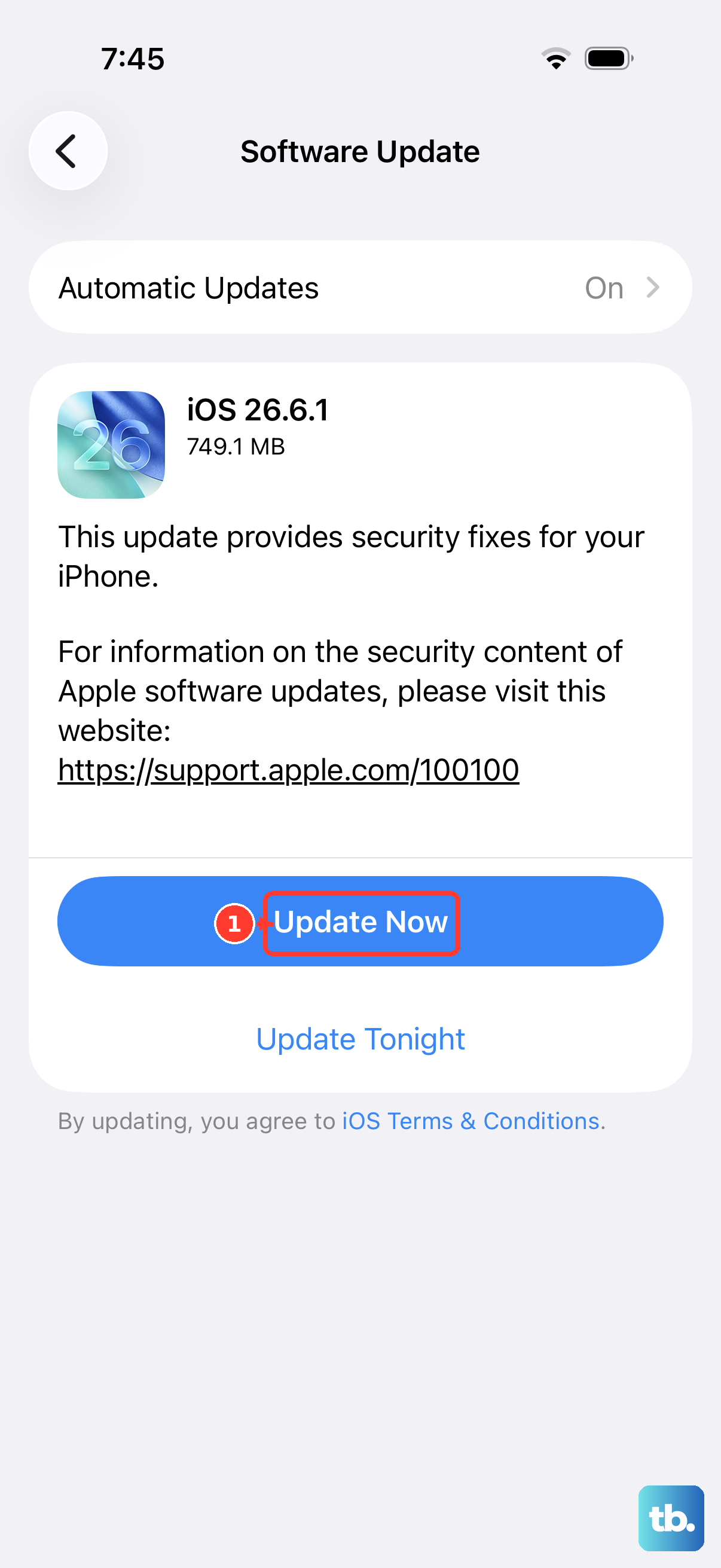
Apple frequently releases updates that include fixes for power management and hardware communication. Head to Settings > General > Software Update to see if a newer version of iOS is available.
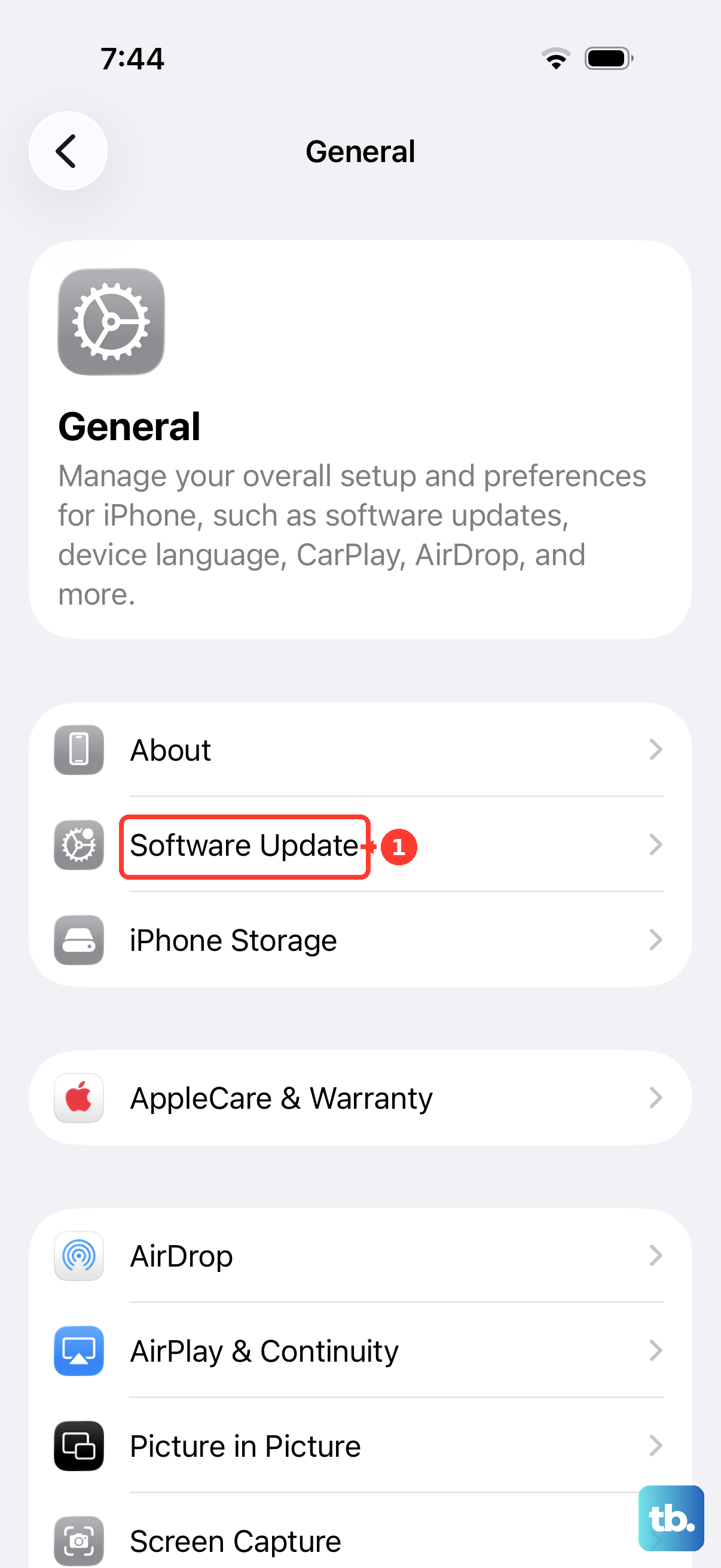
Installing it could resolve a software-related charging bug. Make sure your phone is plugged in or has plenty of battery life before starting the update.
Let Your Phone Cool Down
Wireless charging generates some heat, and if your iPhone 16 Pro gets too warm, it will automatically pause charging to protect the battery. This can happen if you're using the phone intensively while it's on the pad, or if the environment is already hot.
If your phone feels warm to the touch, take it off the charger and let it cool down for a bit. Try charging again when it's back at a normal temperature.
Reset All Settings
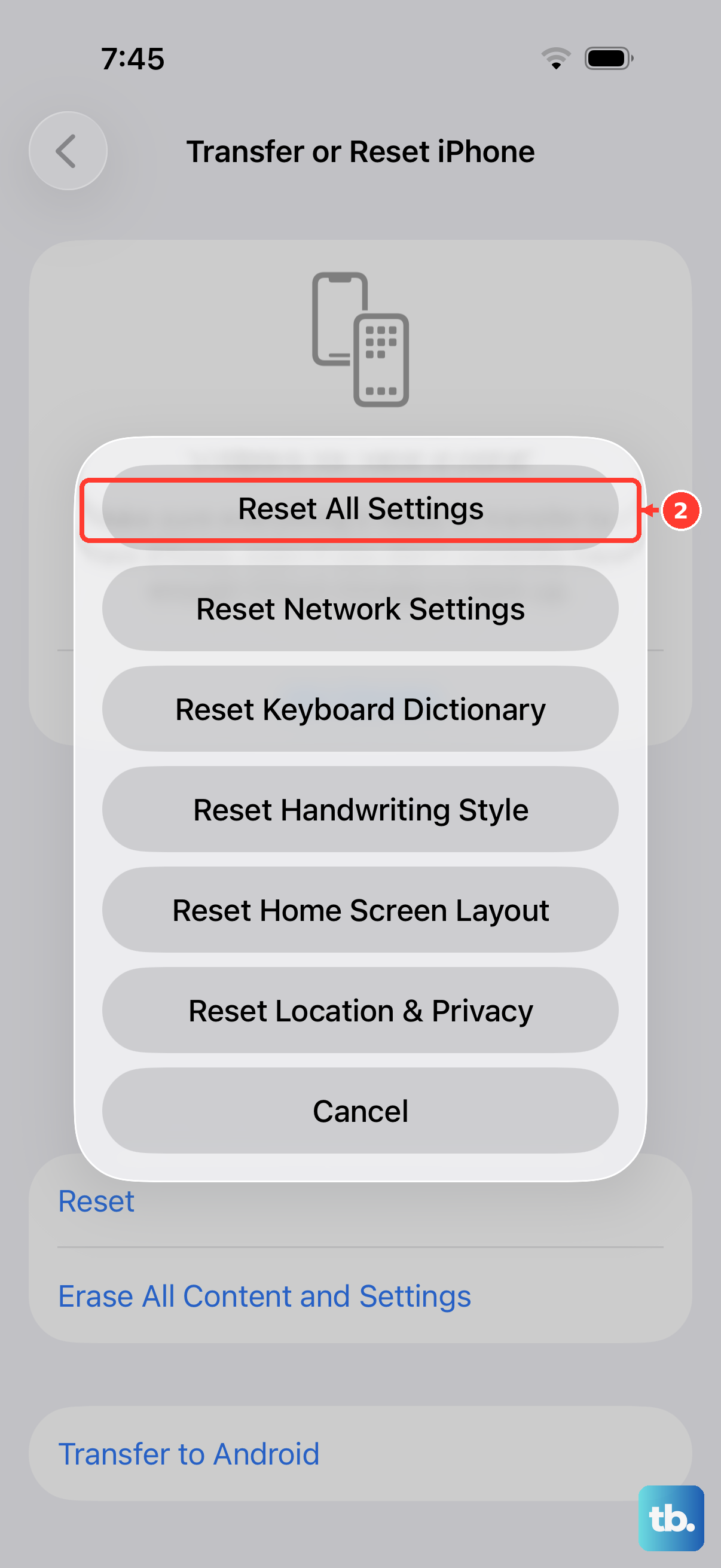
This is a deeper fix that won't erase your personal data like photos or messages, but it will reset all your system preferences to default. It can solve persistent glitches that a restart doesn't fix.
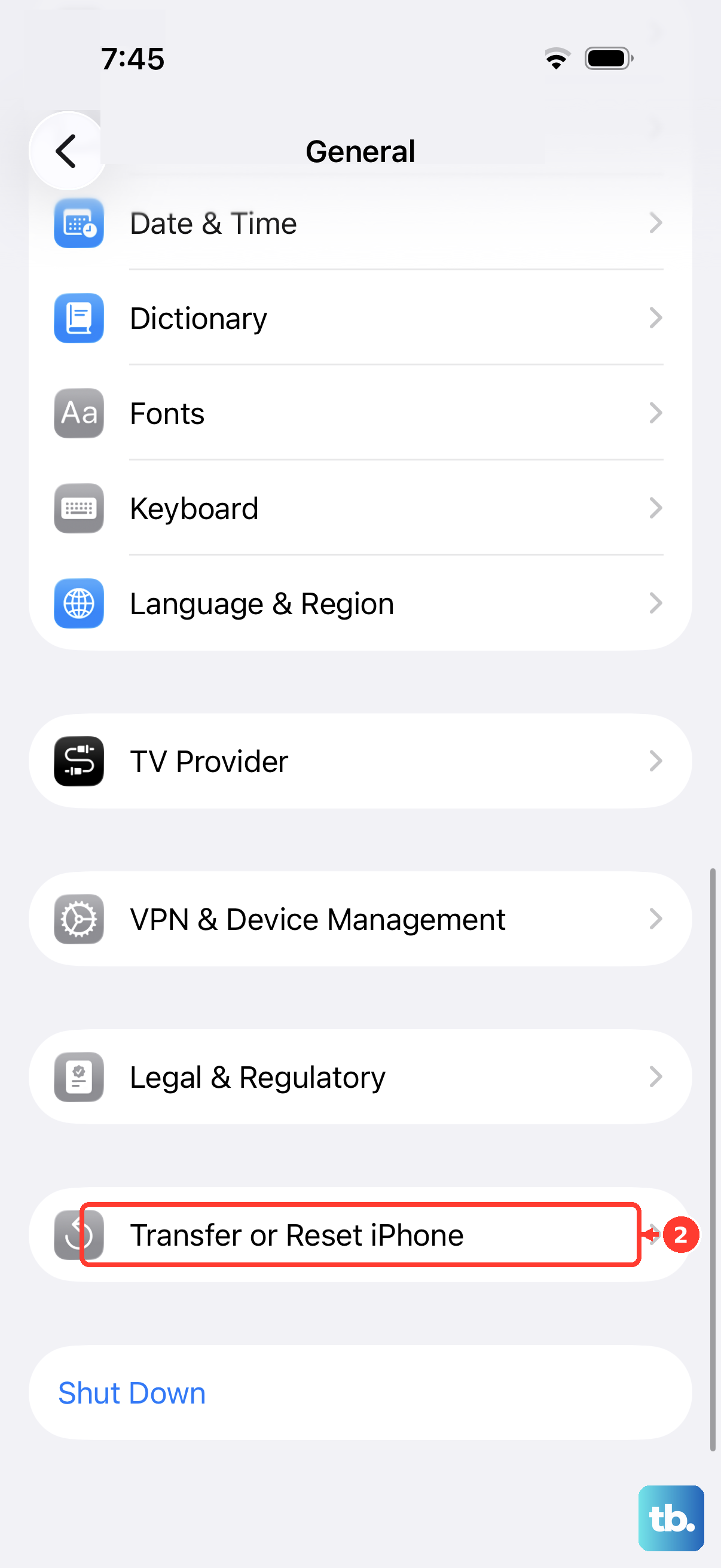
Go to Settings > General > Transfer or Reset iPhone. Tap Reset, then choose Reset All Settings. You'll need to re-enter your Wi-Fi passwords and reconfigure some preferences, but it often clears up odd hardware communication issues.
Test With a Different Charger
If you have access to another wireless charger, give it a try. If your iPhone 16 Pro charges perfectly on a second pad, then you know the original charger is faulty. If it still refuses to charge on any wireless pad, the issue is likely with the phone itself.
For the fastest and most reliable experience with your iPhone 16 Pro, using a certified MagSafe or Qi2 charger is your best bet. They're designed to work seamlessly with Apple's charging standards.