
Seeing that "Download" button on a photo or video that just won't work is a common headache on the iPhone 16. MMS messages rely on your cellular data connection, and when that link is broken, your pictures and videos get stuck. The good news is, it's usually a simple setting or a temporary glitch that you can fix yourself.
Let's start with the quickest things you can try, which often do the trick.
Restart Your iPhone 16
A force restart is the go-to first step for any weird software behavior on your iPhone 16. It clears out temporary glitches without affecting your data. To do it, quickly press and release the Volume Up button, then quickly press and release the Volume Down button. Finally, press and hold the Side button until you see the Apple logo appear on the screen.
Check Your Cellular Data Connection
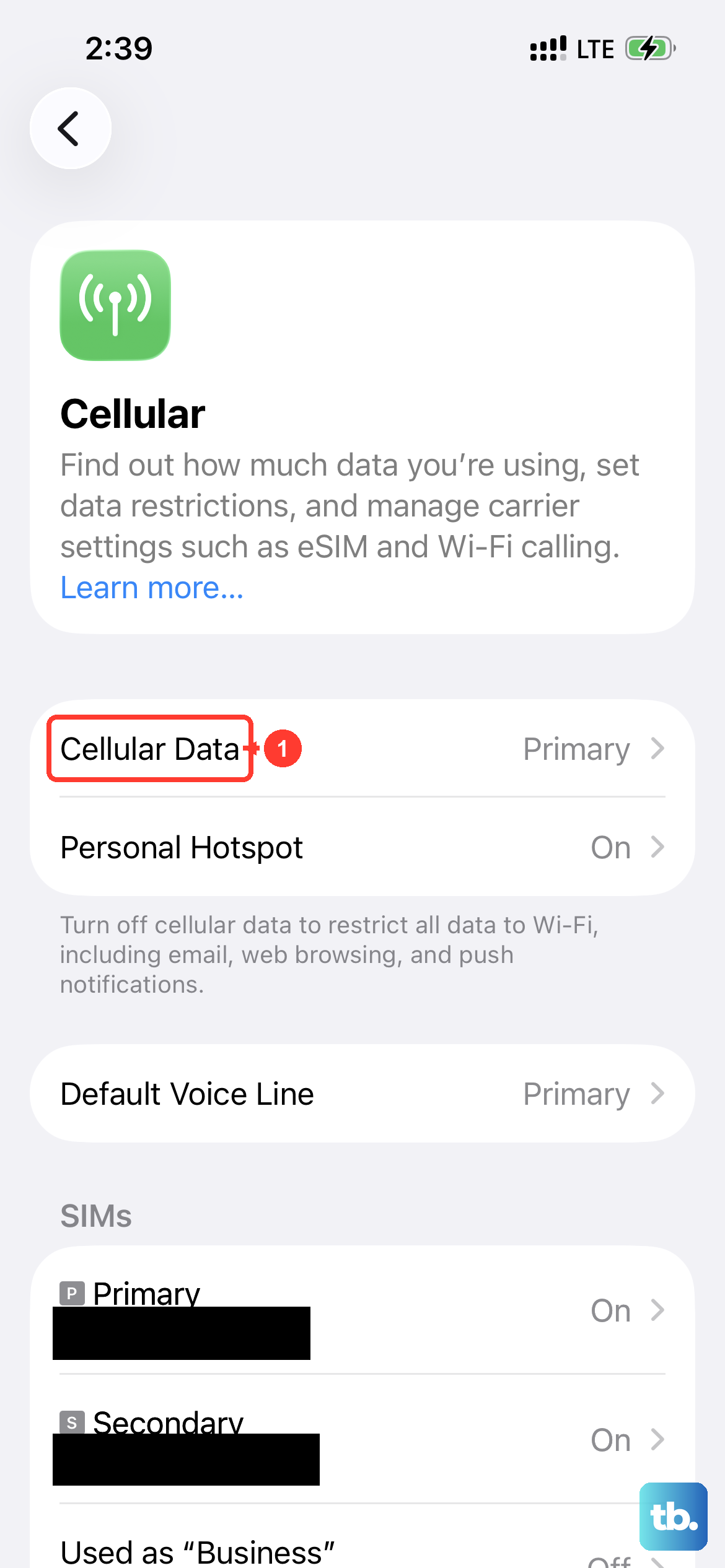
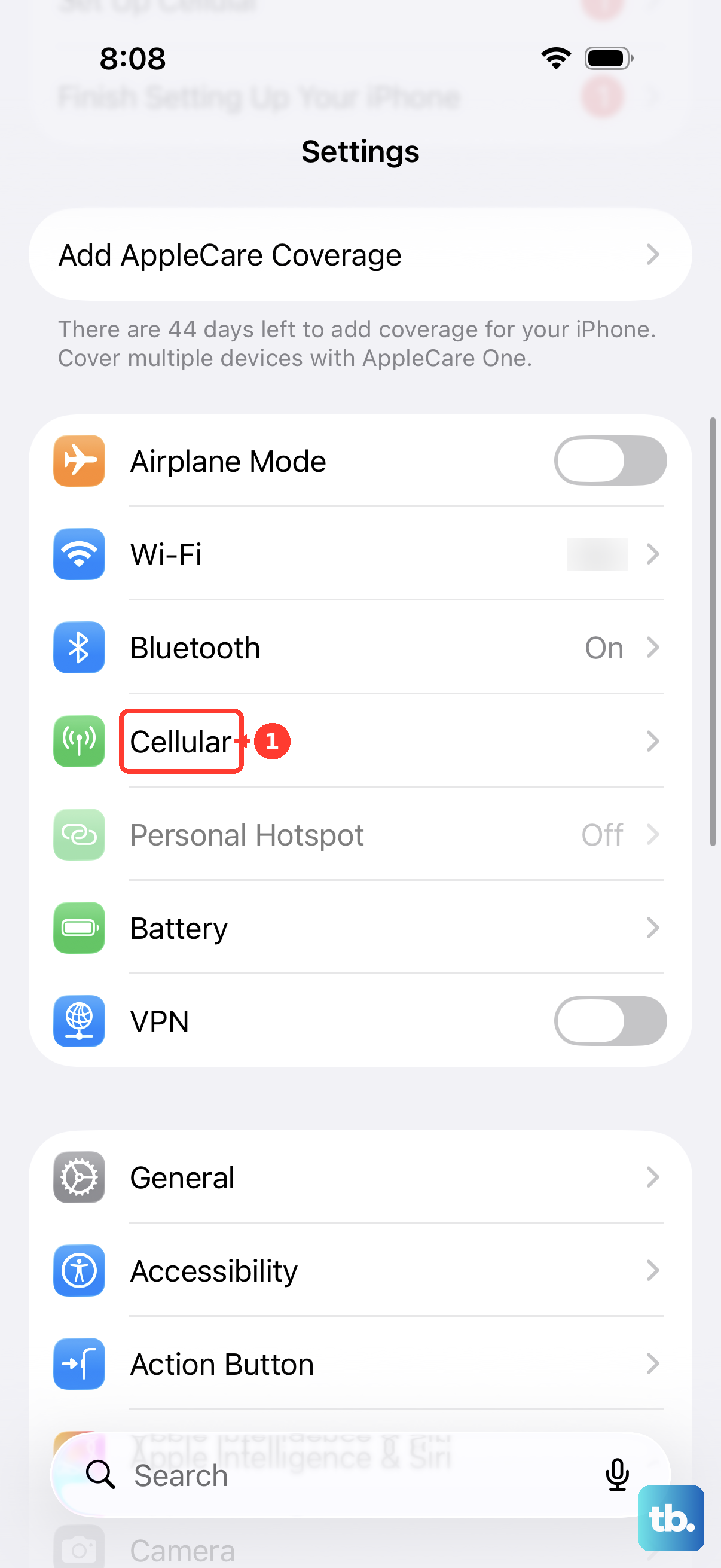
MMS doesn't use Wi-Fi. It requires an active cellular data connection to download. Swipe down from the top-right corner to open Control Center and make sure the cellular data icon is blue. If you have a weak signal, try moving to a different location.
Also, ensure MMS messaging is actually enabled in your cellular settings. Go to Settings > Cellular > Cellular Data Options and tap on Data Mode. Make sure "Allow More Data on 5G" or "Standard" is selected, as "Low Data Mode" can sometimes restrict MMS.
Toggle iMessage Off and On
This is a classic fix for any iPhone messaging issue. Sometimes iMessage gets confused about how to handle a non-iMessage (MMS) download. Go to Settings > Apps > Messages and toggle the switch for "iMessage" off. Wait about 30 seconds, then toggle it back on.
After you turn it back on, you might see an "Activating..." message. Give it a minute on a good cellular or Wi-Fi connection to complete.
Enable MMS Messaging in Settings
It sounds obvious, but this setting can get turned off, especially after a major iOS update. Open the Settings app and scroll down to Messages. Scroll down within the Messages settings and make sure "MMS Messaging" is switched on.
While you're here, also check that "Send as SMS" is enabled. This helps if an iMessage fails to send, allowing it to fall back to a standard MMS.
Check for a Carrier Settings Update
Your carrier occasionally sends small updates that fine-tune network features like MMS. To check for one, go to Settings > General > About. If an update is available, a prompt will appear on this screen.
You don't need to be on Wi-Fi for this. Just tap "Update" if you see the option. Your phone will reboot quickly to apply the new settings.
Reset Your Network Settings
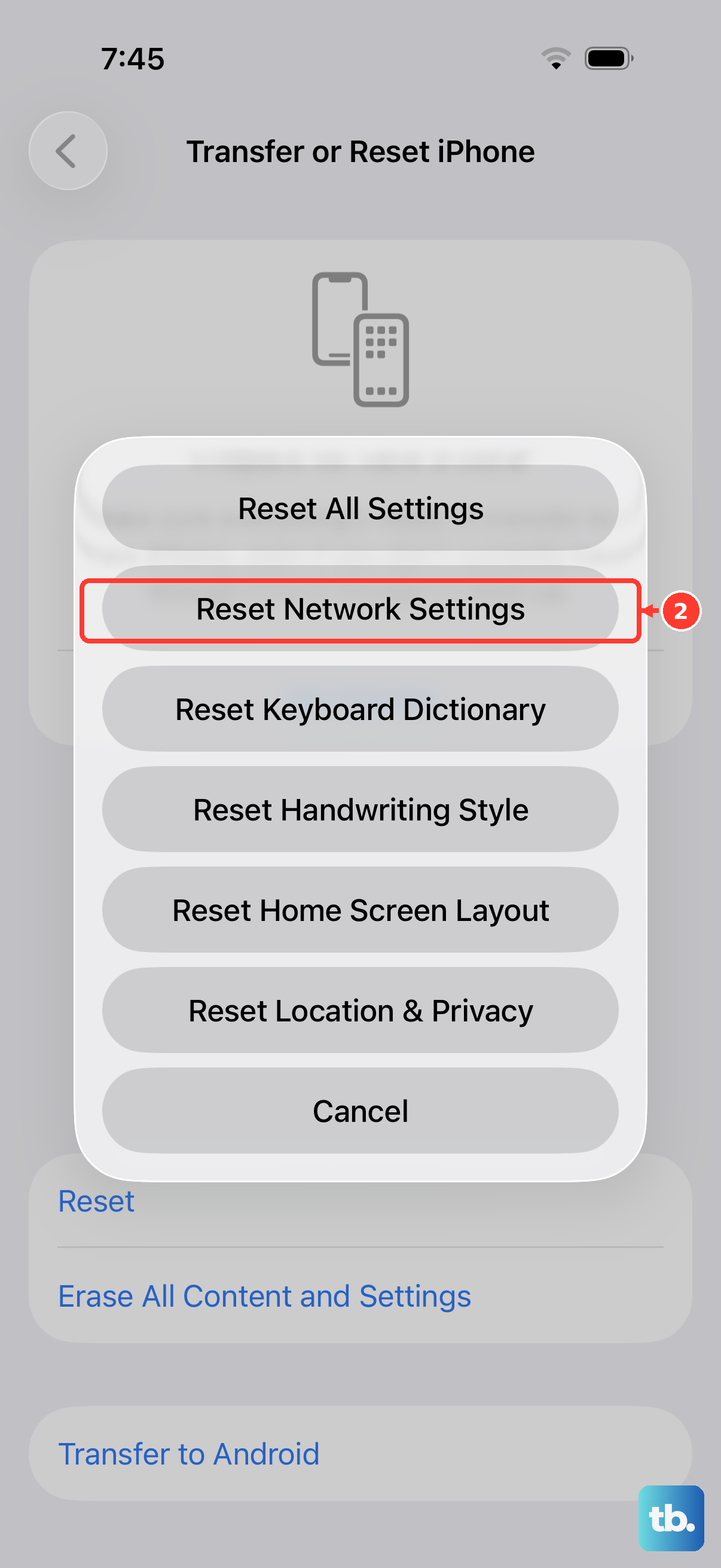
This is a more thorough step that clears all your network configurations. It will erase saved Wi-Fi passwords, Bluetooth pairings, and VPN settings, but it often resolves persistent MMS issues.
To do it, go to Settings > General > Transfer or Reset iPhone. Tap Reset and then choose Reset Network Settings. You'll need to enter your passcode and confirm. After the phone restarts, you'll need to reconnect to Wi-Fi networks and pair Bluetooth devices again.
Update to the Latest iOS
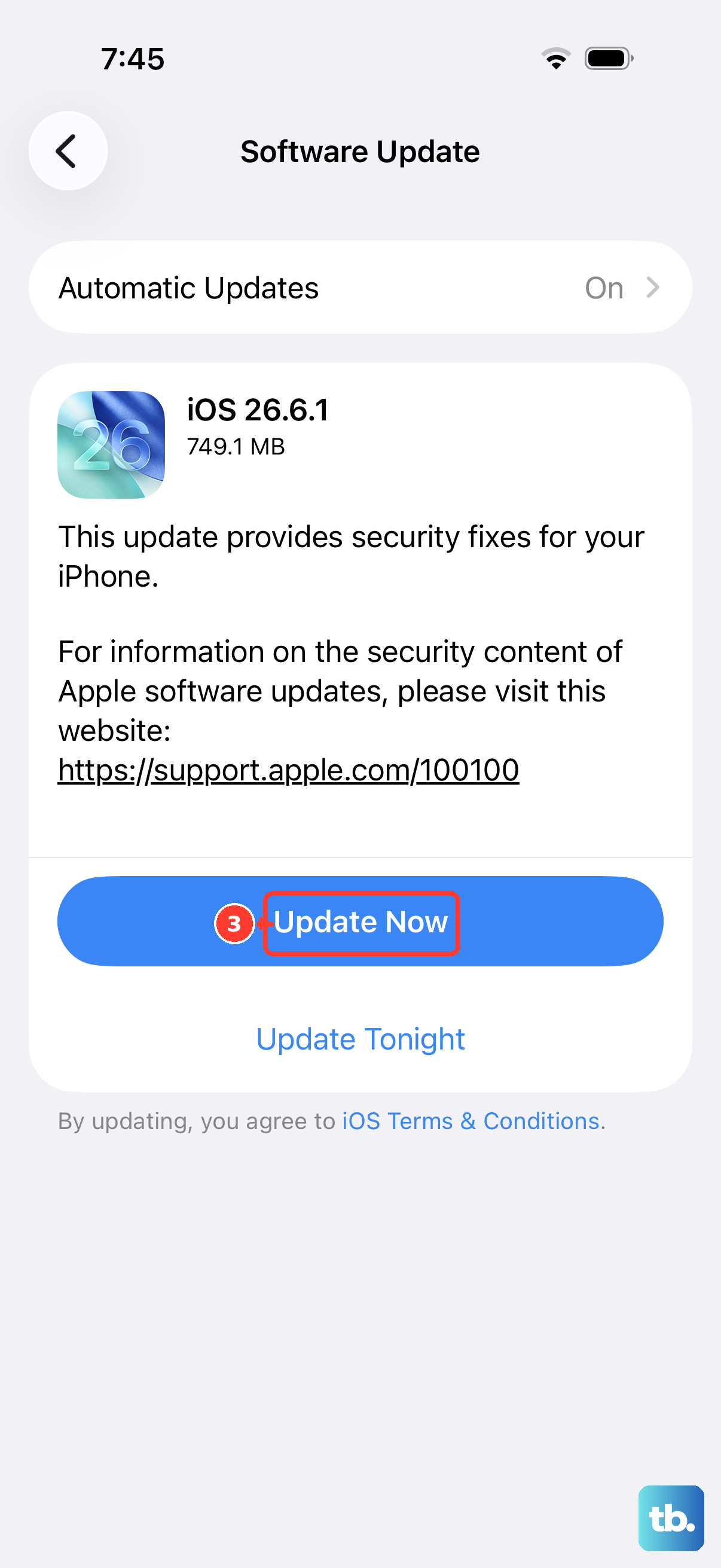
Apple is constantly squashing bugs with software updates. A bug in iOS 26 could be specifically affecting MMS downloads for some users. Go to Settings > General > Software Update to see if a newer version of iOS is available.
I'd recommend installing any available update. It's a good practice to plug your iPhone 16 into power using a certified USB-C cable and connect to Wi-Fi before starting the update.
Check Your Message Thread Storage
If a particular conversation thread is massive with years of photos and videos, it can sometimes cause issues. You don't have to delete the whole thread. Try deleting a few of the largest recent attachments first.
Press and hold on a photo or video bubble in the thread, tap "More…", select a few large items, and tap the trash can icon. Then try downloading the new MMS again.
Review Your APN Settings
The Access Point Name (APN) tells your phone how to connect to your carrier's multimedia service. These are usually configured automatically, but they can be wrong. Go to Settings > Cellular > Cellular Data Network.
Scroll down to the MMS section. Don't change anything here unless you have the exact settings from your carrier's support site. If the fields are blank, that's a sign the automatic configuration failed, and you should contact your carrier for the correct APN details to enter manually.
Contact Your Mobile Carrier
If you've tried everything and MMS still won't download, the problem might be on your carrier's end. They can check if there's a service outage in your area or if there's an issue with your specific line.
Tell them the steps you've already tried. They might be able to reprovision your line for multimedia services or confirm if there are any account-level blocks on MMS, which can sometimes happen with certain older or international plans.