You press play on your iPhone 15, slide the volume up, and nothing reaches your ears. Maybe one earbud is silent, maybe both stay dead, or maybe the sound stubbornly keeps coming out of the phone's own speaker instead of your headphones.
With the iPhone 15 line, there is one twist worth knowing before you start poking around, and it is that there is no 3.5 mm headphone jack and no Lightning port. Audio runs through the USB-C connector or over Bluetooth, so "headphones not working" almost always traces back to a USB-C cable or accessory, an adapter, or a wireless pairing rather than a physical jack.
To rule out the headphones themselves, try a online headphone test in the browser. If every tone plays cleanly, focus on the device settings covered next.
The good news is that most cases are fixable in a couple of minutes without any tools. The fixes below are ordered from the safest and quickest checks to the more involved steps, with the full reset and a service appointment saved for last.
Work through them in order and stop as soon as your headphones come back to life.
Start With Volume and Whatever Is Silencing You
Before assuming a hardware fault, rule out the settings most likely to mute your audio.
Raise the volume using the volume buttons on the side of your iPhone, or open Control Center and drag the Volume slider up. It sounds obvious, but a volume level dropped to the floor is one of the most common reasons headphones seem dead.
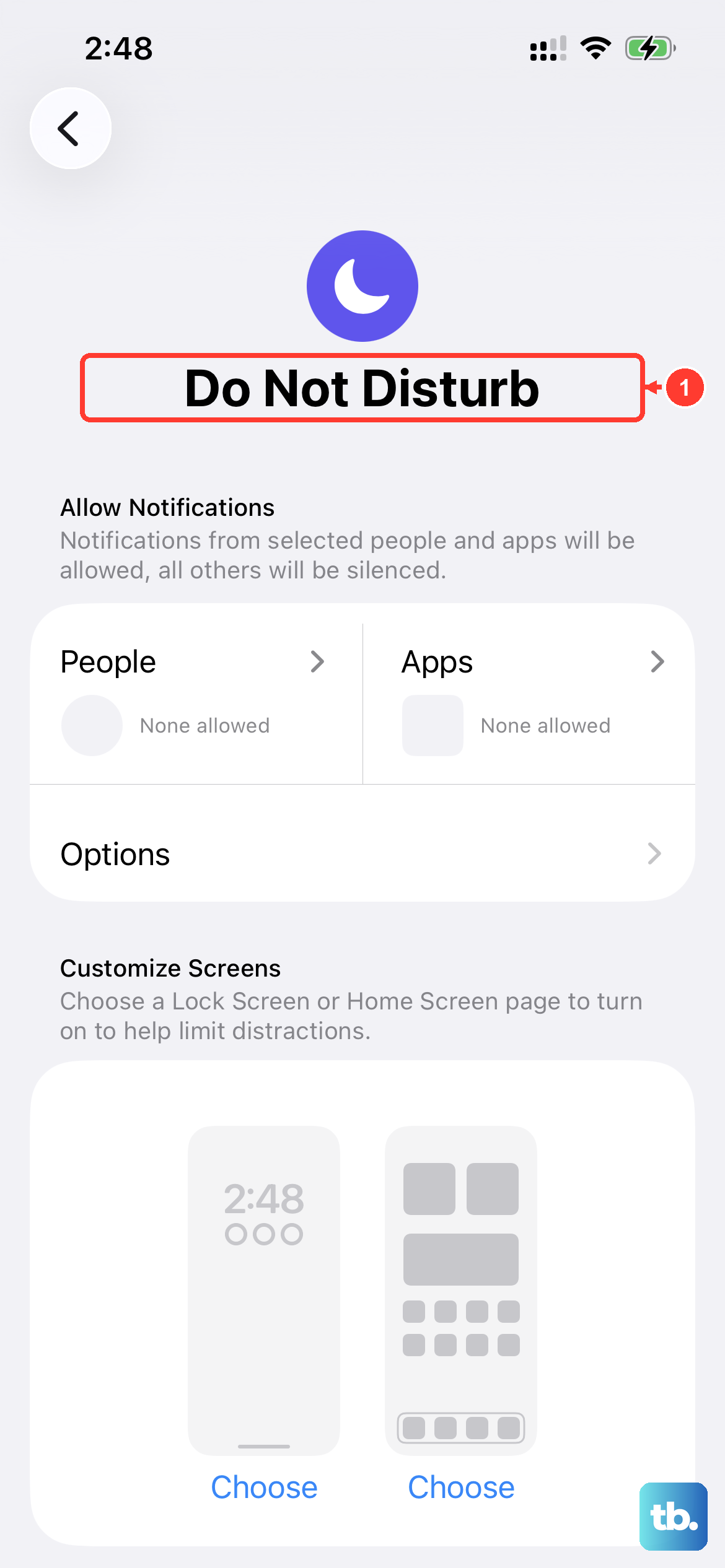
Next, check that a Focus mode is not quietly silencing your audio.
Go to Settings > Focus > Do Not Disturb and make sure it is turned off.
To separate a settings problem from a connection problem, try playing audio that lives on the iPhone itself rather than something streamed, because if the local file plays and a stream does not, the issue is the connection, not the headphones.
Give the iPhone a Fresh Start and the Latest iOS
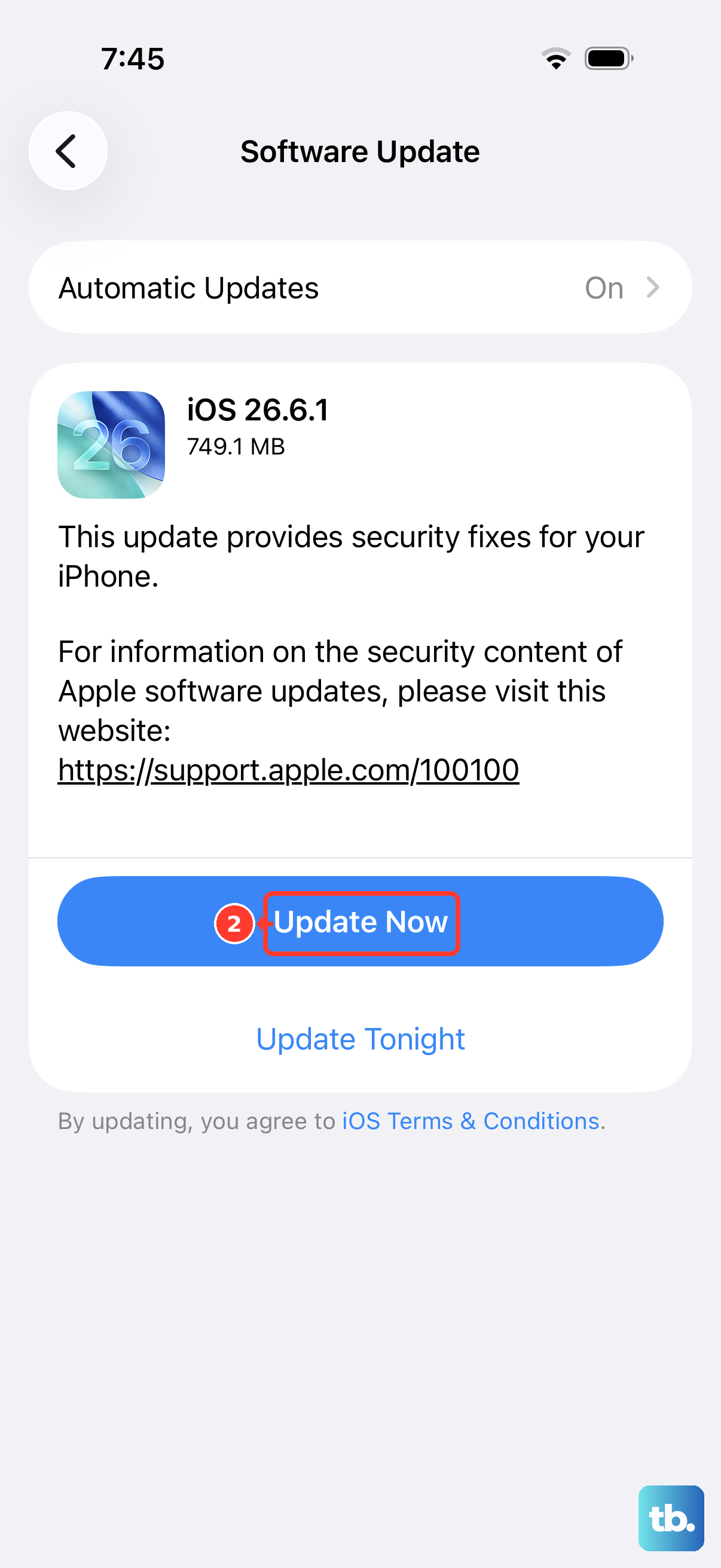
Apple's guidance is to update to the latest iOS and restart your device before deeper troubleshooting, because a software hiccup can interrupt audio routing. A restart clears that out, and an update can resolve bugs affecting sound.
Open Settings > General > Software Update.
If an update is available, tap Download and Install, then follow the onscreen instructions.
Let the update finish and the phone restart on its own, then test your headphones again before moving on.
Reseat USB-C Headphones and Make Sure the Accessory Is Compliant
Because the iPhone 15 uses a USB-C port and has no headphone jack, wired listening happens through USB-C headphones, the EarPods (USB-C), or an adapter.
Firmly plug your headphones back in to be sure the connector is fully seated.
If your iPhone has a case, you might need to remove the case to get a firm connection, since a thick case can hold the plug just short of a solid contact.
The accessory you use matters too.
You can listen with wired headphones or other audio accessories like the EarPods (USB-C), or step down to a 3.5 mm pair using the Apple USB-C to 3.5 mm Headphone Jack Adapter, and an Apple USB-C to Lightning Adapter is also available for Lightning accessories.
Apple warns that devices and cables that aren't compliant with the USB-C standard might not work as expected, so if you are using an off-brand cable or adapter, that alone can explain silent or glitchy audio.
Hunt for Debris and Damage in the Port and Earbuds
A small amount of lint or grit can keep a connector from making proper contact.
Check for debris in the port on your iPhone, and inspect your headphone cable, connector, and earbuds for damage like wear or breakage.
A frayed cable or a cracked connector is enough to cut audio entirely.
The earbud meshes are another common culprit.
Look for debris on the meshes in each earbud, and to remove it, gently brush all openings with a small, soft-bristled brush that is clean and dry.
Take your time here and avoid anything wet or sharp.
Swap In a Second Pair of Headphones
This is the fastest way to learn whether the fault lives in the phone or in the headphones.
Try a different pair of headphones and see whether sound returns.
If the second pair works fine, the original pair may need replacing, while if the second pair is also silent, the problem is more likely on the iPhone side and the remaining steps apply.
For Bluetooth Headphones, Close the Gap and Re-Pair
Wireless audio is sensitive to distance and interference.
Keep the iPhone close with no walls or floors in between, and move away from crowded areas, heavy Wi-Fi activity, microwave ovens, and wireless speakers, all of which can disrupt a Bluetooth connection and cause audio to drop or cut out.
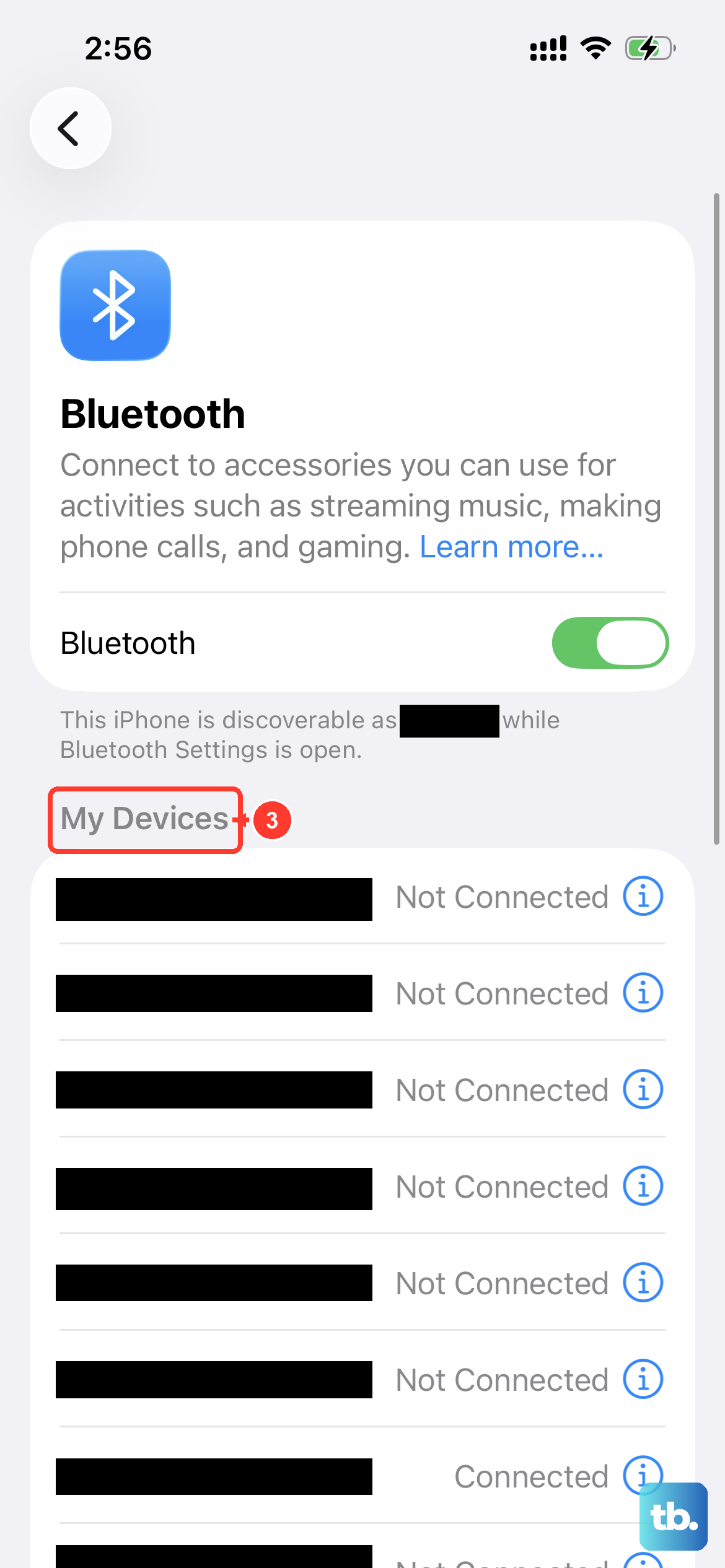
If the sound still stutters or refuses to play, remove the pairing and set it up again from scratch.
Go to Settings > Bluetooth.
Tap the Info button next to the device.
Tap Forget This Device.
Restart the iPhone.
Put the headphones back in pairing mode and pair them again.
Forgetting a device only removes that one pairing, so you can re-add it immediately afterward.
Confirm the Speaker Hardware Is Not the Real Problem
Sometimes the symptom is broader than headphones alone.
If you also get no sound or distorted sound from the built-in speaker, the issue may be hardware-related rather than tied to your headphones.
Start by removing all screen protectors, films, or cases from the device, since these can cover the openings.
Then check the speaker opening for blockage or dirt, and clean the speaker or receiver opening with a small, soft-bristled brush.
To test, play a song or make a call on speakerphone and listen for sound.
If the speaker is also silent or distorted, that points toward a hardware fault worth servicing.
Force Restart the iPhone 15
If a normal restart did not clear the problem, a force restart can reset a frozen audio process.
The sequence for the iPhone 15 is precise, so follow it exactly.
- 1.Press and quickly release the volume up button.
- 2.Press and quickly release the volume down button.
- 3.Press and hold the side button until you see the Apple logo, which might take longer than 10 seconds.
Release the side button once the Apple logo appears and let the phone finish booting, then test your headphones one more time.
Erase All Content and Settings as a Last Resort
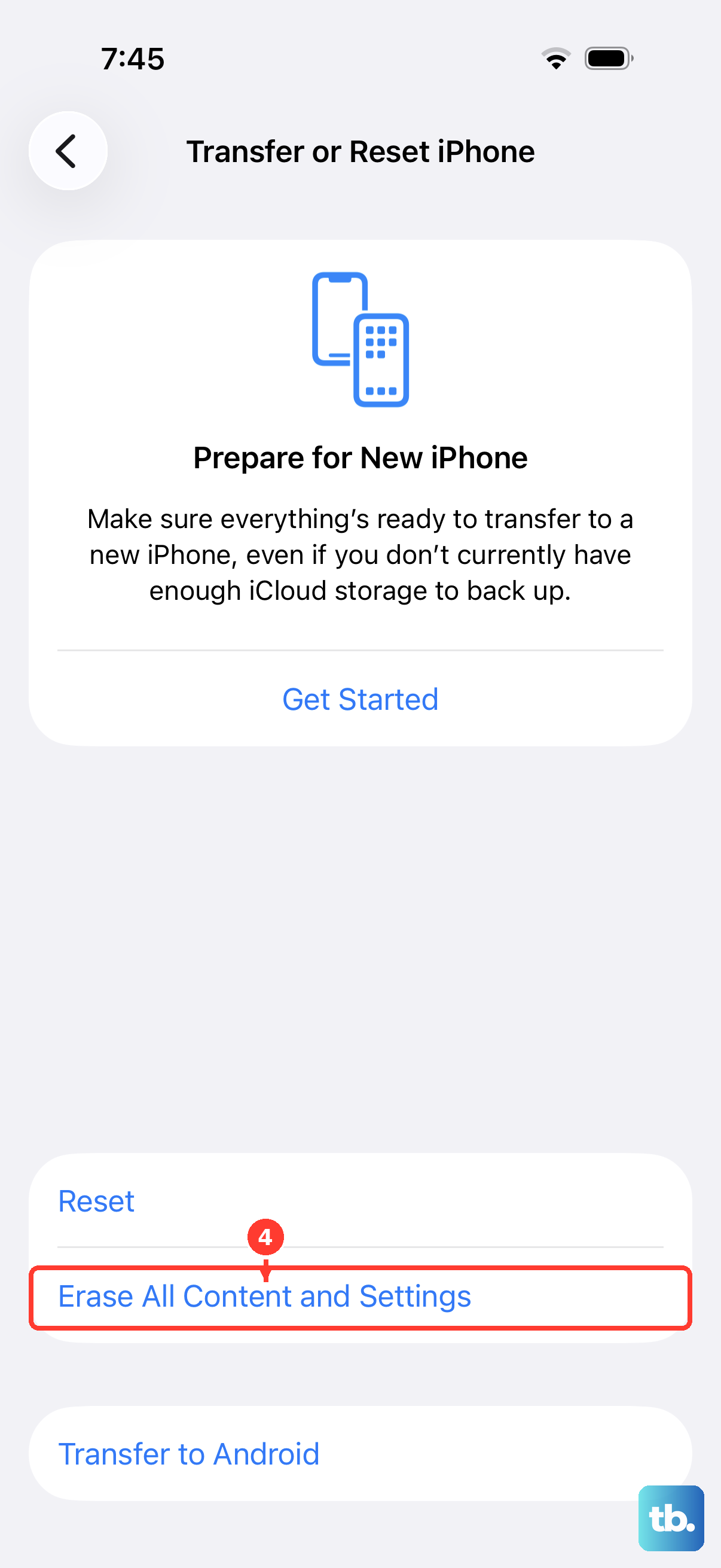
If nothing above has worked and you suspect a deep software problem, you can restore the iPhone to its factory settings.
This is a serious step, because erasing removes your data, so back up the iPhone first so you can restore your information afterward.
Back up the iPhone.
Go to Settings > General > Transfer or Reset iPhone > Erase All Content and Settings.
Enter your passcode or Apple Account password if asked.
Tap Continue and follow the prompts.
Once the phone restarts and you have restored your backup, test the headphones again before deciding the fault is hardware.
When to Contact Apple Support
If sound still fails after all of these steps, the trouble may be a hardware fault that you cannot fix at home.
At that point, the recommended move is to contact Apple Support or set up a repair, since a port, internal audio component, or other hardware issue needs service.
Bringing along the headphones you tested with, plus a note of what you have already tried, will speed up the diagnosis.
Frequently Asked Questions
Does the iPhone 15 have a headphone jack?
No. The iPhone 15 line has no 3.5 mm headphone jack and no Lightning port. It uses a USB-C connector, and you can listen with USB-C headphones, the EarPods (USB-C), an Apple USB-C to 3.5 mm Headphone Jack Adapter, or Bluetooth wireless headphones.
Why do my wired headphones cut out or not work at all?
Make sure the connector is firmly seated, removing the case if needed for a solid connection, and check the port and the cable for debris or damage. Also confirm your cable or adapter is USB-C compliant, since Apple warns that devices and cables that aren't compliant with the USB-C standard might not work as expected.
How do I force restart an iPhone 15?
Press and quickly release the volume up button, press and quickly release the volume down button, then press and hold the side button until you see the Apple logo. This might take longer than 10 seconds, so keep holding until the logo appears.
My Bluetooth headphones keep dropping audio. What helps?
Keep the iPhone close with no walls or floors in between, and move away from crowded areas, heavy Wi-Fi activity, microwave ovens, and wireless speakers. If it still cuts out, go to Settings > Bluetooth, tap the Info button next to the device, tap Forget This Device, restart the iPhone, then pair again.
Will erasing my iPhone fix headphone problems, and is it safe?
Erase All Content and Settings can clear a stubborn software issue, but it restores the iPhone to factory settings and removes your data, so back up first. Go to Settings > General > Transfer or Reset iPhone > Erase All Content and Settings, and if sound still fails afterward, contact Apple Support for service.