You plug your headphones into your iPhone 14, or tap to connect a wireless pair, and the audio simply does not come through. Maybe one side is silent, maybe the sound cuts in and out, or maybe nothing plays at all while music or a call keeps running on the screen. The good news is that the iPhone 14 fully supports both wired headphones (through its Lightning connector or Apple's Lightning to 3.5mm adapter) and Bluetooth 5.3 wireless headphones, so the device is built to do exactly what you are asking of it. The fixes below move from the quickest, safest checks to the official reset and service path, so start at the top and stop as soon as your sound returns.
Before working through the fixes, run a quick online headphone test in your browser. It plays the left and right sides separately, so you can tell right away whether one channel is actually dead.
Start With the Volume and the Mute Check
Before assuming anything is broken, confirm the audio is not simply turned down or silenced. It is one of the most common reasons headphones seem dead when they are actually working fine. According to Apple's guidance, you should "Adjust the volume with the volume buttons on your iPhone or iPad, or use the Volume slider in Control Center."
Press the volume up button on the side of your iPhone 14 while audio is playing.
Then open Control Center and drag the Volume slider upward.
Confirm the sound is no longer muted or set too low.
This rules out audio that is simply muted or set near the bottom of the range, which is worth eliminating before you touch any settings or hardware.
Look for Debris and Damage on the Connection
A dirty Lightning port or a damaged cable can block audio entirely. Because the iPhone 14 uses a Lightning connector and has no 3.5mm jack, wired headphones connect through Lightning directly or through a Lightning to 3.5mm adapter, so inspect that connection point closely. Apple advises you to check for debris in the connection and to "Check your headphone cable, connector, remote, and earbuds for damage."
For earbuds, the official guidance is to "Look for debris on the meshes in each earbud. To remove debris, gently brush all openings with a small, soft-bristled brush." After cleaning, "Firmly plug your headphones back in" so the connector seats fully. A loose or partially blocked connection often mimics a complete failure.
Swap in a Second Pair to Find the Culprit
Apple recommends testing with a different set of headphones to isolate where the fault lies. This single step saves you a lot of guesswork, because it tells you whether the headphones or the iPhone is the problem.
If the second pair works normally, your original headphones are likely the issue, and you can focus your effort there.
If no headphones work, the problem sits on the iPhone side, so continue through the device fixes below.
Give the iPhone 14 a Normal Restart
A simple restart clears temporary glitches that can interrupt audio routing, and Apple's headphone troubleshooting explicitly tells you to "restart your iPhone." On the iPhone 14, follow the official restart sequence below.
"Press and hold either volume button and the side button until the power-off slider appears."
Next, "drag the slider, then wait 30 seconds for your device to turn off."
After that, "press and hold the side button (on the right side of your iPhone) until you see the Apple logo."
Once it boots back up, reconnect your headphones and test the audio again before moving on.
Install the Latest Version of iOS
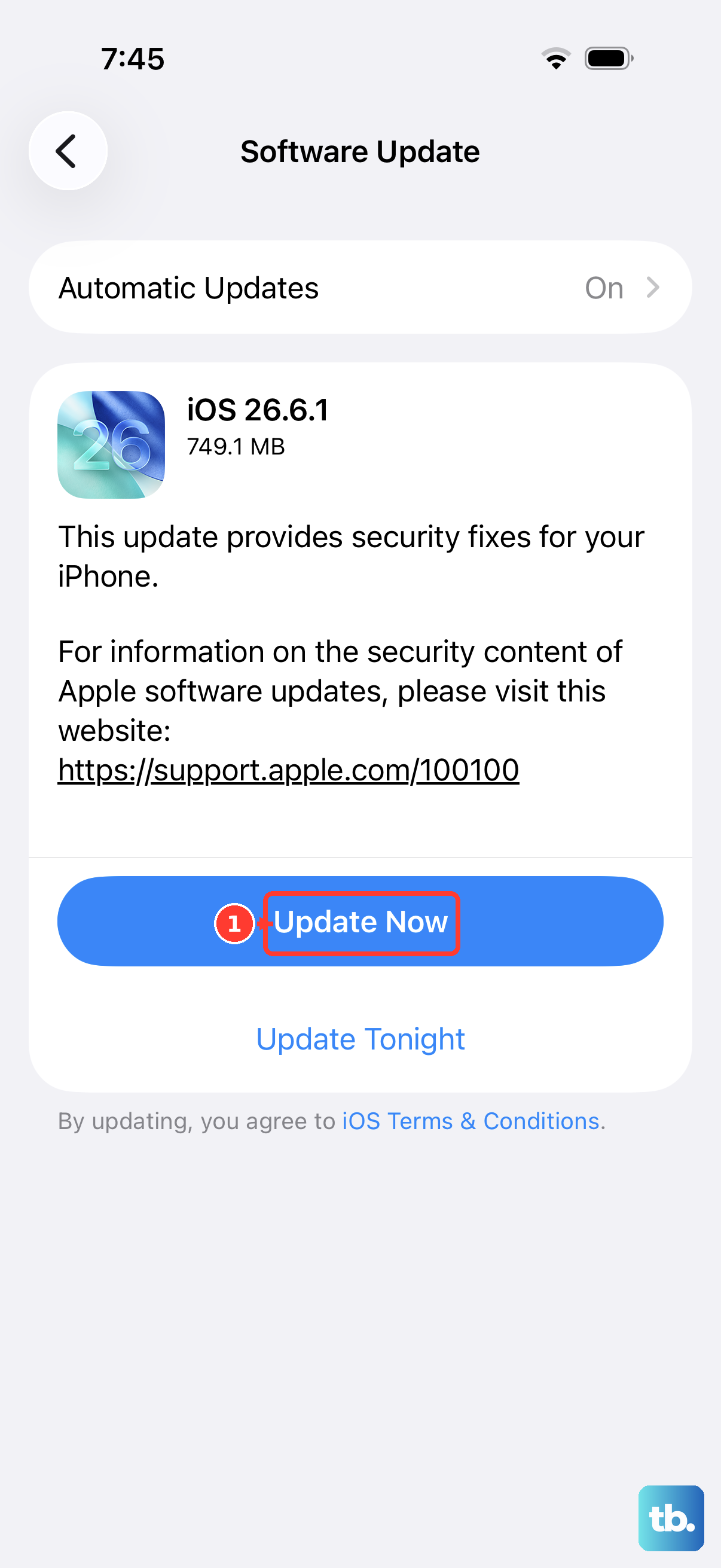
Apple lists keeping the software current as a first prerequisite, advising you to "Make sure that your iPhone or iPad has the latest version of iOS or iPadOS." Software updates frequently include audio and Bluetooth fixes, so this is a high-value step that is easy to skip.
Go to Settings > General > Software Update, then tap "Download and Install" and follow the onscreen instructions. The iPhone 14 is officially compatible with iOS 26, so you can update to that release on this model. Let the update finish completely, then test your headphones once the iPhone restarts.
Steady a Wireless Connection That Keeps Dropping
If you are using Bluetooth headphones and the sound cuts out or comes through distorted, interference and distance are common causes. Apple's guidance is to "Keep your iPhone or other device close to you, so that no obstructions, like walls or floors, are between you and your device."
It also helps to "Move to a different place, in particular, move away from places with many people or a lot of Wi-Fi activity, poorly shielded cables, microwave ovens, and wireless speakers." Crowded radio environments and nearby appliances can compete with the Bluetooth 5.3 signal, so changing your location often stabilizes the audio right away.
Forget the Bluetooth Headphones and Pair Again
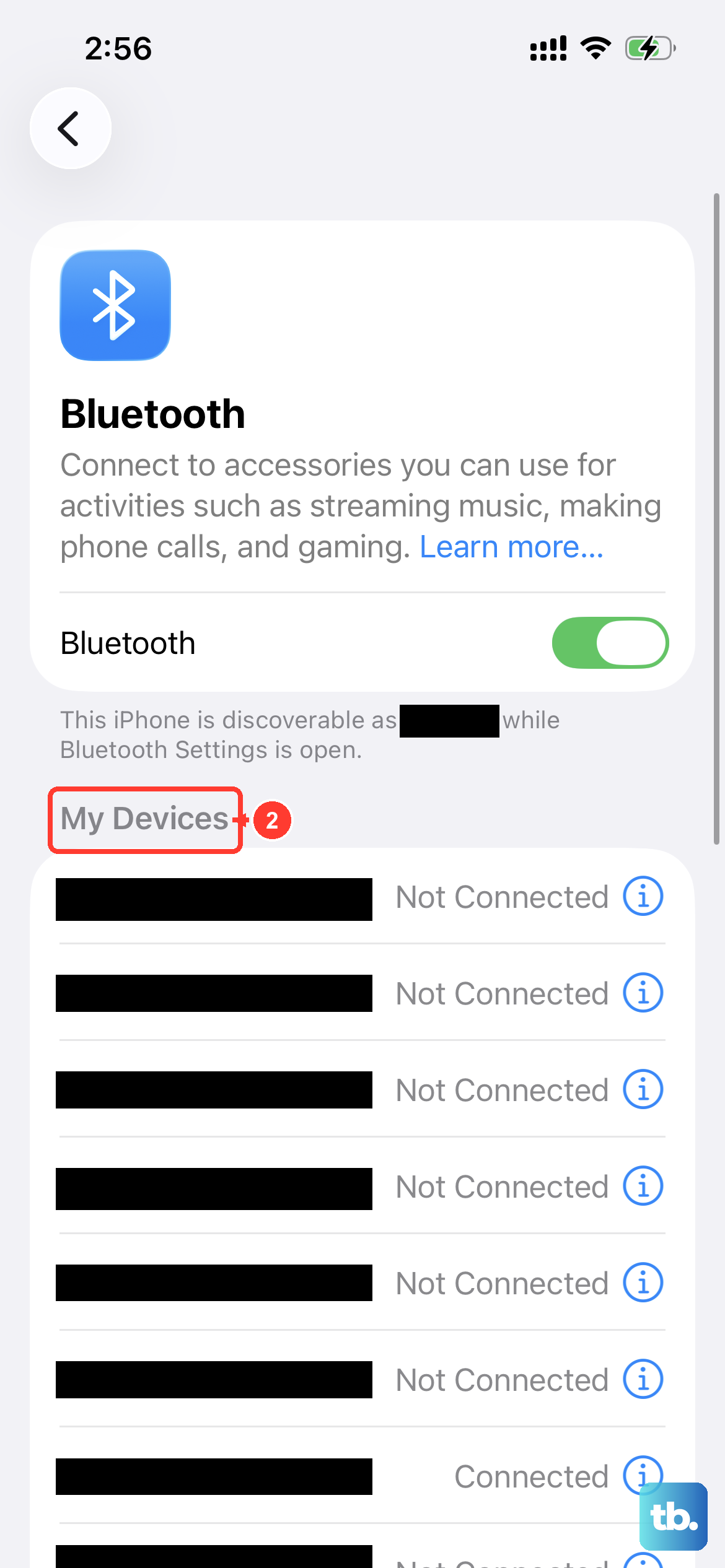
When wireless audio keeps disconnecting or cutting in and out, removing the pairing and setting it up fresh often resolves it. Follow the official unpair and re-pair process below.
- 1.Open Settings > Bluetooth.
- 2.Tap the Info button next to the headphones.
- 3.Tap "Forget This Device."
- 4.Restart your iPhone.
- 5.Pair the headphones again, following the maker's pairing instructions.
Re-establishing the connection from scratch clears a stale or corrupted pairing that can cause persistent dropouts.
Force Restart When the iPhone Is Frozen
If the iPhone 14 is unresponsive or the audio is locked up and a normal restart will not go through, a force restart can recover it. Use the exact sequence below for this Face ID model.
"Press and quickly release the volume up button."
Then "Press and quickly release the volume down button."
Continue by pressing and holding the side button until you see the Apple logo, which "might take longer than 10 seconds."
If the iPhone stays unresponsive afterward, charge it for one hour and then try the force restart again.
Erase All Content and Settings as the Last Software Step
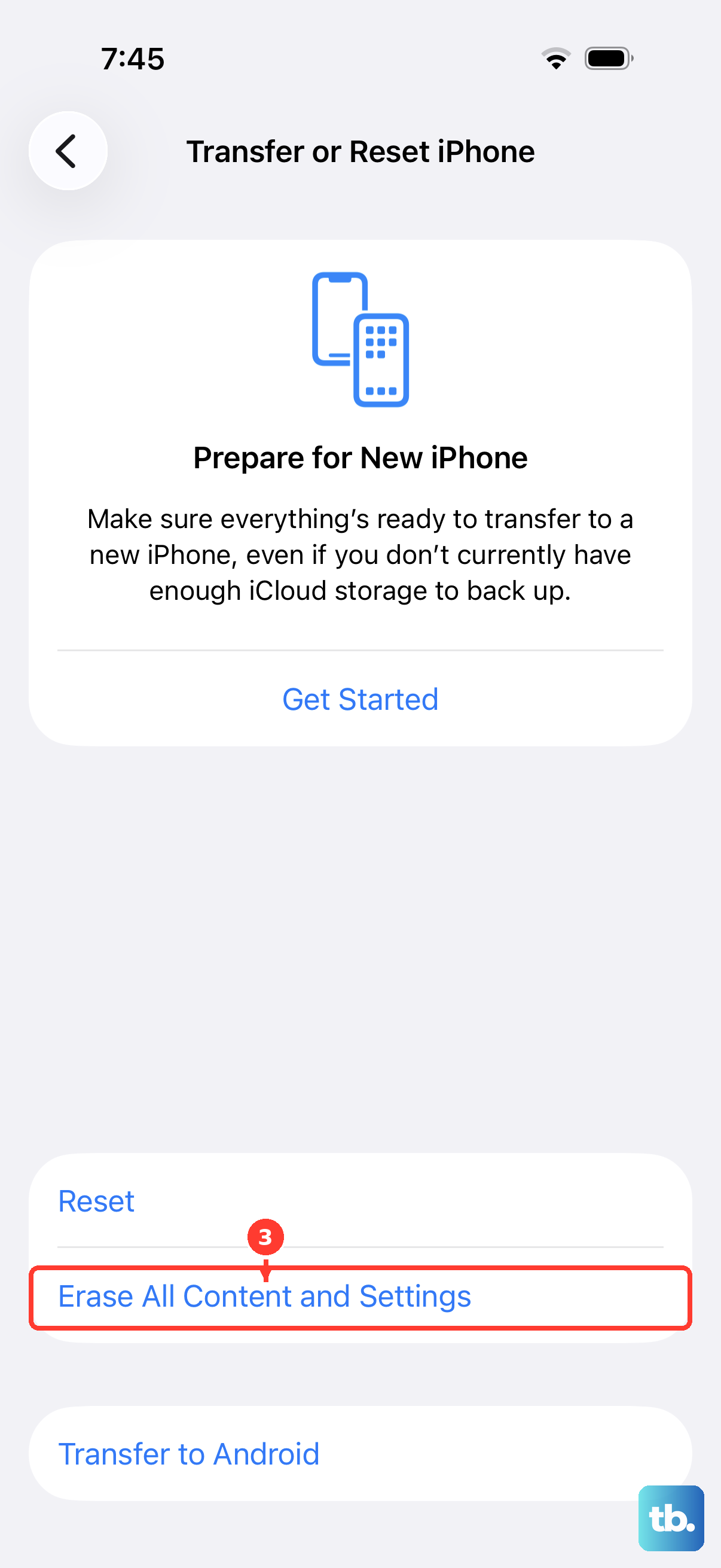
If nothing above has worked and you suspect a deeper software problem, a factory reset is the final software measure before service. This step is destructive, so prepare for it carefully: back up your iPhone first, because erasing removes all content, settings, and apps and restores the iPhone to factory settings.
Back up your iPhone 14 first.
Once that is done, go to Settings > General > Transfer or Reset iPhone.
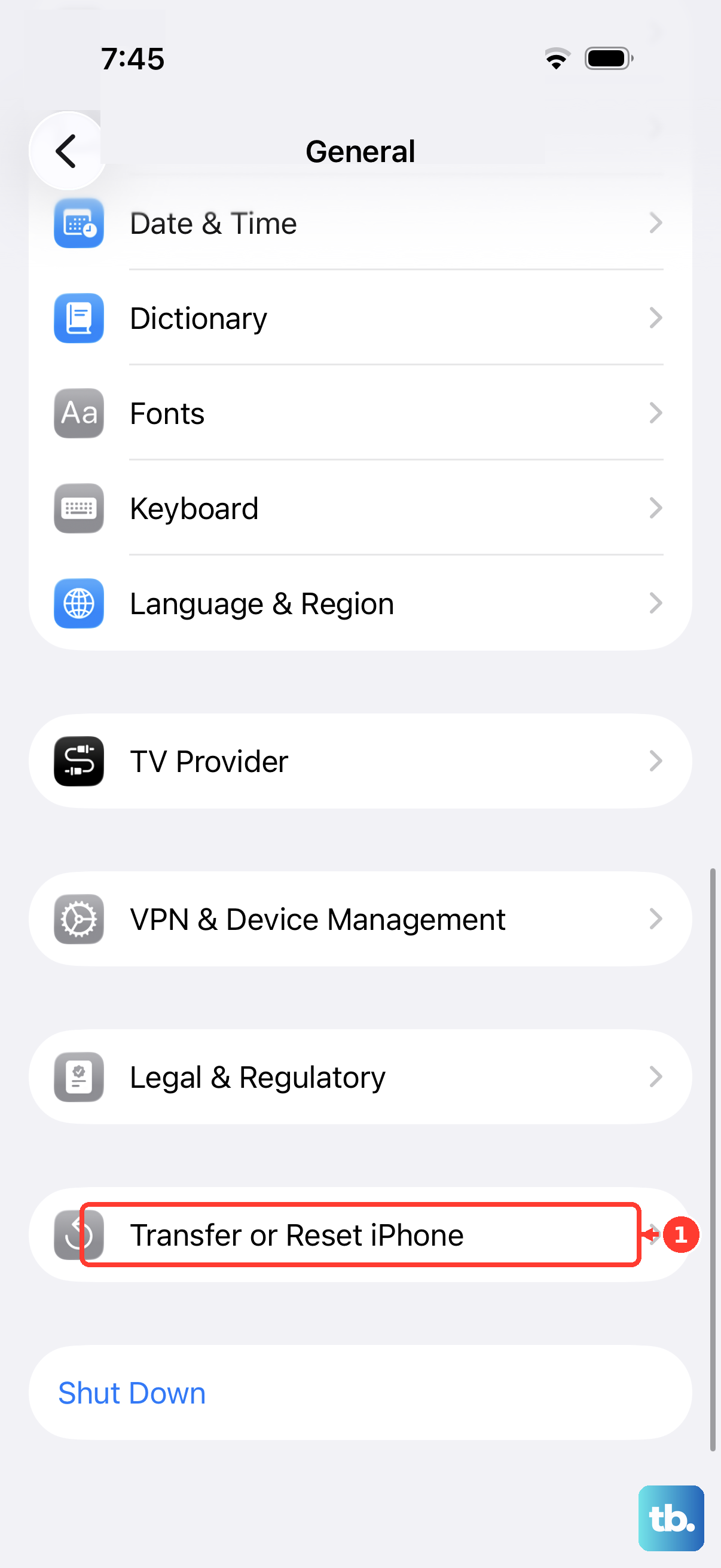
Tap "Erase All Content and Settings."
Enter your passcode or Apple Account password if asked.
Only proceed once you have confirmed your backup is complete, since this cannot be undone without it.
Reach Apple Support or Get the Hardware Serviced
If your headphones still do not work after these steps, the official troubleshooting directs you to contact the headphone manufacturer or Apple Support. A persistent failure across multiple headphones and a clean software state points toward a hardware fault.
Contact Apple Support or an Apple Authorized Service Provider for repair if a hardware issue is suspected. They can diagnose whether the Lightning connector, internal audio components, or the headphones themselves are the underlying cause.
Frequently Asked Questions
Can I plug regular 3.5mm headphones into an iPhone 14?
Not directly, because the iPhone 14 has a Lightning connector and no 3.5mm headphone jack. To use 3.5mm wired headphones, you need Apple's Lightning to 3.5mm adapter; otherwise, use Lightning headphones or Bluetooth 5.3 wireless headphones.
My iPhone 14 did not come with headphones. Is that normal?
Yes. The iPhone 14 ships without EarPods in the box, so you will need to supply your own wired (Lightning or adapter-connected) or wireless headphones.
Will updating to iOS 26 help with headphone problems?
It can. Apple lists running the latest version of iOS as a first step, and the iPhone 14 is officially compatible with iOS 26. Update through Settings > General > Software Update, then tap "Download and Install" and follow the onscreen instructions.
How do I know if it is my headphones or my iPhone 14 that is broken?
Test with a second pair of headphones. If the other pair works, your original headphones are likely the issue; if no headphones produce sound, the problem is on the iPhone side and you should work through the device fixes and, if needed, contact support.
Does a factory reset delete my data?
Yes. Choosing "Erase All Content and Settings" removes all content, settings, and apps and restores the iPhone to factory settings, so you must back up your iPhone first before doing it.