
When your iPhone 13 won't send pictures, it's usually a quick network or settings hiccup. The photo might hang with a loading circle or show a "Not Delivered" alert. Let's get that fixed so you can share your photos again.
Check Your Connection First
This is the most common culprit. If you're on Wi-Fi, make sure the icon is in your status bar. A weak signal can stall photo uploads, so try moving closer to your router.
For cellular, glance at your signal bars. Sending a high-resolution photo from your iPhone 13's camera needs a decent data connection. If it's poor, toggling Airplane Mode on for 10 seconds and then off can force a fresh connection to the tower.
Restart Your iPhone 13
A simple restart clears out temporary software glitches that can block messages. Just press and hold the side button and either volume button, slide to power off, wait 30 seconds, and turn it back on.
If the phone is unresponsive, use a force restart. Quickly press and release the Volume Up button, then the Volume Down button, then press and hold the Side button until you see the Apple logo.
Verify iMessage is Active
If your messages are green, you're sending regular SMS/MMS, not iMessage. Blue bubbles mean iMessage is working. Go to Settings > Apps > Messages and make sure iMessage is toggled on.
Sometimes the service just needs a refresh. Turn iMessage off, wait a moment, and turn it back on. This re-registers your number with Apple's servers.
Ensure MMS Messaging is Enabled
If you're texting someone without an iPhone, pictures send via MMS. This setting must be on. Head to Settings > Apps > Messages and scroll down to ensure "MMS Messaging" is enabled.
Also, check that "Send as SMS" is on below it. This allows the message to fall back to a regular text if iMessage fails, which can help with delivery.
Review Your Send & Receive Addresses
iMessage can get confused about where to send from. In Settings > Apps > Messages > Send & Receive, look at "You can be reached by iMessage at."
Make sure your phone number is checked. If an old email address is listed and selected, it might be trying to send from there. I'd start by ensuring only your current phone number is selected for starting conversations.
Check Cellular Data for Messages
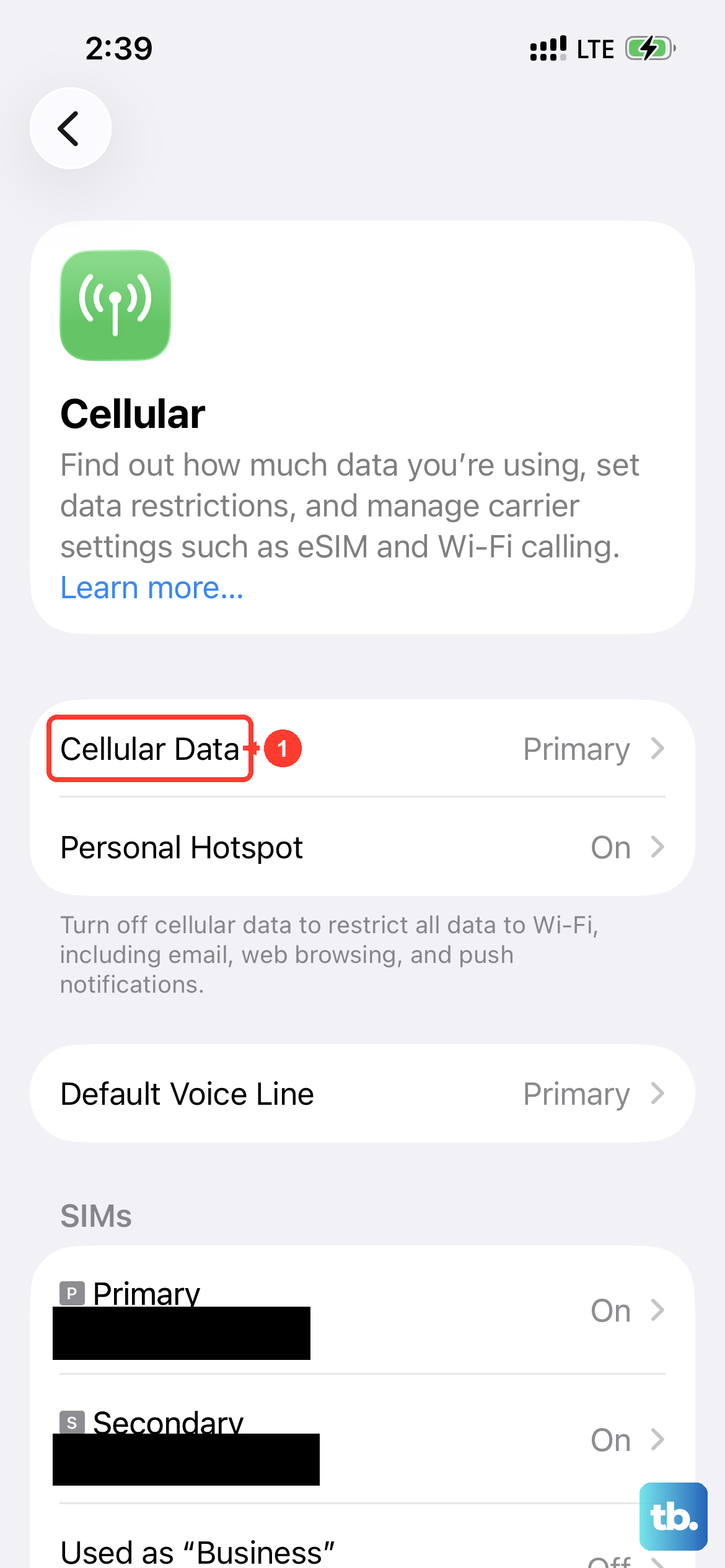
If you're not on Wi-Fi, the Messages app needs permission to use cellular data. Open Settings > Cellular and scroll down to find "Messages" in the app list.
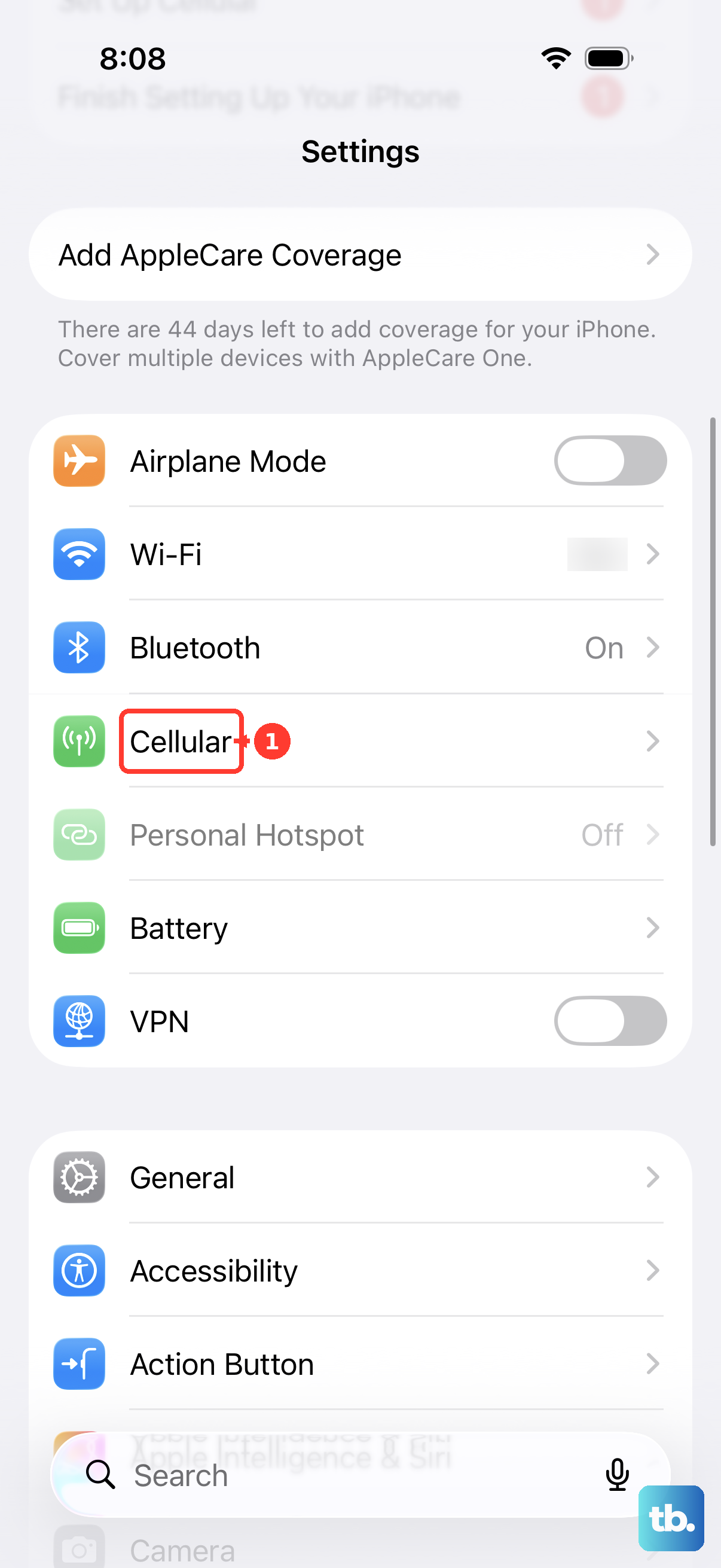
Make sure the switch next to it is green. If it's off, your photos won't send unless you're connected to Wi-Fi.
Disable Low Data Mode
Low Data Mode in iOS 18 restricts background network activity to save your data plan, and it can sometimes be too aggressive. This can prevent photos from uploading.
Go to Settings > Cellular > Cellular Data Options and turn Low Data Mode off. Also check Settings > Wi-Fi, tap the info icon next to your network, and ensure it's off there too for a stronger connection.
Update Your Carrier Settings
These small updates from your phone provider can improve network connectivity for calls and data. Connect your iPhone 13 to Wi-Fi and go to Settings > General > About.
If an update is available, a pop-up will appear. Just tap "Update." It only takes a moment and doesn't require a restart.
Sign Out and Back Into Your Apple ID
This refreshes your core services, including iMessage. Go to the top of Settings, tap your name, and scroll all the way down to choose "Sign Out." You'll need your Apple ID password.
After signing out, restart your iPhone. Then go back to Settings, sign in again, and make sure iMessage reactivates. This often clears up account-related sending errors.
Reset Network Settings
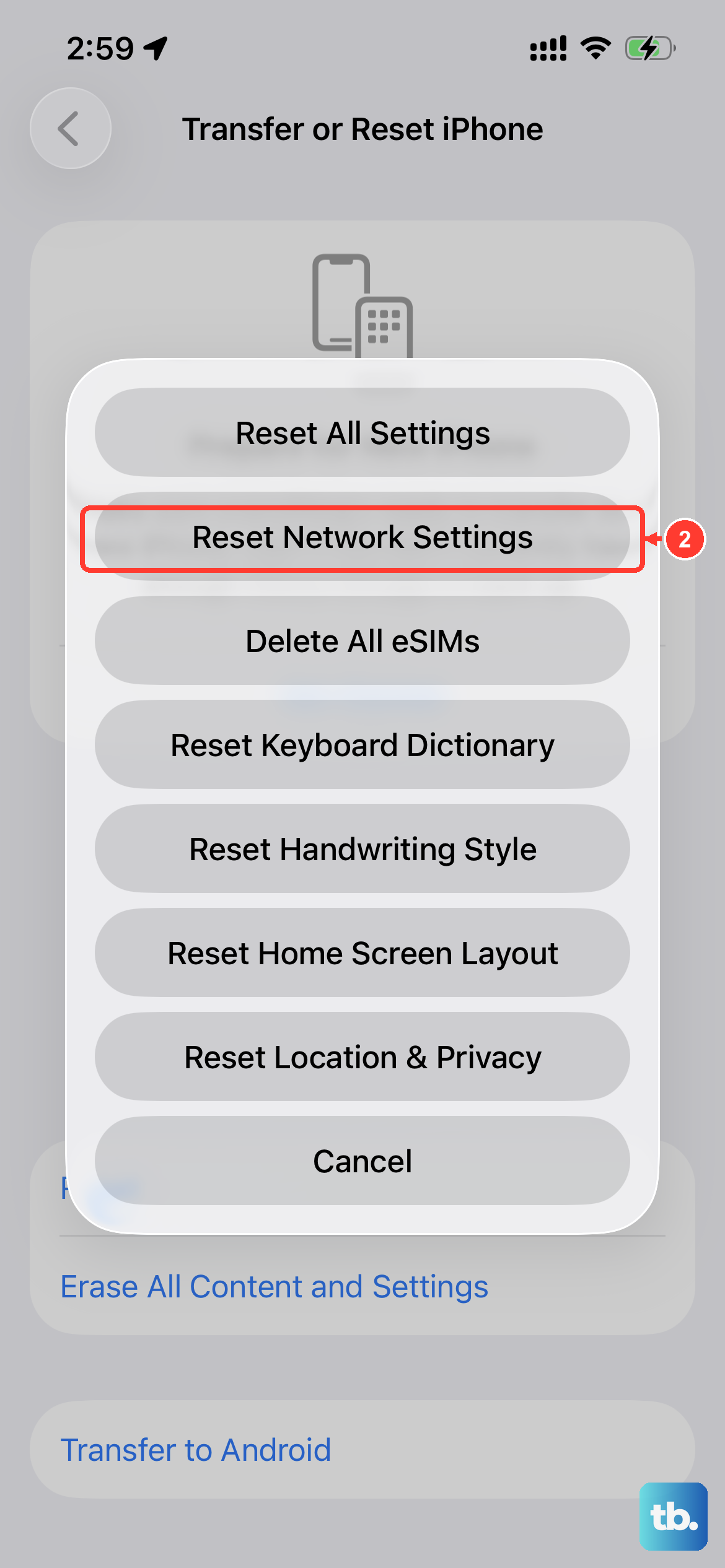
This is a stronger step if connectivity issues persist. It clears all Wi-Fi passwords, cellular settings, and VPN configurations, so note down any important Wi-Fi passwords first.
On your iPhone 13 with iOS 18, go to Settings > General > Transfer or Reset iPhone > Reset. Then choose "Reset Network Settings." Enter your passcode and confirm. Your phone will reboot and you'll need to rejoin Wi-Fi networks.
Check for a Software Update
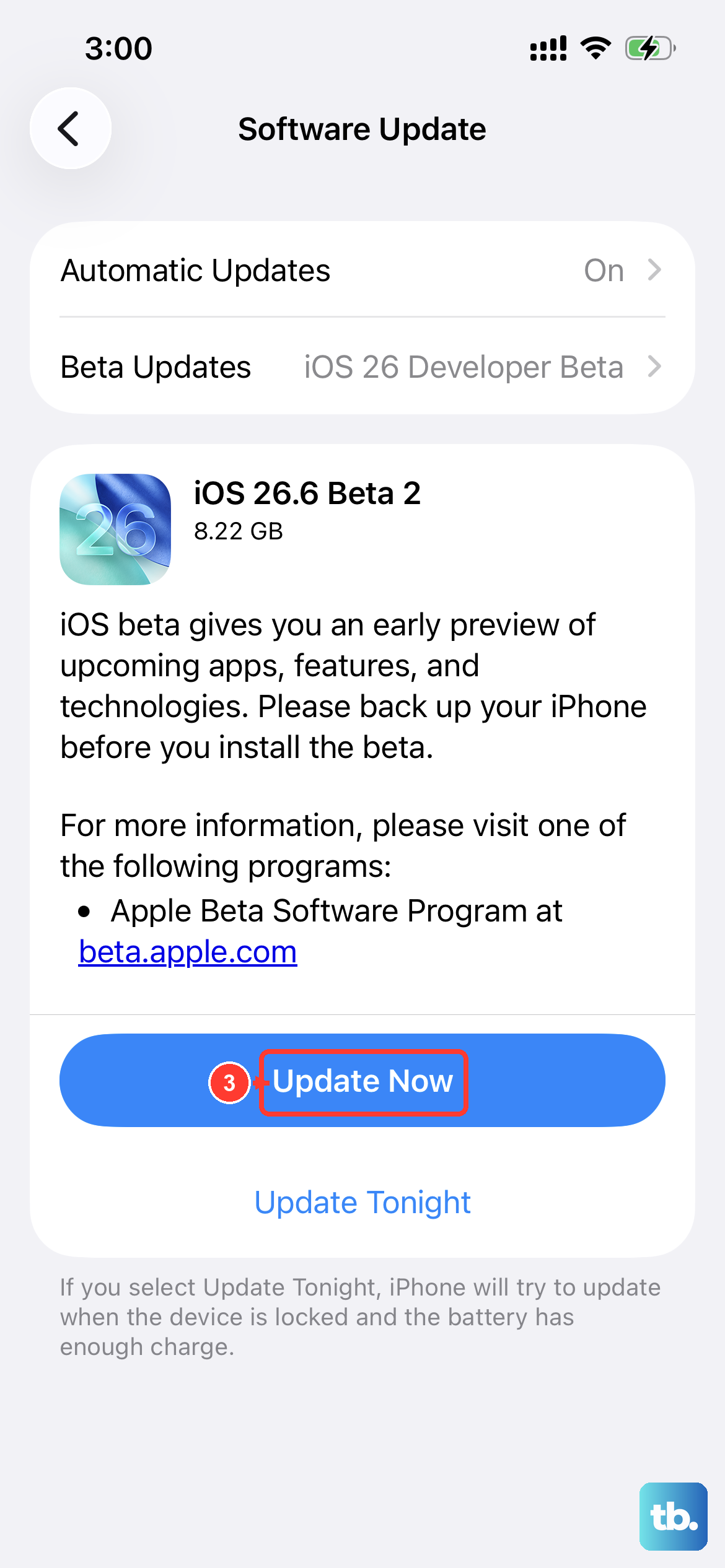
Apple releases iOS updates that fix bugs, including ones related to messaging. Plug your phone into power and connect to Wi-Fi, then go to Settings > General > Software Update.
If an update is available, download and install it. Keeping your iPhone 13 on the latest iOS version ensures you have all the known stability patches.
Force Quit and Reopen the Messages App
Sometimes the app itself just needs a fresh start. Swipe up from the very bottom of the screen and pause in the middle to enter the app switcher.
Find the Messages app card and swipe it up and off the top of the screen to close it completely. Then tap the Messages icon to reopen it and try sending the photo again.