You sent or received a picture message on your iPhone 13, but it just sits there with a spinning loader or a tap-to-download button that never finishes. MMS not downloading is one of the more frustrating messaging glitches, because the text part of a conversation often works fine while photos, videos, and group threads stall. The good news is that your iPhone 13 (including the mini, Pro, and Pro Max) fully supports SMS and MMS, so this is almost always a connection, settings, or carrier issue you can fix yourself.
Work through the 10 fixes below in order. They start with the quickest, safest checks and end with the official reset and carrier paths, so you only reach for the heavier steps if the simple ones do not solve it.
Check Your Connection and Cellular Data
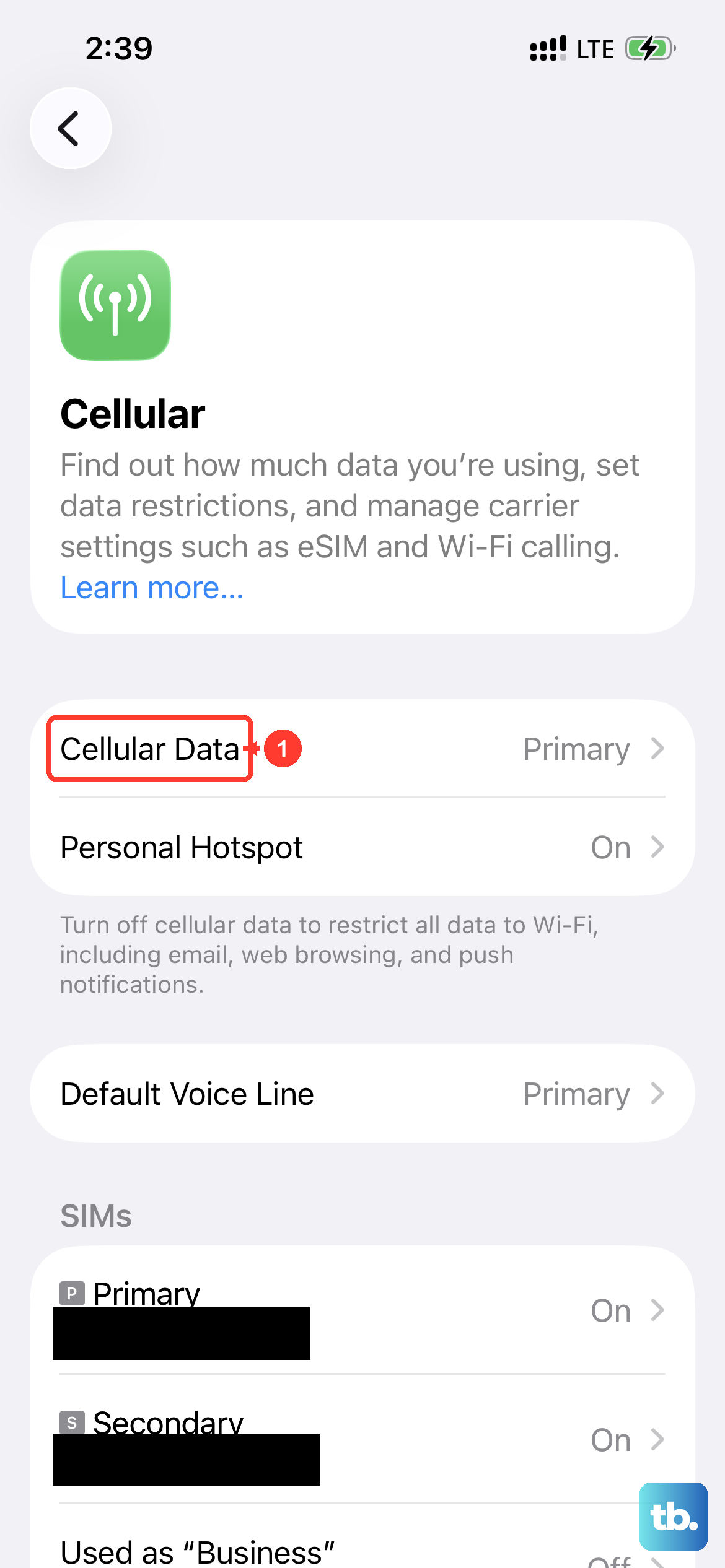
MMS is not like a plain text. Picture and video messages need an active data connection to download, so the first thing to rule out is signal. Apple states plainly that "to send a message as iMessage, RCS, or MMS, you need a cellular data or Wi-Fi connection."
One detail many people miss is that MMS often downloads over cellular even when iMessage and other apps are happily using Wi-Fi. If Cellular Data is switched off, your picture messages can refuse to load even though everything else looks online.
Open the Settings app.
Tap Cellular.
Tap the slider next to Cellular Data to turn it on.
Confirm you have a cellular signal or that you are connected to a working Wi-Fi network, then tap the stalled message again to retry the download. If you are in a dead zone or on flaky Wi-Fi, move to a stronger signal and the download may complete on its own.
Tap the Stuck Message and Retry
When a message fails to go through, it shows a red exclamation point next to it along with "Not Delivered." This is your fastest manual retry, and it works for both sending and the failed-delivery state.
According to the official guidance, "tap the red exclamation point, then tap Try Again." If the message still will not go through after that, "tap the red exclamation point, then tap Send as Text Message." Sending it as a text routes it through your carrier's SMS or MMS channel instead of iMessage.
Confirm MMS Messaging Is Enabled
Your iPhone 13 has a dedicated toggle that governs whether picture messages and group picture threads work at all. If it is off, MMS downloads will fail by design.
Go to Settings > Messages and turn on MMS Messaging. One important note from the official support guidance is that "if you don't see an option to turn on MMS Messaging, contact your carrier to see if your plan supports Group MMS Messaging." A missing toggle is usually a sign that your plan, not your phone, is the limiting factor.
Turn On Send as Text Message for SMS Fallback
iMessage and standard text messaging are two different systems. When iMessage cannot deliver, you want your iPhone to fall back to SMS or MMS automatically rather than leaving the message stuck.
Go to Settings and tap Apps.
Tap Messages.
Turn on Send as Text Message.
With this on, a message that fails over iMessage will attempt to send through your carrier instead, which often clears up download and delivery problems.
Reset iMessage by Toggling It Off and On
If the messaging service itself has hiccupped, switching iMessage off and back on forces it to re-register with Apple's servers and your carrier, which frequently restores normal MMS behavior.
Open the Settings app and tap Apps.
Tap Messages.
Turn iMessage off, then turn it back on.
Give it a moment to reactivate, then test a picture message again.
Verify Your Date and Time Are Correct
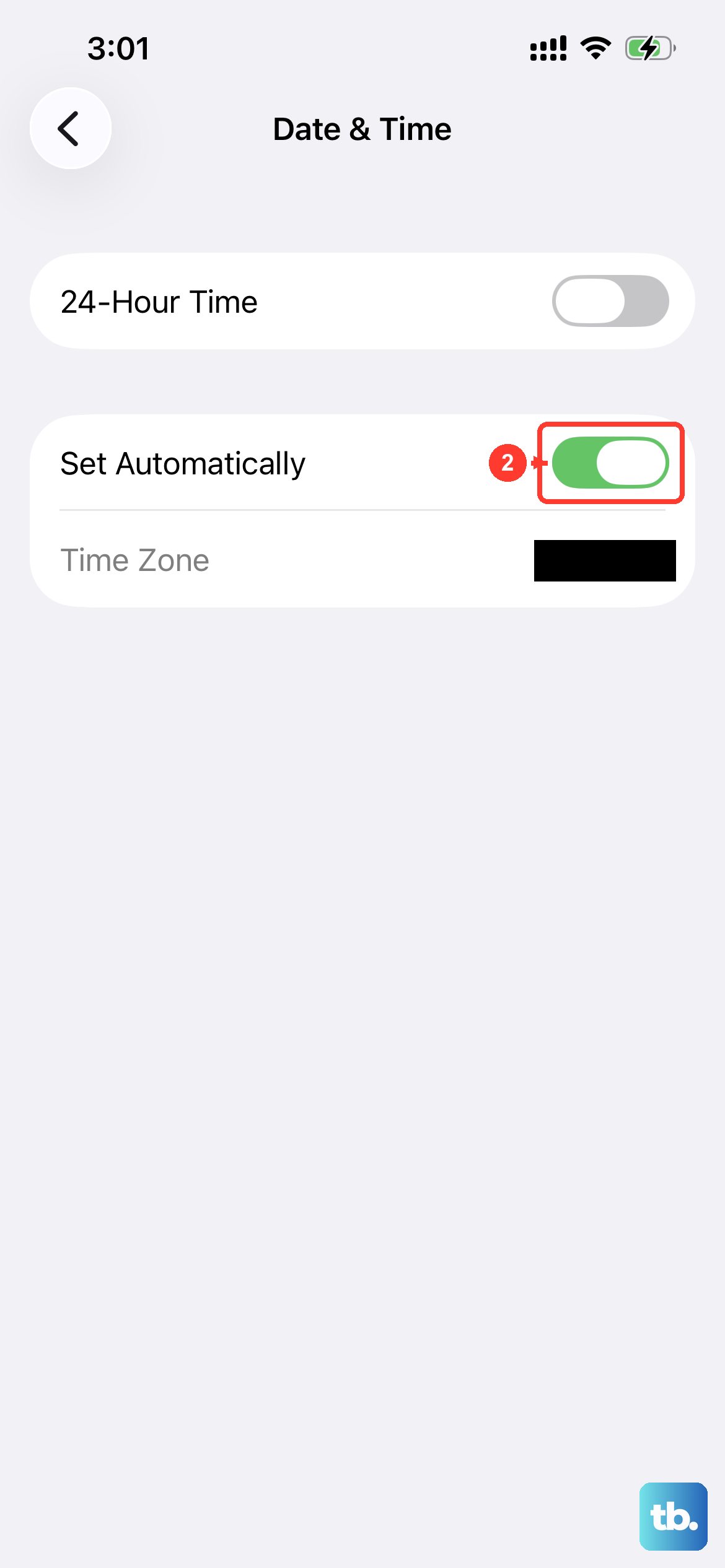
An incorrect date or time zone can quietly interfere with messaging services, since these depend on accurate timestamps to sync with Apple and carrier systems. Letting your iPhone set this automatically removes that variable.
Go to Settings > General > Date & Time and turn on Set Automatically. Your iPhone 13 will then use the correct date and time, which is one less thing standing between you and a downloaded MMS.
Force Restart Your iPhone 13
If the basics are all in order and MMS still will not download, a force restart clears temporary software glitches that a normal restart sometimes leaves behind. The iPhone 13 uses Face ID, so follow this exact button sequence.
- 1.Press and quickly release the volume up button.
- 2.Press and quickly release the volume down button.
- 3.Press and hold the side button until you see the Apple logo (this might take longer than 10 seconds).
Once your iPhone restarts, open Messages and attempt the download once more.
Update to the Latest iOS
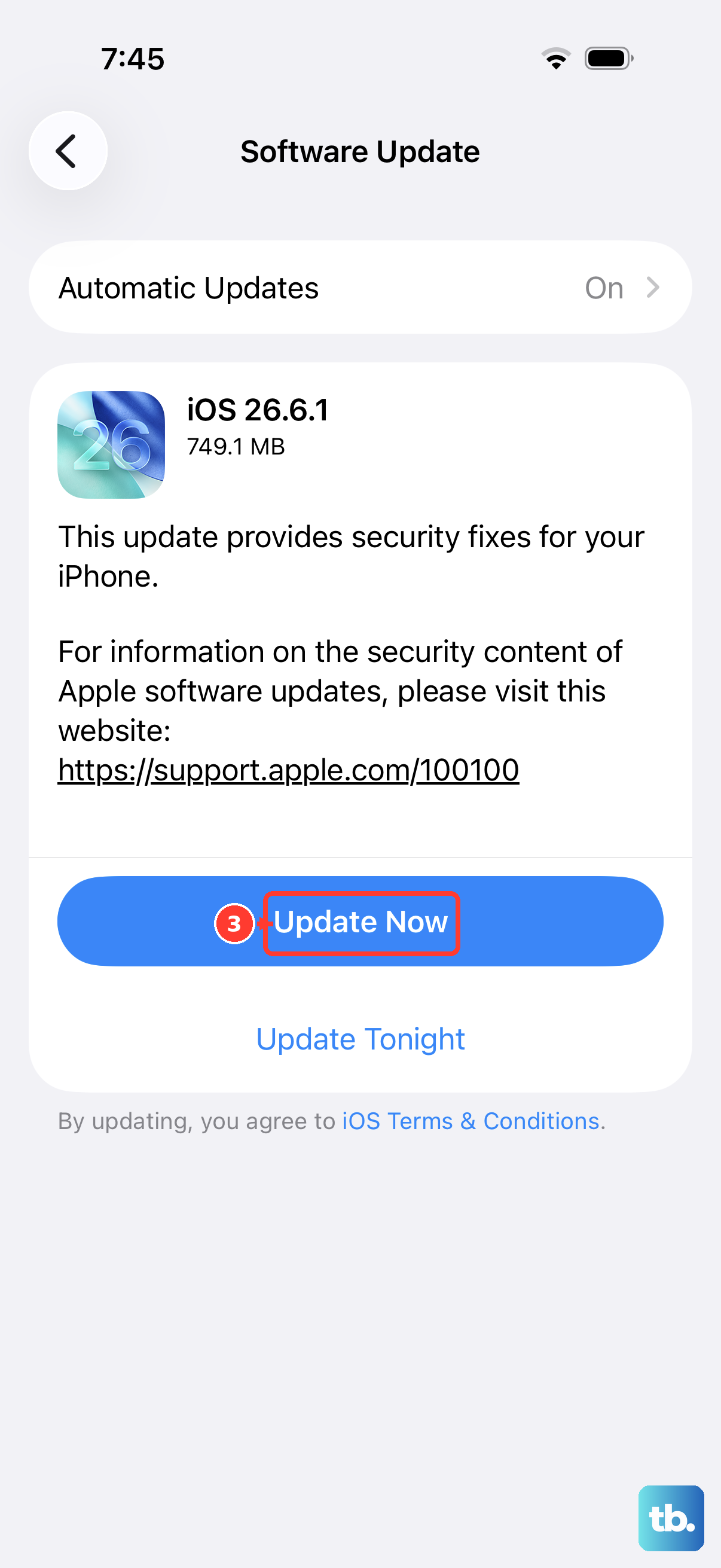
Software updates fix bugs that can break messaging, and your iPhone 13 is supported up to iOS 26. Running the current version ensures you are not stuck on a release with a known MMS issue.
Go to Settings > General > Software Update. If an update is available, tap Download and Install, then follow the onscreen instructions. It is a good idea to back up your iPhone and stay on Wi-Fi and power before you begin the update.
Reset Network Settings
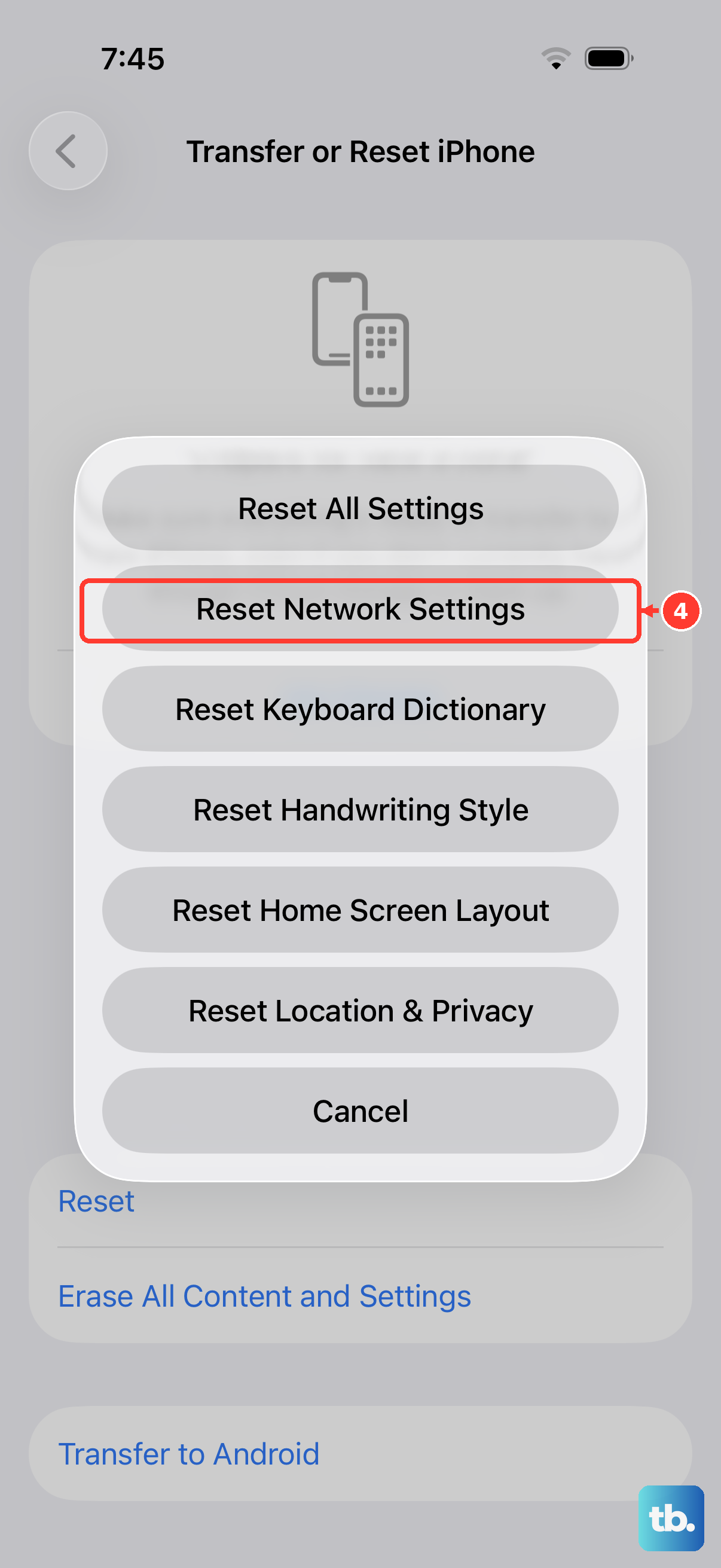
If MMS still refuses to download after everything above, resetting your network settings clears out potentially corrupted connection data without erasing your photos, messages, or apps. This is a stronger step, so treat it as a deliberate choice rather than a casual tap.
Go to Settings > General > Transfer or Reset iPhone > Reset > Reset Network Settings. The official warning is clear that "this resets all Wi-Fi networks and passwords, cellular settings, and VPN and APN settings." Use this only if other solutions fail, and check with your IT department first if your network is managed by a school or business.
Contact Your Carrier or Erase as a Last Resort
Some MMS problems are not on your phone at all. Your carrier confirms whether your specific plan supports MMS and Group MMS and whether the carrier-side settings on your account are correct, neither of which can be diagnosed from the iPhone alone. The official guidance is to contact your carrier if you still cannot send or receive SMS, MMS, or RCS messages.
If the MMS Messaging toggle was missing earlier, or if picture messages fail across every network and after a network reset, your carrier is the right next call.
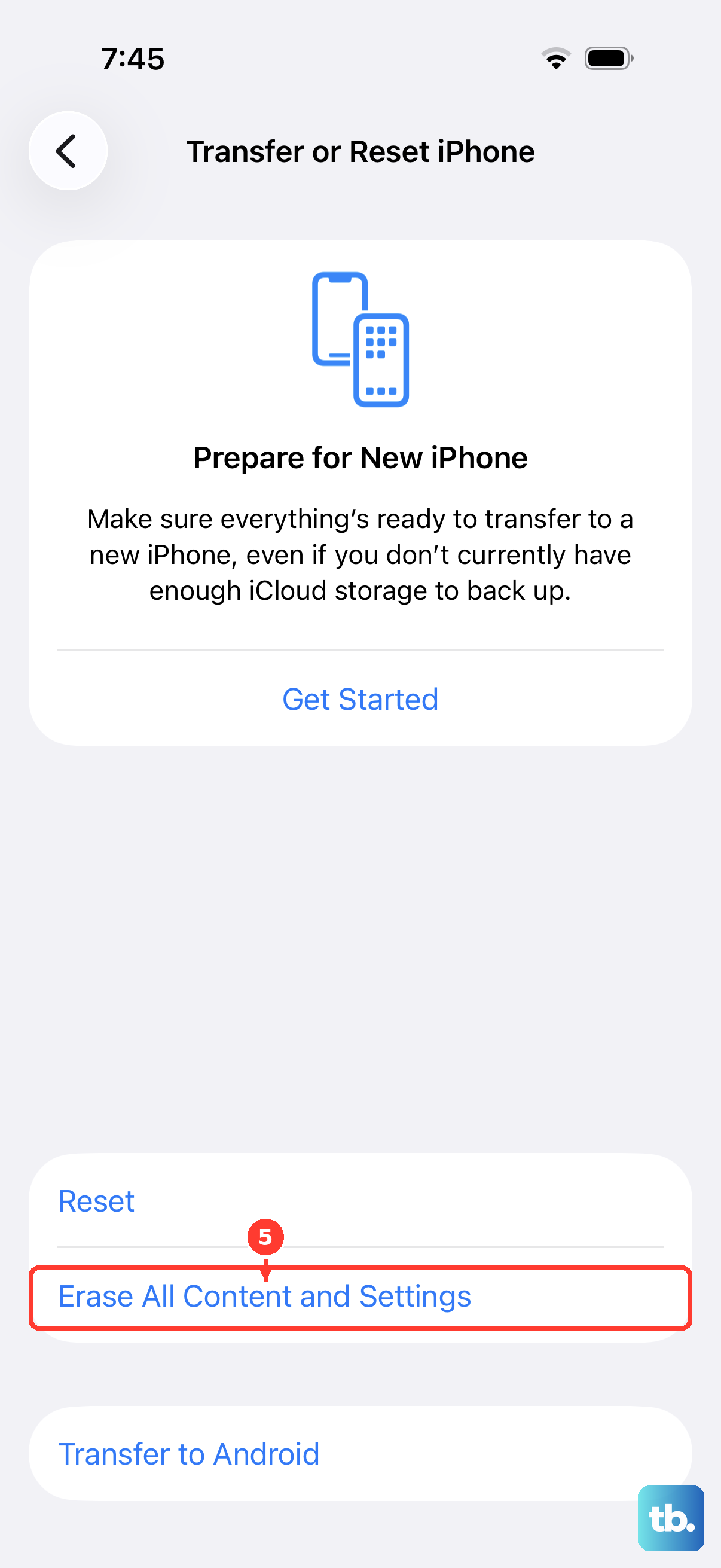
If nothing else has worked and you have ruled out the carrier, erasing your iPhone and setting it up fresh is the final option. This is a destructive step that erases all content and settings and restores the iPhone to factory settings, so back up your iPhone first so you can restore your data afterward. Once you have a backup, go to Settings > General > Transfer or Reset iPhone > Erase All Content and Settings, tap Continue, choose to keep or erase your eSIM, and enter your passcode and Apple Account password.
Frequently Asked Questions
Why does my iPhone 13 download texts but not picture messages?
Plain texts can travel over a weaker connection, but MMS picture and video messages need an active cellular data or Wi-Fi connection to download. Make sure you have signal or Wi-Fi, and confirm Cellular Data is turned on under Settings > Cellular, since MMS often downloads over cellular even when other apps use Wi-Fi.
What does the red exclamation point on a message mean?
It means the message was not delivered. Tap the red exclamation point, then tap Try Again to resend. If it still fails, tap the red exclamation point, then tap Send as Text Message to route it through your carrier instead of iMessage.
I don't see an MMS Messaging toggle in Settings. What now?
If you don't see an option to turn on MMS Messaging under Settings > Messages, the official guidance is to contact your carrier to see if your plan supports Group MMS Messaging. A missing toggle usually points to a plan or carrier-side limitation rather than a fault with your iPhone 13.
Will resetting network settings delete my messages or photos?
No. Resetting network settings clears all Wi-Fi networks and passwords, cellular settings, and VPN and APN settings, but it does not erase your messages, photos, or apps. Use it only if the simpler fixes fail, and check with IT first if a school or business manages your network.
Is a factory reset safe for fixing MMS problems?
A factory reset, called Erase All Content and Settings, erases everything and restores the iPhone to factory settings, so it should be a last resort after you have tried the other fixes and contacted your carrier. Always back up your iPhone first so you can restore your data afterward.