
When your iPad Pro M5 gets stuck on the update screen, it's usually one of a few common issues. A corrupted download, a weak Wi-Fi signal, or a full storage drive are the usual suspects. Here's how to get iPadOS 18 installed without pulling your hair out.
If the update is stuck preparing
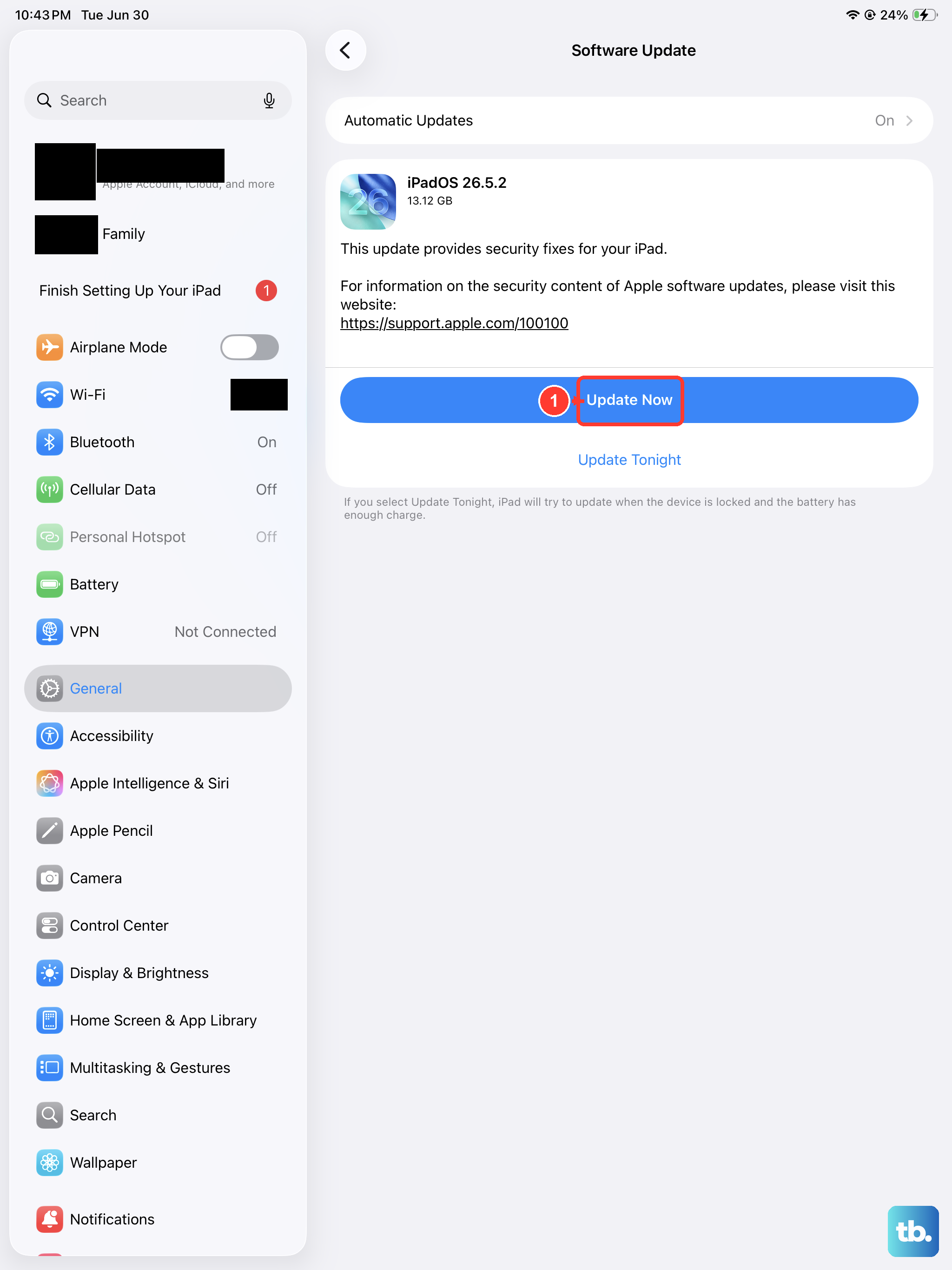
A partially downloaded or corrupted update file is the most common reason the install hangs. Go to Settings > General > iPad Storage and scroll down until you see the iPadOS update file. Tap it, then select Delete Update.
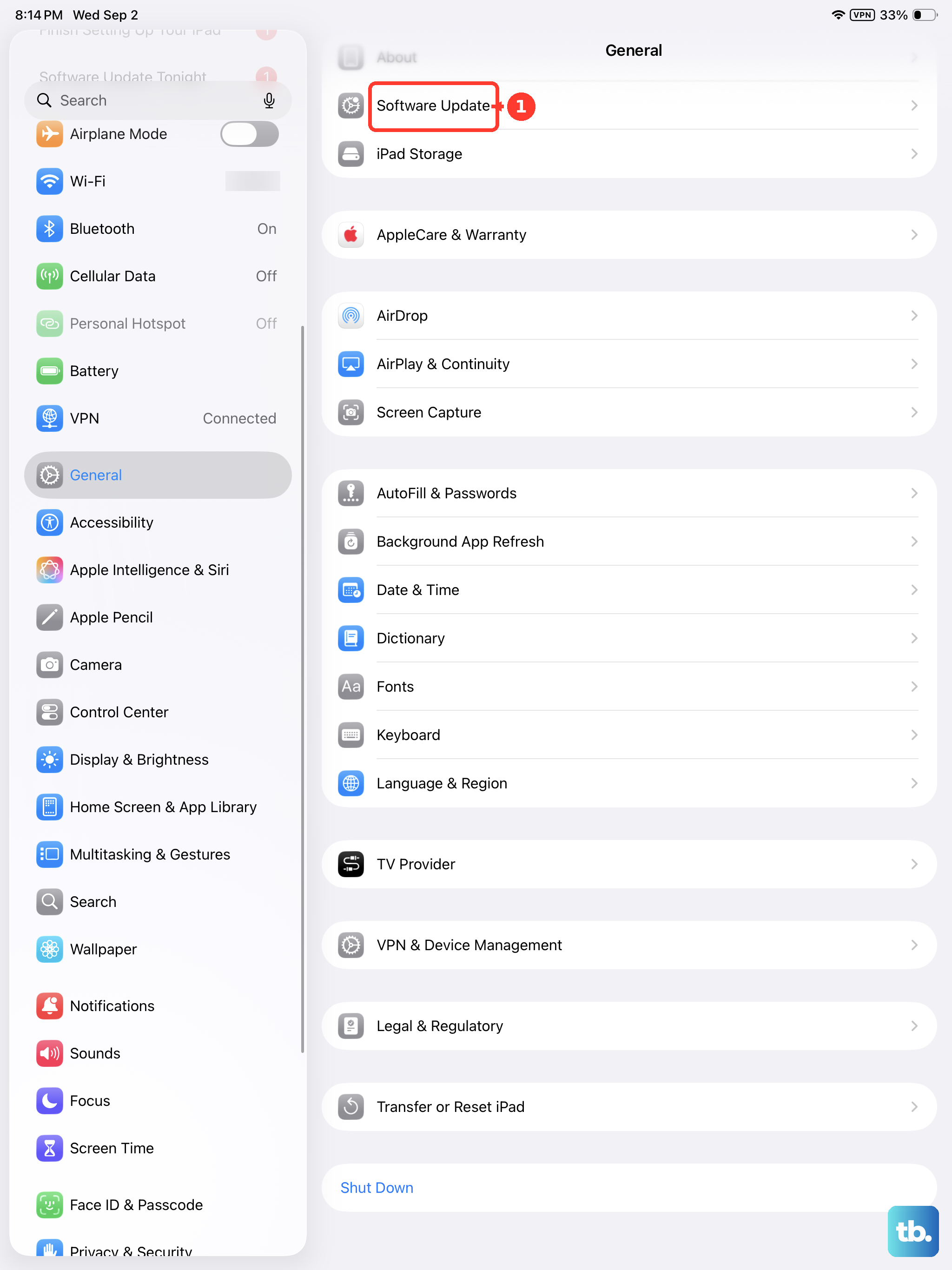
Once it's gone, head back to Settings > General > Software Update and start the download from scratch. This clears out whatever corrupted data was blocking the process.
Force restart your iPad Pro M5
A force restart clears temporary system files and hung processes without erasing your data. If your iPad is stuck on the Apple logo or a frozen progress bar, try this: press and quickly release the Volume Up button, then press and quickly release the Volume Down button.
Then press and hold the Top button until the Apple logo reappears. Keep holding even if the screen goes black. The logo will pop up, and your iPad should boot back to the home screen where you can try the update again.
Double-check your Wi-Fi connection
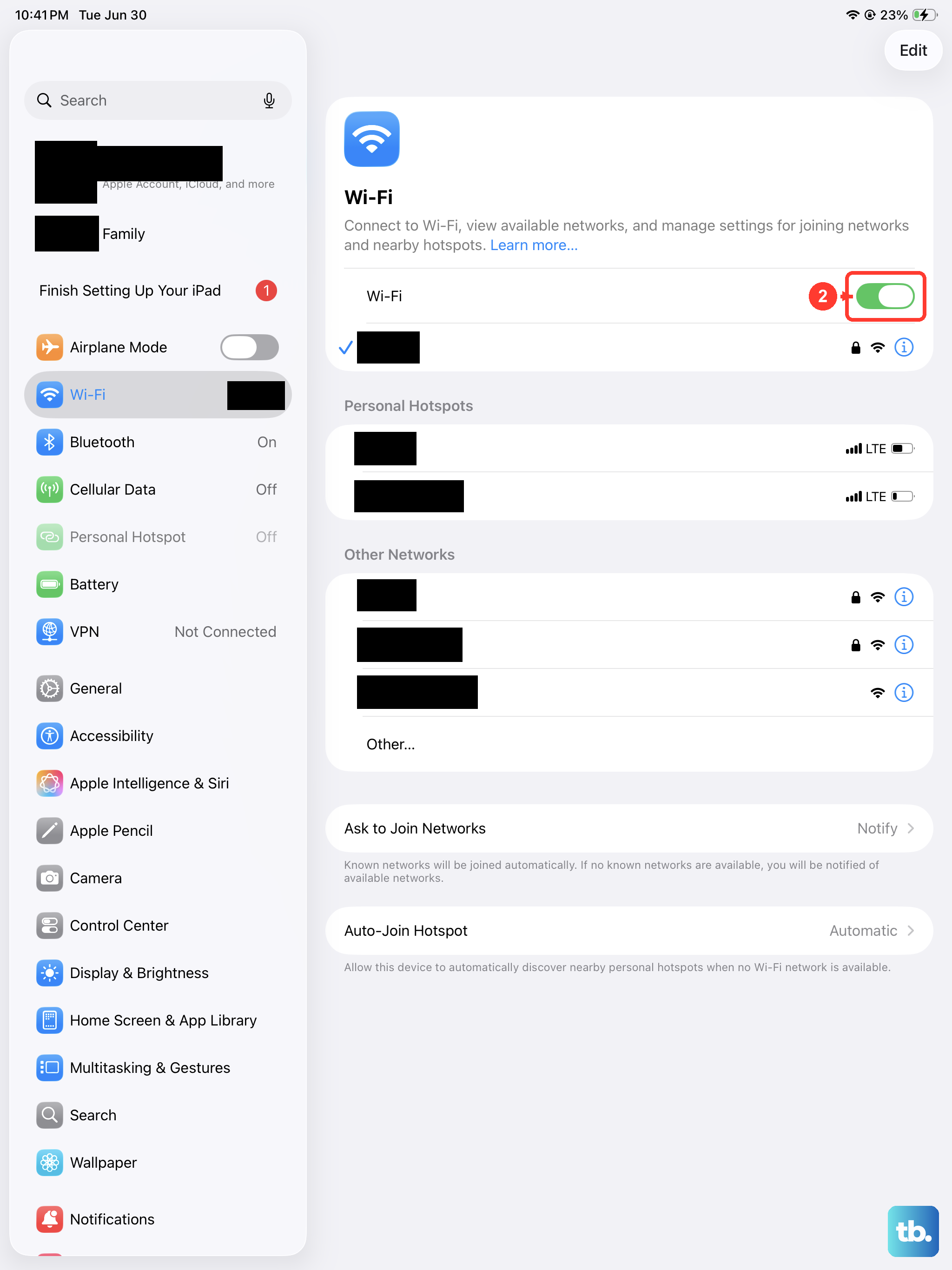
iPadOS updates are large files, and a flaky Wi-Fi connection will cause the download to stall or fail silently. Open Settings > Wi-Fi and make sure you're on a strong, stable network.
If the signal is weak, try moving closer to your router or restarting your modem. You can also tap the info icon next to your network and select Forget This Network, then reconnect fresh.
Free up storage space
Your iPad needs room to download the update and unpack it. Go to Settings > General > iPad Storage and check your available space. Major iPadOS updates can need 5 to 7 GB of free space.
Offloading unused apps is the fastest way to reclaim space without losing documents and data. You can also delete old messages, large video files, or downloaded podcasts.
Use a computer for the update
When the over-the-air method keeps failing, updating through a computer is the most reliable fallback. Connect your iPad Pro M5 to a Mac or PC.
Open Finder (on macOS Catalina or later) or iTunes (on Windows or older macOS). Select your iPad, click Check for Update, then Download and Update. The computer handles the download and streams the installation directly to the iPad.
Is it a server traffic jam?
Apple's servers can get overwhelmed on major release days. You can check the status of Apple's services on their System Status page. If the iOS & iPadOS Software Update service shows a red indicator, the problem is on their end.
Wait an hour or two and try again, preferably late at night or early in the morning when traffic is lower.
Check for a beta profile
If you were running the iPadOS beta, a lingering beta profile might be blocking the public release. Go to Settings > General > VPN & Device Management.
If you see a beta profile listed, tap it and select Remove Profile. Restart your iPad, then check for the update again in Settings > General > Software Update.
Reset network settings
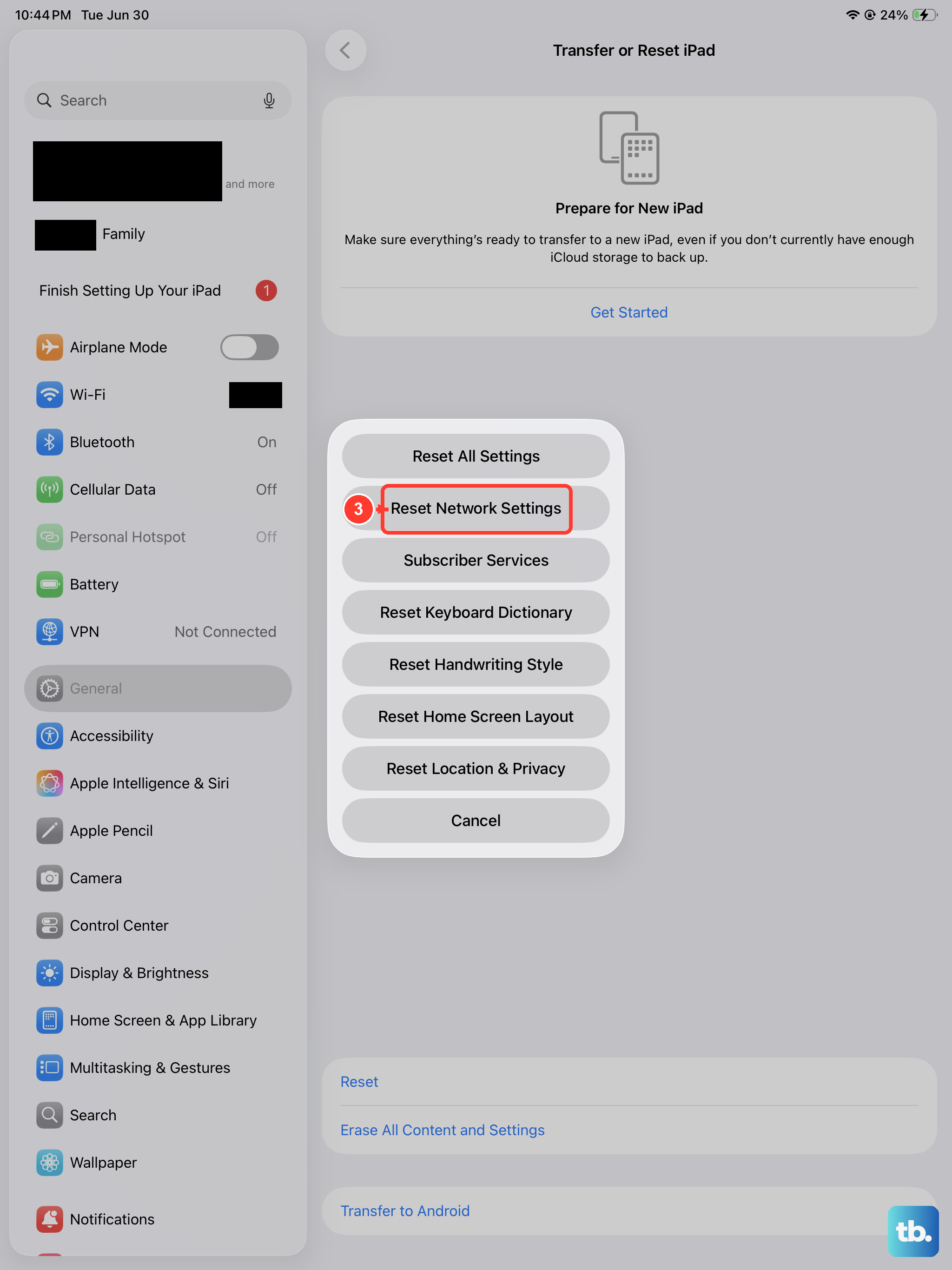
This is the nuclear option for Wi-Fi issues. Go to Settings > General > Transfer or Reset iPad > Reset > Reset Network Settings. This wipes all saved Wi-Fi passwords, Bluetooth connections, and VPN settings.
You'll have to reconnect to your Wi-Fi network manually afterward, but it clears up underlying network configuration bugs that can block large downloads.