
When your iPad Pro M5 doesn't show up on your PC, it can throw a wrench in your workflow. Whether you're trying to transfer photos, update iPadOS, or just want to back up your files, a connection that goes nowhere is maddening. Most of the time the fix is surprisingly simple, so let's run through the usual suspects first.
The iPad Pro M5 uses a USB-C port, and that's usually where the issue starts. The cable, the port, or a software hiccup on either side can break the connection. I've seen a flaky USB-C cable cause this more often than you'd think, so that's where I'd start.
Check the USB-C cable and port
Grab your iPad's charging cable and inspect both ends. Frayed wires, bent connectors, or loose fits are a dead giveaway that the cable is shot. Try a different USB-C cable that you know works for data, not just charging. Some cables are charge-only and won't transfer a single file.
Plug the cable into a USB-C port on your PC if you have one. If not, use a USB-A port with a USB-C to USB-A adapter that supports data. Avoid USB hubs that aren't powered, they often drop the connection.
Clean the iPad's USB-C port
Dust and pocket lint love to collect inside the USB-C port on the iPad Pro M5. Take a flashlight and look inside. If you see gunk, gently work it out with a dry toothpick or a plastic SIM ejector tool. Don't use metal, you can short the pins. A quick blow can also dislodge loose debris.
Corrosion or moisture is rarer but can happen. If the port looks dark or crusty, skip the DIY cleaning and book a Genius Bar appointment.
Restart both devices
A simple restart clears temporary glitches on both the iPad and the PC. For the iPad, try a standard restart first: press and hold the power button, drag the slider, wait 30 seconds, then press and hold the power button again until the Apple logo shows up.
If the iPad is completely unresponsive, force restart it. Press and quickly release the Volume Up button, then press and quickly release the Volume Down button, then press and hold the Top button until the Apple logo appears. That usually kicks a stuck device back to life.
On your PC, go to Start and pick Restart. Don't just shut down and power back on, a full restart reloads the USB drivers.
Make sure you've tapped "Trust This Computer"
The first time you connect the iPad Pro M5 to a new PC, iPadOS asks if you trust the computer. If you skip or miss that prompt, the iPad won't show up at all. Unplug the cable, plug it back in, and look at your iPad's screen. Tap "Trust" and enter your passcode if asked.
If you've already tapped "Don't Trust" by accident, you need to reset the trust settings. Go to Settings > General > Transfer or Reset iPad > Reset > Reset Location & Privacy. That clears all saved trust decisions. When you reconnect the iPad, you'll get the trust prompt again.
Update iPadOS and iTunes (or Finder)
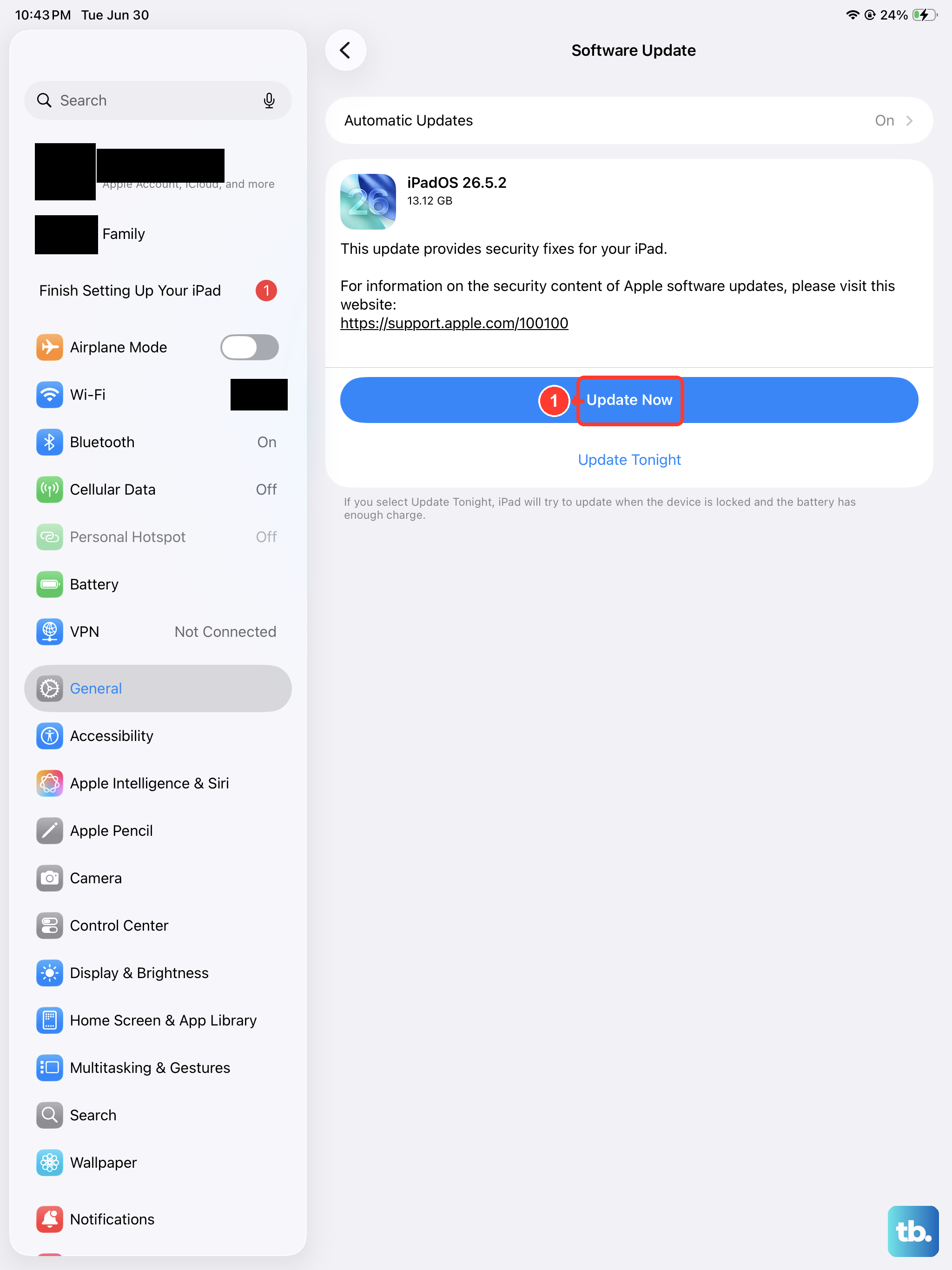
An outdated version of iPadOS can cause connection hiccups. Go to Settings > General > Software Update and install any available updates. The iPad Pro M5 shipped with iPadOS 18, so check that you're on the latest point release.
On your PC, make sure you have the latest version of iTunes. Open iTunes, then go to Help > Check for Updates. If you're on Windows 10 or 11 with the latest updates, you might also find iPad management built into the File Explorer, but iTunes is still needed for some things like backups and software restores.
If you're running macOS 10.15 or later on a Mac (not the target here, but worth noting), you'll use Finder instead of iTunes. For PC users, stick with iTunes from the Microsoft Store or Apple's website.
Check the Apple Mobile Device USB driver
Windows often installs the right driver automatically, but sometimes it gets hung up. Press Windows + X and select Device Manager. Expand Portable Devices. You should see your iPad listed there, something like "Apple iPad" or "iPad Pro M5." If it shows up with a yellow exclamation mark, the driver is faulty.
Right-click your iPad and choose Uninstall device. Disconnect the iPad, then plug it back in after a few seconds. Windows should automatically reinstall the driver. If it doesn't appear, try right-clicking your PC name at the top of Device Manager and selecting Scan for hardware changes.
In rare cases, the driver is completely missing. You can manually download the Apple Mobile Device USB driver from Apple's support site (search for "iTunes and device drivers for Windows"). But the auto-install usually works.
Try a different USB port or a different PC
USB ports on your PC can go bad. Move the cable to a different port, preferably one directly on the motherboard (not a front-panel USB port on a desktop). If you're using a USB-C port, check whether it supports data. Some USB-C ports are charge-only.
Plug the iPad into another computer if you have one handy. If it shows up there, the problem is almost certainly with your PC's USB subsystem or drivers. If it doesn't show up on any computer, the iPad's port or hardware might need service.
Reset the iPad's network and privacy settings
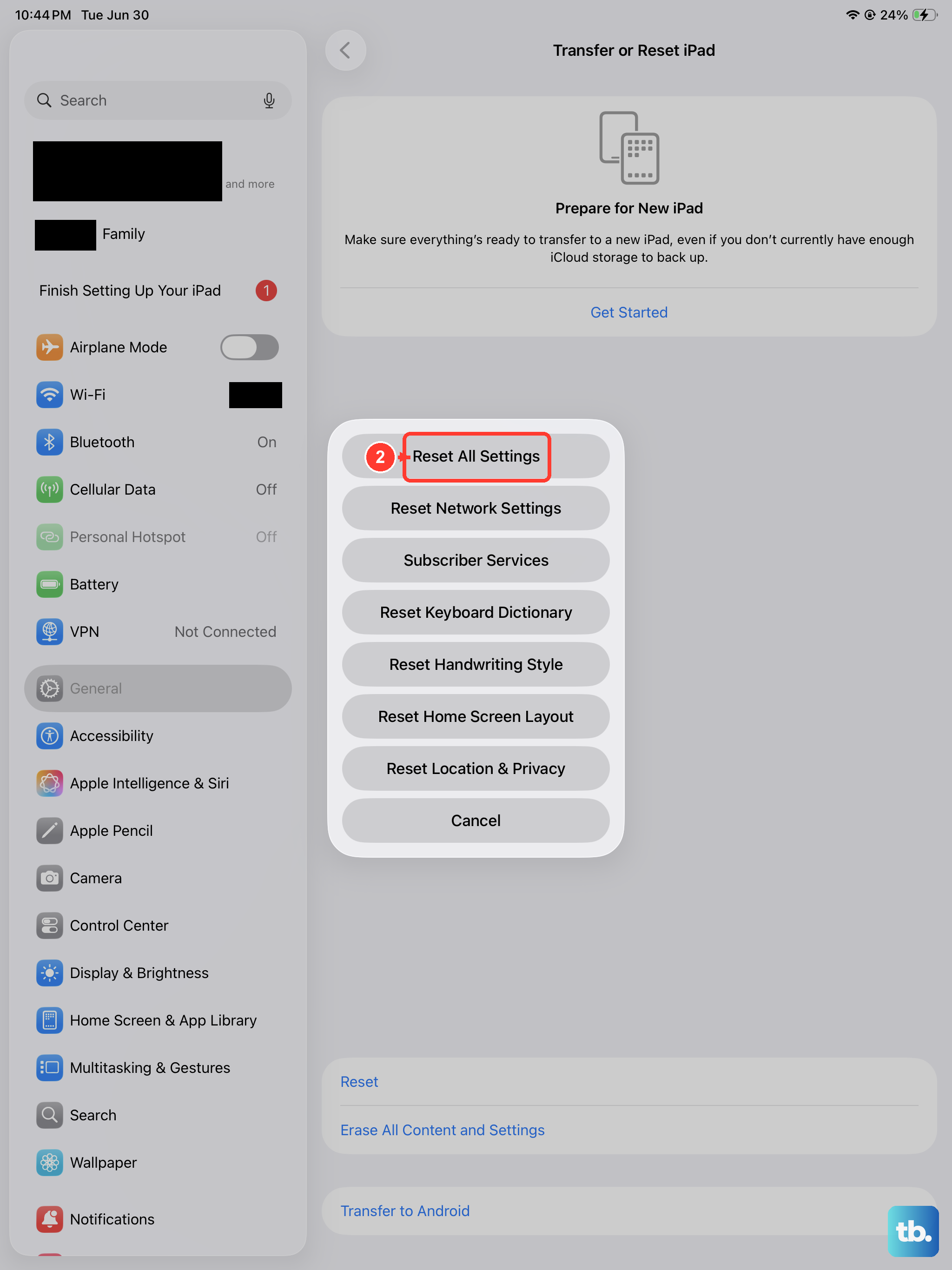
Sometimes the connection settings on the iPad itself get scrambled. Go to Settings > General > Transfer or Reset iPad > Reset. Choose Reset Location & Privacy to clear the trust cache. Or choose Reset All Settings if you want a more thorough clean without deleting your data. This won't remove your apps or photos, but it will reset things like Wi-Fi passwords and wallpapers.
After a reset, reconnect the iPad and accept the trust prompt. That often fixes the "not appearing at all" problem.
Check the Apple Mobile Device Service on Windows
Windows relies on the Apple Mobile Device Service (AMDS) to talk to your iPad. If that service is stopped or not running, the iPad won't show up. Press Windows + R, type services.msc, and hit Enter.
Find Apple Mobile Device Service in the list. If it's not running, right-click and choose Start. Set its startup type to Automatic so it runs every time you boot your PC. Then reconnect your iPad and see if it appears.
If the service keeps stopping, you might need to reinstall iTunes (which includes the service). Uninstall iTunes, reboot, then download the latest version from Apple's website.
Bypass the lock screen and check for a pop-up
If your iPad is locked and you haven't entered your passcode recently, the PC might not see it. Unlock the iPad and leave it on the Home screen while you plug it in. Also keep an eye out for any Windows notifications about "installing drivers" or "device setup." Sometimes the driver installation stalls in the background.
Open File Explorer and look under "This PC" for a new drive icon. If it shows up as "Apple iPad" or "Internal Storage," you're good. If not, any of the steps above should get you there.

Nine times out of ten, a simple cable swap or a quick trust reset solves this. The iPad Pro M5 is a robust machine, but its USB-C connection can be fussy with certain cables or ports. Run through these fixes from top to bottom, and you'll likely be back in business within a few minutes.