
Toggle Location Services On and Off
The fastest way to force the iPad Pro M5 to refresh its GPS connection is to flip Location Services off and back on. Open Settings, tap Privacy & Security, then tap Location Services. Toggle the switch off, wait about 15 seconds, and toggle it back on.
This clears any temporary glitch in the location framework. I'd try this first every time the GPS signal drops out.
Force Restart the iPad Pro M5
If toggling doesn't stick, a force restart clears deeper software hiccups that can cause the GPS to drift or disconnect. On the iPad Pro M5, press and quickly release the Volume button closest to the Top button, then press and quickly release the volume button farthest from the Top button, then press and hold the Top button until the Apple logo appears.
Your iPad will restart and the cellular modem and GPS hardware get a full reset. Give it a minute after the restart, then test the location in Maps.
Check Individual App Permissions
Sometimes the GPS is working fine, but a specific app you're using doesn't have permission to access it. Go to Settings > Privacy & Security > Location Services and scroll through the list. Tap the app that's losing signal and make sure it's set to While Using the App or Always (whichever fits your use case).
If an app is set to "Ask Next Time" or "Never", it won't get any GPS data. For navigation apps like Apple Maps or Google Maps, "While Using the App" is usually enough.
Turn Off Low Power Mode
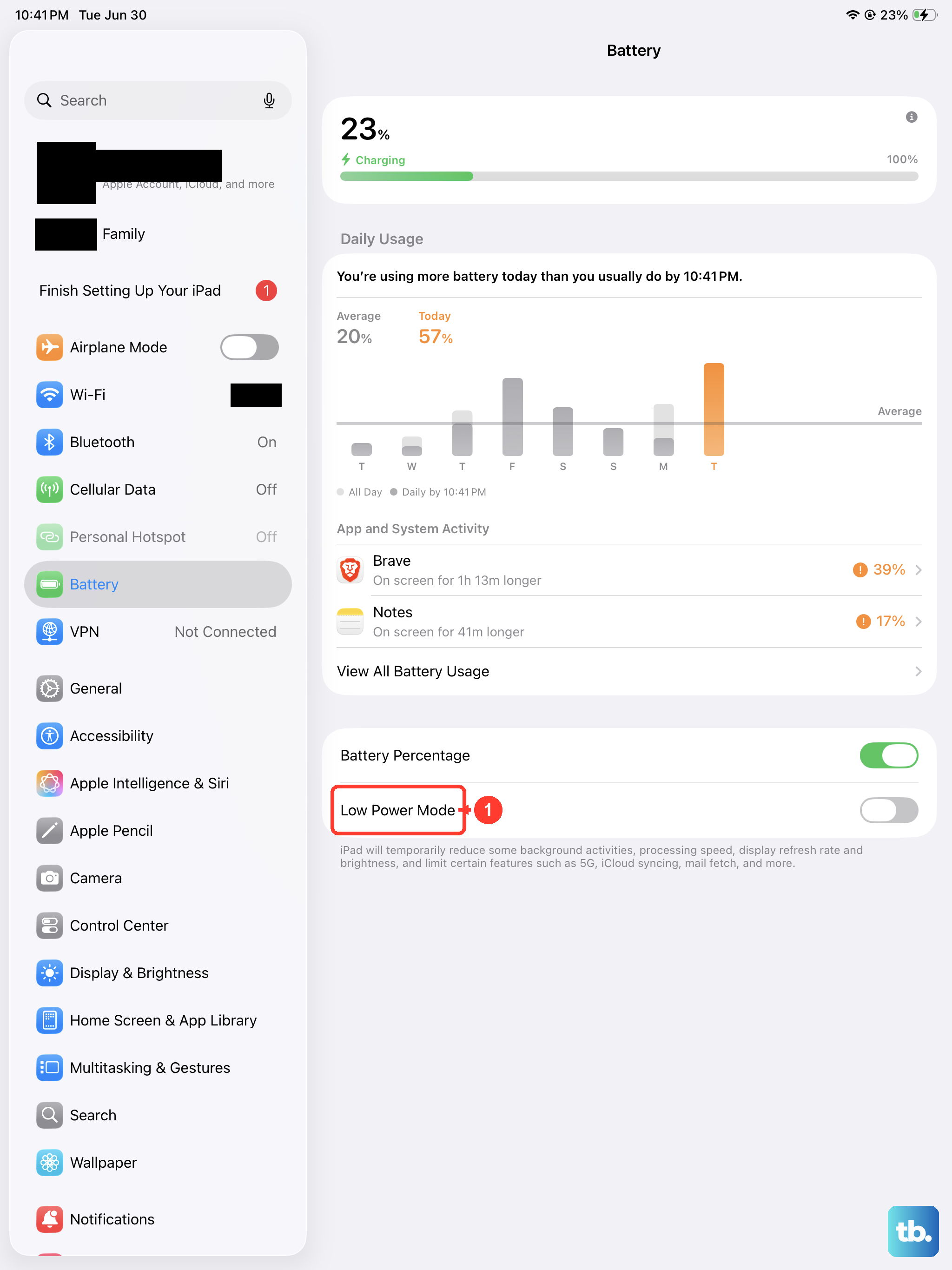
Low Power Mode on iPadOS 18 aggressively manages background activity, and that includes GPS performance. When it's on, your iPad may stop updating location as often or drop the signal entirely to save battery. Open Settings > Battery and toggle off Low Power Mode.
If you need GPS for a road trip or a hike, charge your iPad to at least 50% first so you don't have to choose between battery life and location accuracy.
Disable VPN and DNS Services
A VPN or DNS blocker can interfere with the network‑assisted part of GPS location, the part that uses Wi‑Fi and cellular towers to speed up your lock. Go to Settings > General > VPN & Device Management and turn off any active VPN profile. Also check if you have a content blocker or private DNS enabled under Wi‑Fi > Info icon.
I've seen many cases where a VPN was the only culprit. Once you disable it, the GPS locks in seconds.
Reset Network Settings
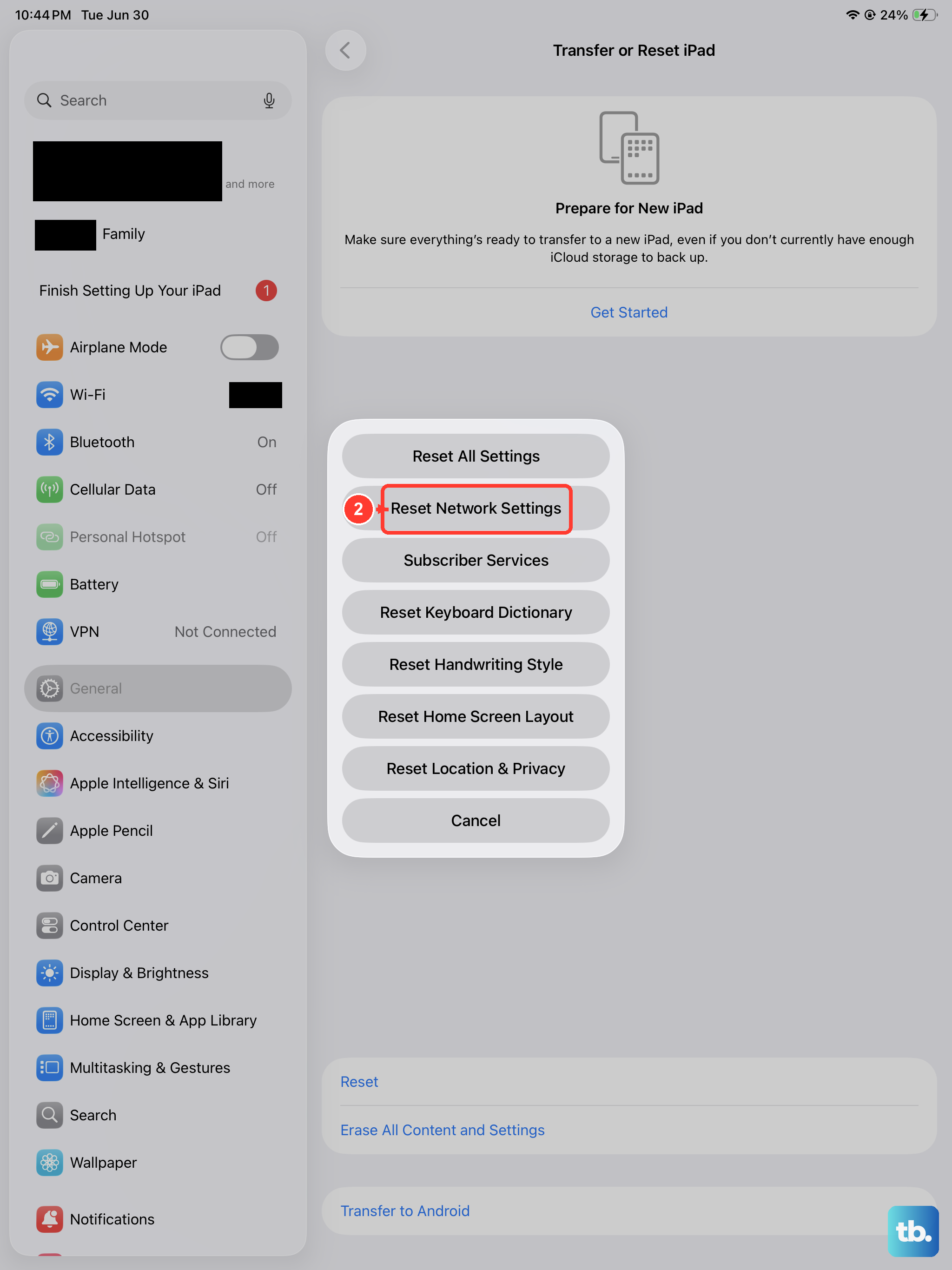
If location keeps dropping, corrupted network settings can be the root cause. This reset clears stored Wi‑Fi networks, Bluetooth pairings, and cellular settings, but it doesn't delete your data. Go to Settings > General > Transfer or Reset iPad > Reset > Reset Network Settings.
After the iPad restarts, reconnect to your Wi‑Fi and test the GPS. This fix has solved persistent signal loss on many iPadOS devices in my experience.
Check the Case and Environment
GPS signals are weak and can be blocked by certain materials. If you use a thick protective case, especially one with a metal plate, a magnetic mount, or a keyboard folio, try removing the case and testing the GPS outdoors. Also avoid using the iPad in basements, parking garages, or near tall buildings that create "urban canyons".
The iPad Pro M5 has a large metal chassis, so even a small metal obstruction near the top edge (where the antennas sit) can degrade the signal significantly.
Calibrate the Compass
A misaligned digital compass throws off GPS‑based navigation because the iPad uses the compass to orient your position on the map. Open the Compass app (it's pre‑installed on iPadOS). If you don't see it, you can download it from the App Store. Hold your iPad flat and move it in a small figure‑8 pattern until the calibration prompt disappears and the compass needle points correctly.
This step doesn't directly fix the GPS chip, but it dramatically improves the accuracy of your location display in Maps.
Update to the Latest iPadOS
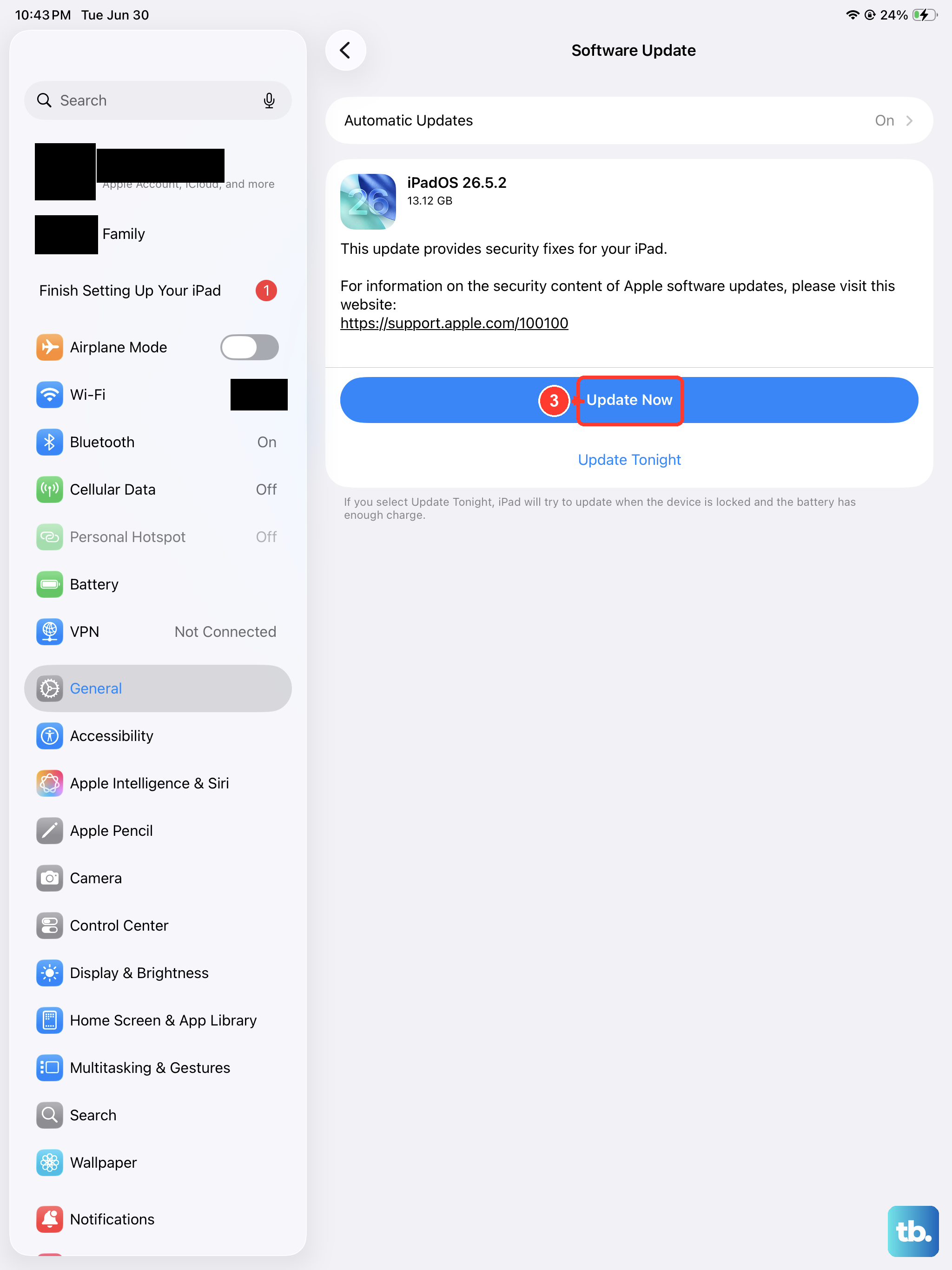
Apple regularly patches GPS bugs in iPadOS updates. Check Settings > General > Software Update and install any pending update. iPadOS 18 has included several location‑related fixes since its release, and some may apply specifically to the M5 chipset's GPS module.
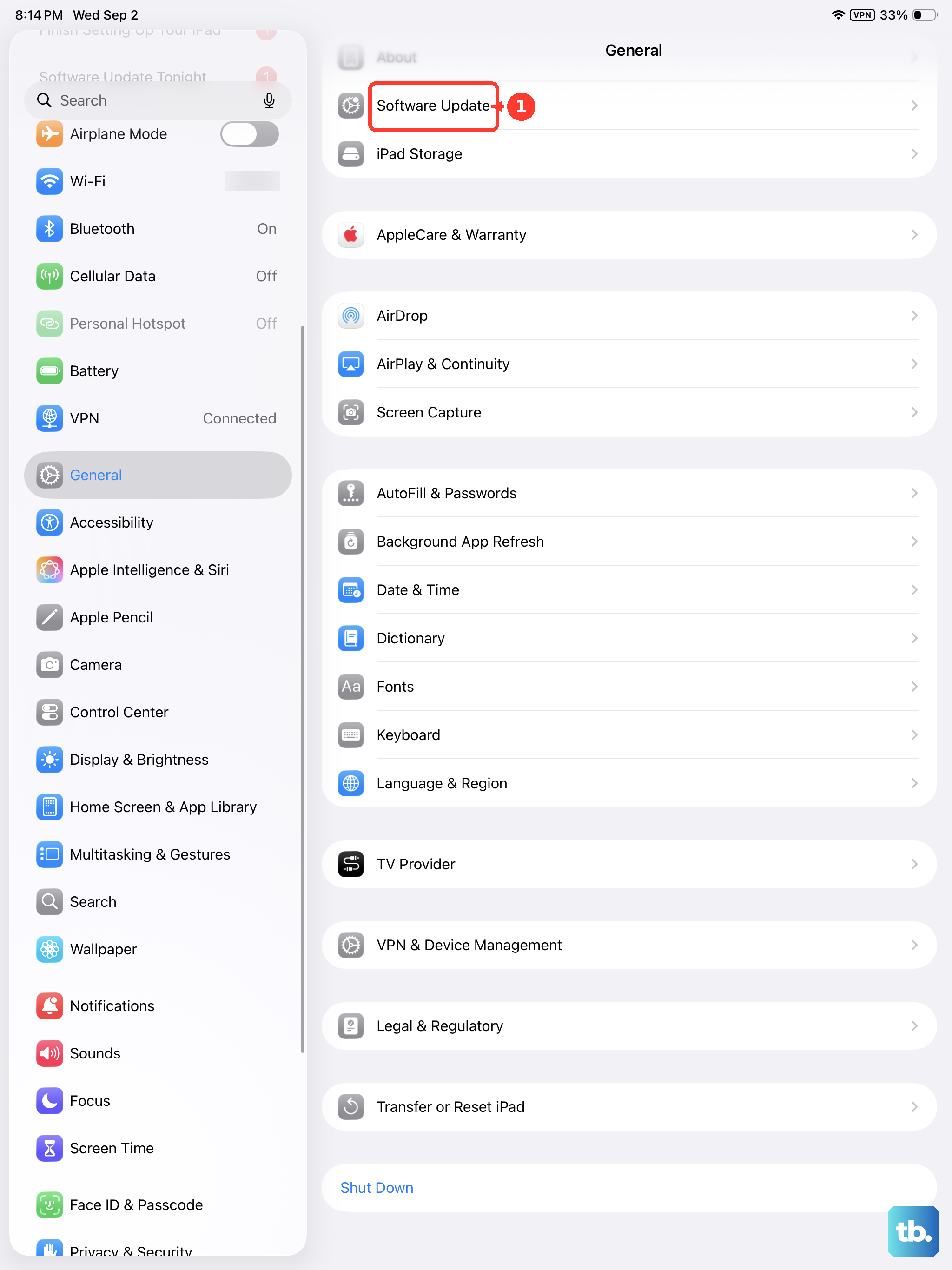
After the update, the iPad will restart. Test the GPS while you're outside with a clear view of the sky.
Reset Location & Privacy and Re‑Pair
If none of the above has helped, you can reset all Location and Privacy settings back to their defaults. Go to Settings > General > Transfer or Reset iPad > Reset > Reset Location & Privacy. This clears every location permission you've granted, so you'll have to re‑allow apps one by one.
That step often clears any corrupt location cache that a simple toggle can't reach. After the reset, give the iPad a few minutes outdoors to re‑acquire satellites. If the signal still drops, the issue may be hardware‑related and contacting Apple Support would be the next reasonable step.