
When your iPad Pro M5 stops downloading apps, it can feel like the entire device has hit a wall. Whether you're trying to grab a new game or a work app, a stalled download is maddening. The good news is most app download issues on iPadOS 18 have straightforward fixes you can try right now.
Start with the quickest check: make sure you're actually connected to the internet. Swipe down from the top-right corner to open Control Center and check the Wi-Fi icon. If it's on but grayed out, you might be connected to a network that requires a login page (like a hotel or coffee shop). Open Safari and try loading any website, if you get a captive portal, sign in and then go back to the App Store.
If the connection looks fine but apps still won't download, a quick force restart often clears up temporary glitches. On the iPad Pro M5, press and quickly release the Volume button closest to the Top button, then press and quickly release the volume button farthest from the Top button, then press and hold the Top button until the Apple logo appears. This takes about 10 seconds and doesn't erase any data.
Check Your Date and Time
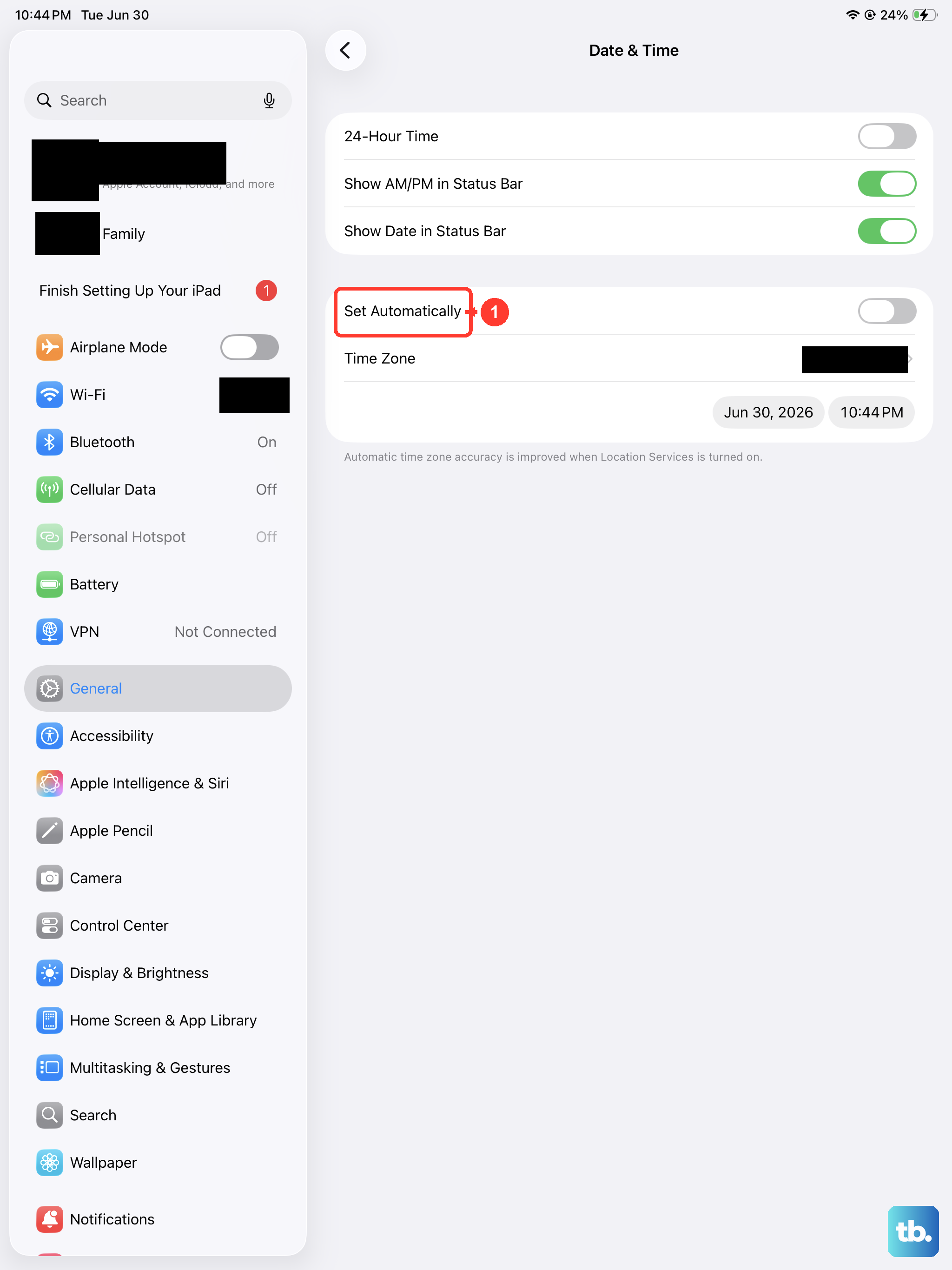
iPadOS uses your device's clock to verify certificates with Apple's servers. If the date or time is off, the App Store may refuse to download anything. Go to Settings > General > Date & Time and make sure Set Automatically is toggled on. If it's already on but the time is still wrong, toggle it off, manually set the correct time, then turn it back on.
Switch Between Wi-Fi and Cellular
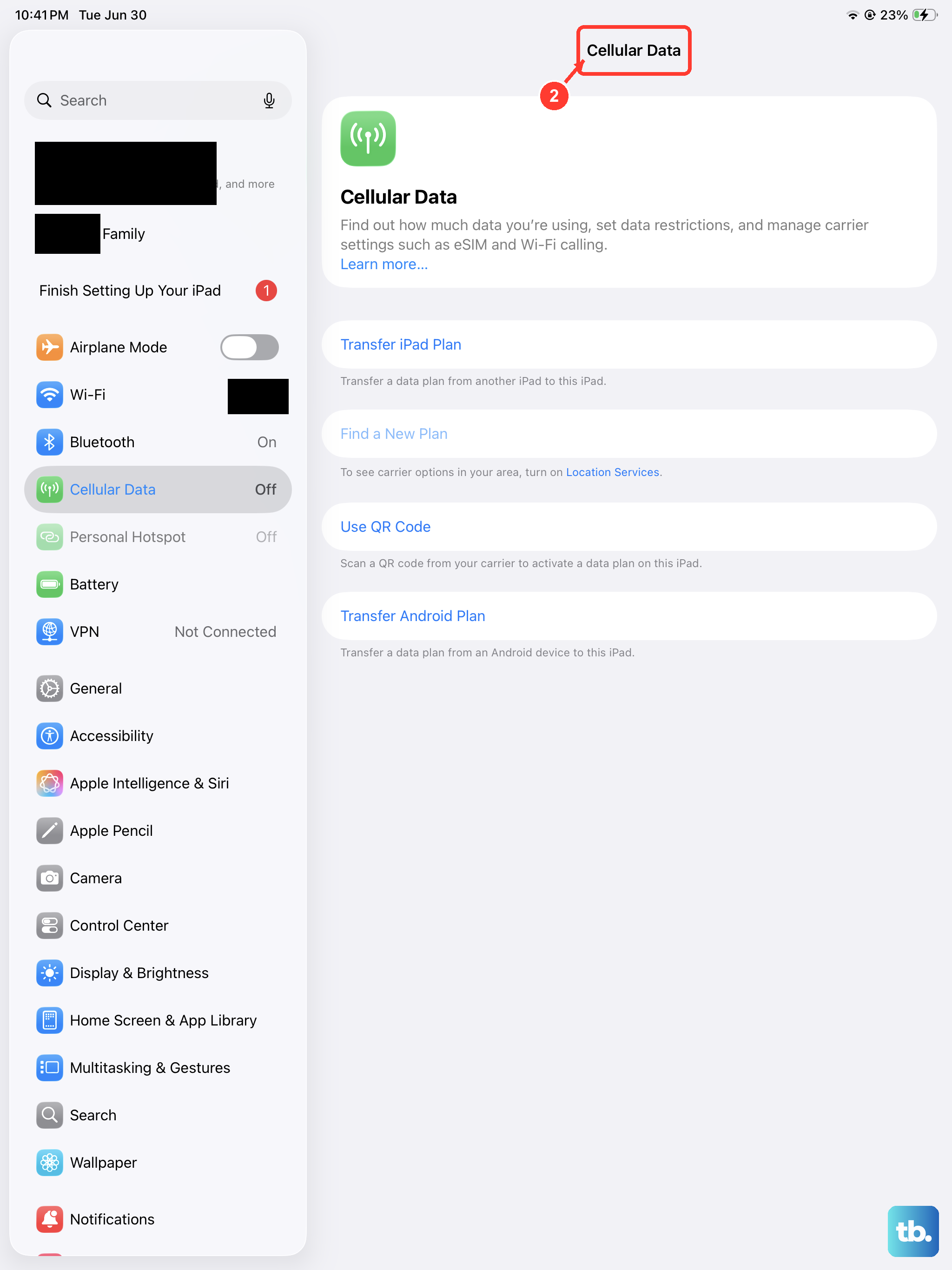
Sometimes a specific Wi-Fi network is the problem. Some networks block the ports Apple uses for app downloads. Open Control Center and tap the Wi-Fi icon to disconnect. If you have a cellular plan on your iPad, enable mobile data and try downloading again. If that works, the issue is with your Wi-Fi. You can try forgetting the network and reconnecting: Settings > Wi-Fi, tap the info icon next to your network, choose Forget This Network, then reconnect.
Sign Out and Back Into the App Store
Your Apple ID acts as your ticket to the App Store. If the connection between your device and Apple's servers is stale, signing out and back in can refresh it. Tap your profile icon in the top-right corner of the App Store, scroll to the bottom, and tap Sign Out. Then sign back in with your Apple ID. This clears any authentication hiccups without losing your data.
Free Up iPad Storage
You can't download apps if your iPad is running out of space. Go to Settings > General > iPad Storage and look at the bar at the top. If it's nearly full, you'll see recommendations for offloading unused apps, deleting large files, or clearing message attachments. Offloading an app removes the app but keeps its documents, you can reinstall later without losing data. Tap Enable next to any suggestion to free up space quickly.
Check Content & Privacy Restrictions
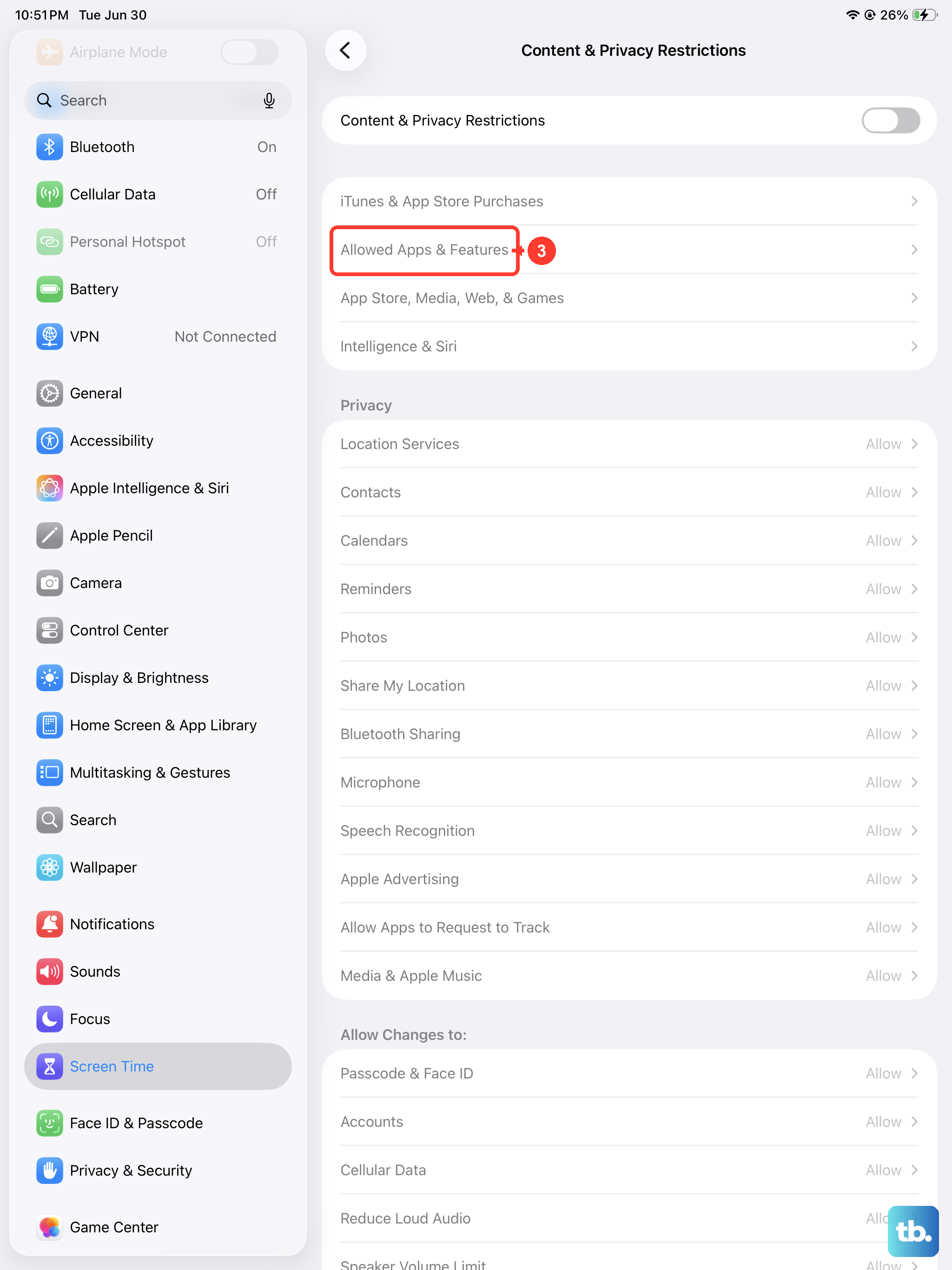
If you can't download any apps at all, even free ones, restrictions might be turned on. Go to Settings > Screen Time > Content & Privacy Restrictions. If it's enabled, tap iTunes & App Store Purchases and make sure Installing Apps is set to Allow. While you're there, check Allowed Apps and confirm the App Store isn't blocked.
Update iPadOS
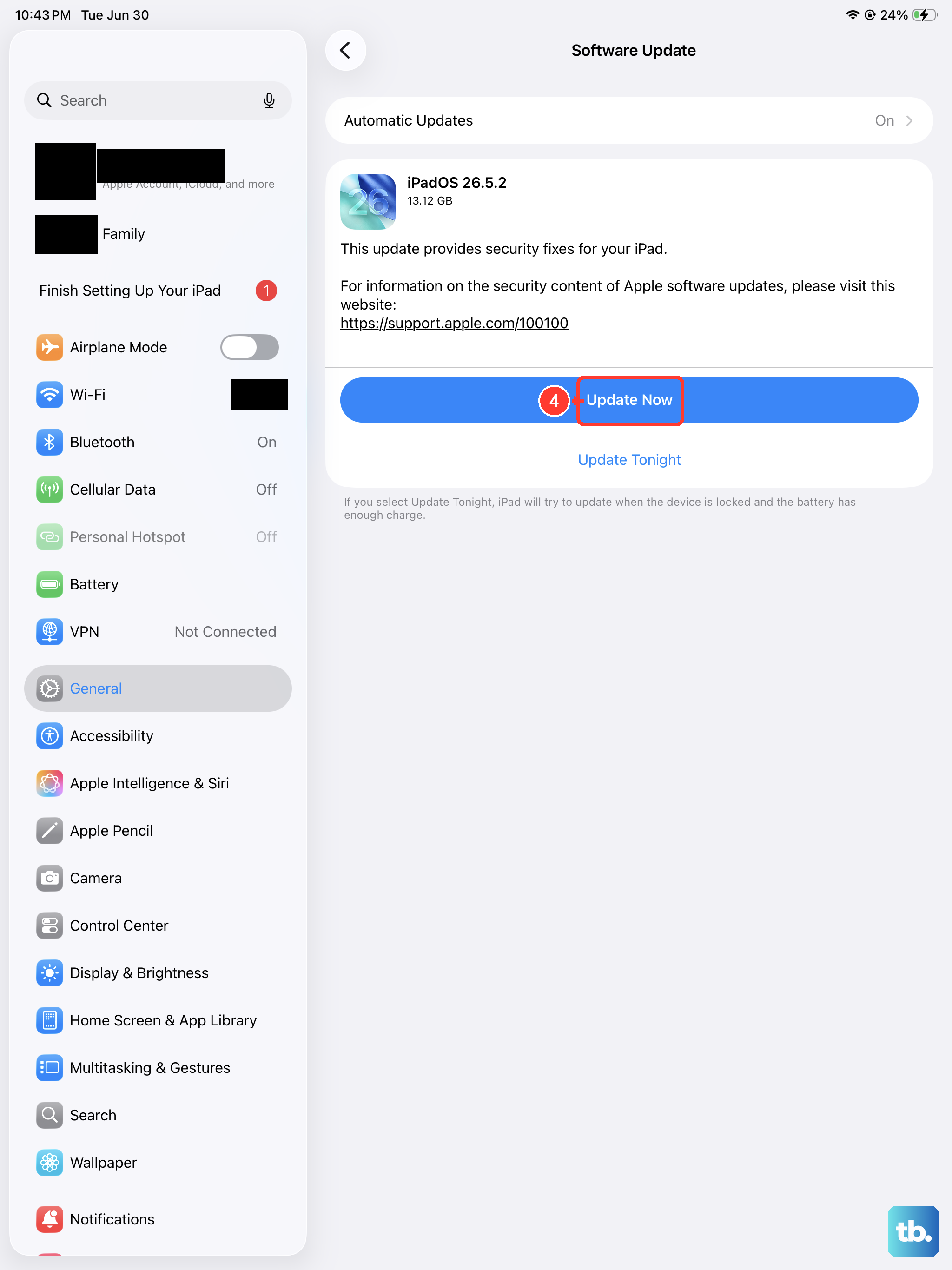
Apple regularly releases iPadOS updates that fix bugs affecting the App Store. Go to Settings > General > Software Update. If a new version is available, tap Download and Install. Your iPad will restart during the process. Even if you've been putting off the update, this is one of the most reliable ways to resolve weird download behavior.
Reset Network Settings
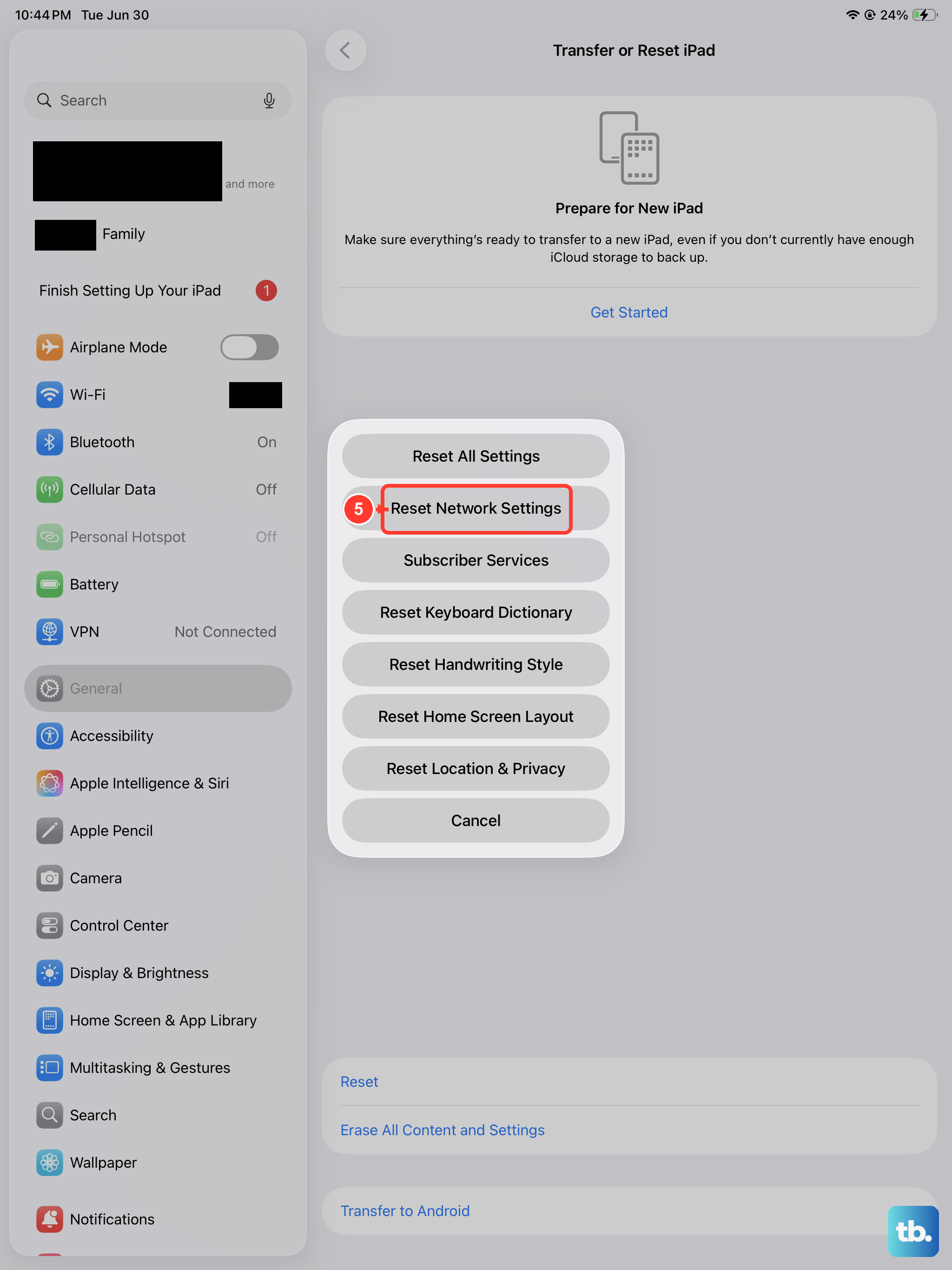
If you've tried everything network-related and downloads still fail, resetting your network settings can wipe out corrupted Wi-Fi configurations, Bluetooth pairings, and VPN profiles. Go to Settings > General > Transfer or Reset iPad > Reset > Reset Network Settings. Your iPad will restart, and you'll need to re-enter Wi-Fi passwords afterward, but this often clears stubborn connection issues.
Dealing With "Insufficient Storage" or Other Errors
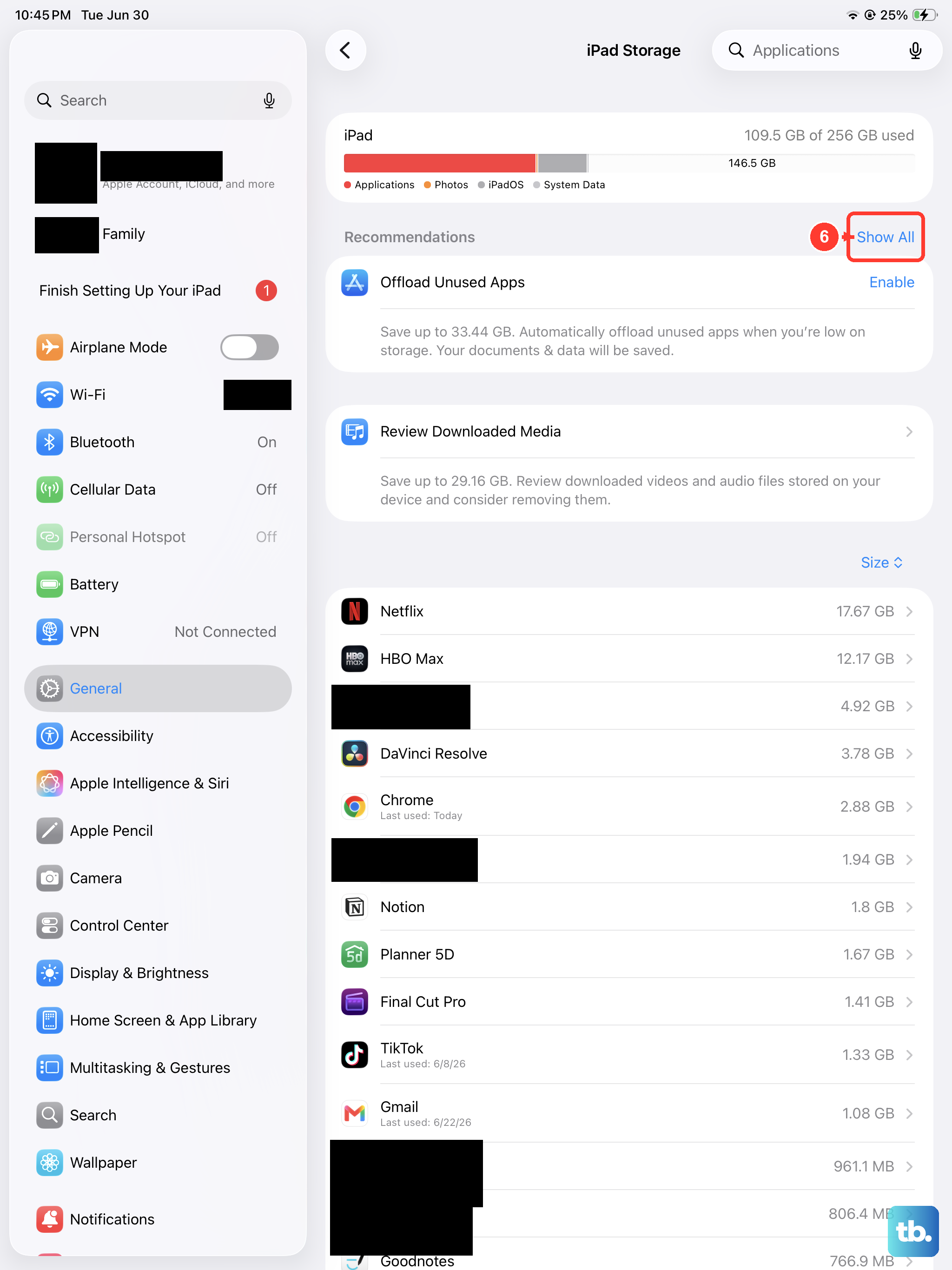
If you see an "Insufficient Storage" message, follow the storage tips above. For a generic "Cannot Download" error, especially after a failed update, try this: go to Settings > General > iPad Storage, find the app that failed, tap it, and choose Offload App. Then reinstall it from the App Store. This clears any corrupted download data.
If you get an error saying the app is "not compatible" with your iPad, make sure you're looking at the iPad version of the app. Some iPhone-only apps can't be installed on an iPad, but most will run in compatibility mode. If an app truly isn't supported, try searching for an iPad version or an alternative.
Last Resort: Reset All Settings
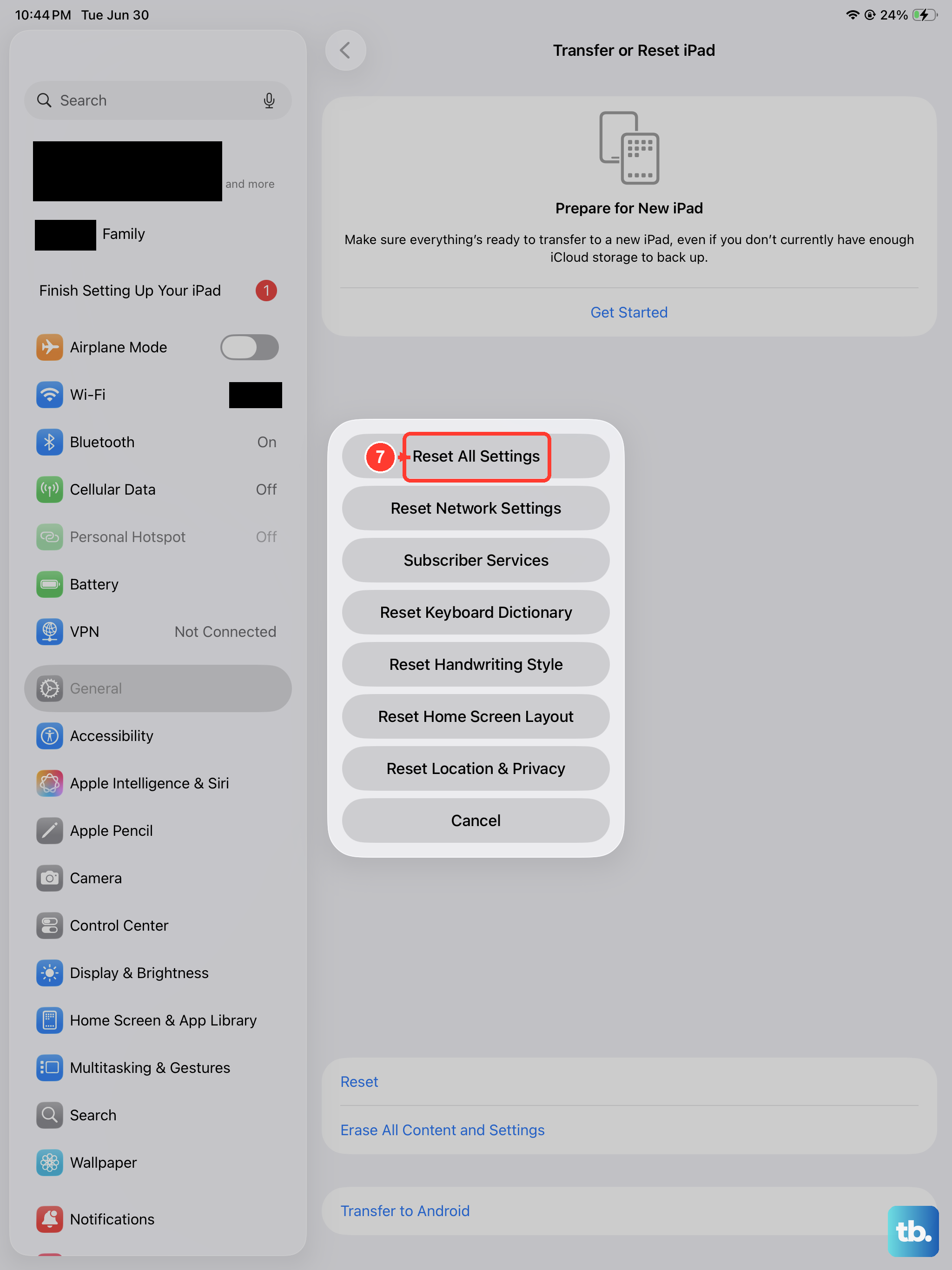
When nothing above has worked, resetting all settings is less drastic than erasing everything. It keeps your photos, apps, and documents but reverts system preferences like Wi-Fi networks, wallpapers, and privacy settings to defaults. Go to Settings > General > Transfer or Reset iPad > Reset > Reset All Settings. Your iPad will restart, and you'll need to set up your preferences again, but it often fixes deep software issues without a full wipe.
If even that doesn't help, you can try Erase All Content and Settings as a true factory reset. Make sure you have a recent backup in iCloud or on a computer first. After the reset, restore from backup and check if the App Store works. Most download issues resolve long before you get to this point, so start with the simple steps and work your way through.