You type out a message on your iPad, tap send, and it just sits there, or it never reaches the friend you texted from your phone five minutes ago. It is one of the more confusing iPad problems because the device looks like it should text exactly like a phone, yet the rules are different. Before you assume something is broken, it helps to know what an iPad can and cannot do with messages, and then work through the settings in order.
The good news is that most "iPad not sending texts" cases come down to a handful of toggles and one feature that lives on your iPhone, not your iPad. Work through the fixes below from the top, starting with the quick, safe checks and saving anything that erases data for the very end.
Why your iPad needs an iPhone to send regular texts
An iPad is not a phone, so it cannot send native SMS or MMS text messages over a cellular voice network on its own. Even a Wi-Fi plus Cellular iPad uses its cellular connection for data only, never for carrier text messaging.
What the iPad can do on its own is send iMessages, the blue-bubble messages to other Apple users, over Wi-Fi or cellular data through the built-in Messages app. To send and receive standard SMS or MMS texts (the green-bubble messages to Android phones and other non-iMessage numbers), the iPad has to rely on an iPhone. As Apple puts it, "the SMS, MMS, or RCS messages that you send and receive on your iPhone can also appear on your Mac, iPad, and Apple Vision Pro."
That is why so many texting failures on an iPad trace back to three things: Text Message Forwarding was never set up, iMessage is switched off, or the iPad and iPhone are not signed in to the same Apple Account. The steps below cover all three, plus the deeper resets if they do not clear it up. These instructions apply to an iPad running iPadOS 26, both Face ID models without a Home button and older models with a Home button.
Confirm the iPad has a live internet connection
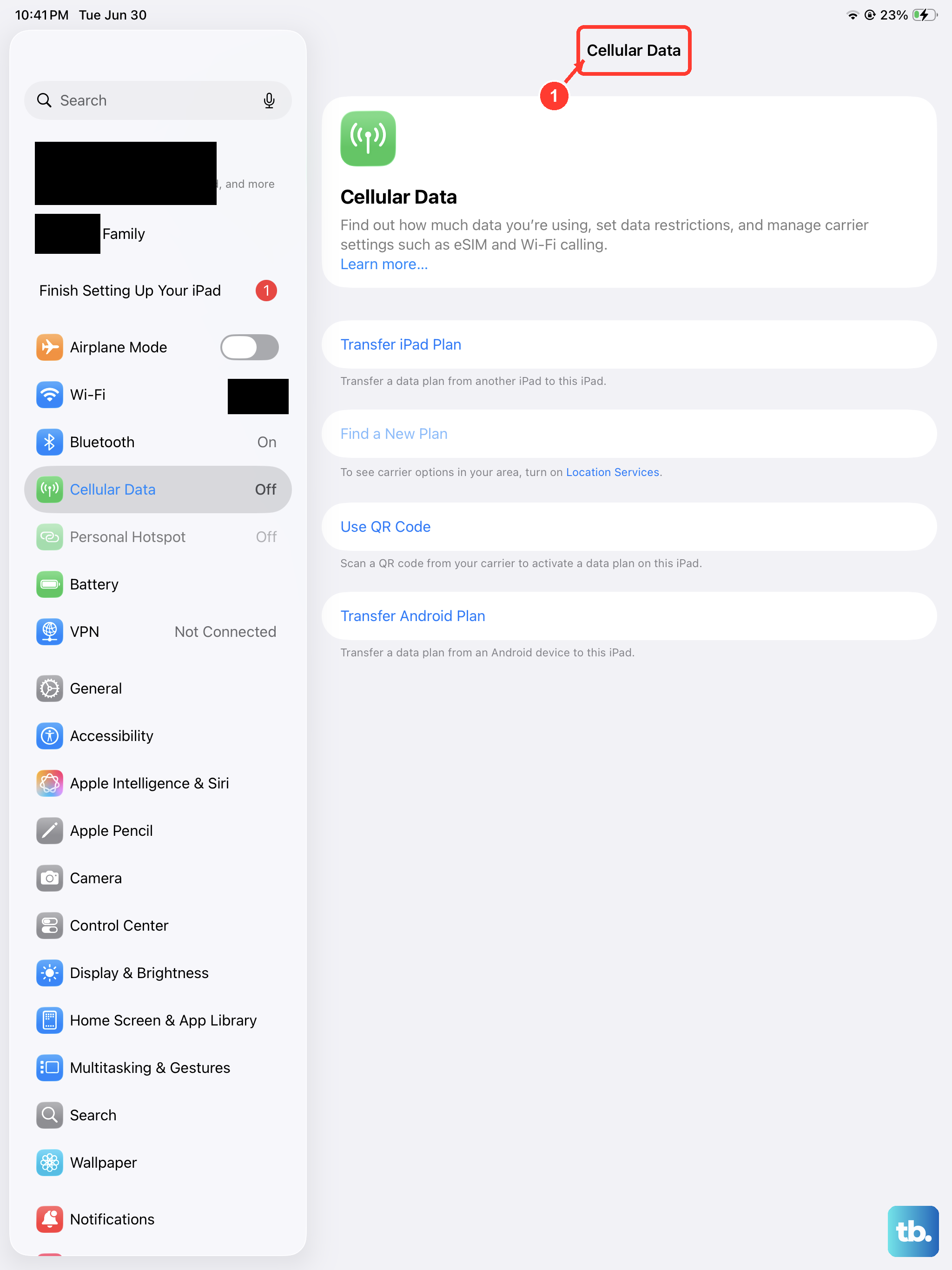
To send an iMessage, the iPad needs either a cellular data or Wi-Fi connection, and that same connection is what lets forwarded texts come through. If the connection has dropped, messages will stall no matter how every other setting is configured.
Check that Wi-Fi is connected, or that cellular data is on if you have a Wi-Fi plus Cellular model, and load a web page to confirm data is actually flowing. Sort the connection out first, then move on if texts still will not send.
Make sure iMessage is on and tied to the right Apple Account
iMessage being active and signed in to the correct account is the foundation for both blue-bubble messages and for the iPad showing up in Text Message Forwarding later. On the iPad, go to Settings > Apps > Messages and make sure iMessage is turned on.
Then tap Send & Receive and confirm the Apple Account shown at the bottom is the same one you use on your iPhone. If the accounts do not match, the iPad will not appear as a forwarding destination on the phone, and your texts have nowhere to land.
Switch iMessage off and back on
A simple toggle often clears a stuck activation. In Settings > Apps > Messages, turn iMessage off, wait a moment, then turn it back on.
Apple lists this, alongside restarting the device, as a core fix when you cannot send or receive messages. Give iMessage a minute to reactivate before testing again.
Turn on Send as Text Message so the iPad has a fallback
When iMessage is temporarily unavailable, you want the iPad to try the next best route automatically. Go to Settings > Apps > Messages and turn on Send as Text Message.
With this enabled, the iPad will attempt to send as SMS when iMessage cannot go through, per Apple's guidance. Remember that this SMS path still depends on your iPhone forwarding texts, which is covered below.
Rule out a wrong clock with Date and Time
An incorrect time setting can quietly block iMessage from activating, which then stops messages from sending. On the iPad, go to Settings > General > Date & Time and make sure the time zone is set correctly.
Letting the iPad set the time automatically is the safest choice here. Once the clock is right, return to Messages and try sending again.
Turn on Text Message Forwarding from your iPhone
This is the fix that unlocks green-bubble SMS and MMS texts on the iPad, and it is the step most people miss. Because the iPad cannot send standard texts by itself, the work happens on the phone.
- 1.On the iPhone, open Settings > Apps > Messages > Text Message Forwarding.
- 2.Turn on your iPad in the list of devices.
- 3.Keep the iPhone turned on and connected to Wi-Fi or cellular, and signed in to the same Apple Account as the iPad.
If the iPad does not appear in that list, go back to the iPad and re-check that iMessage is on and that the Apple Account matches in Send & Receive. The phone can only offer the iPad as a forwarding target once those two things line up.
Restart both devices, then force restart if the iPad freezes
Apple recommends restarting the iPhone or iPad as a standard step when messages will not send or receive. Restart both the iPad and the paired iPhone, since the two work together to deliver your texts, then test once they are back up.
If the iPad is unresponsive and a normal restart is not possible, force restart it. The button sequence depends on whether your model has a Home button.
On an iPad without a Home button, press and quickly release the volume button farthest from the top button, then press and hold the top button until the Apple logo appears and release it.
On an iPad with a Home button, press and hold the top button and the Home button at the same time until the Apple logo appears, then release both buttons.
Update iPadOS and your iPhone together
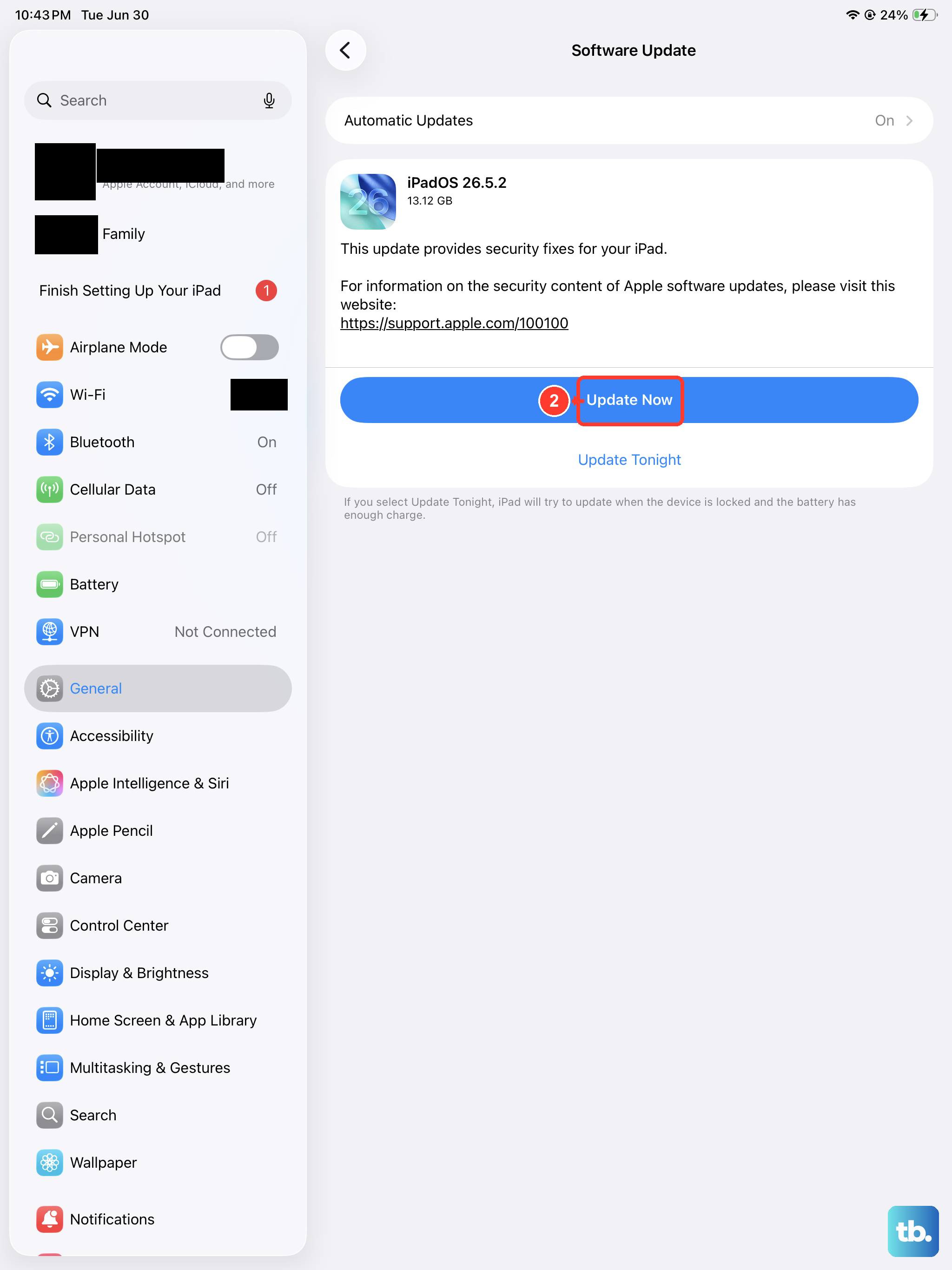
Running current software can resolve messaging glitches and keep the two devices compatible. On the iPad, go to Settings > General > Software Update and, if an update is available, tap Download and Install.
Your data and settings remain unchanged when you update, so this is a safe step. Update the paired iPhone as well, since it is the device actually relaying your SMS and MMS texts.
Reset all settings without erasing your content
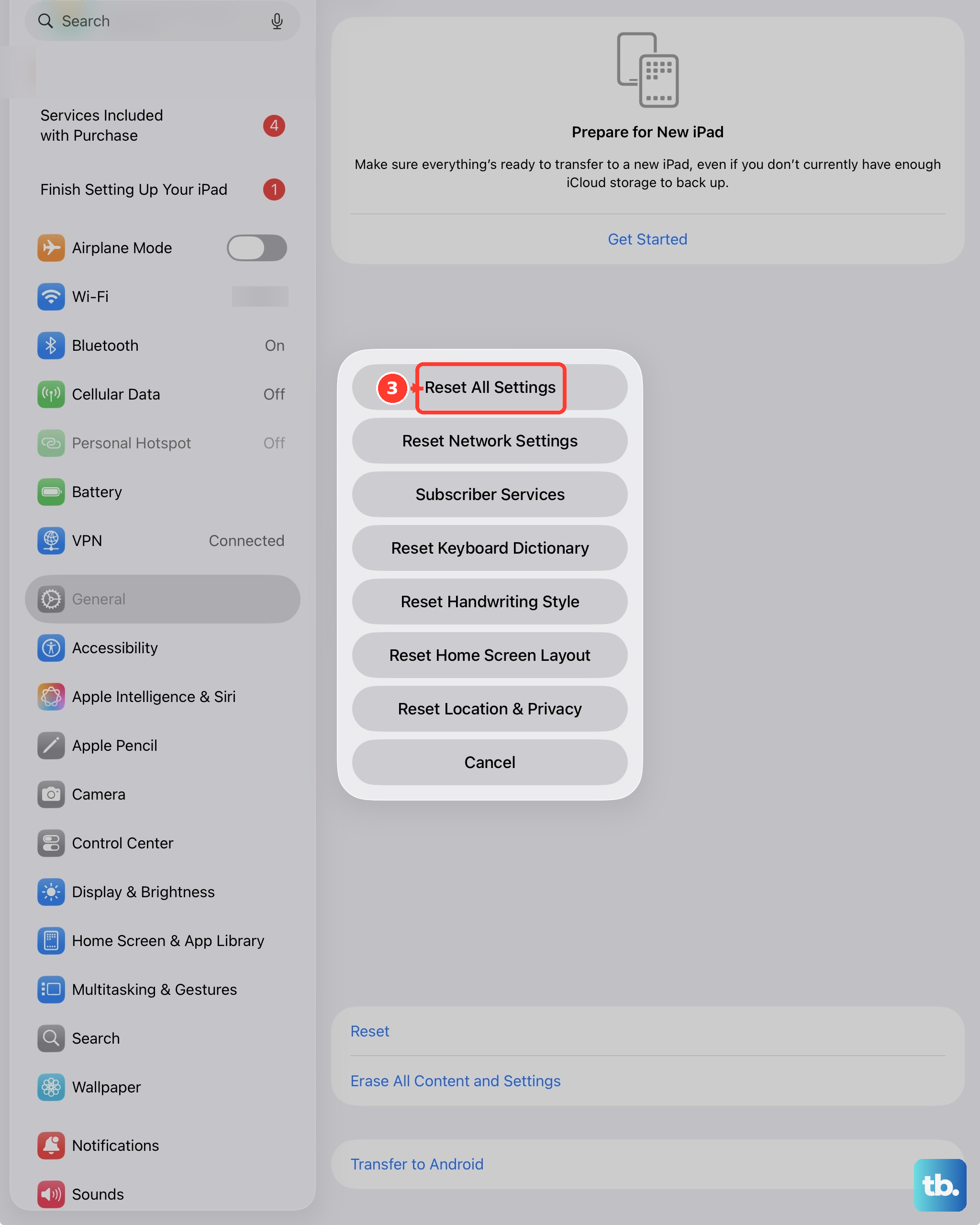
If texts still will not send, you can return the iPad's settings to their defaults without touching your files. Go to Settings > General > Transfer or Reset iPad > Reset.
This clears settings-level snags that may be interfering with Messages, and no data or media are deleted. After it finishes, recheck iMessage, Send & Receive, and Send as Text Message, since those preferences will return to their defaults.
Erase the iPad only as a last resort
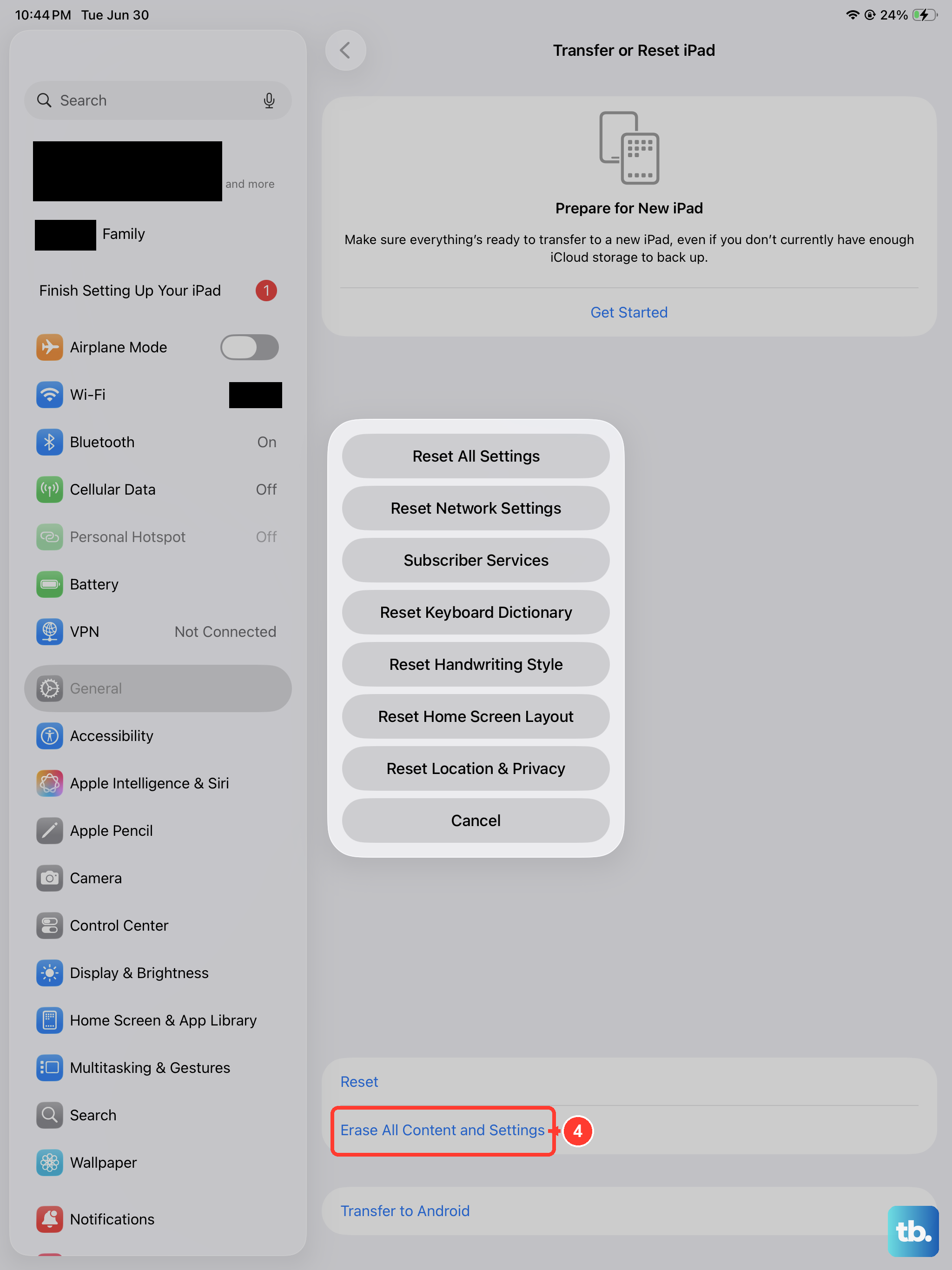
A full erase wipes everything on the iPad, so treat it as the final option and back up the device first. Once you have a current backup, you can move on to the erase itself.
To erase directly on the iPad, go to Settings > General > Transfer or Reset iPad > Erase All Content and Settings. If asked, enter your passcode or Apple Account password and confirm; this restores the iPad to factory settings and deletes everything.
Once the iPad is set up again, sign back in to the same Apple Account, turn iMessage on, and re-enable Text Message Forwarding from your iPhone so green-bubble texts start flowing again.
When to bring in Apple Support
If texts still will not send after all of the steps above, contact Apple Support through support.apple.com or the Apple Support app. They can look at account and activation issues that are not visible from the settings screens.
Keep in mind that standard SMS and MMS texts travel over your iPhone's carrier connection, so any carrier-side problem should be raised with your iPhone's carrier rather than treated as an iPad fault.
Frequently Asked Questions
Can an iPad send text messages without an iPhone?
It can send iMessages (the blue-bubble messages to other Apple users) over Wi-Fi or cellular data on its own. Standard SMS and MMS texts to non-Apple numbers, however, have to route through a paired iPhone using Text Message Forwarding, with both devices on the same Apple Account.
Why do some messages show up green instead of blue on my iPad?
Blue means the message went through as an iMessage. Green means it was sent as a standard SMS or MMS text, either through your iPhone's forwarding or through the Send as Text Message fallback when iMessage was unavailable.
Do I need a cellular iPad to send texts?
No. Even a Wi-Fi plus Cellular iPad uses cellular for data only, not for carrier texting. iMessage works over Wi-Fi or data on any model, and regular SMS or MMS still depends on your iPhone forwarding the messages.
Will updating or resetting delete my messages?
Updating iPadOS leaves your data and settings unchanged. Reset (Settings > General > Transfer or Reset iPad > Reset) returns settings to their defaults without deleting any data or media, while Erase All Content and Settings removes everything, so back up the iPad before using that option.
The iPad still will not send texts after every step, what now?
Contact Apple Support at support.apple.com or through the Apple Support app for account and activation help. If the problem is specifically with green-bubble SMS or MMS texts, raise it with your iPhone's carrier, since those messages travel over the iPhone's cellular service.