
If your iPad mini (7th generation) is starting to feel sluggish, you're not imagining it. Even a powerful device can slow down when storage fills up, too many apps are running, or background processes get out of hand. The good news is you can usually fix it yourself in a few minutes.
I'd start with a simple restart. It clears out temporary system files and stops any rogue background tasks that might be hogging resources. Just hold down the top button and either volume button, then slide the power off slider. Wait a moment and turn it back on.
This basic step solves a surprising number of performance hiccups right away.
Close Unused Apps from the App Switcher
Having dozens of apps suspended in the background can drain your iPad's memory. To close them, swipe up from the bottom of the screen and pause in the middle to bring up the App Switcher. Swipe through the app cards and swipe up on each one you want to close.
You don't need to close every single app all the time, but if things are lagging, clearing them out gives the system a fresh start.
Check Your Available Storage Space
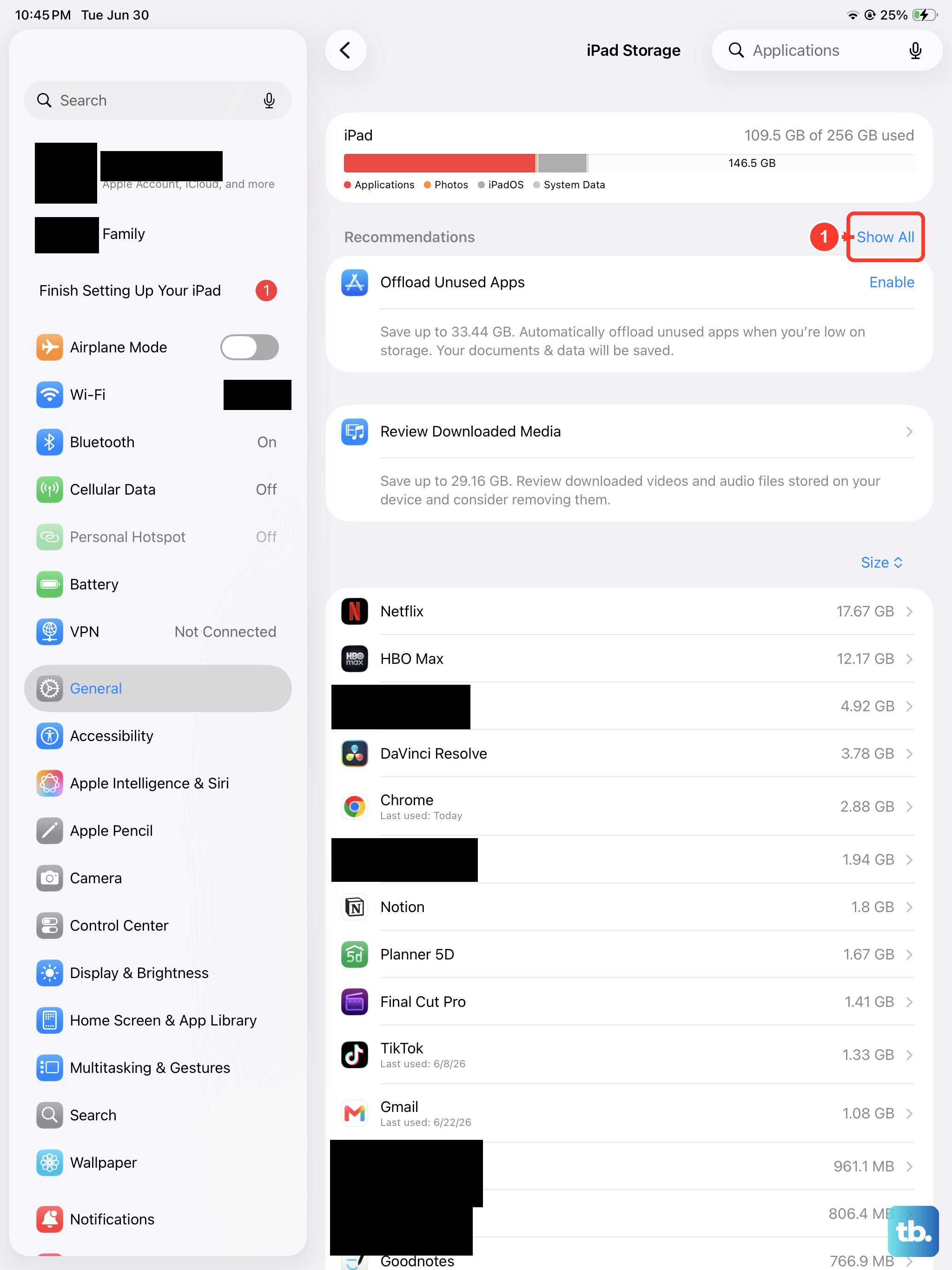
When your iPad's storage is nearly full, performance takes a major hit. Go to Settings > General > iPad Storage. This screen shows you exactly what's taking up space.
Look for the largest offenders, which are often photos, videos, or unused apps. You can offload apps you rarely use (which removes the app but keeps its documents and data) or delete old downloads and files directly from here.
Update to the Latest Version of iPadOS
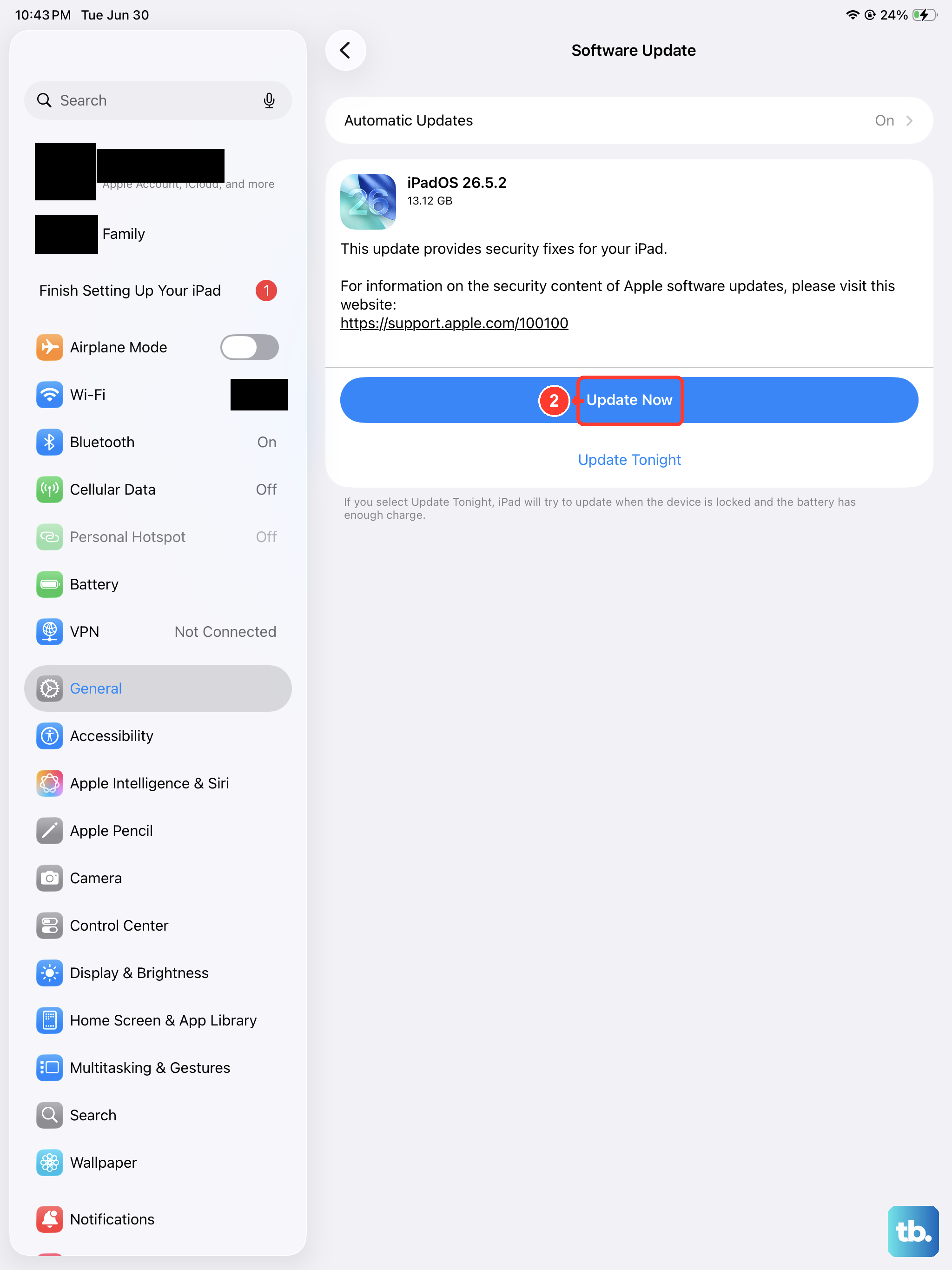
Apple frequently releases software updates that include performance improvements and bug fixes. Make sure you're running the latest version of iPadOS 26.
Go to Settings > General > Software Update. If an update is available, tap "Download and Install." It's a good idea to plug your iPad into power using a 20W or higher USB-C charger during this process.
Manage Background App Refresh
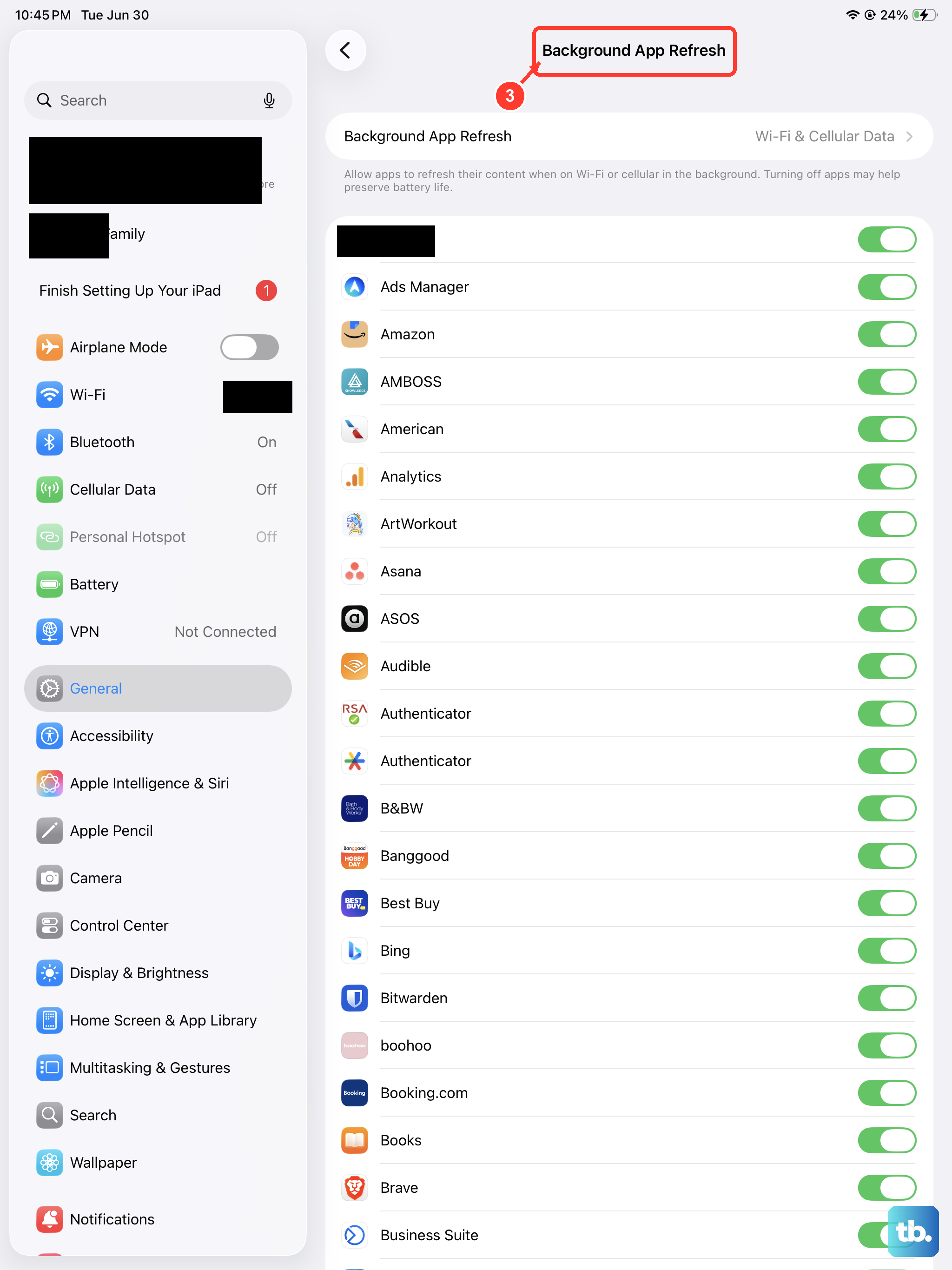
This feature allows apps to update their content in the background, which is convenient but can slow things down. You can turn it off entirely or just for specific apps.
Head to Settings > General > Background App Refresh. You can toggle it off or select "Wi-Fi" only. Scrolling down, you can disable it individually for apps that don't need constant updates.
Reduce Motion and Transparency Effects
The parallax and blur effects on the home screen and within apps use graphics processing power. Turning them down can make your iPad mini feel snappier, especially if you've had it for a while.
Navigate to Settings > Accessibility > Motion. Turn on "Reduce Motion." While you're there, go to Display & Text Size and turn on "Reduce Transparency."
Clear Safari's Website Data and History
Over months of browsing, Safari accumulates a huge cache of website data, which can slow down your browsing experience. Clearing it out is quick and safe.
Open Settings, scroll down and tap Safari. Then, tap "Clear History and Website Data" and confirm. This will log you out of websites, so you'll need to sign in again, but it frees up space and resources.
Review and Remove Home Screen Widgets
Widgets are great for information at a glance, but each one is a small, constantly updating app. If you have many widgets, especially complex ones, they can impact performance.
Long-press on your home screen, tap the minus (-) sign on any widget you don't actively use, and choose "Remove Widget." Try keeping only the essentials and see if responsiveness improves.
Check for Problematic Apps
Sometimes, a single misbehaving app can cause system-wide slowdowns. You can check your battery usage for clues, as a power-hungry app is often a culprit.
Go to Settings > Battery. Look at the battery usage by app over the last 24 hours or 10 days. If you see an app using a disproportionate amount of background activity, try force-closing it or checking for an update in the App Store.
Perform a Forced Restart
If your iPad is frozen or unresponsive, a standard shutdown might not work. A forced restart is different and can clear more persistent software glitches.
Quickly press and release the Volume Up button, then quickly press and release the Volume Down button. Immediately press and hold the Top button. Keep holding it until you see the Apple logo appear, then release. This won't erase any data.
Reset All Settings as a Last Resort
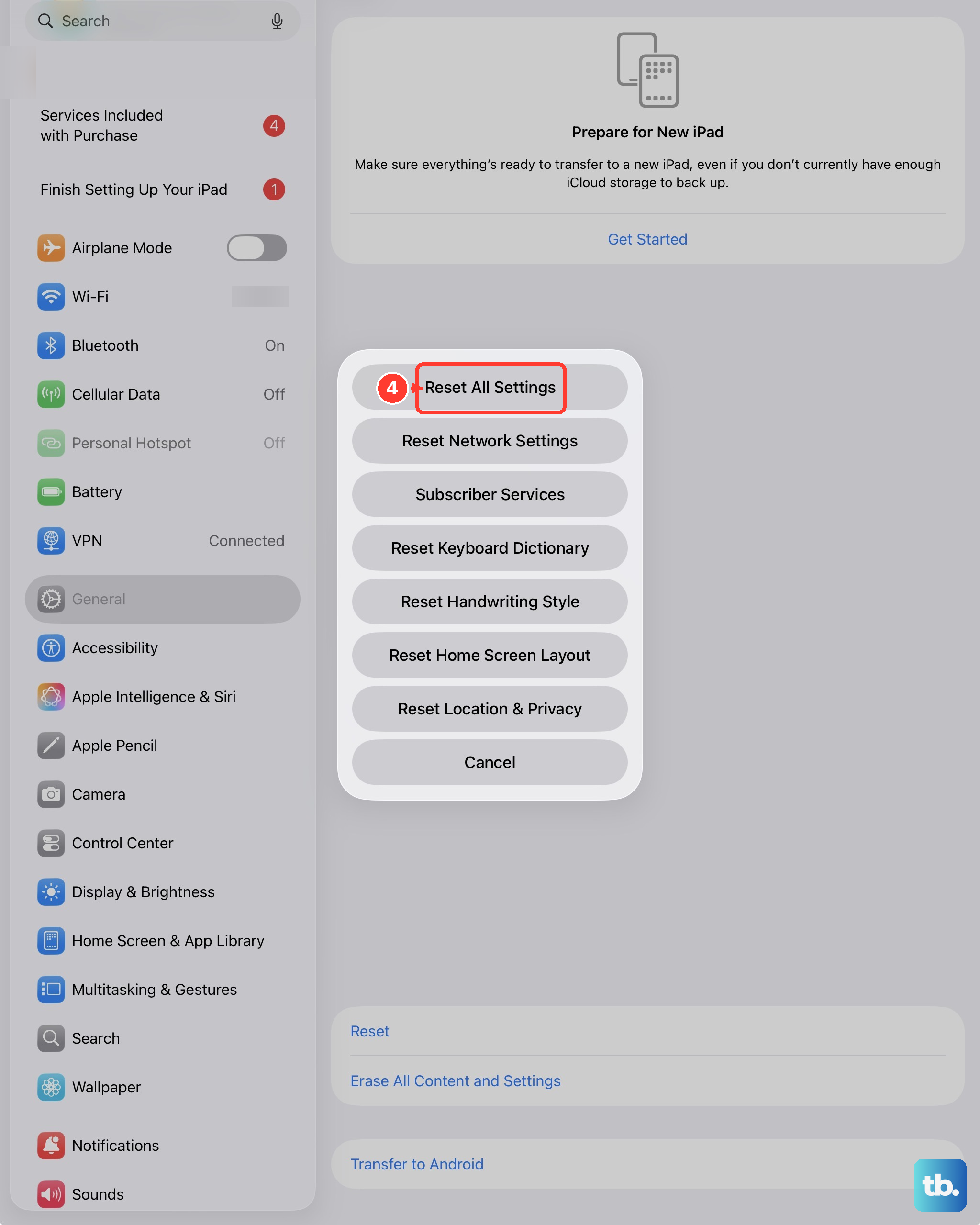
If you've tried everything and the lag persists, this step can help. It resets all your preferences, like Wi-Fi passwords, wallpaper, and privacy settings, back to factory defaults without deleting your apps or personal data.
Go to Settings > General > Transfer or Reset iPad. Tap "Reset" and then choose "Reset All Settings." You'll need to enter your passcode to confirm. Afterward, you'll have to reconfigure your settings, but it often resolves deep-seated software conflicts.