When your headphones stop working with your iPad mini, it can ruin your music, videos, and calls. The audio might not come through at all, sound distorted, or keep playing from the iPad's speakers instead. Let's get it sorted.
Start with a free left and right audio test that checks left and right channels, stereo order, bass, and treble. Two minutes there tells you whether the hardware needs attention at all.
Restart Your iPad mini
This is the quickest fix for a lot of weird audio glitches. To restart your iPad mini, press and quickly release the Volume Up button, then press and quickly release the Volume Down button. Finally, press and hold the Top button until you see the Apple logo appear on the screen.
Check the Physical Connection
If you're using wired headphones, make sure the USB-C plug is fully inserted into the port. A loose connection is a common culprit. For Bluetooth headphones, ensure they're charged and powered on. Try your headphones with another device to rule out a problem with the headphones themselves.
Clean the USB-C Port
Lint and pocket debris can easily get packed into the USB-C port, preventing a solid connection for wired audio. Use a dry, soft-bristled brush or a wooden toothpick to gently clean out the port. I'd avoid using anything metal, as it could damage the delicate pins inside.
Compressed air can also help dislodge particles. Keeping the port clean is a good habit, as debris can also interfere with charging on your iPad mini.
Adjust the Volume and Output
Press the Volume Up button on the side of your iPad to make sure the sound isn't just turned all the way down. Next, open Control Center by swiping down from the top-right corner of the screen.
Press and hold the volume slider in the top-right corner. A menu will pop up showing all available audio outputs. Make sure your headphones are selected here, not the iPad speakers or another Bluetooth device.
Refresh Your Bluetooth Connection
For wireless headphones, go to Settings > Bluetooth and toggle the Bluetooth switch off. Wait about ten seconds, then turn it back on. This simple reset can clear up a lot of pairing and audio routing hiccups.
If that doesn't do it, try forgetting the device and re-pairing. Tap the info icon (i) next to your headphones in the Bluetooth list and select Forget This Device. Then, put your headphones back into pairing mode and connect to them again from scratch.
Check for a Software Update
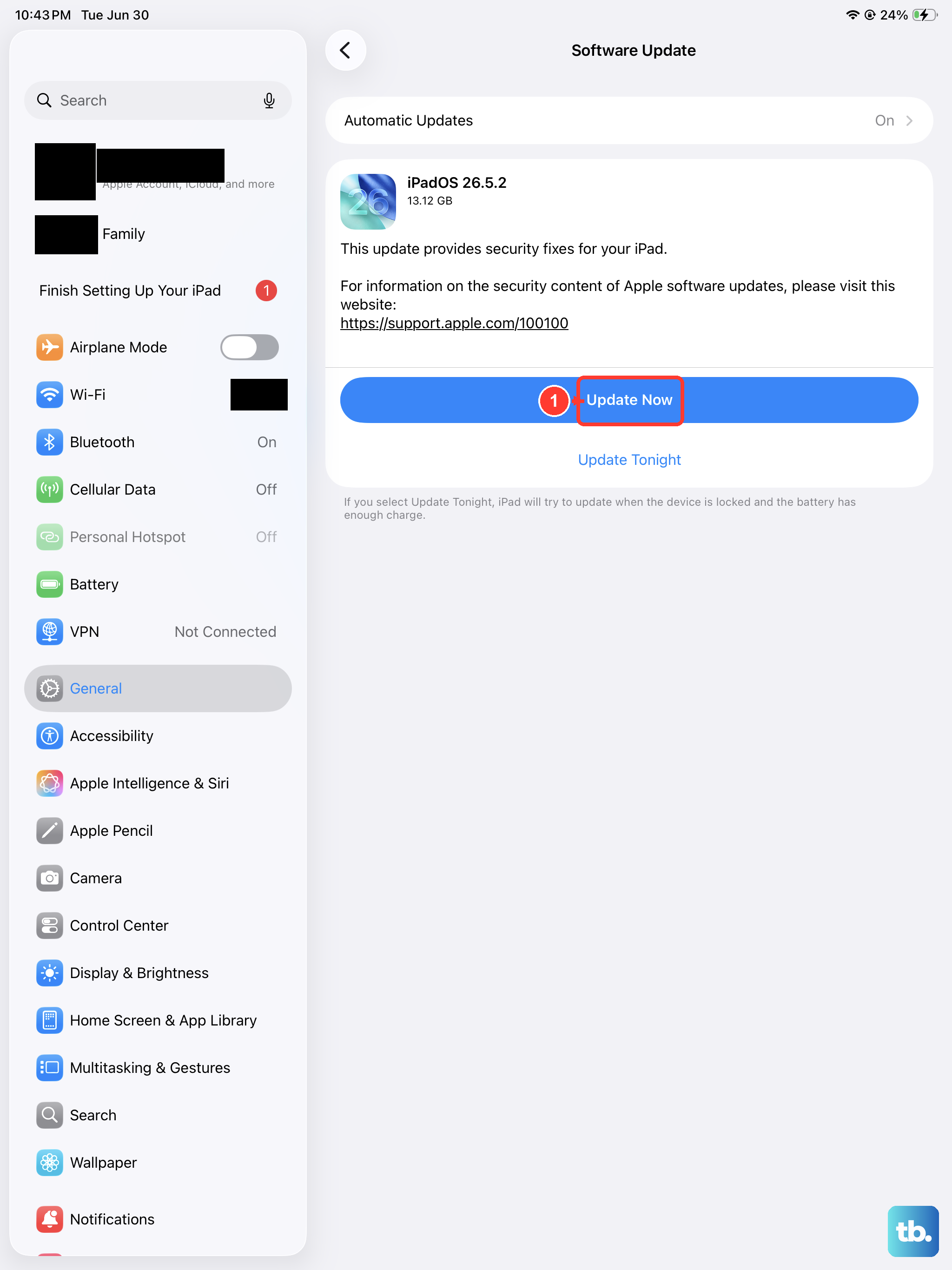
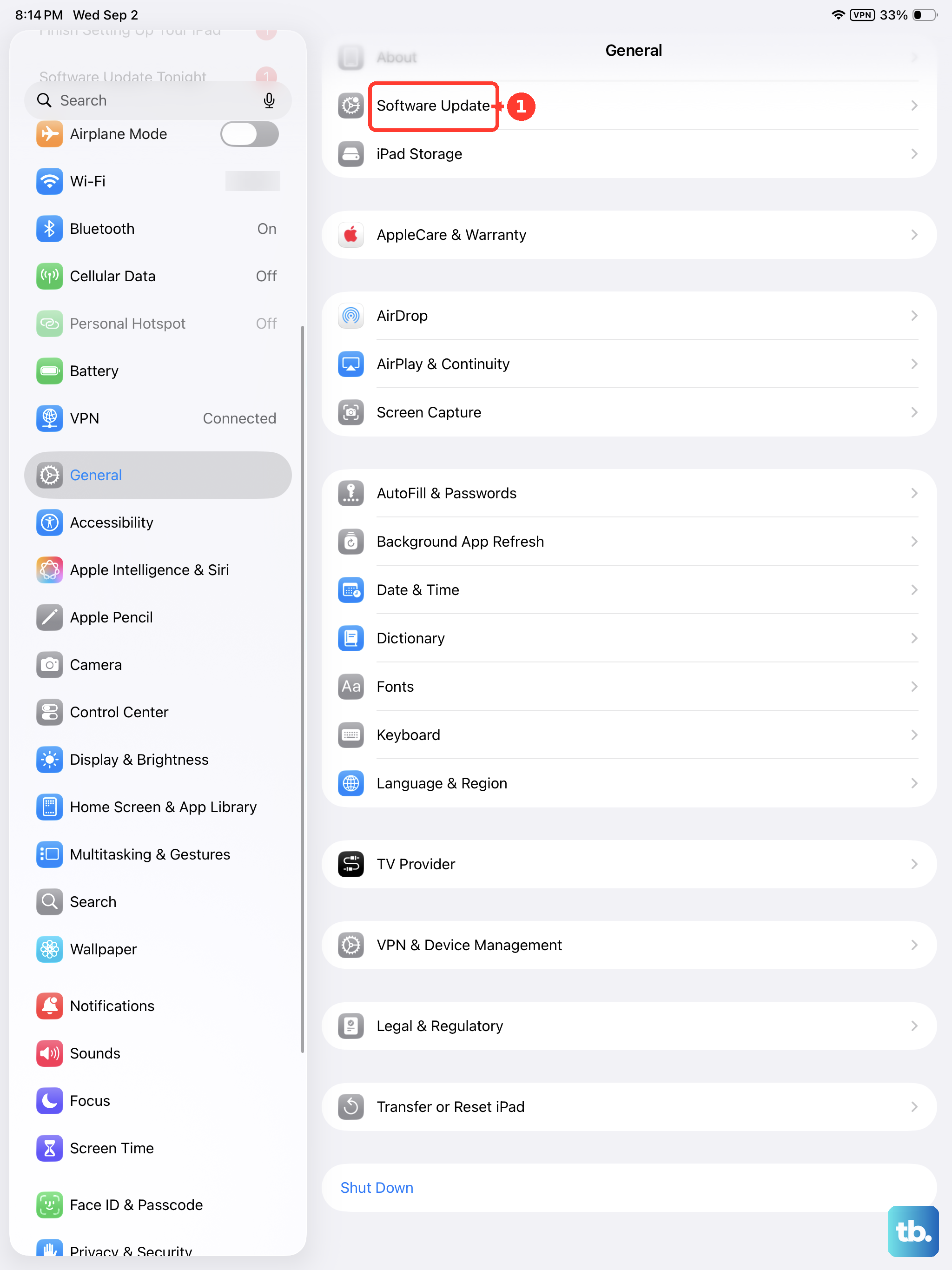
Audio bugs are often addressed in system updates. Go to Settings > General > Software Update to see if a newer version of iPadOS is available. Installing the latest update can resolve compatibility issues, especially with newer headphone models.
Reset All Settings
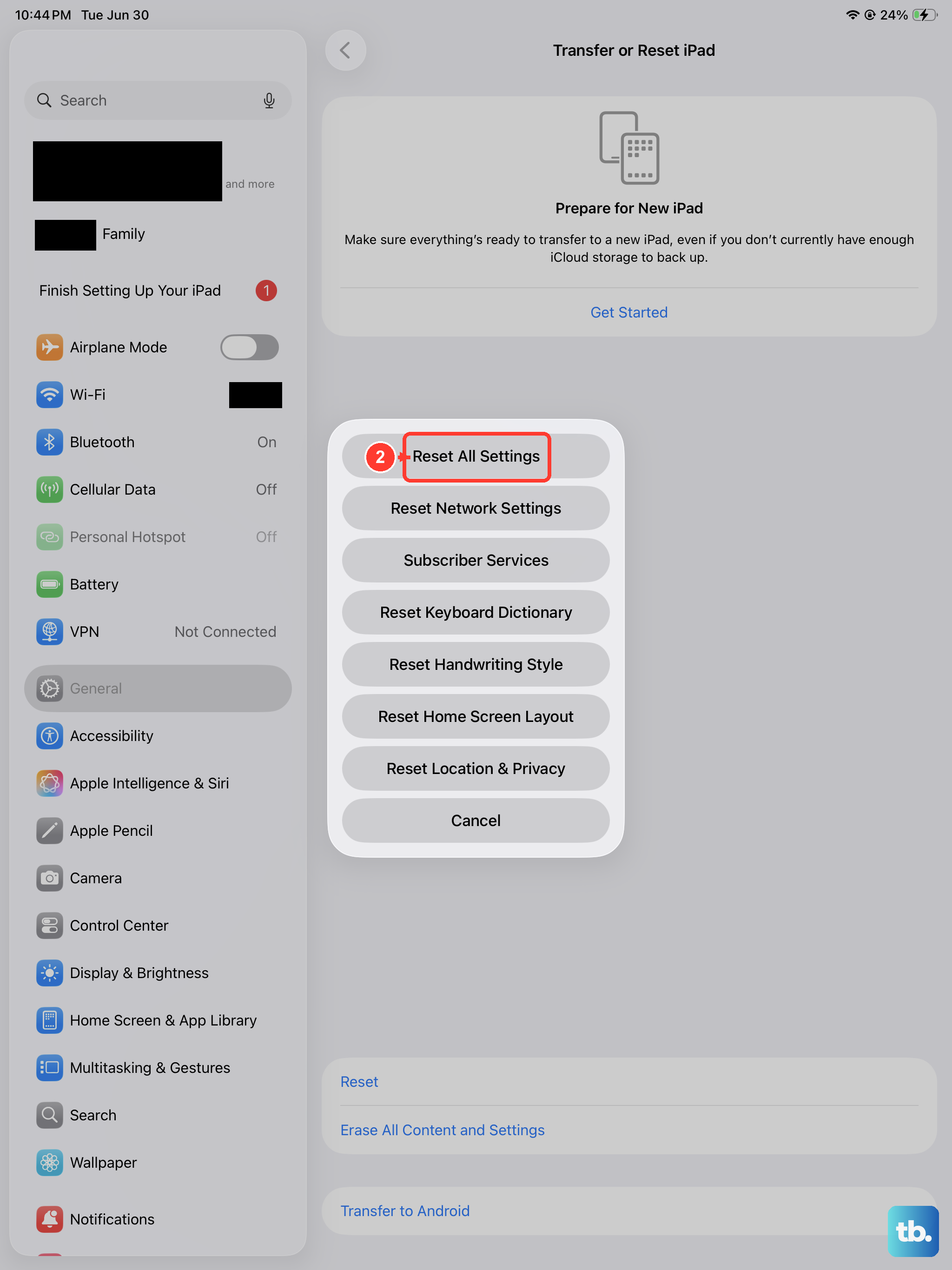
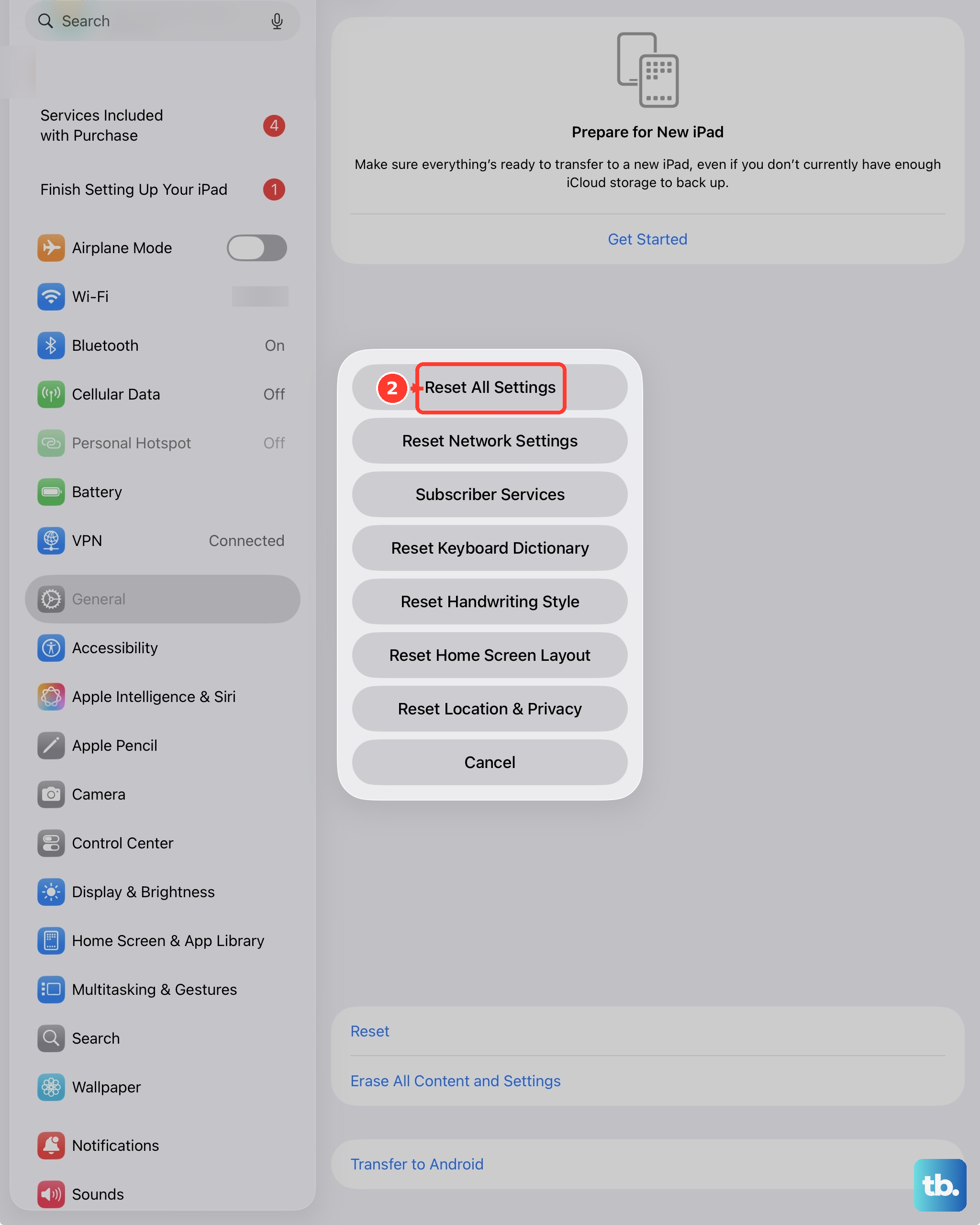
If you're still having trouble, this step can fix deeper software conflicts without erasing your personal data. Navigate to Settings > General > Transfer or Reset iPad > Reset > Reset All Settings.
This will return all system settings, including network, Bluetooth, and sound preferences, back to their defaults. You'll need to reconnect to Wi-Fi and re-pair your Bluetooth accessories afterward.
Check for Accessory Compatibility
If you're using a USB-C to 3.5mm headphone jack adapter or a USB-C audio dongle, try a different one if possible. Some third-party adapters may not be fully compatible with the iPad's audio system. An official Apple adapter or one from a reputable brand is your best bet.
Test with Different Audio Apps
Sometimes the issue is app-specific. Try playing audio from a different source, like the Music app, a YouTube video, or a podcast app. If sound works in one app but not another, the problem likely lies with that specific application's settings or a needed update from the App Store.
Look for Stuck Audio Mode
In rare cases, the iPad might get stuck thinking headphones are still plugged in. You might see a headphone icon on the volume indicator even when nothing is connected. Cleaning the USB-C port thoroughly and restarting the iPad usually clears this up.
If the phantom headphone mode persists, the Reset All Settings option mentioned earlier is the most reliable way to clear it.